Advanced setup
The Settings page of the AI agent holds its key parameters, such as the language model, the prediction confidence, and the inactivity timeouts. To open it, click the ⋮ menu next to the AI agent's name and select Settings.
Languages
The Languages card sets the languages that the AI agent replies in. The Primary language is the language that you selected at the creation of the AI agent. You cannot change it.
By default, every reply uses the primary language. To reply in the language of the user:
- Open the Settings page of the AI agent.
- In the Languages card, open Additional languages.
- Select the languages. To reply in any language of the user, select All languages.
- Click Save.
For a voice AI agent, the same card sets the speech-to-text and the text-to-speech of each language. See Voice settings.
The Languages card replaces the Match user's language setting. In the API, the
supported_languages field of the AI agent replaces guidelines.match_user_language. A non-empty
list makes the old flag read true. When you set the flag to true, the list becomes ["*"]. When
you set it to false, the list becomes empty.
Model strategy
The Models section lets you choose the language models that power your AI agent. You set a default list of models that run in order. If one fails, the next takes over. You can also customize the models per channel (Chat, Email, and Voice).
For full details, see the Model strategy guide.
Prediction threshold
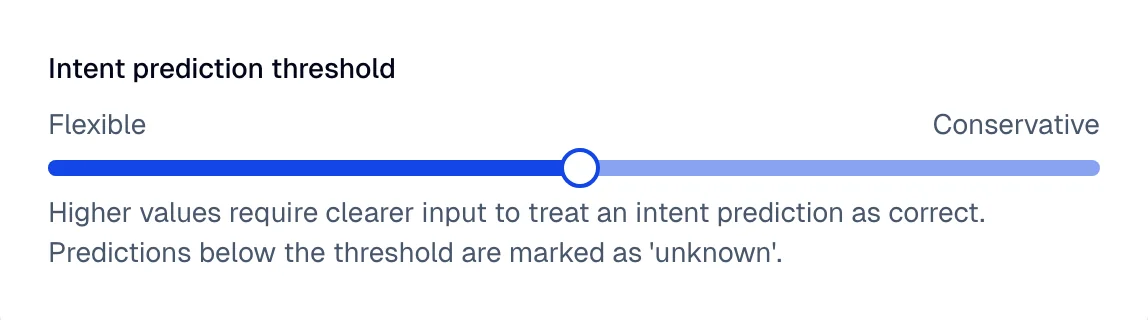
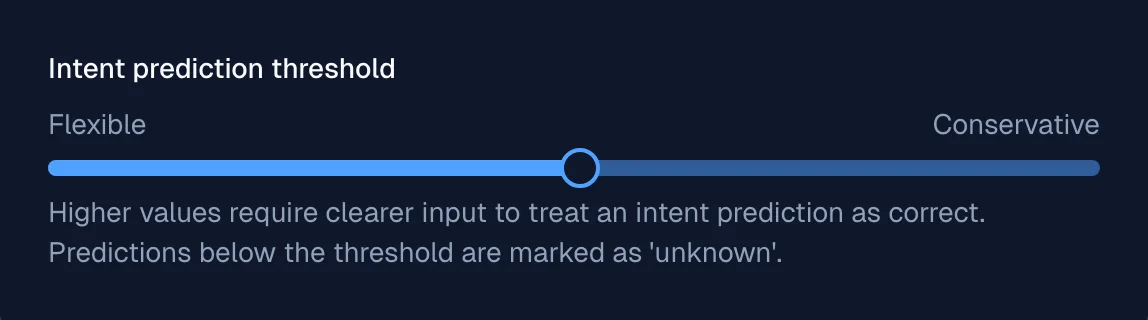
This setting controls the confidence level required for an intent prediction to be considered correct. The threshold ranges from 0 to 1.
-
Lower threshold (more flexible, but increases false positives)
In customer support scenarios, a lower threshold allows the AI agent to be more responsive. Even if it’s uncertain about a user’s intent, it still attempts a relevant response. This helps keep conversations flowing but may sometimes result in incorrect predictions. -
Higher threshold (more conservative, requiring clearer user input)
In fields like legal or financial assistance, a higher threshold ensures only the most confident predictions are accepted. This reduces errors but may require users to phrase their questions more precisely for accurate responses.
Inactivity timeout
This setting determines how long the AI agent retains context before resetting due to user inactivity.
When this AI agent is assigned to a session, this timeout replaces the session timeout.
For a comprehensive understanding of timeout mechanisms in Moveo, including inactivity timeout, session timeout, and keep alive, refer to the Timeout mechanisms documentation.
Adjusting this setting optimizes the AI agent's performance based on your workflow requirements.
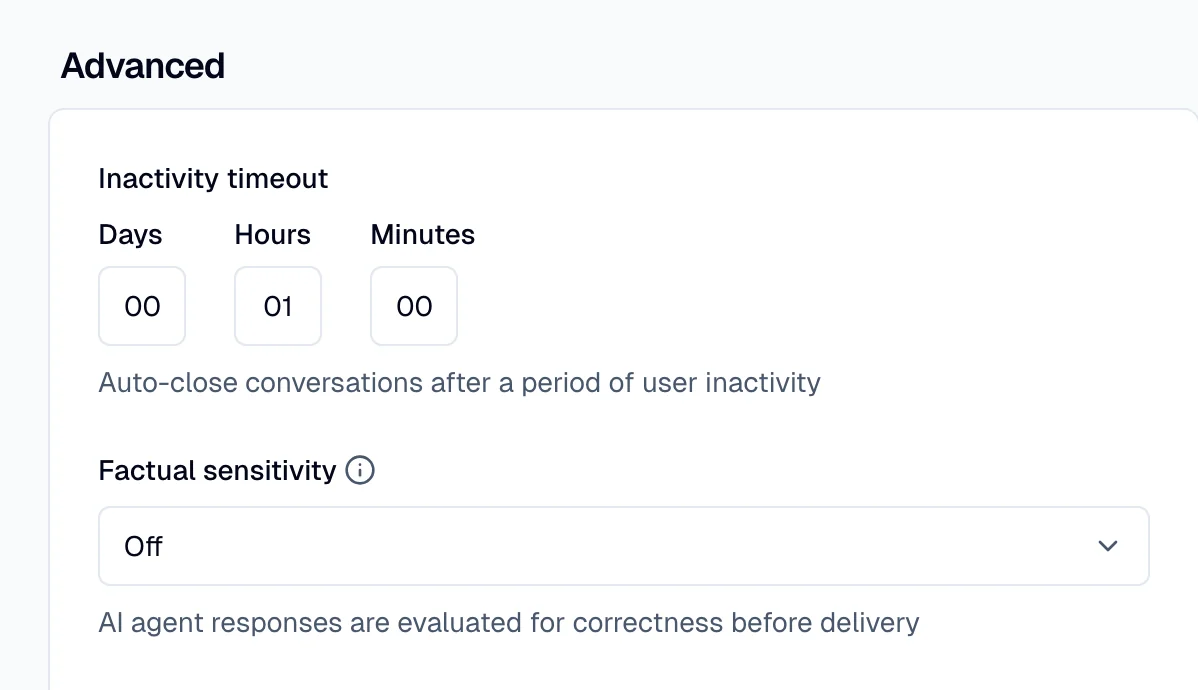
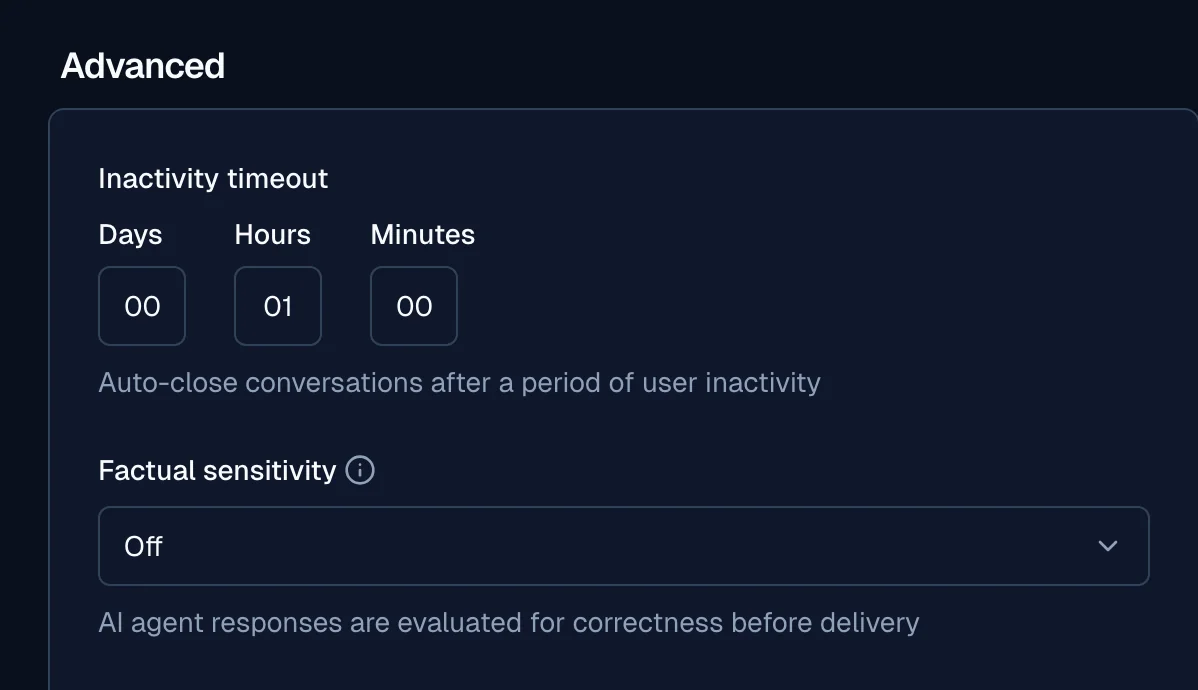
- Shorter timeouts (for example, 5–30 min) → Ideal for fast-paced interactions where outdated context should be discarded quickly. This prevents the AI agent from using stale information that might mislead the conversation.
- Longer timeouts (for example, 2, 8, 24 hours, or more days) → Useful for cases where conversations span extended periods. For example, in complex troubleshooting or long-running customer support sessions, a longer timeout allows the AI agent to maintain context even if the user returns hours later.
Factuality sensitivity
This setting controls how strictly AI agent responses are evaluated for correctness before being delivered to the user. When a response doesn't meet the selected guard level, it is redirected to the Unknown flow instead of being delivered.
- Off → No factuality enforcement. Responses are delivered without validation.
- Light Guard (default) → Flags major inaccuracies and attempts correction, but delivers the response anyway.
- Strong Guard → Catches major inaccuracies, attempts correction, and redirects to the Unknown flow if correction fails.
- Maximum Guard → Catches both major and minor inaccuracies, attempts correction, and redirects to the Unknown flow if correction fails.
Minor inaccuracies are small assumptions that are not explicitly supported by the provided knowledge but remain plausible, low-risk, and non-contradictory.
Major inaccuracies are claims or instructions that are unsupported, invented, or contradictory to the provided knowledge and risk misleading the user.
Use Strong Guard or Maximum Guard in regulated industries (for example, finance, healthcare, legal) where accuracy is critical. Use Light Guard for more conversational use cases where strict factuality is less important.
Reminder
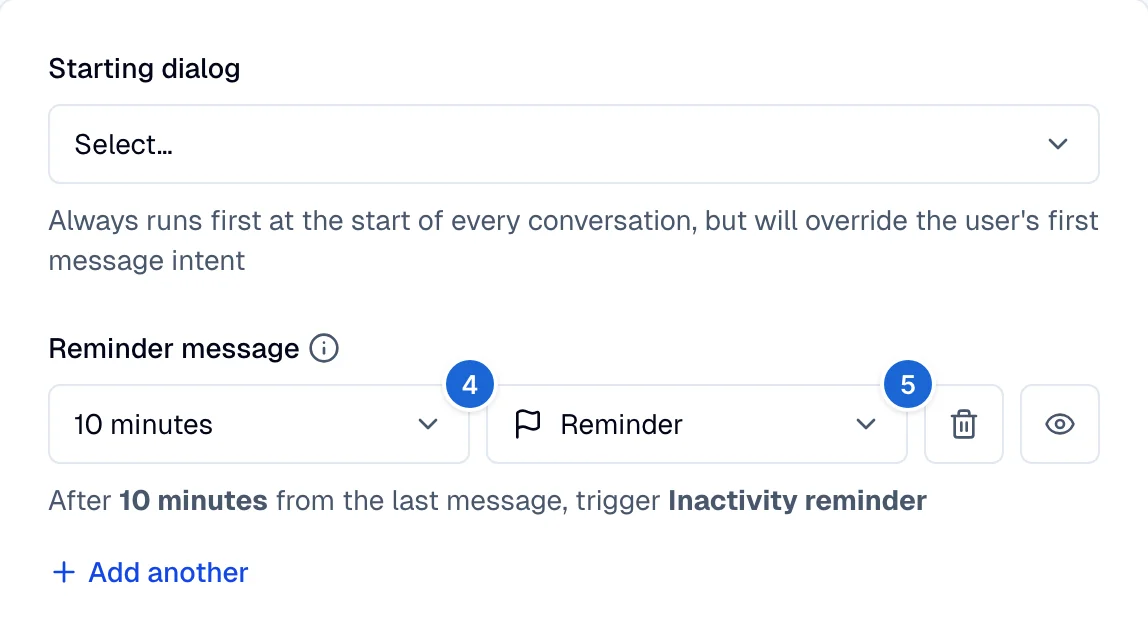
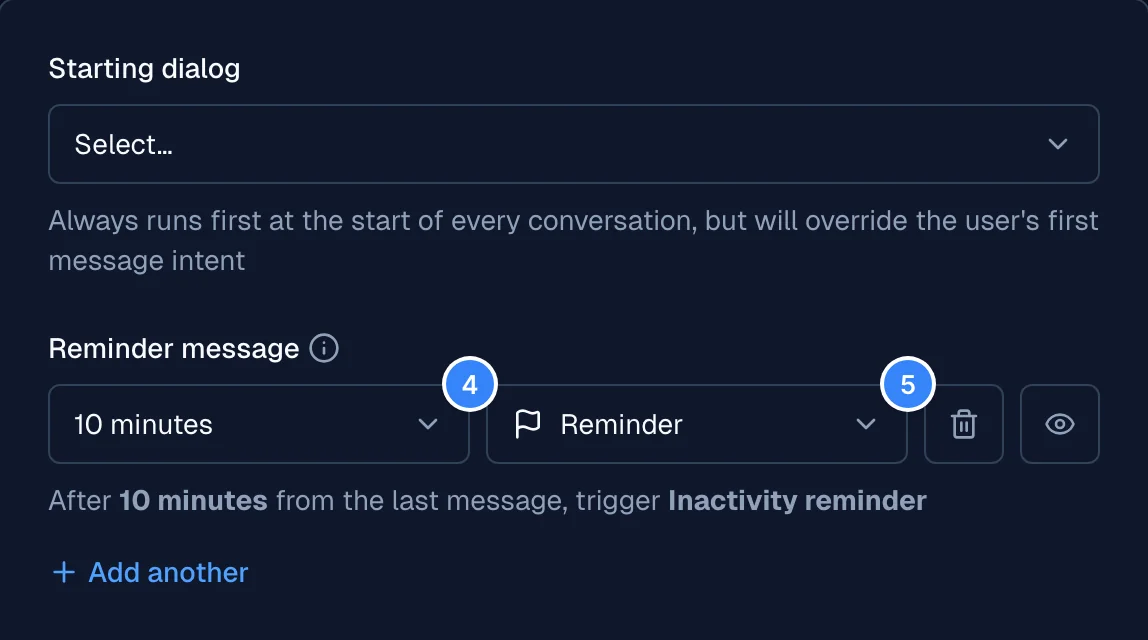
A reminder is a feature that triggers a dialog node when a certain period of time passes after the last user message.
To set up a reminder:
- Go to your AI agent.
- Open the Settings page.
- Scroll to the Reminder message section.
- Select the waiting time to trigger the reminder.
- Select the node that handles the reminder.
- Save your changes.