Local tools
Local tools are built-in tools provided by Moveo that your AI agent can invoke directly from guidelines. They let the agent trigger workflows, compose rich responses, execute code, detect voicemails, and search the knowledge base on demand — without requiring external server configuration.
Local tools are different from MCP servers. MCP servers connect to external tool providers, while local tools are internal to Moveo and ready to use out of the box.
Available tools
| Tool | Description | Channel support |
|---|---|---|
| Trigger workflow | Hands off the conversation to a specific workflow. The workflow takes over the response — the AI agent does not respond separately. | All channels |
| Compose rich response | Lets the AI agent compose structured responses with buttons, carousels, images, and files. | Chat, web widget, and messaging channels only. Not available on voice, email, or SMS. |
| Execute code | Lets the AI agent run code for math calculations and complex operations. | All channels |
| Voicemail detection | Detects voicemail systems and optionally leaves a message. | Voice channels only |
| On-demand knowledge retrieval | Lets the AI agent fetch relevant information from the knowledge base on demand. | All channels |
Enable or disable a tool
Navigate to your AI agent, open the ⋮ menu and select Tools, then select the Local tab.
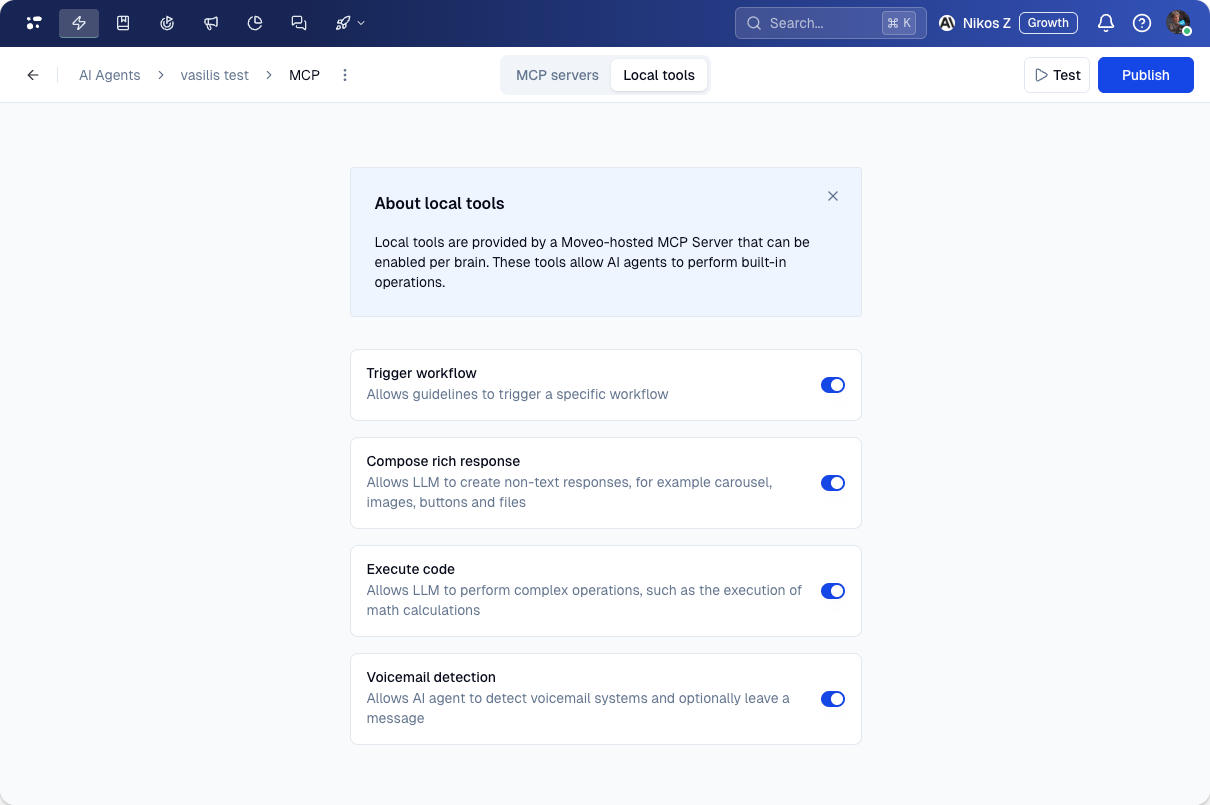
Each tool has a toggle switch. Activate a toggle to make that tool available to the AI agent.
Disabling a tool that is referenced in your guidelines removes all its references automatically. Review your guidelines after disabling a tool that was central to the agent's behavior.
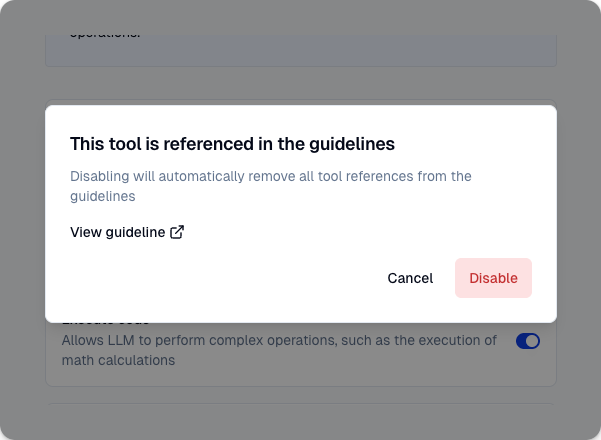
When you disable a tool that is already referenced in guidelines, a warning dialog appears:
- The dialog explains that all tool references will be removed from guidelines
- Select View guideline to review the affected guidelines before confirming
- Select Disable to proceed, or Cancel to keep the tool enabled
Reference a tool in guidelines
You can reference local tools in any guideline editor — Goal, Overview, Features, Loyalty, Objections, or Custom Instructions.
Insert a tool reference
- Open a guideline editor
- Type
@to open the suggestion menu - Select a tool from the list
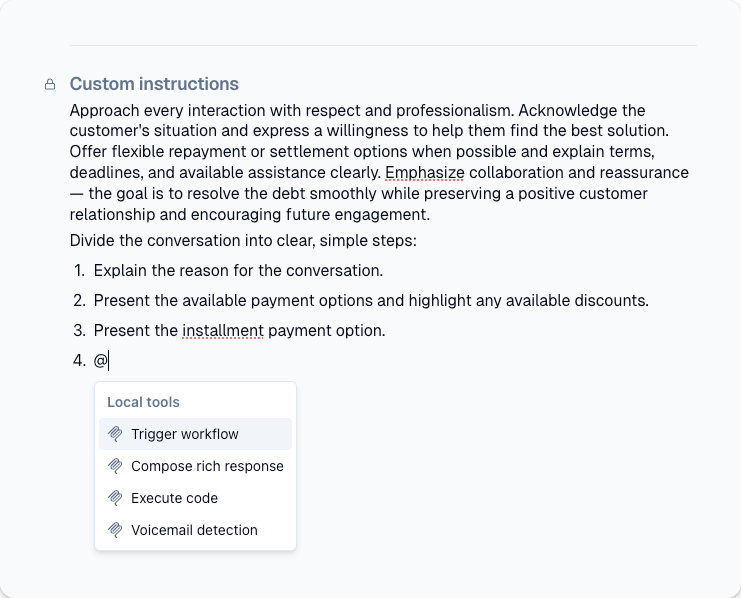
The tool appears as an inline badge in the editor (for example, @compose_rich_response, @execute_code, or @search_knowledge_base).
Insert a trigger workflow reference
The Trigger workflow tool requires you to select a specific workflow:
- Type
@and select Trigger workflow - A workflow picker opens automatically
- Select the target workflow from the list
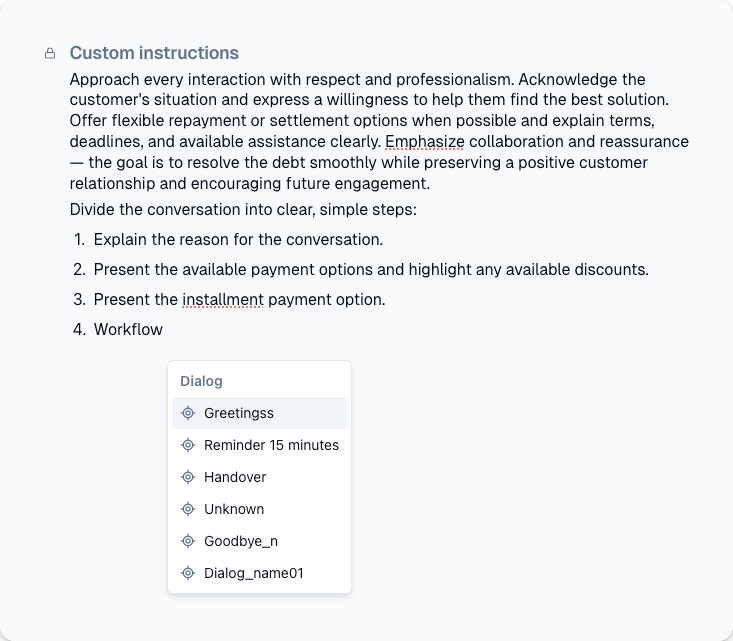
The badge displays as @trigger_workflow(workflow name), where the workflow name updates automatically if you rename the workflow.
If the @ menu is empty, no tools are enabled. Select the link in the empty state prompt to go to the Local tools settings and enable them.
Runtime behavior
When the AI agent encounters a tool reference in guidelines during a conversation, it invokes the tool automatically.
Trigger workflow
The conversation hands off to the selected workflow. The workflow owns the response from that point — the AI agent does not receive a result back and does not respond separately.
Compose rich response
The AI agent composes a structured response with elements like text with buttons, carousels, images, or files. The response is sent directly to the user.
This tool only works on channels that support rich payloads (chat, web widget, messaging). Enabling it has no effect on voice, email, or SMS channels.
Execute code
The AI agent runs code to perform complex operations such as math calculations. The result is used in the agent's response.
Voicemail detection
The AI agent detects whether a voicemail system has answered and can optionally leave a message.
This tool only works on voice channels. Enabling it has no effect on other channels.
On-demand knowledge retrieval
The AI agent can search the knowledge base for additional information during the conversation. The default knowledge base retrieval still happens automatically at the start of each turn, but when the prefetched results are not enough to answer the user's question, the agent can fetch extra information on demand.
Delete a workflow referenced in guidelines
When you delete a workflow that is referenced by @trigger_workflow in guidelines, a warning appears:
- The dialog explains that the tool reference will be removed from guidelines
- Select View guideline to review the affected guidelines
- On confirmation, all
@trigger_workflowreferences pointing to that workflow are removed automatically
Troubleshooting
The @ menu shows no tools
No local tools are enabled. Go to your AI agent → ⋮ → Tools → Local tab and enable the tools you need.
Tool references disappeared from guidelines
Tool references are removed automatically when you disable a tool or delete a workflow that the tool points to. Re-enable the tool and re-insert the references.
Compose rich response has no effect
This tool only works on channels that support rich payloads (chat, web widget, messaging). It has no effect on voice, email, or SMS channels.
Voicemail detection has no effect
This tool only works on voice channels. It has no effect on chat, web, email, SMS, or messaging channels.
Next steps
- MCP servers — connect external tools via the Model Context Protocol
- Workflows — build conversation workflows that tools can trigger