Switch channel
Overview
The Switch channel action offers the user a way to continue the conversation on another channel. Use it in a dialog of your AI Agent. For example, move a WhatsApp conversation to your web chat to lower the cost of long conversations, or to show content that works better in a browser.
To add the action:
- Add a Text action to the node that invites the user to move.
- Add the Switch channel action after it.
- Choose the destination in the Channel field. Today, the only destination is Webchat, and Moveo adds more channels to this list as they become available.
What the user gets
The user gets a one-time link that opens the destination channel. On the channel where the user is now, the link shows as follows:
- WhatsApp, Viber and Rich Communication Services (RCS): a Continue on web button.
- Messenger, Instagram, Short Message Service (SMS), Telegram and the other messaging channels: the link as a message.
- The destination channel itself: nothing. The conversation is already there.
When the user opens a web chat link, the web chat shows the earlier messages and asks the user to confirm the move. After the user taps Continue here, the next messages go through the web chat. It is the same conversation: the context, the history and any assigned agent stay the same.
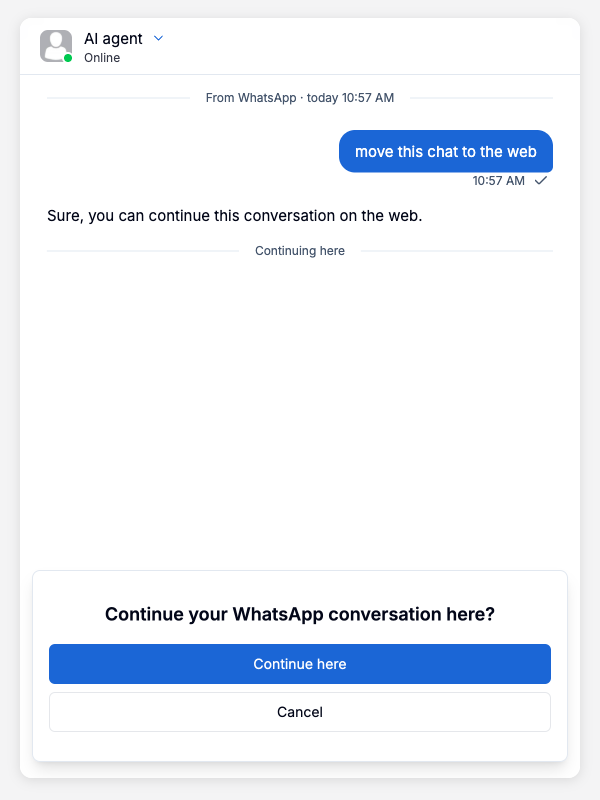
The user decides
The action only offers the move. The conversation stays on its channel until the user opens the link and confirms.
- If the user does not open the link and replies on the current channel, for example WhatsApp, the conversation continues there. The AI Agent answers as usual.
- If the user moves and later writes on the first channel again, the conversation goes back to that channel.
Design the dialog for both paths:
- Put the invitation in a Text action before Switch channel, for example "You can continue this conversation on our website."
- Do not end the flow after the action. For example, do not add a Resolve action after it, so that a user who stays on the current channel still gets answers.
Requirements
The environment of the conversation must have an active
integration of the destination channel. If it has more than one,
the action must name the destination in integration_id. The dialog editor has no field for it, so
set it through the API. Moveo does not send the link in these cases:
- The environment has no active integration of the destination channel.
- The environment has more than one, and the action has no
integration_id. - The
integration_idis not an active integration of the destination channel.
The other responses of the turn are still sent, so the user still gets the invitation text.
Limits
- The link works one time, and it expires after 24 hours.
- If the dialog sends Switch channel again in the same conversation, the user gets a new link, and the earlier link stops working.
- In one turn, only the first Switch channel action is sent.
Test the action
In Try it, the action shows a card that describes what the user gets. Try it does not create a link, because it does not run on a channel. To test the "user stays" path, send another message after the card. The AI Agent answers as usual.
To test the full move:
- Send a WhatsApp message to the number of the environment, with a phrase that triggers the node.
- Open the link on your phone.
- Tap Continue here, and send a message from the web chat.
In the conversation history
In Chat, the conversation shows the action as Sent a link to continue on Webchat. The text is a link to the page that the user got. If the action is the last message, the conversation list shows the same text. This shows you which conversations got an offer.
When the user moves, the conversation shows an event, for example "moved the conversation from WhatsApp to Webchat". In the conversation logs, a Continued on Webchat divider marks the first message on the new channel.