Reports
Overview
Reports let you build your own analytics views. A report holds one or more metrics. Each metric shows a chart and a table for the date range, filters and grouping that you choose. You can add predefined metrics or the custom insights that you define for your AI Agents.
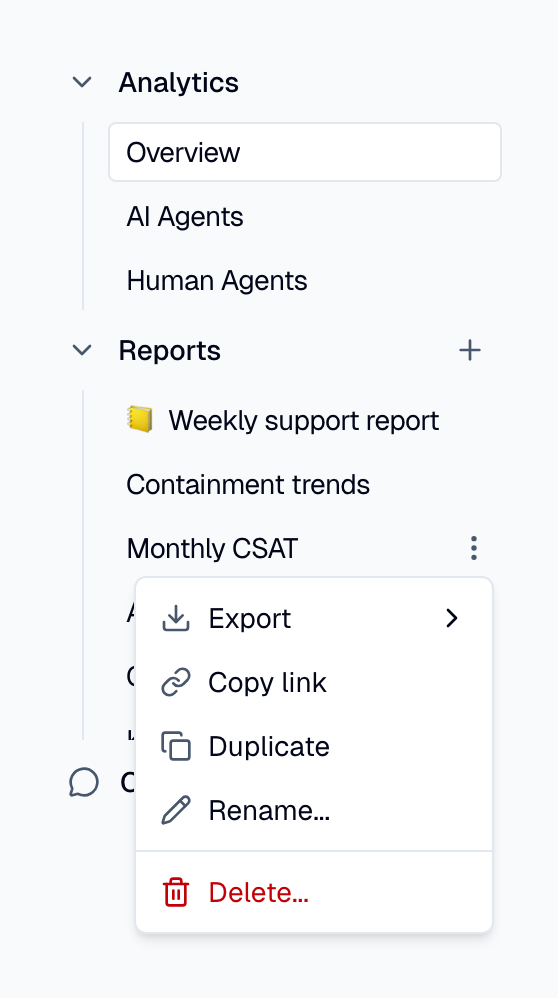
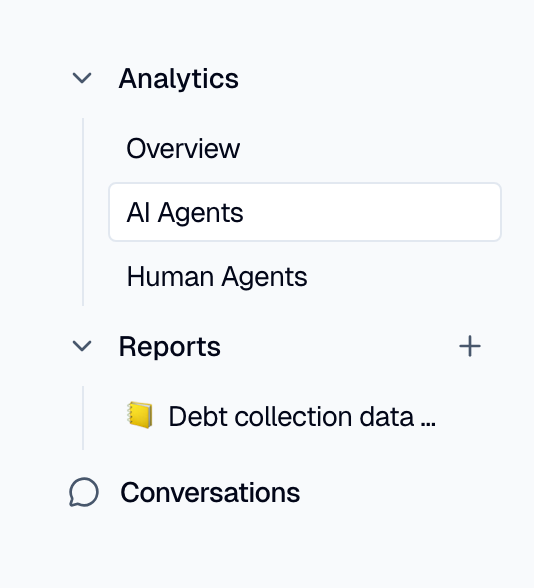
Your reports are listed in the Analytics sidebar, under Reports. Select a report to open it.
Prerequisites
- ✅ To view reports, your role needs at least Read only access to Analytics.
- ✅ To create, edit, duplicate, rename or delete reports, your role also needs the Edit reports permission. See Extra permissions.
Create a report
- Go to Analytics.
- In the sidebar, click the plus (+) next to Reports.
- Enter a Name for the report.
- Click Create.
The new report opens, and the Add metric panel opens on the right.
Add a metric
The Add metric panel shows the fields that you must fill in. As you build the metric, the Metric preview card next to the panel shows its title, grouping and date range.
- In Metric, select a metric. Type in the search box to find a metric by name.
- If the metric has more than one calculation, select it in Type.
- Optional: in Group by, select the values to compare the metric across. Leave it empty to see the total.
- Optional: click Filters and select a dimension to filter on. Then set the operator and the value. CSAT filters use star toggles.
- In Date range, select a preset or pick a start and an end date in the calendar.
- Click Done.
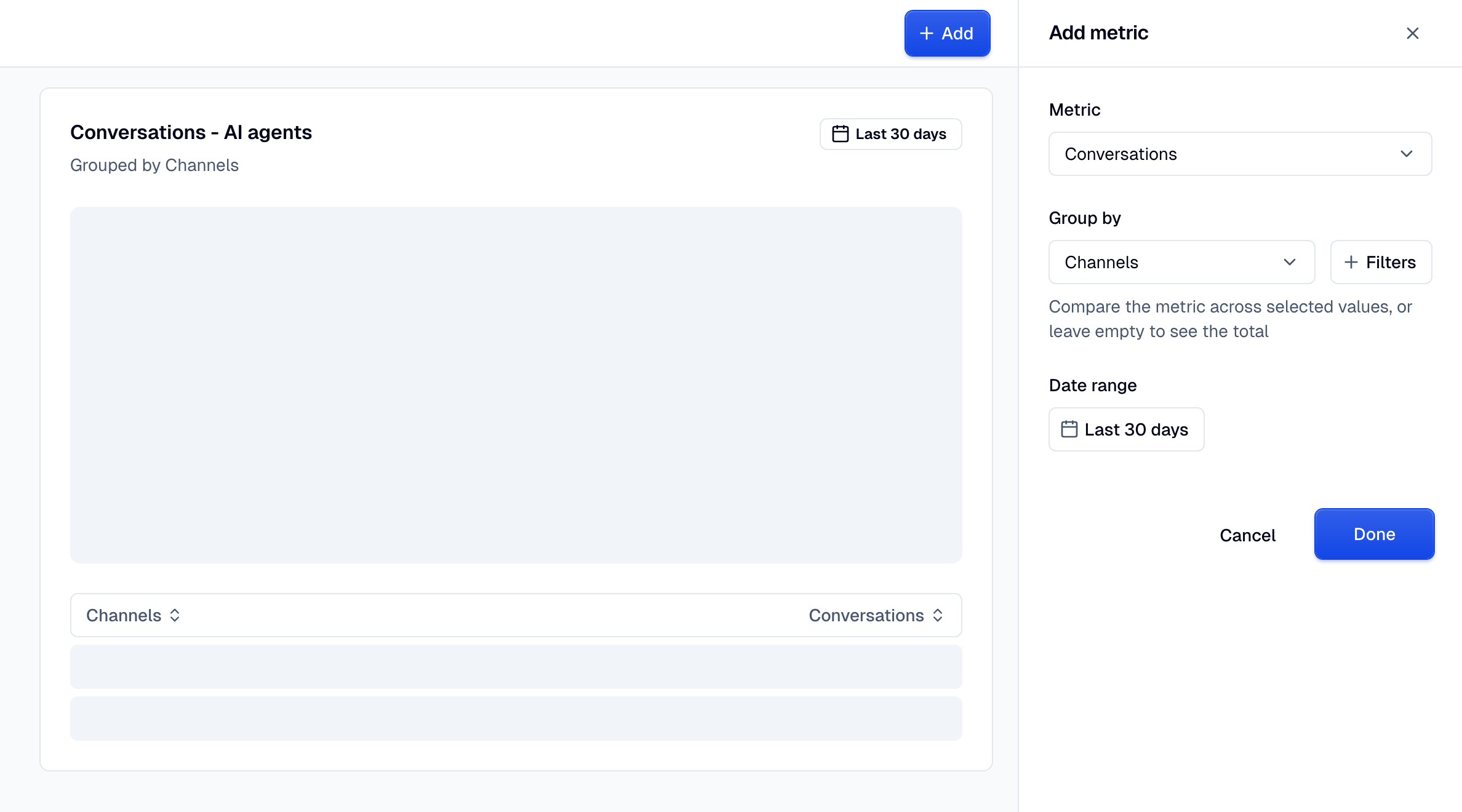
To add another metric, click Add at the top of the report.
Date range presets
| Preset | Period |
|---|---|
| Today | From midnight today until now |
| Last 3 days | The last 3 days until now |
| Last 7 days | The last 7 days until now. The default |
| Last 14 days | The last 14 days until now |
| Last 30 days | The last 30 days until now |
| Last quarter | The previous full calendar quarter |
Each metric keeps its own date range, so one report can compare different periods.
Manage metrics
Open the options menu (⋮) on a metric card to:
- Export the metric data as CSV or JSON.
- Edit the metric in the side panel. Click Save to apply the changes.
- Delete the metric. You cannot undo this action.
Manage reports
In the sidebar, hover over a report and open its options menu (⋮) to:
- Export all the report data as CSV or JSON.
- Copy link to share the report with members of your account.
- Duplicate the report. The copy gets the name of the original plus
(copy), and opens. - Rename the report.
- Delete the report. You cannot undo this action.
Without the Edit reports permission, the menu shows only Export and Copy link.