Quick responses
Quick responses let live agents reply to users without typing each message from scratch. Use them when you often give the same answer or handle common questions.
Create a quick response
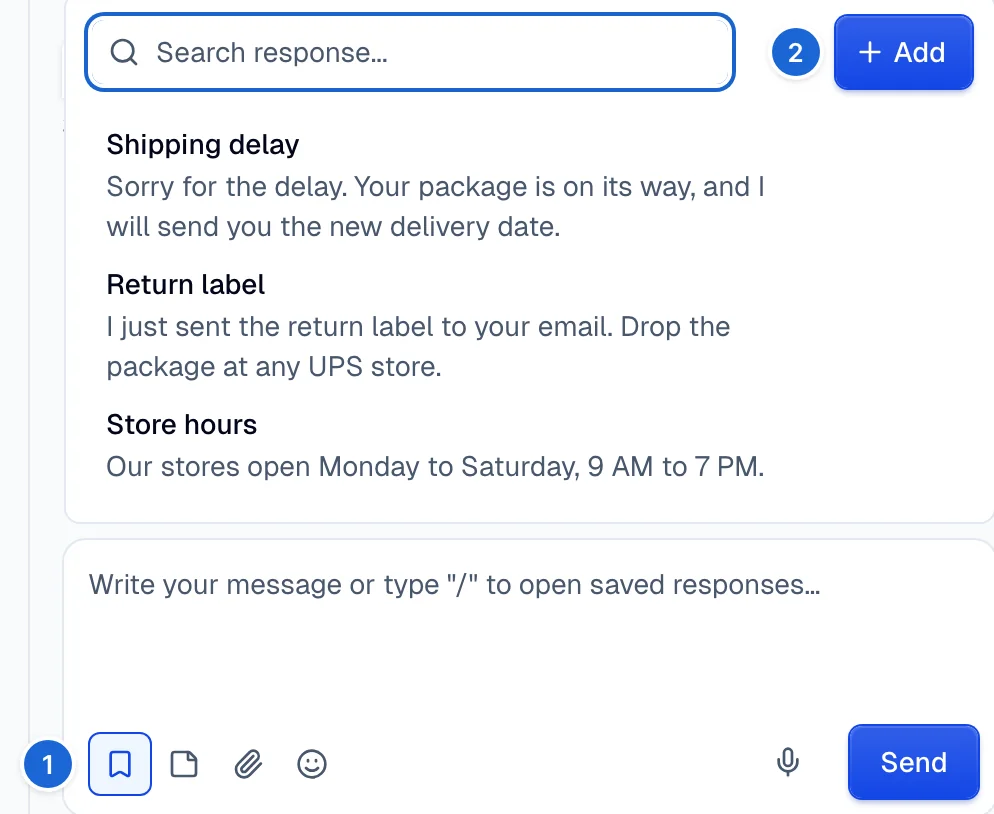
To create a quick response in an open conversation:
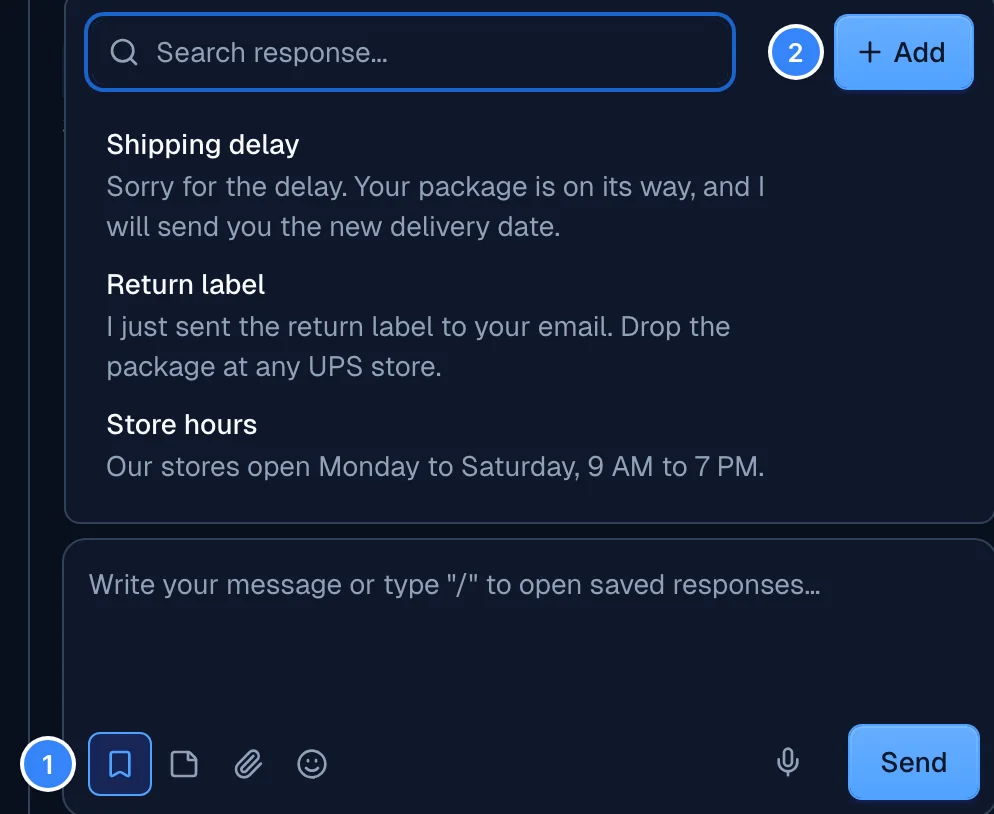
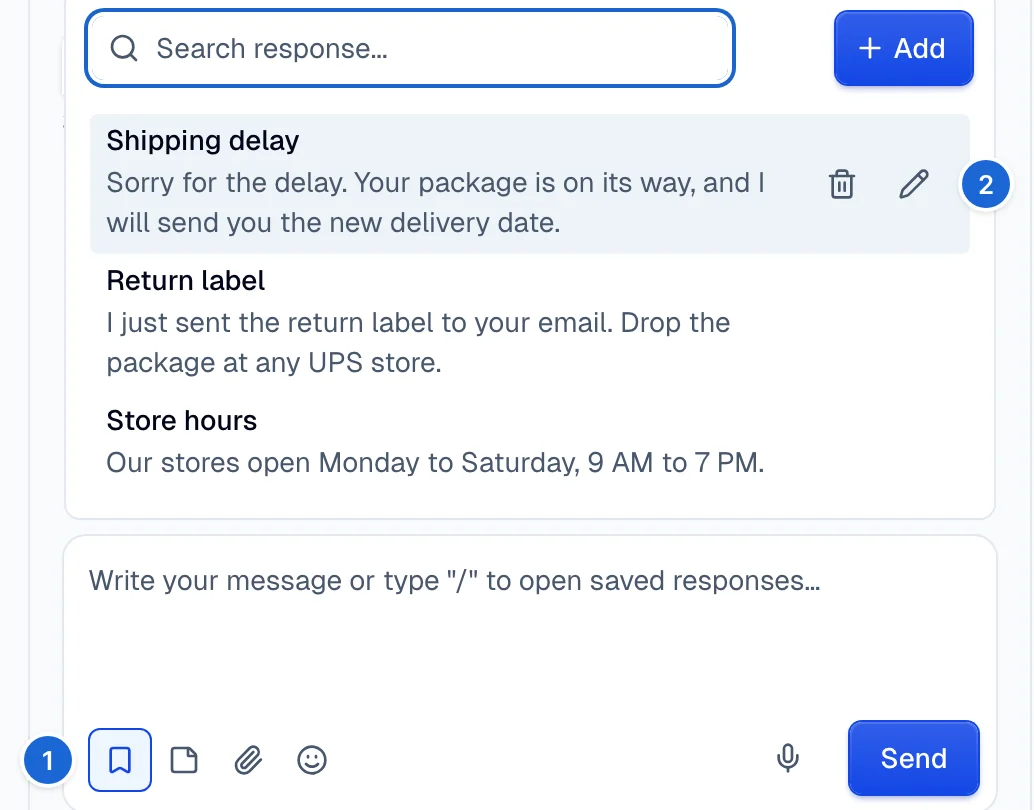
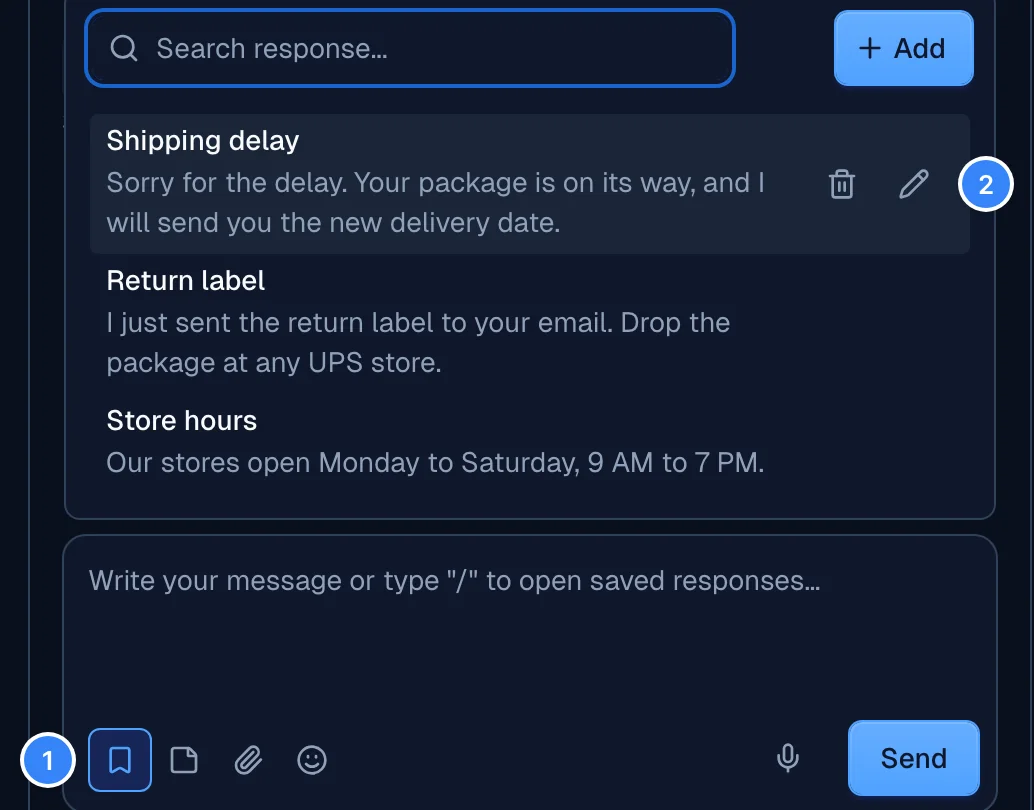
- Select the Saved responses icon (bookmark) in the lower-left corner of the chat box.
- Select + Add.
- Enter your response.
- Select Add.
Use a quick response
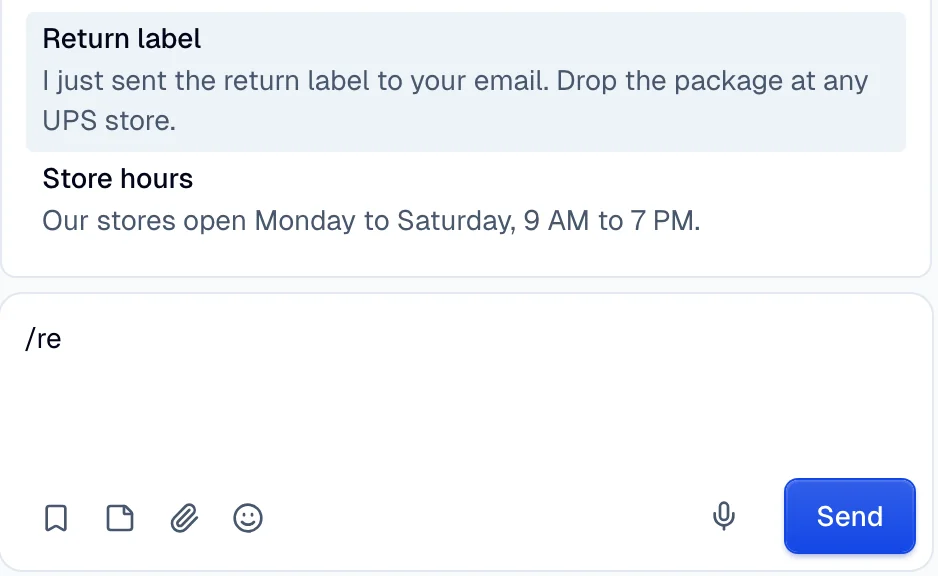
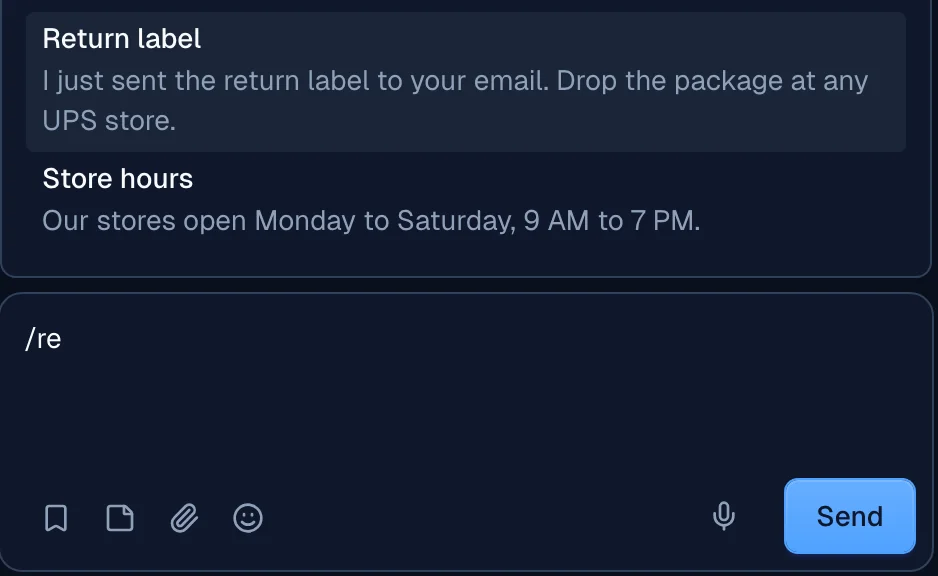
To search for quick responses, a live agent types / in the chat box. To select a quick response, move through the list with the arrow keys and press Enter. To find a response faster, type keywords after the slash.
Edit a quick response
To edit a quick response in an open conversation:
- Select the Saved responses icon (bookmark) in the lower-left corner of the chat box.
- Select the edit (pencil) icon on the quick response that you want to change.
- Make your changes, then select Update.
To remove a quick response, select the delete icon next to it.
Troubleshooting
These are common questions about quick responses:
-
Can I use quick responses across multiple chats at the same time?
Yes. You can open quick responses in any open conversation, so you can reuse them across different chats. -
Is there a limit to how many quick responses I can create?
There is typically no fixed limit, but too many quick responses are difficult to manage. -
Do all agents see my quick responses, or can I keep them private?
All agents in the environment share the quick responses. There are no personal quick responses. -
Can I edit a quick response while chatting with a customer?
Yes. You can edit or delete a quick response at any time from the Saved responses icon. -
Are changes to quick responses immediate for other agents?
If the quick response is shared, changes are available to all agents right after you save. -
Is there a faster way to insert a quick response than typing "/"?
Typing "/" opens the selector. Check settings or documentation to see if your system offers additional shortcuts. -
How can I organize my quick responses so they are easier to find?
Use clear, descriptive labels or keywords. They make search more efficient. -
Can I include images or emojis in a quick response?
Yes, if your chat supports them. Make sure that each image is hosted or referenced correctly. -
Do quick responses work offline?
No. Quick responses need the system to be online, so you typically need a stable connection. -
What if I accidentally delete a quick response?
You cannot recover a deleted quick response. Confirm before you delete it, or keep a backup if needed.