Contacts
Overview
A contact is a person that your account talks to. Moveo keeps one contact per person, with their phone numbers, email addresses, memories, and activity. Contacts come from conversations, from campaign uploads, and from people that you add by hand.
Open Contacts in the main navigation to see every contact in the account. The page needs the Contacts permission group at Read only or higher. To add, edit, or delete contacts, a member needs Can edit. See Roles and permissions.
The contacts list
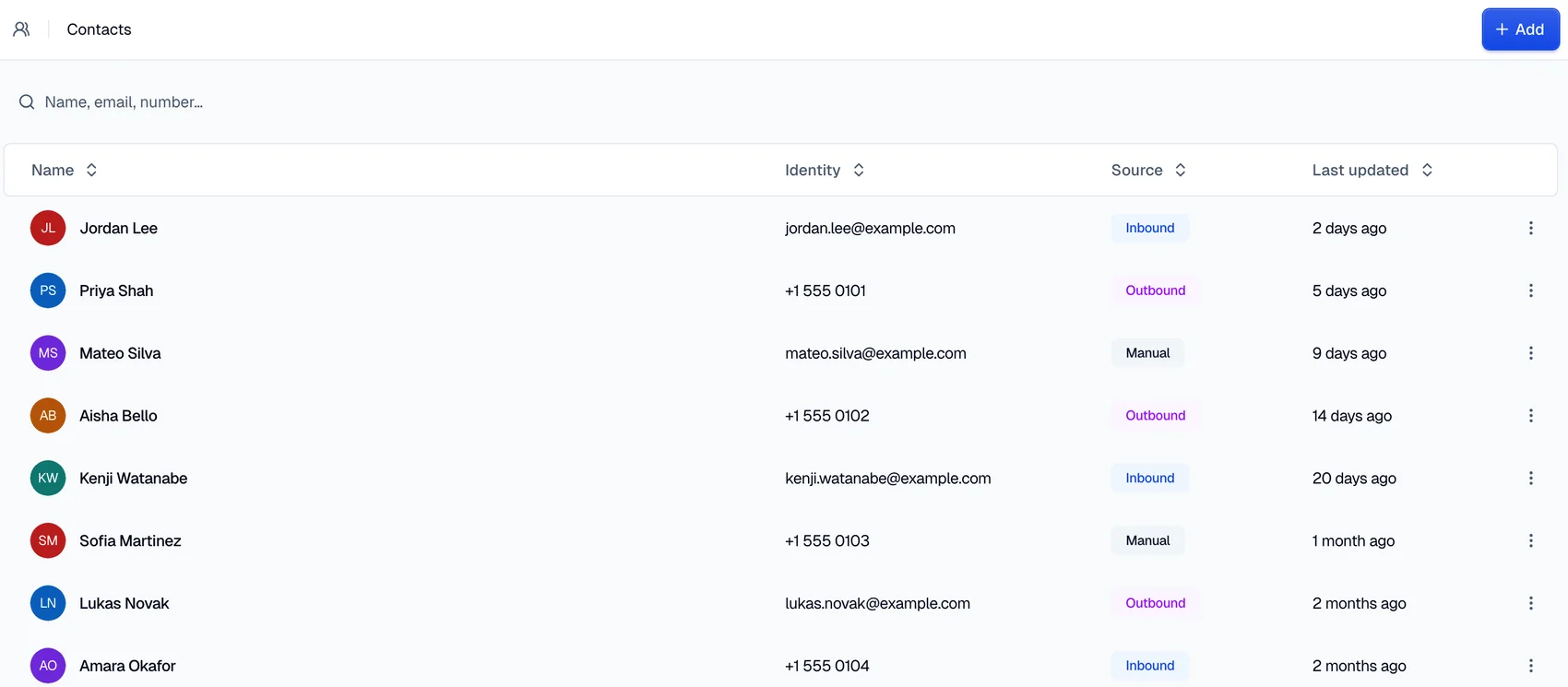
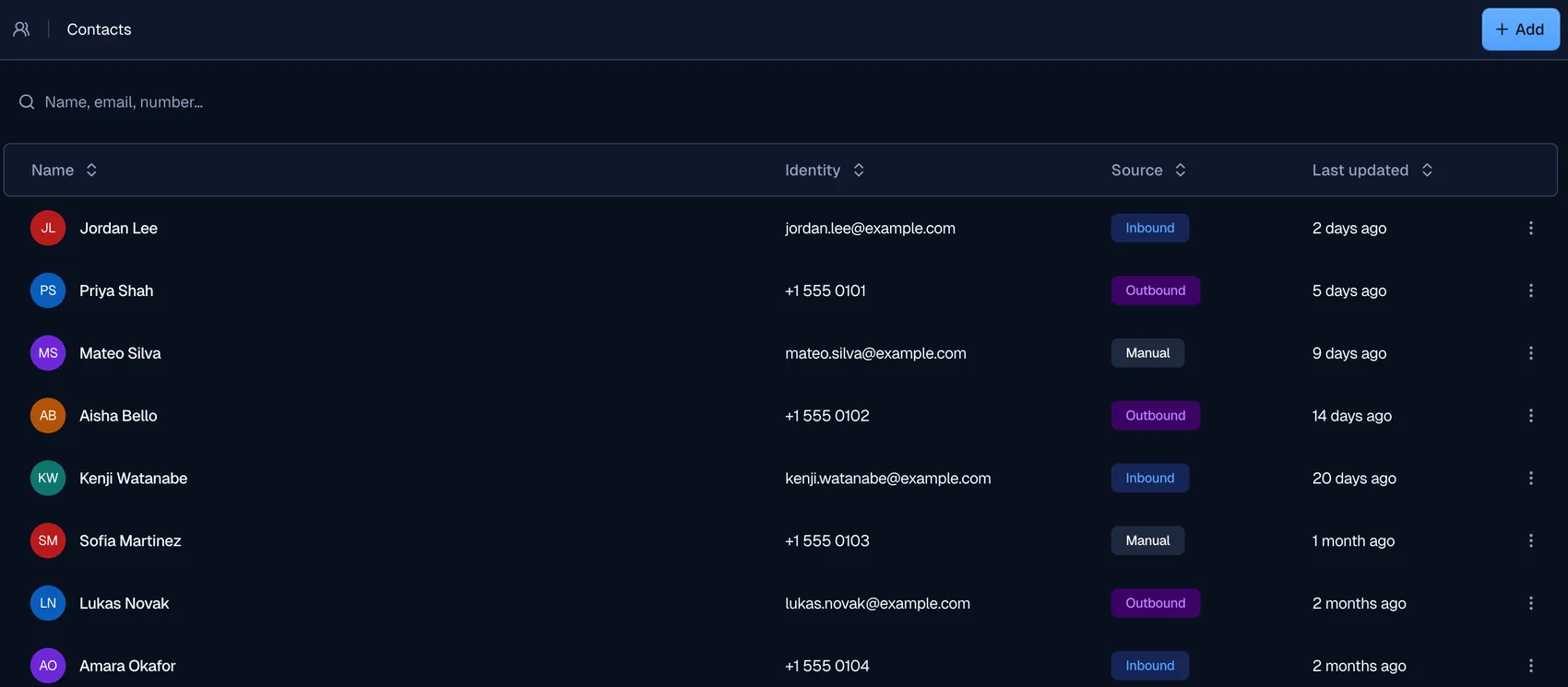
The list shows the newest contacts first. Use the search bar to find a contact by name, email, or phone number. Each row shows these columns:
- Name: The display name of the contact. A contact without a name shows as Unnamed contact.
- Identity: The phone number or email address of the contact.
- Source: How Moveo created the contact. Inbound means that a conversation created it. Outbound means that a campaign reached it. Manual means that a person or an API call added it.
- Last updated: The time of the last change to the contact.
Select a row to open the contact.
Add a contact
- Go to Contacts and select Add.
- Select Create.
- Enter the Name of the contact.
- Enter at least one Email or Phone. Select Add email or Add phone for more. A contact holds up to 10 email addresses and 10 phone numbers.
- If the person agreed to receive messages, select User has given consent to communication.
- Select Add.
A phone number or email address belongs to one contact only. If another contact already uses it, the form shows the name of that contact and does not save the value.
View a contact
The contact page has a sidebar and three tabs. The sidebar shows the name, the location, and the local time of the contact. It also has these sections:
- Recent activity: The last reply, the last contact attempt, the last visit, the most recent channel, the language, the consent status, and the origin.
- Contact information: Every phone number and email address, with its verification status.
- Campaigns: The campaigns that the contact is or was part of. For a campaign with autonomous actions, the card also shows the next action, such as the time of the next contact attempt.
The tabs hold the rest of the record:
- Memories: Facts and preferences that Moveo learned about the contact in conversations. See Contact memories.
- Activity: A timeline of conversations, campaign events, consent changes, and edits.
- Debts: The debts that the contact is a party to. This tab shows only for a contact with at least one debt. See Debts.
To send a message, select Message. Then choose a channel and the phone number or email address to use. The button shows only for a contact with a phone number or an email address. To change the contact, select the edit icon in the sidebar.
Contact memories
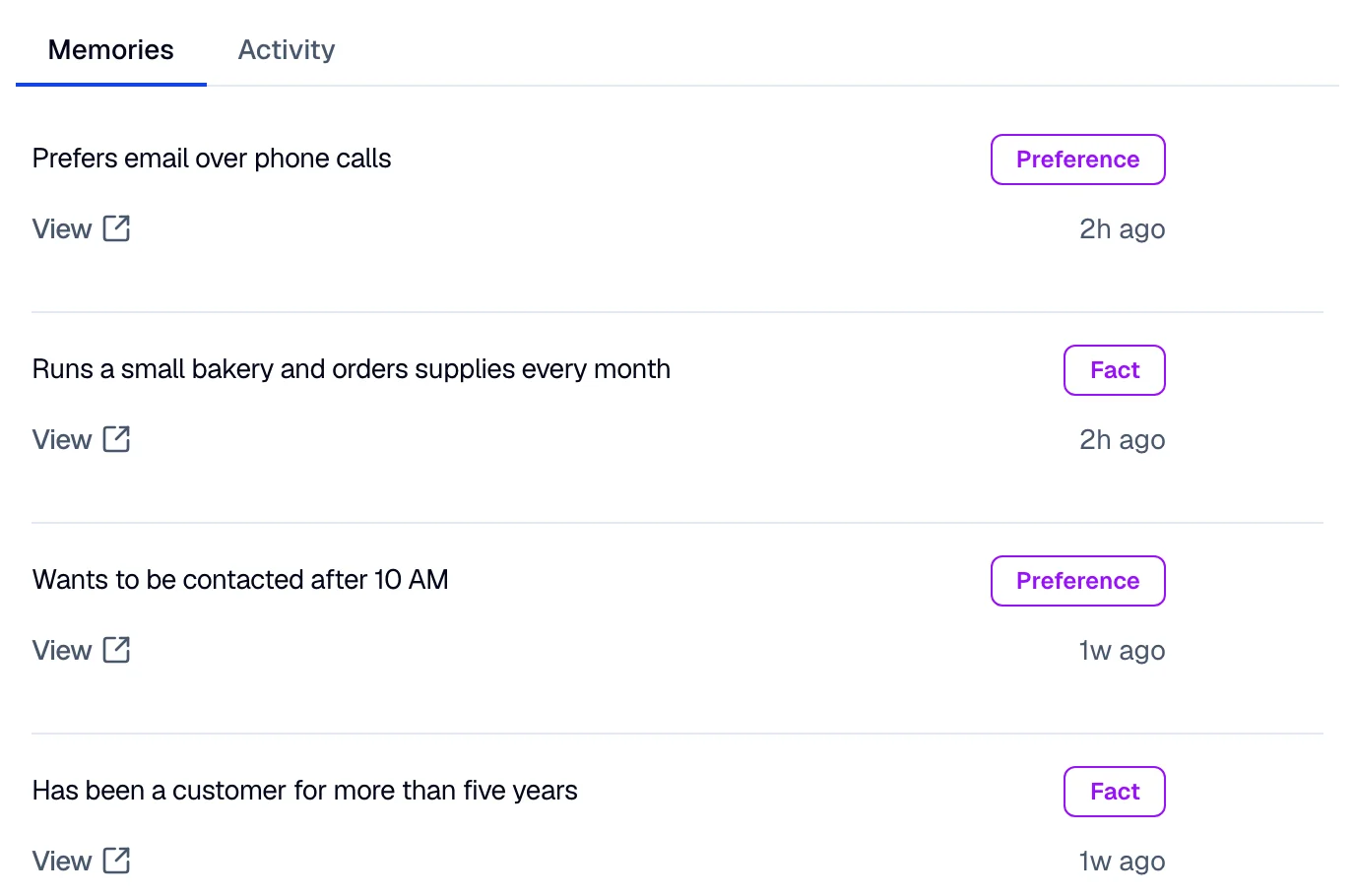
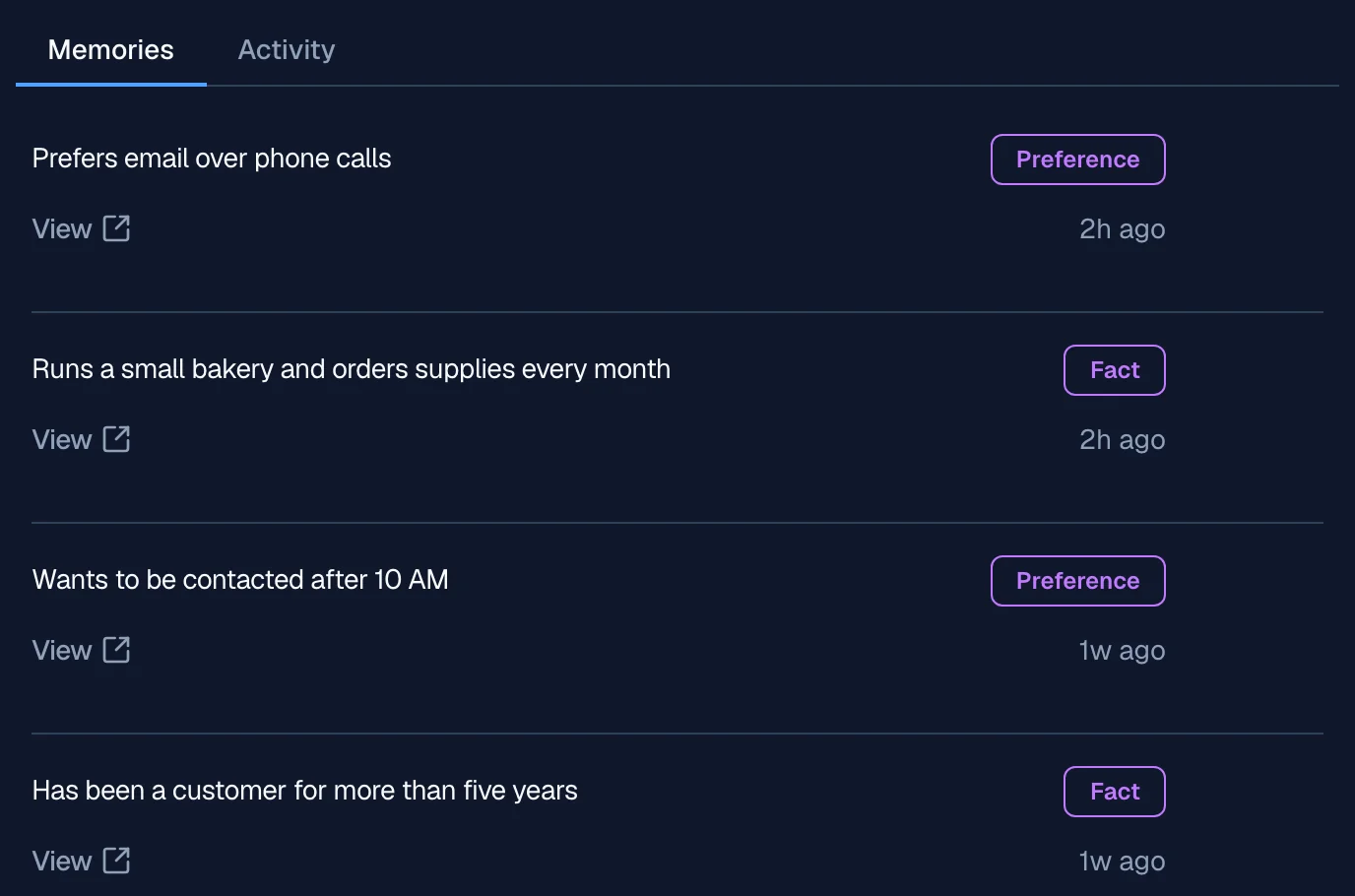
A memory is one short statement about a contact that Moveo learns from a conversation, such as "Prefers email over phone calls." Each memory has one of two categories:
fact: a stable circumstance of the person, their relationship with your organization, or a long-term goal.preference: how the person wants you to contact them or serve them, such as a channel, a language, or a time of day.
How Moveo stores memories
Moveo extracts memories after a conversation ends, not while it runs:
- The session of a conversation expires. See Timeout mechanisms.
- Moveo extracts the insights of the conversation.
- An LLM compares the conversation and its insights with the memories that the contact already has.
- For each new statement, Moveo adds a memory. For a changed statement, Moveo replaces the old memory. For a statement that the contact confirms again, Moveo updates the time of the old memory.
Moveo extracts memories only from a conversation that links to a contact. A conversation in the AI agent test panel does not create a contact, so it does not create memories.
Moveo writes each memory in English, in the third person, whatever the language of the conversation. The LLM has instructions to leave out these items:
- Names, addresses, phone numbers, email addresses, account numbers, and dates of birth.
- A description of the conversation itself, such as a question that the person asked.
- Transaction details, such as amounts, balances, payment plans, and delivery dates.
- A value that an insight of the same conversation already holds.
A replaced memory no longer shows in the console or in the API. When you delete a contact, Moveo deletes its memories too.
How the AI agent uses memories
The AI agent does not read memories while it answers in a conversation. Moveo uses the memories of a contact when it extracts new ones, so that it does not store the same statement twice.
Memories are for your team and for your own systems. Your team sees them in the console. Your
systems read them with the API. To get the memories and the latest conversation summaries of a
contact in one request, use GET /v1/contacts/{contact_id}/recap. To
leave out a live conversation, send its session ID in exclude_session_id.
Check that memories work
- Start a conversation on a channel that links to a contact, such as the web channel.
- In the conversation, state a lasting preference, such as a request for email instead of phone calls.
- Wait for the session to expire.
- Go to Contacts and open the contact.
- Open the Memories tab and look for the new memory.
Each memory shows its category, the time of its last update, and a View link. View opens the conversation that the memory came from. The Activity tab also shows an entry for each memory.
The memories of a contact also show in these places:
- Live chat: in a conversation, the Contact tab shows the memories of the linked contact. If the conversation has no contact, the tab shows No contact linked to this conversation.
- Logs: in the replay of a conversation, the User tab shows the memories of the contact. See Logs.
- API:
GET /v1/contacts/{contact_id}/memorieslists the memories of a contact, newest first.
If no memory shows, check that the conversation links to a contact and that the session expired. A conversation without a lasting fact or preference creates no memory.
Manage memories with the API
The console shows memories but does not edit them. To change memories, use the API. A read needs
contacts.read, a change needs contacts.write, and a delete needs contacts.delete. Use a
manage API key.
| Request | What it does |
|---|---|
GET /v1/contacts/{contact_id}/memories | Lists the active memories of a contact |
POST /v1/contacts/{contact_id}/memories | Adds a memory with a category and a content of up to 2,000 characters |
GET /v1/contacts/{contact_id}/memories/{memory_id} | Returns one memory |
PUT /v1/contacts/{contact_id}/memories/{memory_id} | Changes the content of a memory |
PATCH /v1/contacts/{contact_id}/memories/{memory_id} | Updates the time of a memory and changes nothing else |
DELETE /v1/contacts/{contact_id}/memories/{memory_id} | Deletes a memory |
GET /v1/contacts/{contact_id}/recap | Returns the contact, up to 20 memories, and the summaries of the latest conversations |
To replace a memory, send POST with replaces_memory_id set to the ID of the old memory.
How web visitors become contacts
A visitor on your web channel becomes a contact with their first real message, such as text or an attachment. To open the widget is not enough, and the automatic start message of the widget does not count. Conversations in the AI agent test panel do not create contacts.
For a contact that comes from a web conversation, Moveo stores the time zone of the browser. The contact page uses it to show the local time. Moveo fills the time zone only for a contact without one. A time zone from an upload or an API call stays in place.
Delete a contact
- Go to Contacts.
- Open the actions menu on the row and select Delete.
- Read the dialog, then select Delete.
The delete stops the contact in every active campaign. It also deletes each debt where the contact is the only party. A debt with another party, such as a co-borrower or a guarantor, stays. The dialog shows the number of debts that link to the contact.
A debt with a compliance flag needs a confirmation. For a contact that is the only party on a flagged debt, the dialog shows the Also delete debts with compliance flags option. Select it to delete the contact and those debts. Without it, Moveo deletes nothing. See Compliance flags.
You cannot restore a deleted contact or debt. A compliance flag records a request from the person, such as a request to stop contact. Delete a flagged debt only after you make sure that you do not need that record.
To delete a contact and its debts, a member needs the debts.delete permission. See
Debt permissions.