Business hours
Business hours set the time range when your live chat agents are available.
Open business hours
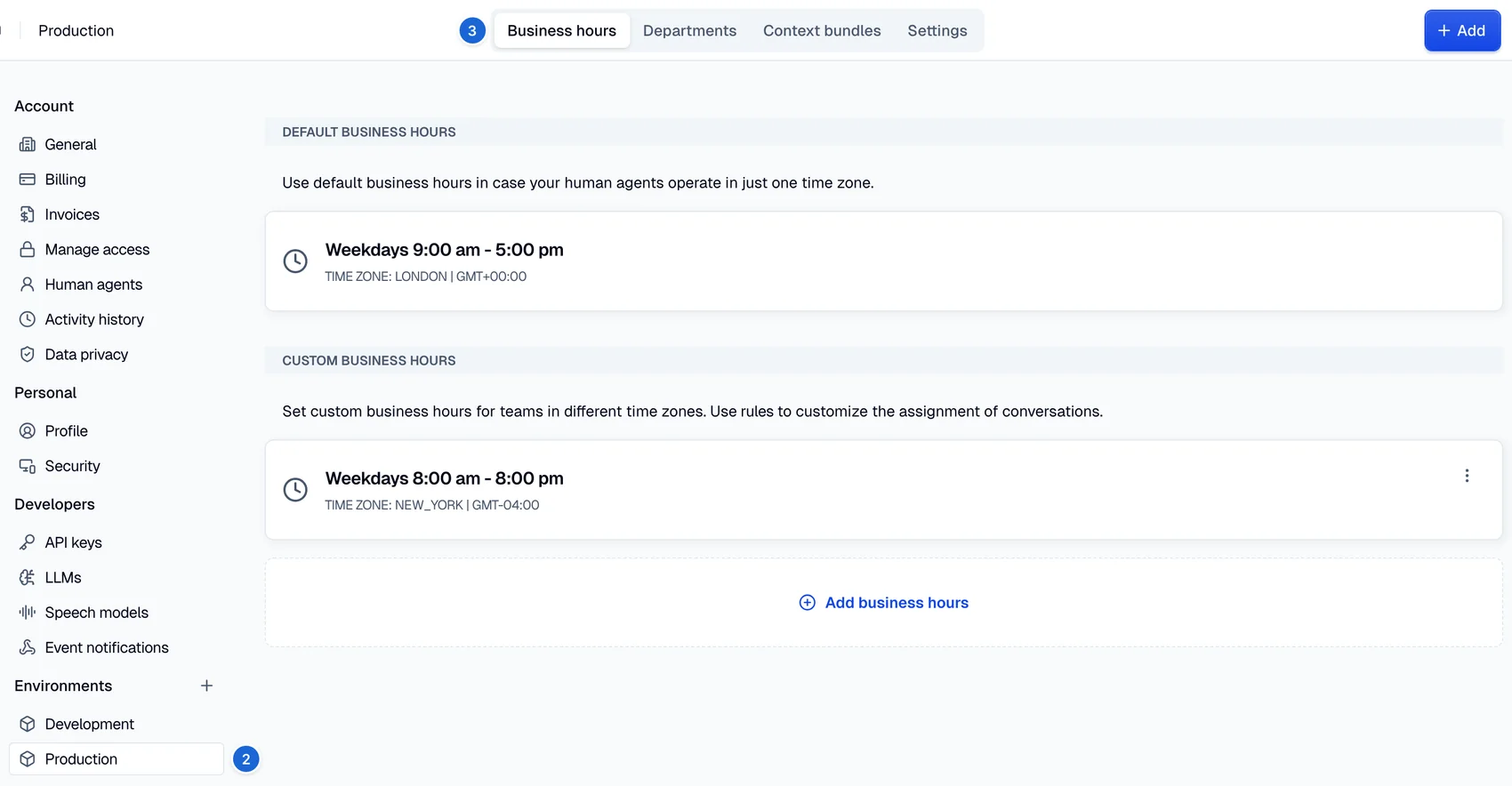
- In the main navigation, open the account menu and select Settings.
- Under Environments in the sidebar, select your environment.
- Select the Business hours tab.
note
The default business hours are Weekdays 9:00 am - 5:00 pm.
Customize your default business hours
- On the Business hours tab, select the default business hours card.
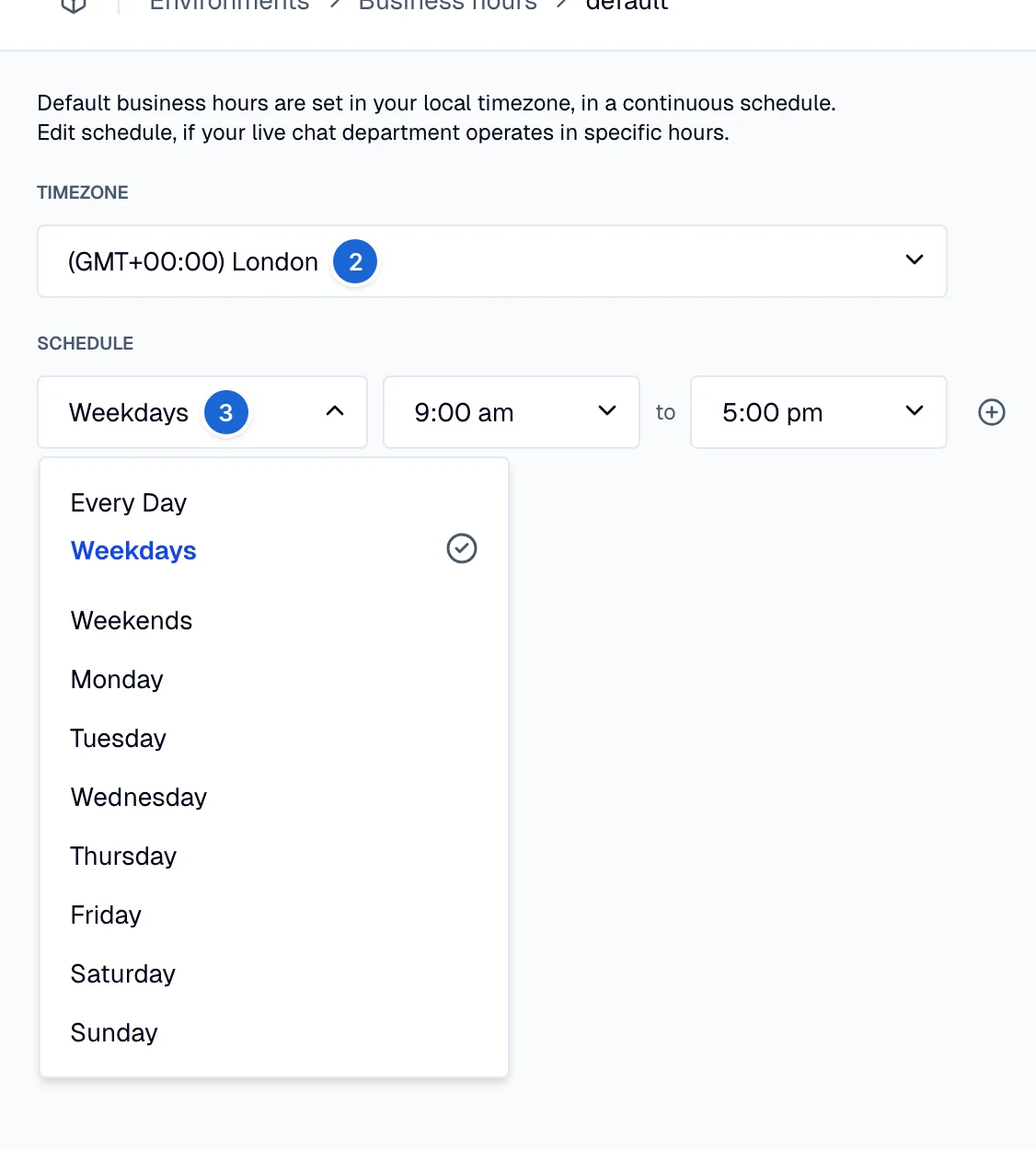
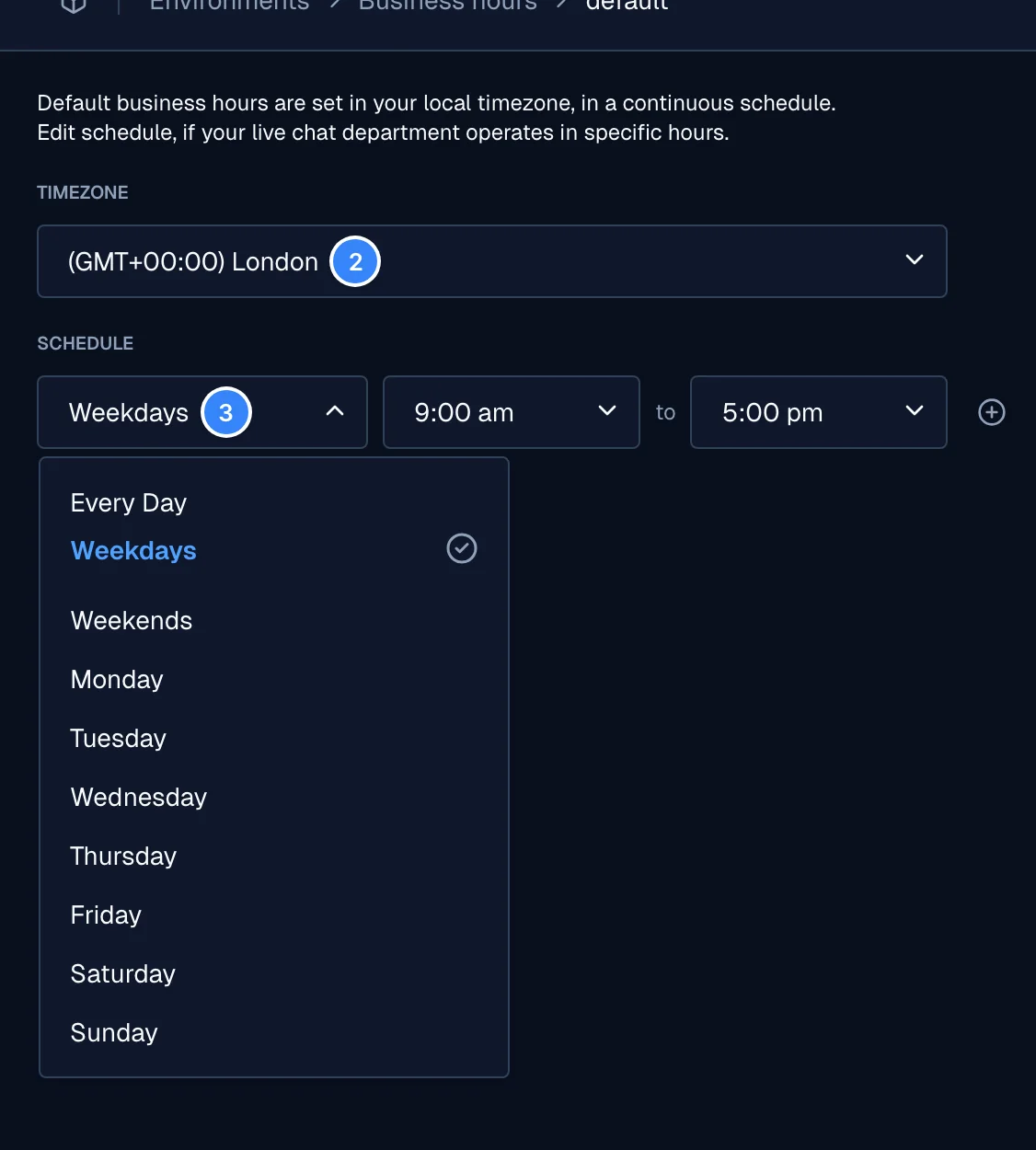
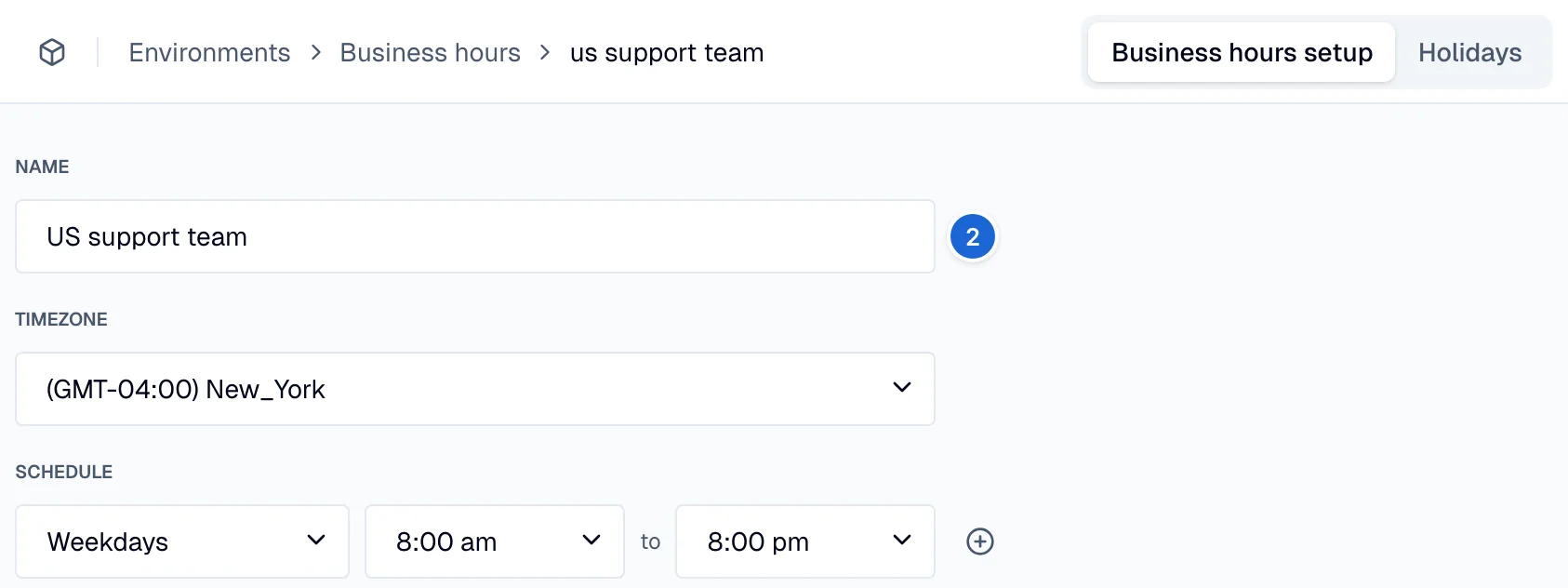
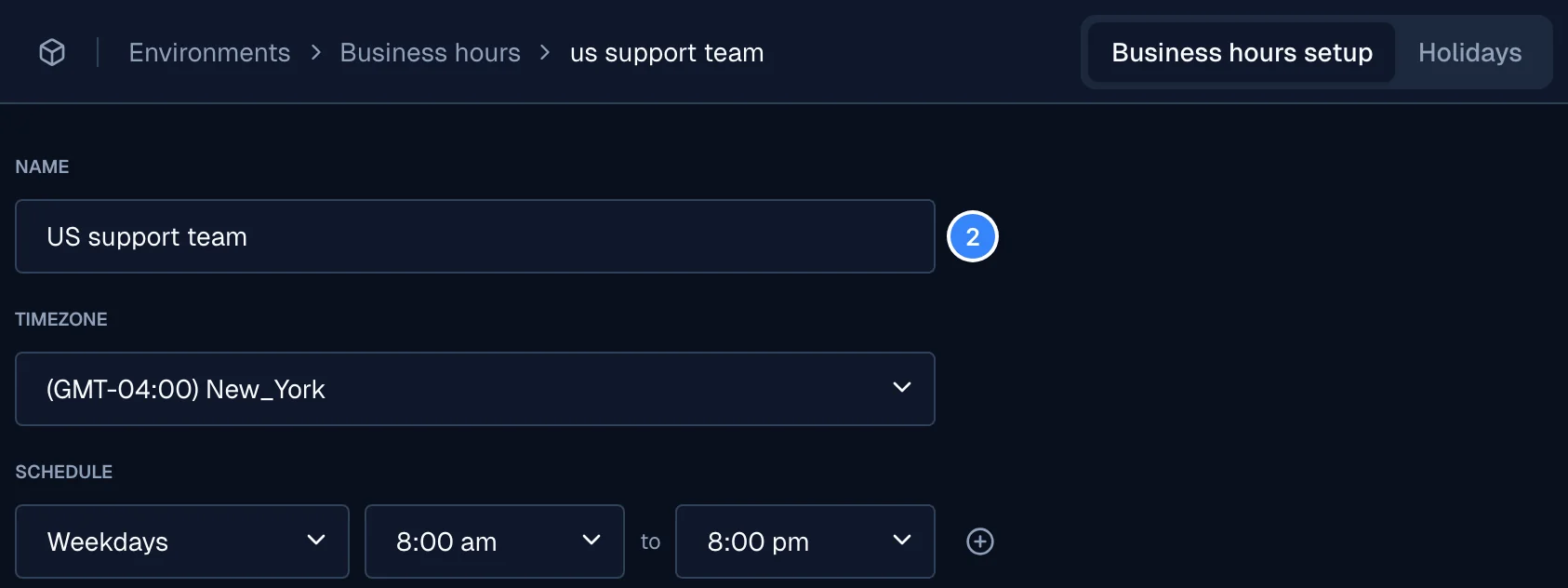
- In Timezone, select the time zone of your team.
- In Schedule, select the days: Every Day, Weekdays, Weekends, or one day of the week.
- Select the start time and the end time.
- To add a time range, select + next to the row. To remove a time range, select -.
- Select Save and close.
Customize your holiday hours
Add holidays to your business hours. Moveo treats the days that you register as holidays as non-business hours.
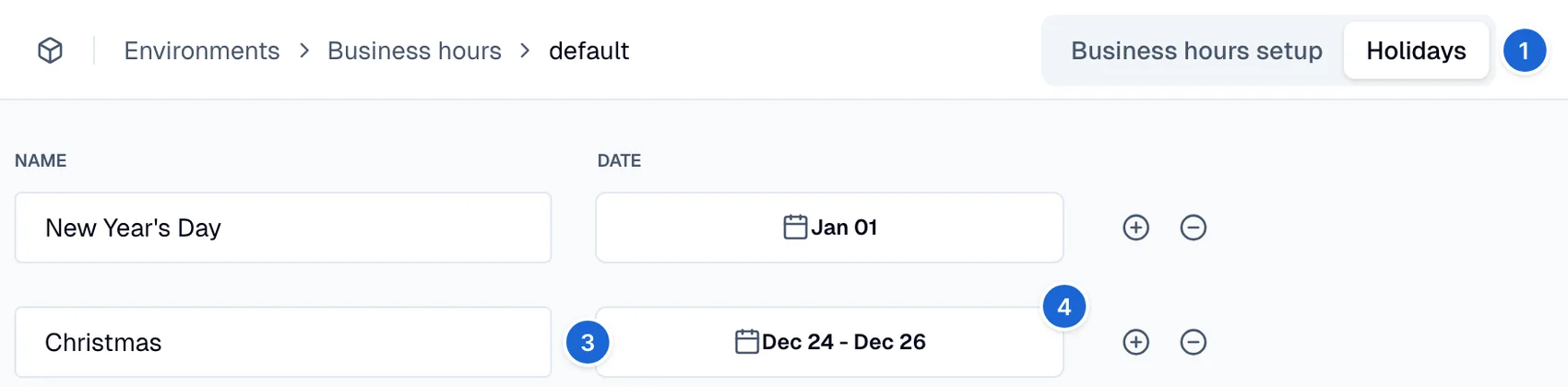
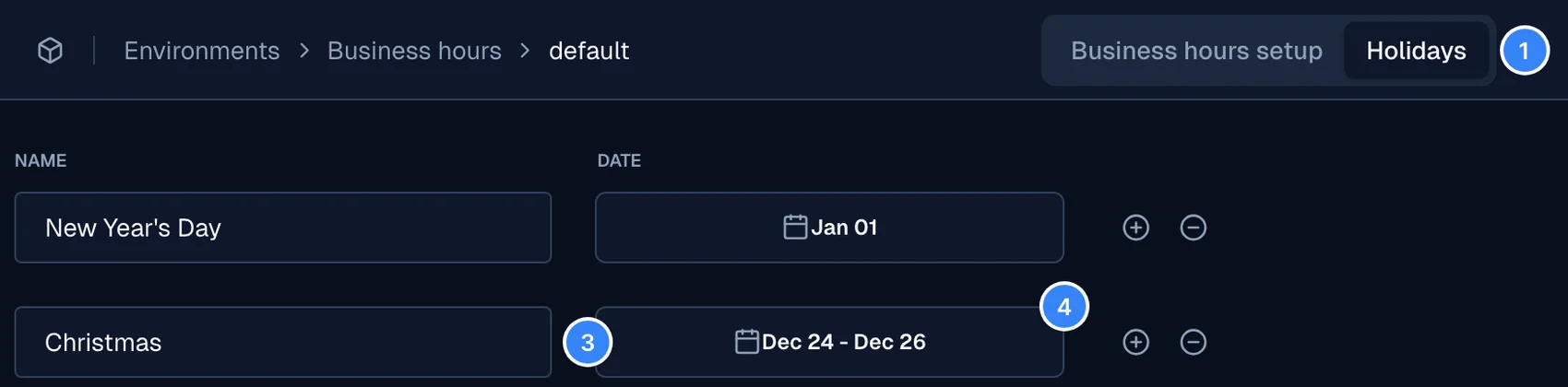
- Open the business hours and select the Holidays tab.
- If the list is empty, select add holidays.
- Enter the name of the holiday.
- Select the date and select the first and the last day of the holiday.
- To add or remove a holiday, select + or - next to the row.
- Select Save and close.
Add custom business hours
Custom business hours let teams in other time zones keep their own schedule.
- On the Business hours tab, select Add business hours.
- Enter a name for the business hours.
- Set the time zone, the schedule, and the holidays the same way as for the default business hours.
- Select Save and close.
Use business hours in the dialog
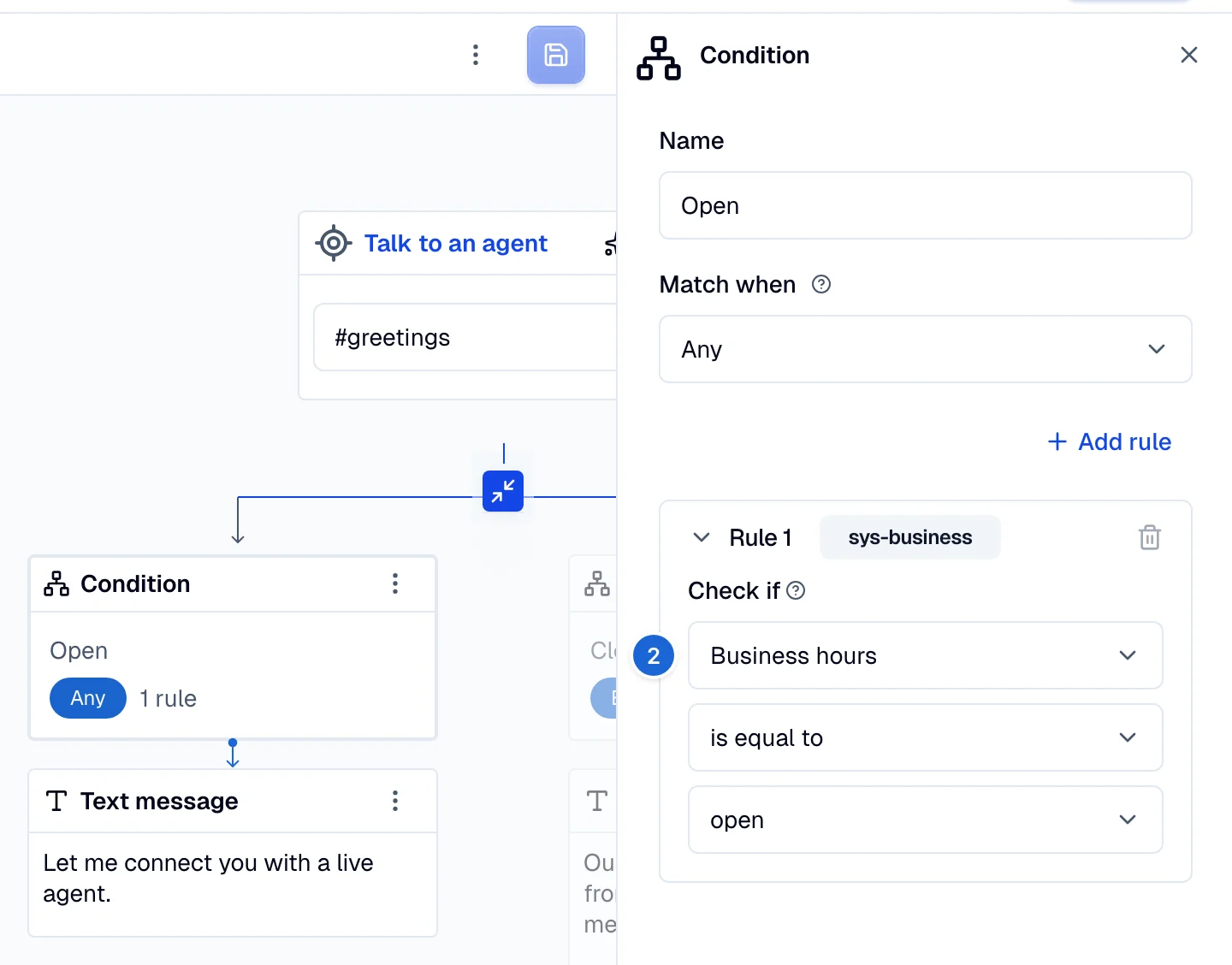
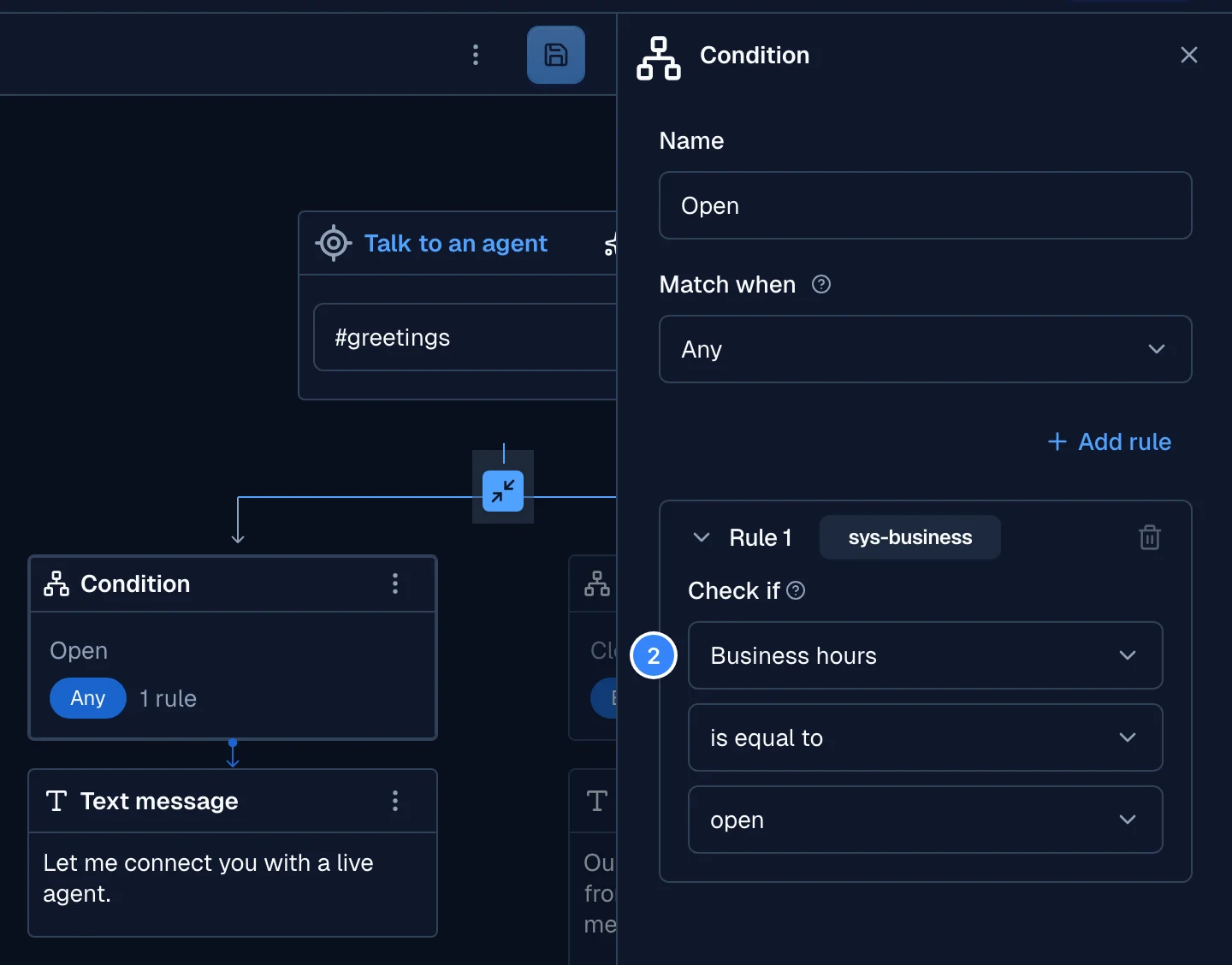
A dialog can answer differently inside and outside business hours. The $sys-business variable is
open during business hours.
- In the dialog, add a Condition after the trigger.
- In Check if, select Business hours, then select is equal to and open.
- Add the response for business hours under this condition.
- Add a second condition with Match when set to Else, and add the response for the hours when your team does not work.
Use business hours in rules
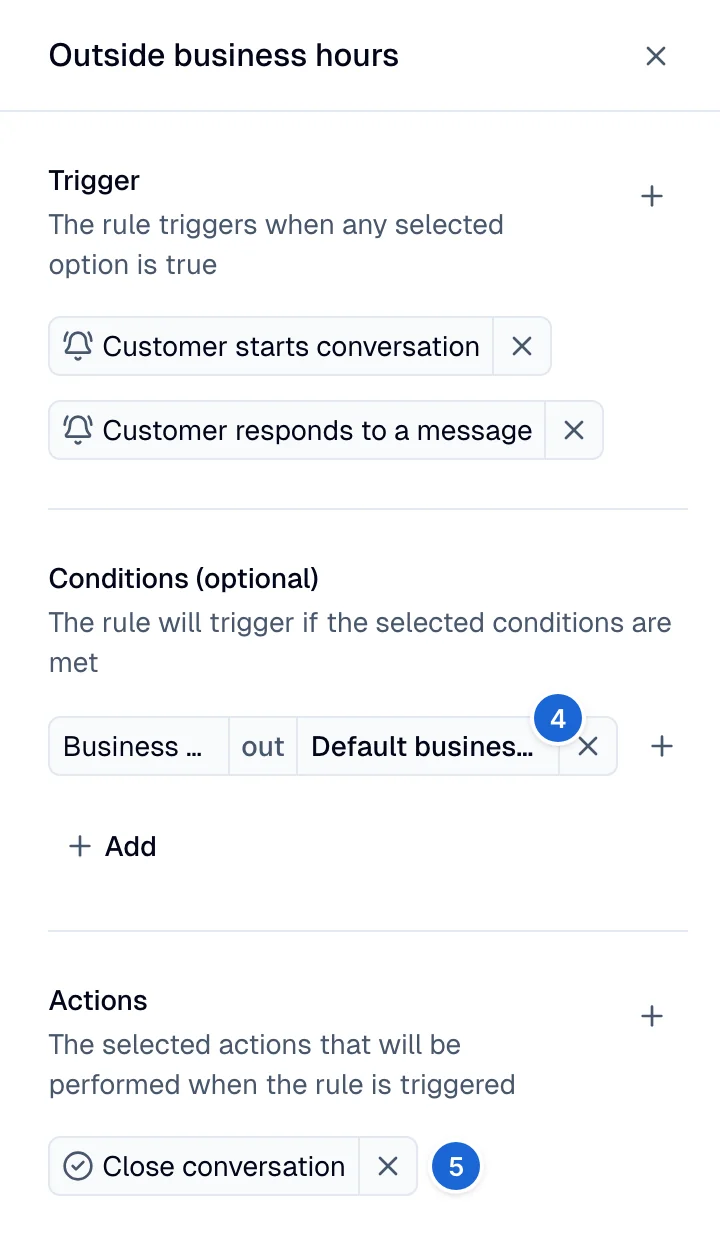
Business hours also work inside rules. This example closes every conversation that starts outside the default business hours.
- Go to Deploy → Rules and select Create.
- Enter a name for the rule and select Continue.
- In Trigger, select Customer starts conversation and Customer responds to a message.
- In Conditions (optional), select Business hours, then out, then the business hours.
- In Actions, select Close conversation.
- Select Done.