Different language, different AI agent
This example uses the Web channel to collect the user's language preference and assign an AI agent based on their selection. Other integrations can get the language from the user's configuration settings.
Set up the form
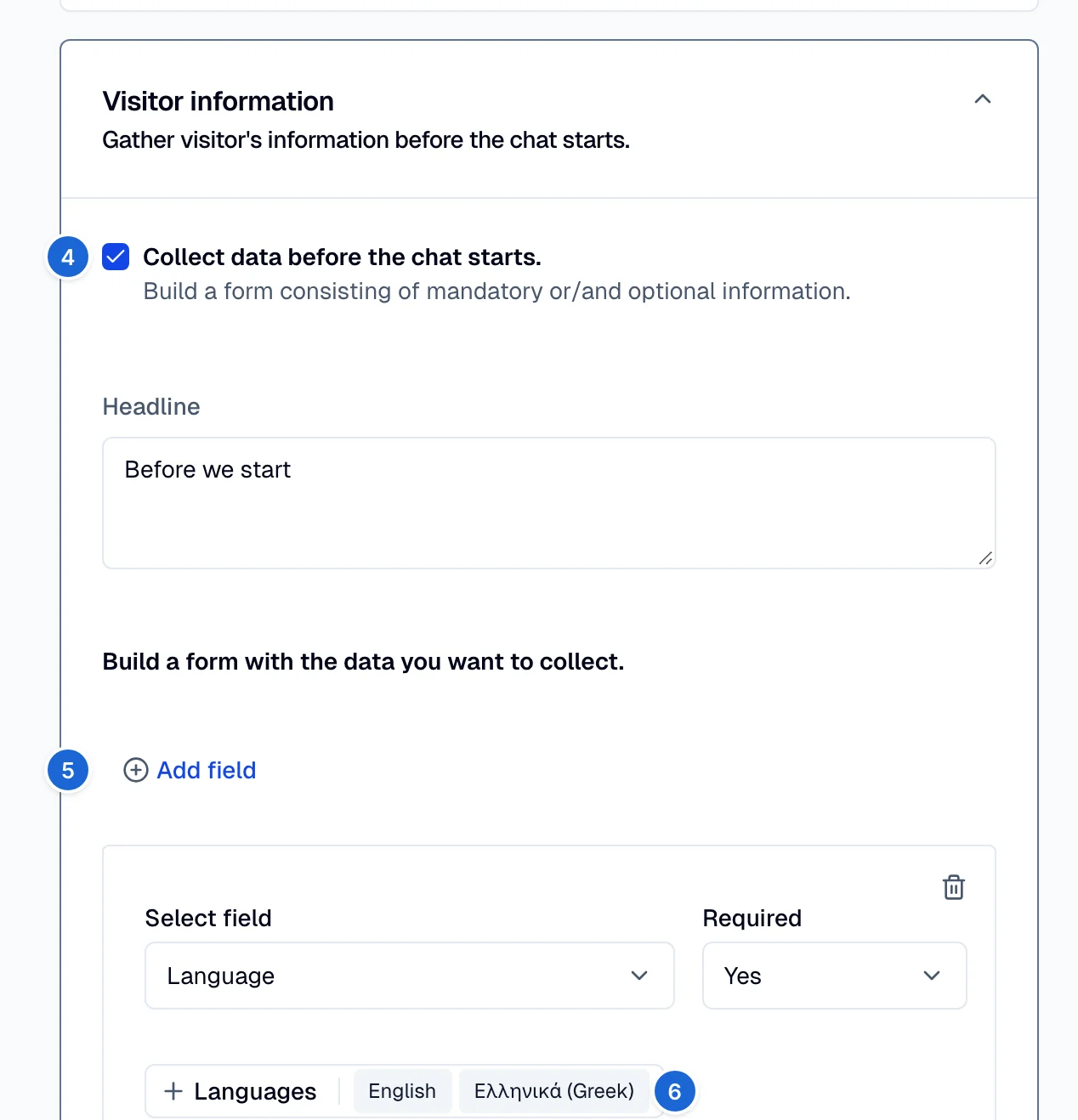
First, collect the user's language preference. Set up a form that asks the user to choose their language before the conversation starts. This example uses two AI agents: one for English and another for Greek.
- Go to Deploy → Connections.
- Select the Webchat integration.
- Go to the Visitor information section.
- Turn on Collect data before the chat starts.
- Select Add field and select Language from the dropdown.
- Add English and Greek as available language options.
- Save your changes.
Assign the AI agents
Rules automate actions in conversations based on predefined conditions. This section creates a rule that assigns the correct AI agent based on the user's selected language.
Greek language rule
- Go to Deploy → Rules.
- Select Create. The Create rule panel opens next to the rule list.
- Enter a Name and select Continue.
- Set the Trigger field to Customer starts conversation.
- Set the Conditions (optional) field to Language is Greek.
- Set the Actions field to Assign AI agent, then select the Greek AI agent.
- Select Done. Moveo creates the rule as active.
English language rule
Follow the same steps as the Greek rule, but:
- Set the Conditions (optional) field to Language is English.
- Set the Actions field to Assign AI agent, then select the English AI agent.
For the English rule, you can add another condition: the language is not Greek. Then conversations from users with other language settings, such as Spanish on Viber, go to the English AI agent by default.