Import an AI agent
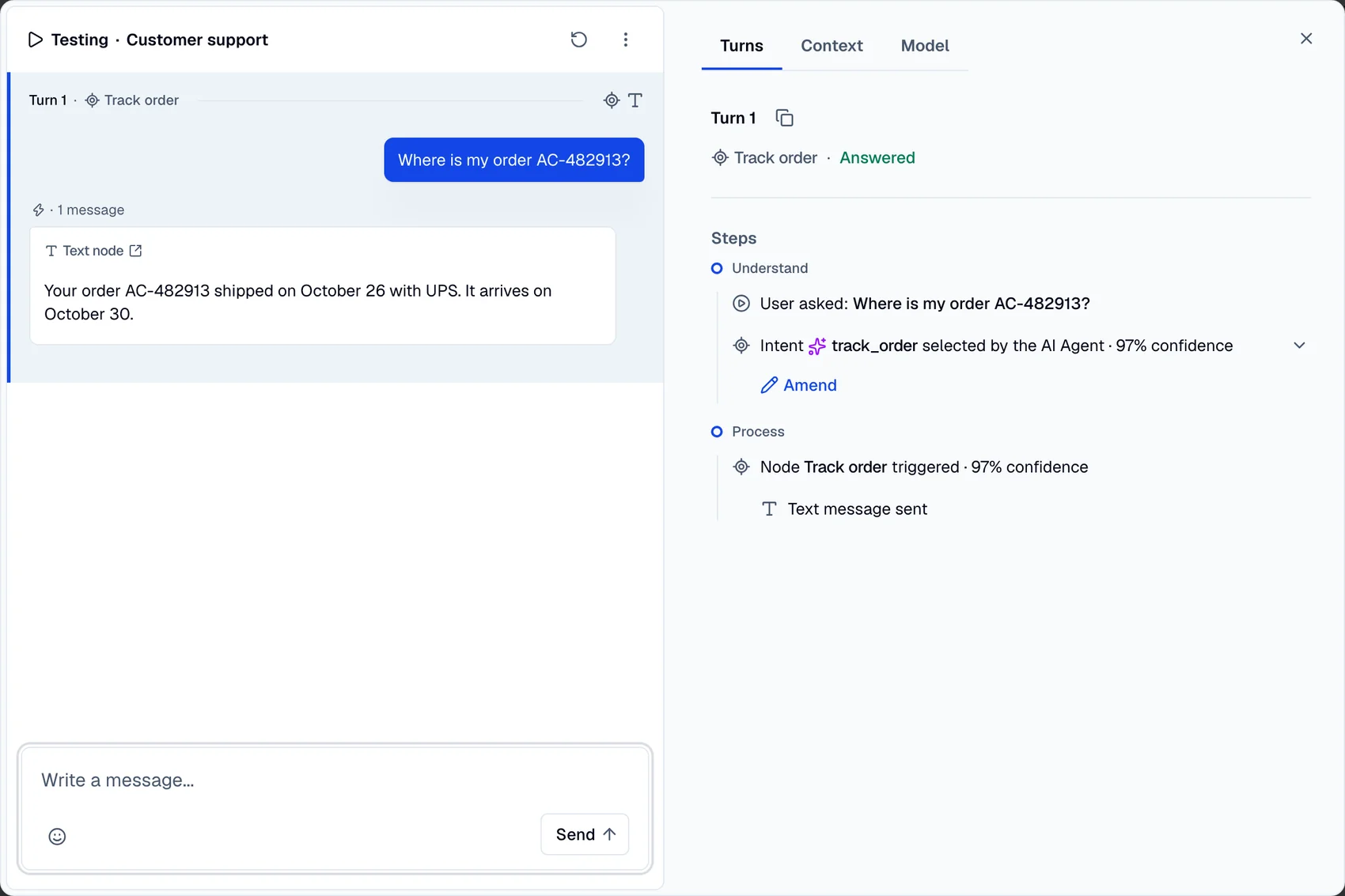
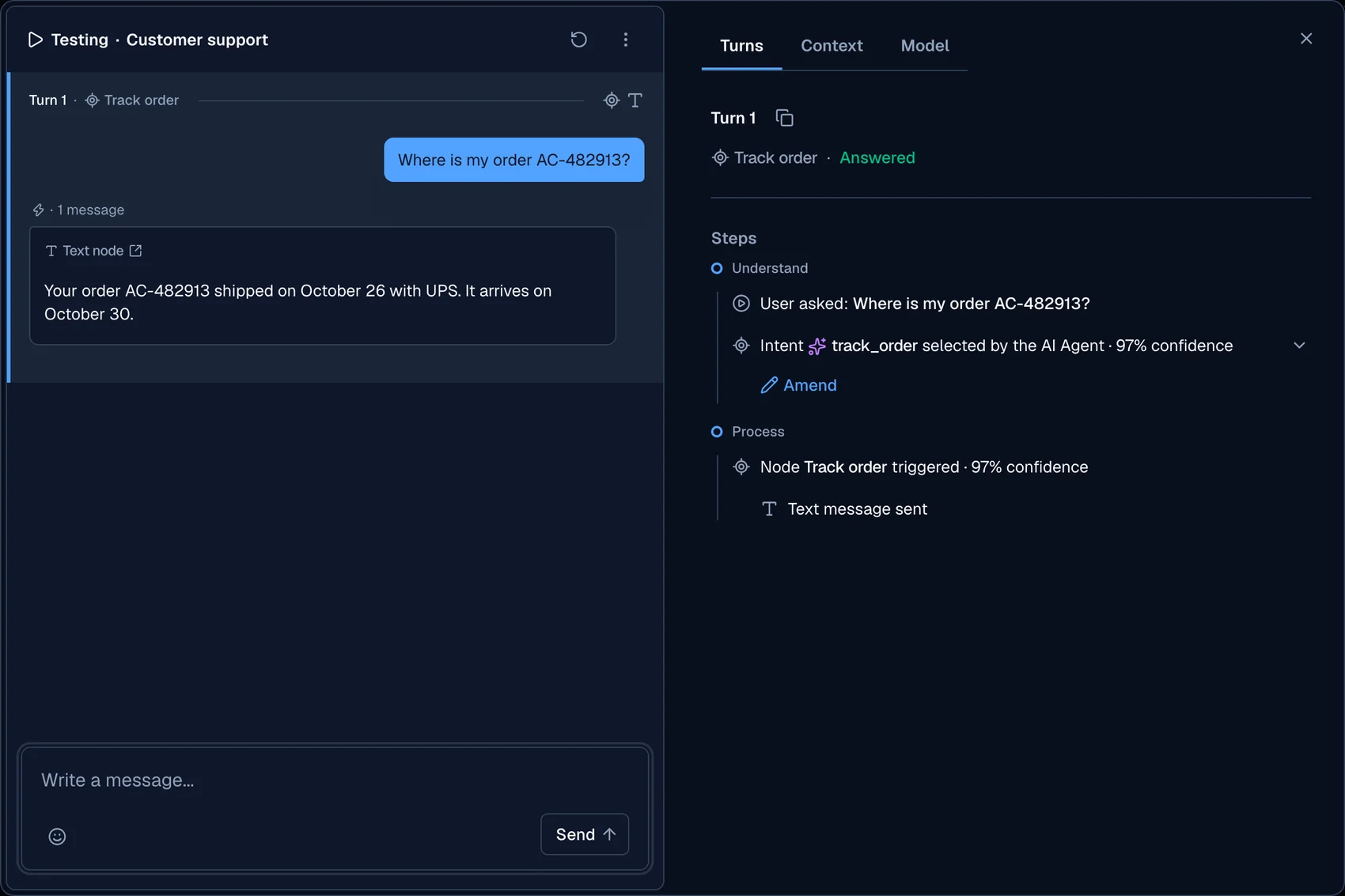
This guide shows how to import an AI agent to your account. After importing an AI agent, you can test it out or make any changes you wish.
Step 1: Login to Moveo
- Navigate to https://console.moveo.ai.
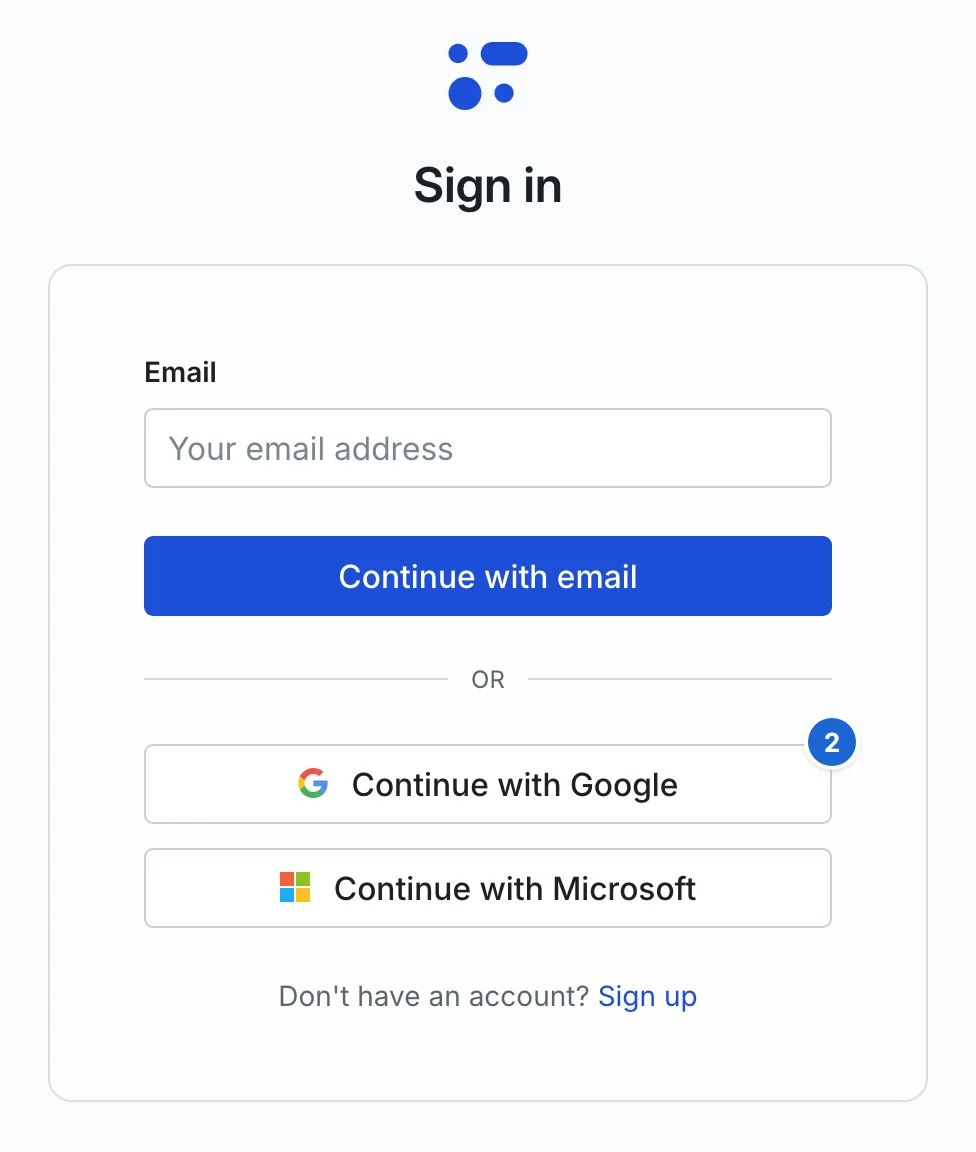
- Select your preferred login method: Continue with email, Continue with Google, or Continue with Microsoft. This guide uses Continue with Google.
- Select your Google account. Moveo logs you in directly.
Step 2: Creating and importing an AI agent
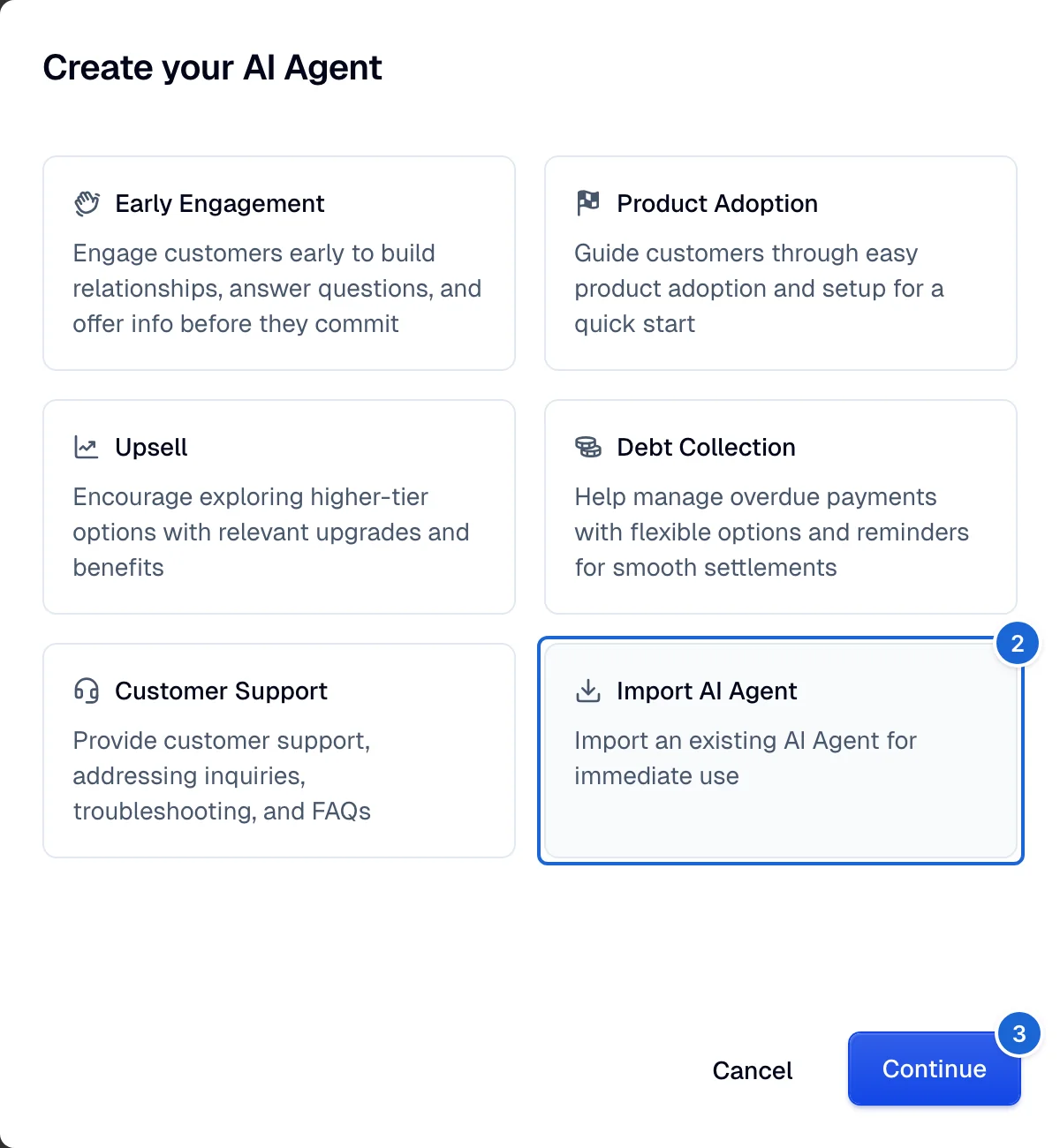
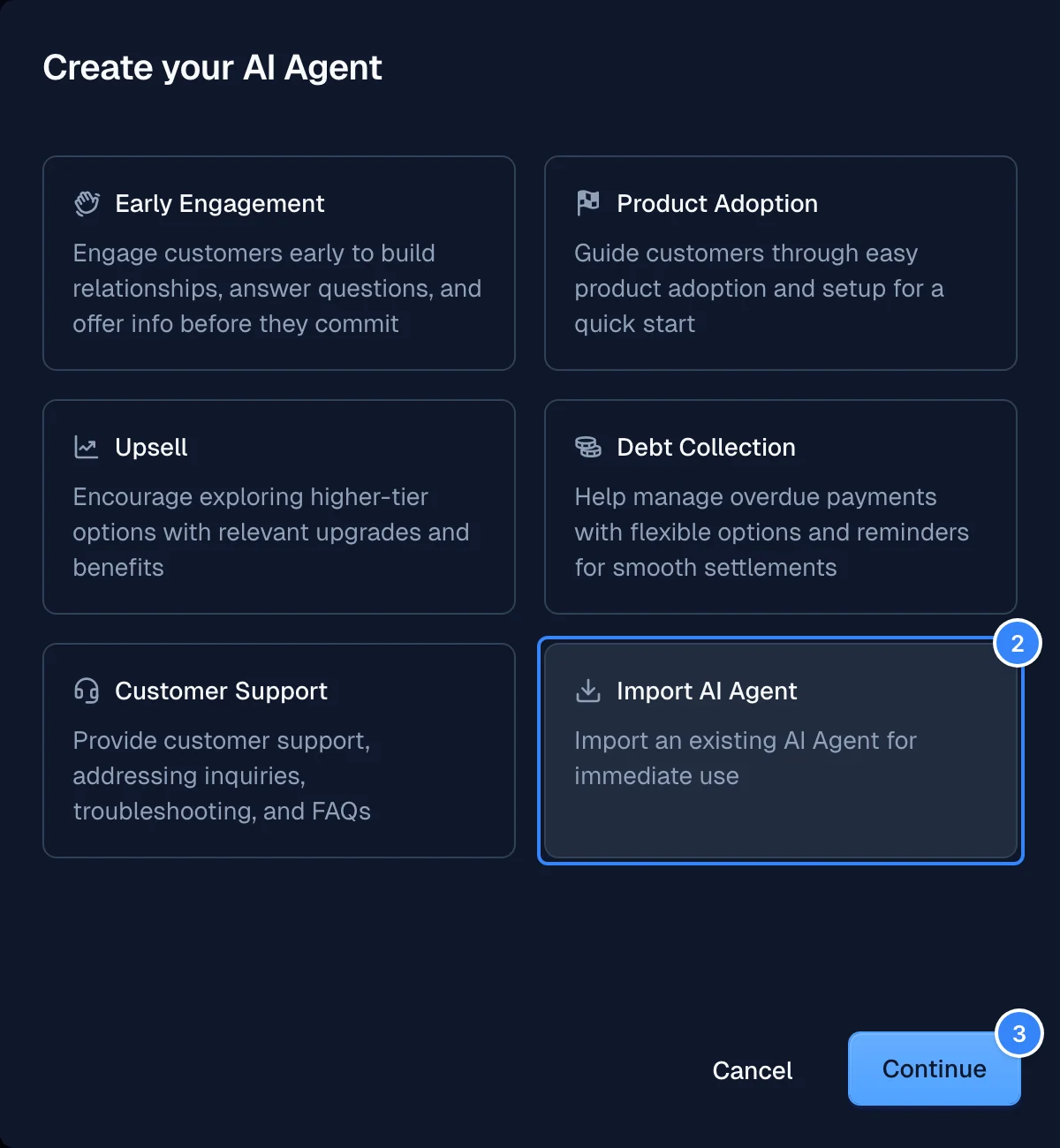
- Go to AI Agents and click Create.
- Select Import AI Agent.
- Click Continue.
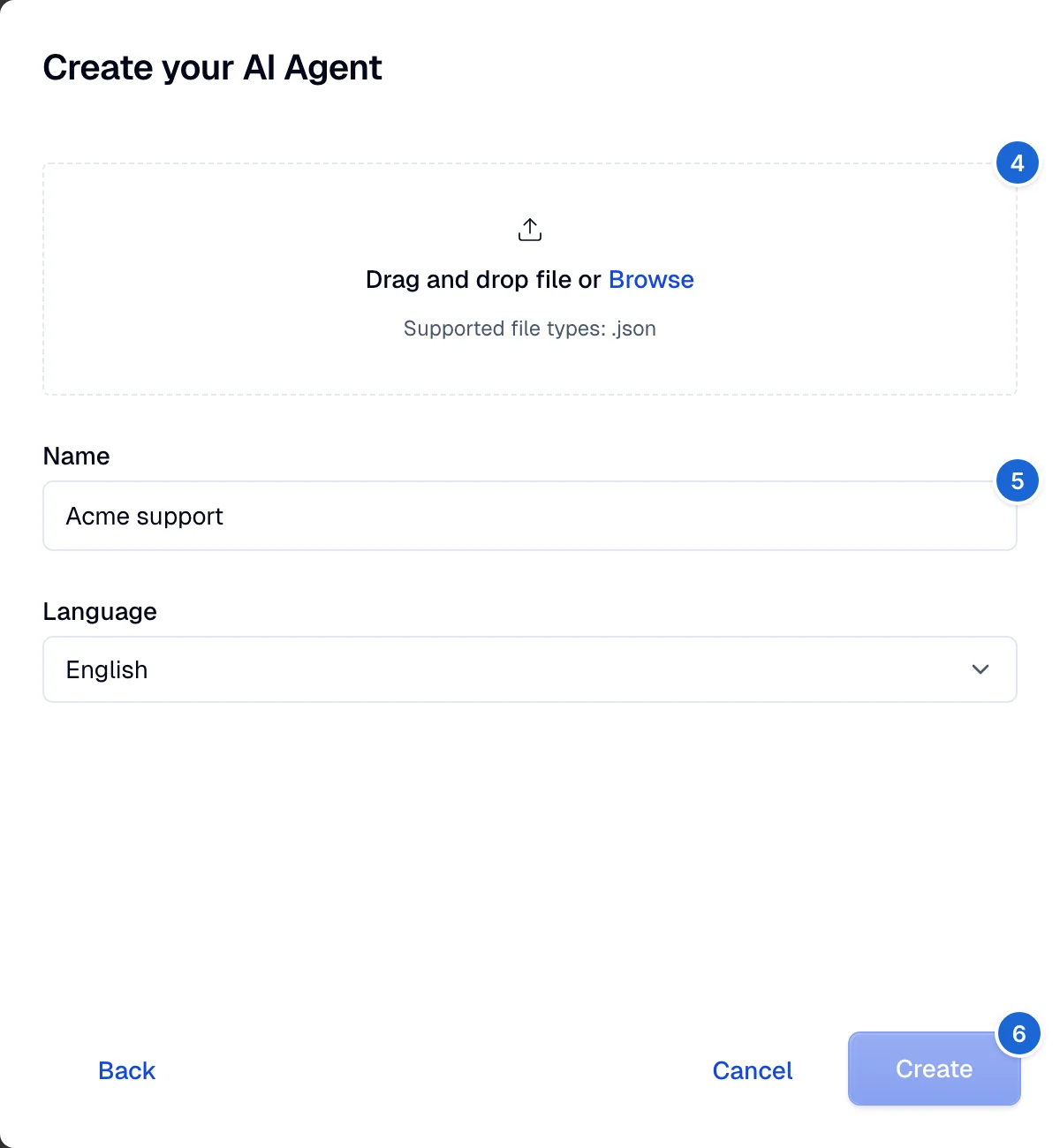
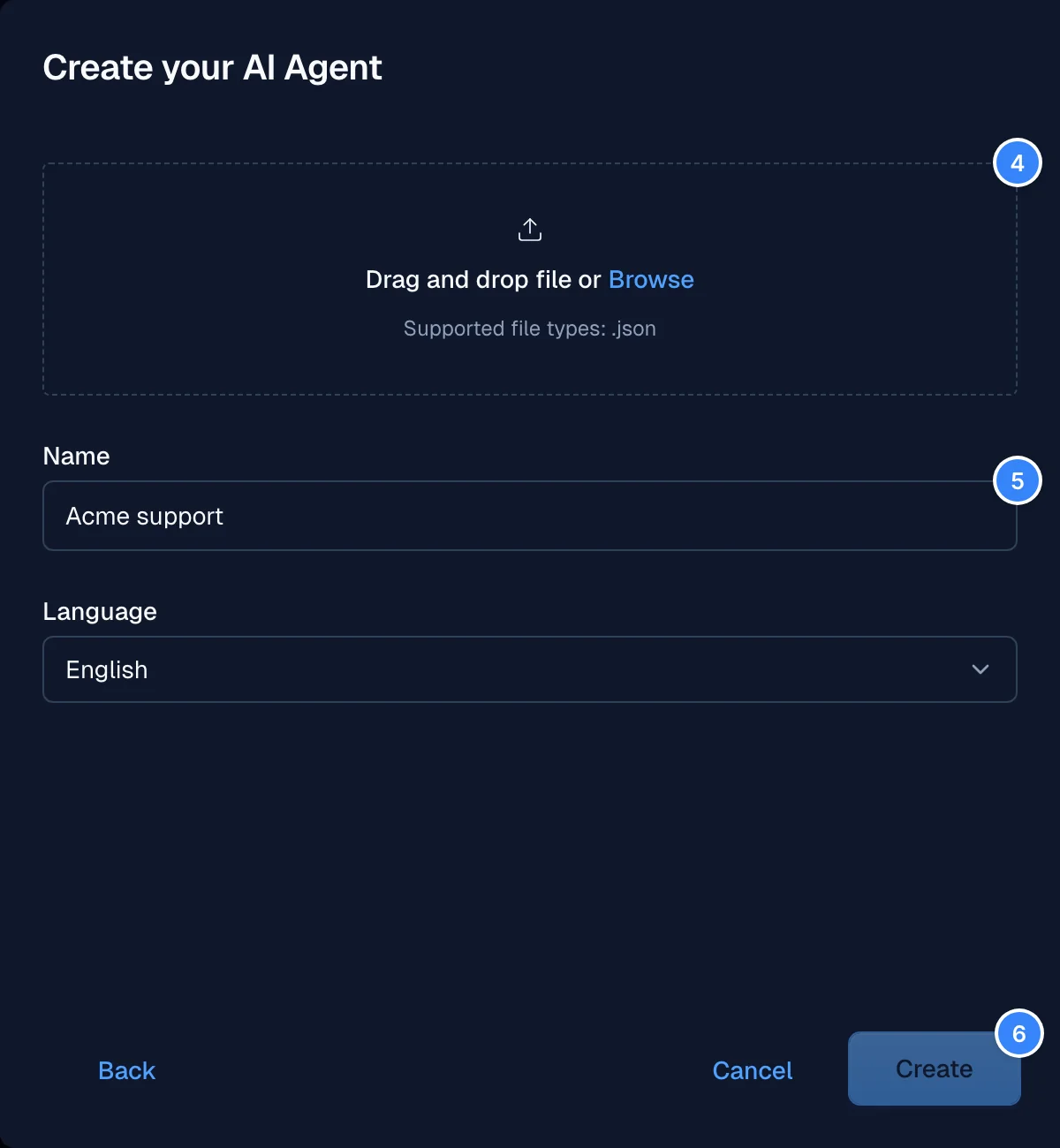
- Drag your saved AI agent (JSON file) to the upload area, or click Browse to select it.
- Type a Name for the AI agent and select its Language.
- Click Create.
Step 3: Navigate to the AI agent and preview it
- Select the newly created AI agent named
my_imported_brainin this example. - Select the Test icon in the top right of your screen and start chatting with the new AI agent.