LiveChat
Overview
The LiveChat integration adds your AI Agent to a LiveChat license as a bot. The bot answers the chats of the LiveChat groups that you choose before their human agents do. When the AI Agent hands a chat over, LiveChat sends it to the human agents of the same group, and they continue the chat in the LiveChat Agent App.
You connect the integration with your own LiveChat app and an OAuth authorization. Moveo then creates the bot and the webhooks in LiveChat, and keeps them in order for as long as the integration exists.
This page covers LiveChat, the product of Text. Moveo's own human-agent inbox is a different feature, described in Live chat overview.
Prerequisites
Before you set up the LiveChat integration, make sure that you have the following.
✅ LiveChat requirements
- A LiveChat license, and a LiveChat account with the Owner or Admin role on it.
- Access to the LiveChat Developer Console with the same account. You create a private app there, so you need no app review or Marketplace listing.
- At least one LiveChat group that receives the chats of your website widget. The human agents of that group receive the handovers from the AI Agent.
✅ Moveo requirements
- An AI Agent connected to an environment, and a rule that assigns the AI Agent to the conversations of the environment.
- Permission to edit integrations in that environment.
- The LiveChat integration turned on for your Moveo account. If the LiveChat card does not show on the Connections page, contact Moveo support.
One LiveChat license connects to one Moveo integration only. To move a license to another environment, delete its integration in the first environment.
How it works
A LiveChat chat goes through Moveo as follows:
- A customer starts a chat in the LiveChat widget on your website. LiveChat routes the chat to a group.
- The bot has the first priority in the groups that you choose, so LiveChat assigns the chat to the bot before the human agents of the group.
- LiveChat sends the chat to Moveo through webhooks. Moveo opens one conversation for each LiveChat thread, and your AI Agent answers as the bot.
- When the AI Agent runs a Handover, Moveo transfers the chat to the human agents of the same group. If no human agent is available, the chat waits in the queue of that group.
- When the AI Agent runs Resolve, Moveo ends the chat in LiveChat. When the customer or LiveChat ends the chat, Moveo closes the conversation.
What Moveo creates in LiveChat
When you connect the integration, Moveo creates these items in your LiveChat license with your authorization:
- A bot named AI Agent. It starts with the supervisor priority in every group, so it gets no chats until you choose its groups in Moveo.
- Six webhooks that send chat events to Moveo:
incoming_chat,incoming_event,chat_deactivated,customer_session_fields_updated,thread_taggedandthread_untagged.
Each time that you open the integration page in Moveo, Moveo checks the bot and the webhooks, and registers a missing webhook again. When you delete the integration, Moveo removes the bot and the webhooks from LiveChat.
Do not delete the bot or the webhooks in LiveChat. If you delete the bot, Moveo creates a new bot with no groups, and the AI Agent gets no chats until you choose the groups again.
Setup guide
The setup goes back and forth between Moveo and the LiveChat Developer Console. Keep both open.
Step 1: Add the integration in Moveo
- In Moveo, go to Connections and select your environment.
- Under Customer communication platforms, find the LiveChat card and select Connect.
The setup page shows a Setup guide, the Redirect URI and the Scopes that your LiveChat app needs. Keep this page open, because you copy values from it in the next steps.
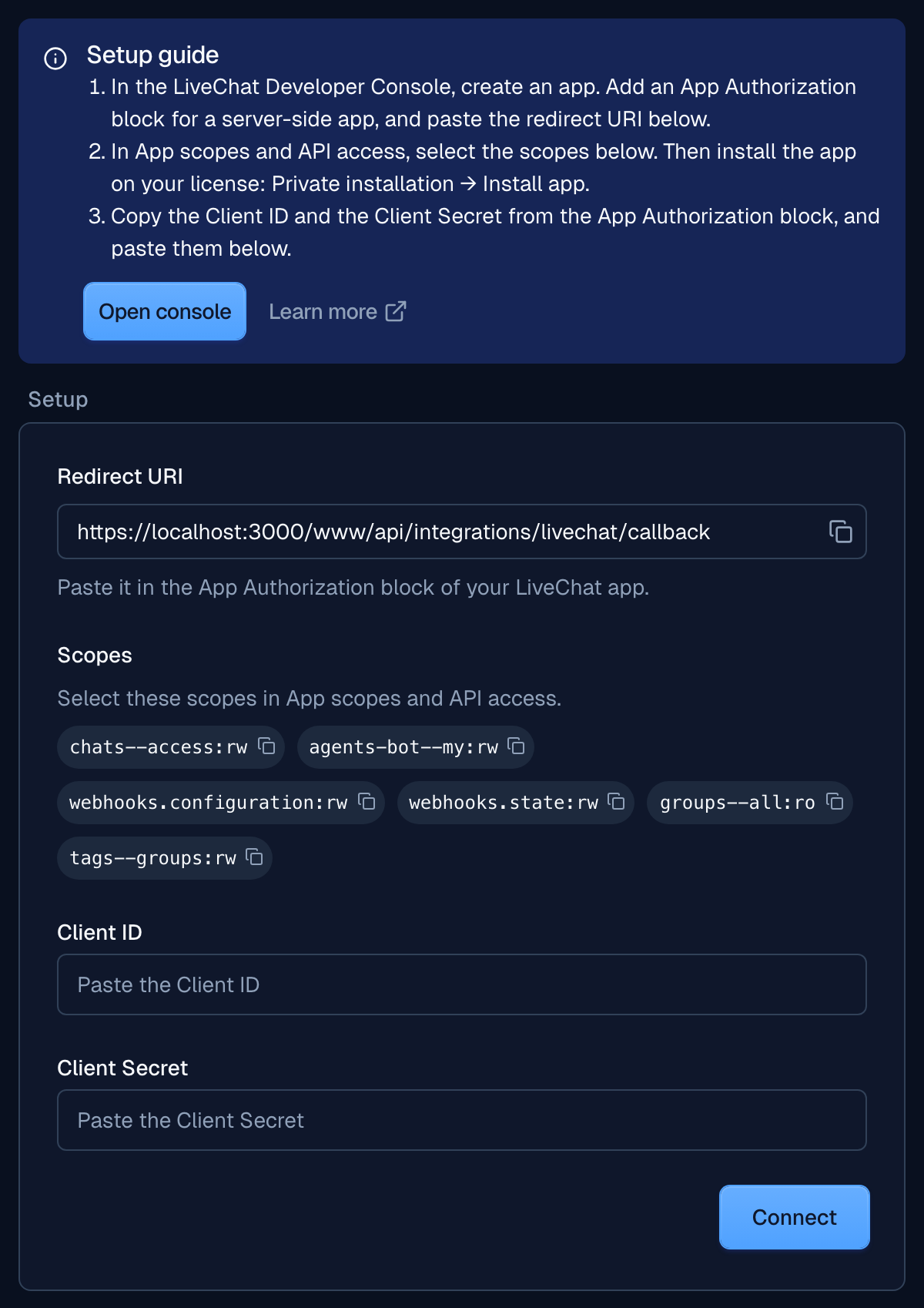
The redirect URI depends on the region of your Moveo account:
| Region | Redirect URI |
|---|---|
| Europe | https://console.moveo.ai/www/api/integrations/livechat/callback |
| United States | https://console.us-central.moveo.ai/www/api/integrations/livechat/callback |
| Brazil | https://console.sa-east.moveo.ai/www/api/integrations/livechat/callback |
Step 2: Create the LiveChat app
Sign in to the LiveChat Developer Console as an owner or an admin of the license, then create the app.
If you prefer the command line, you can do Steps 2 to 4 with the Text Developer CLI instead. See Set up the app with the Developer CLI.
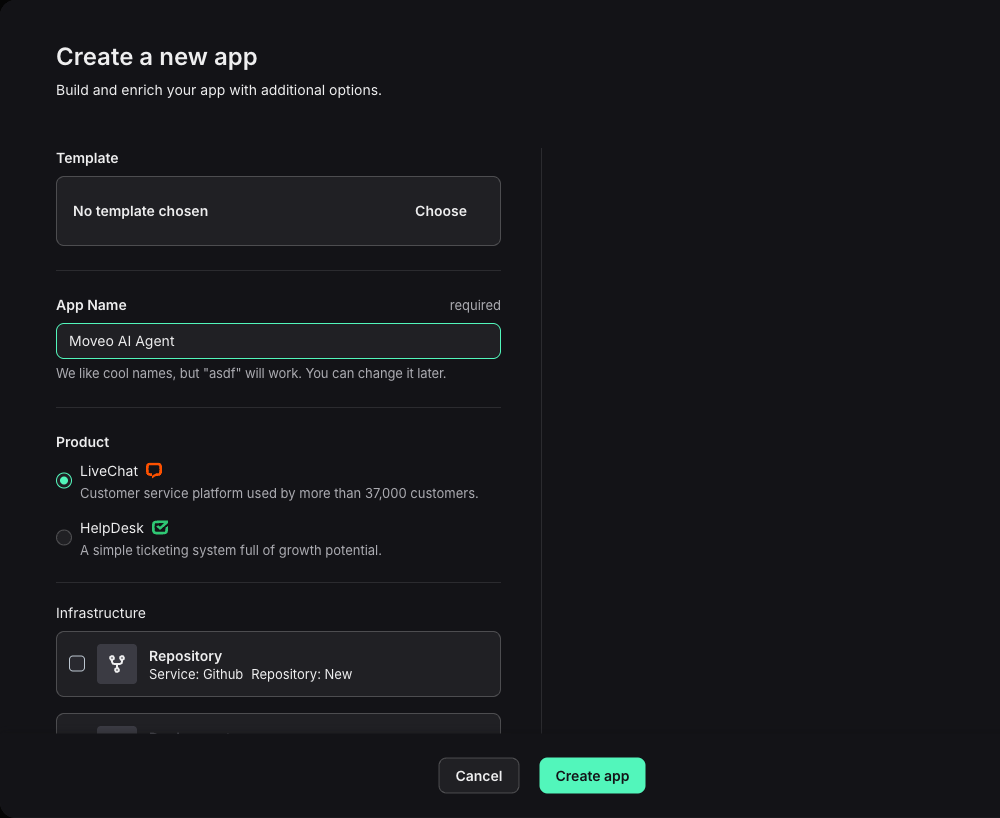
- On the Moveo setup page, select Open console, or go to platform.text.com/console/apps/your.
- Select Create a new app.
- In App Name, type a name such as
Moveo AI Agent. - Under Product, select LiveChat.
- Select Create app.
Step 3: Add the App Authorization block
The App Authorization block gives your app the Client ID and the Client Secret that Moveo uses to connect.
- In the app menu, select Blocks, then select Add building block.
- On the App Authorization row, select Add block.
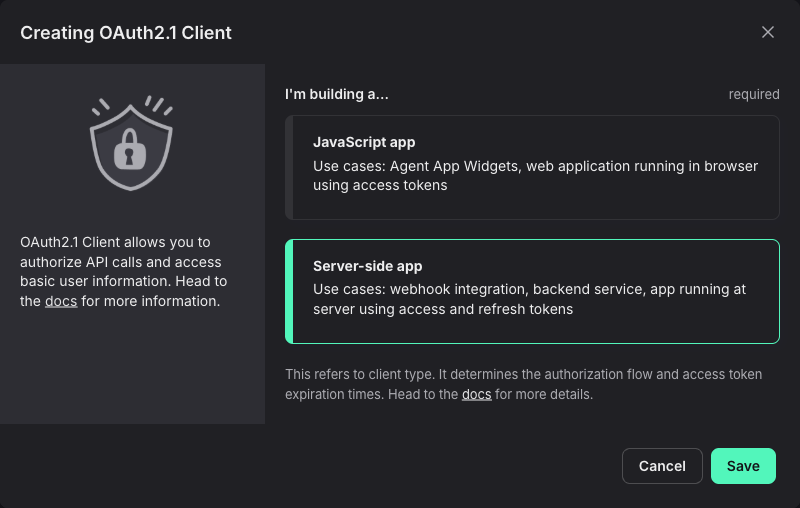
- Select Server-side app, then select Save.
- On the App Authorization page, paste the Redirect URI from the Moveo setup page in Redirect URI whitelist, and select Add.
- Copy the Client Id and the Client Secret, and keep them for Step 6.
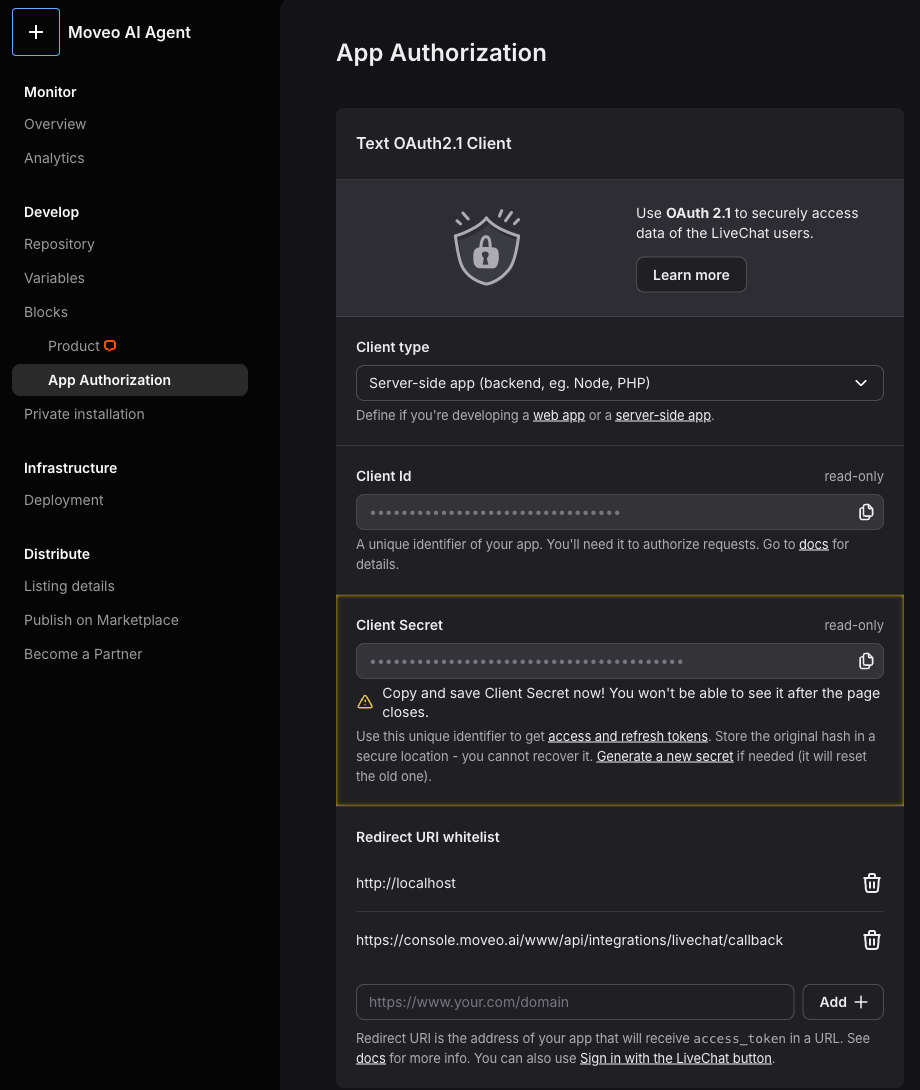
LiveChat shows the Client Secret only until you leave the page. If you lose it, select Generate a new secret on the same page. The new secret replaces the old one, so an integration that uses the old secret must connect again.
Step 4: Select the scopes
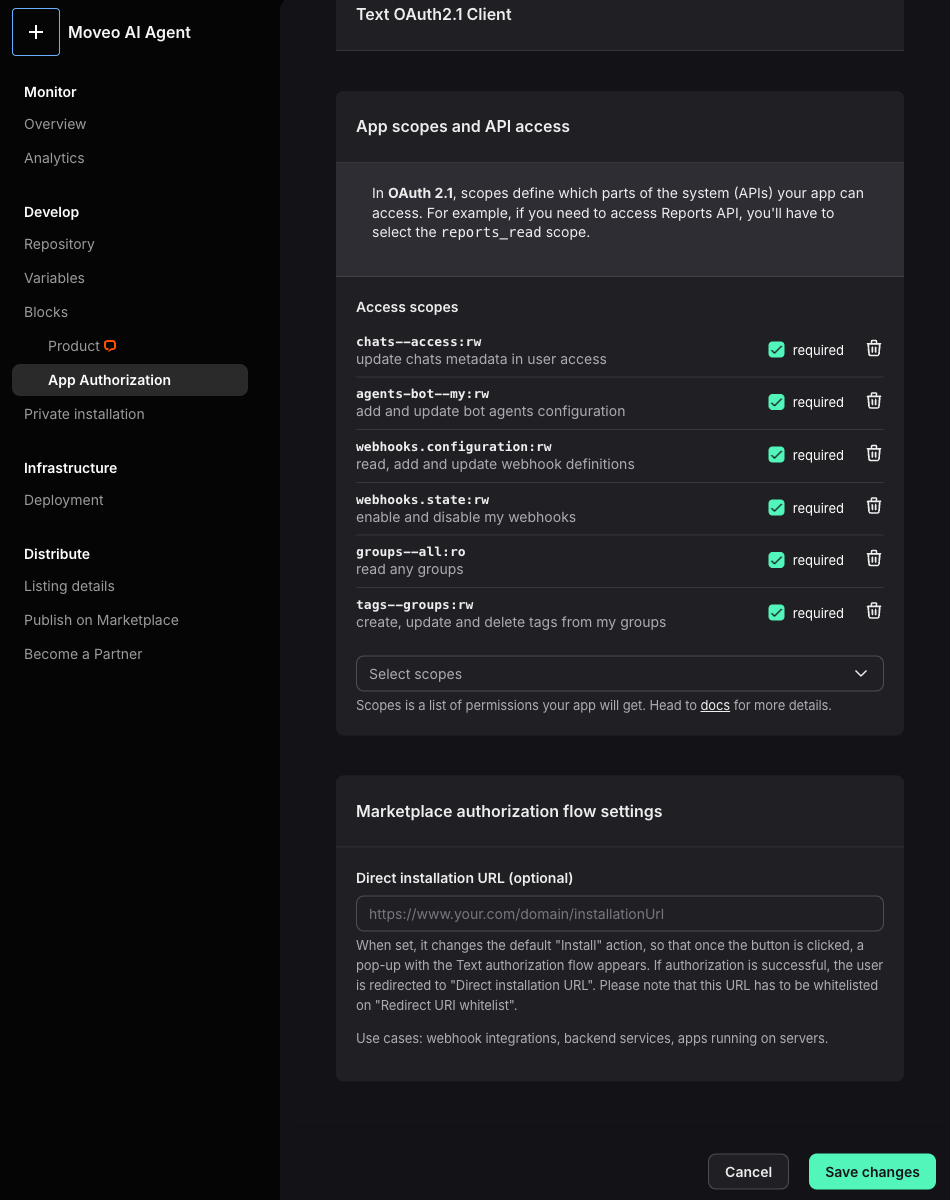
The scopes are on the same App Authorization page, under App scopes and API access.
-
Under Access scopes, open Select scopes.
-
Search for each scope in the table, and select it. Repeat until the list has all six scopes.
Scope What Moveo uses it for chats--access:rwRead and answer the chats agents-bot--my:rwCreate the bot and change its name, picture and groups webhooks.configuration:rwRegister the webhooks webhooks.state:rwTurn on the webhooks for your license groups--all:roList the groups that you can choose in Moveo tags--groups:rwCreate a tag that the AI Agent sets and the group lacks -
Select Save changes.
Step 5: Add an icon and install the app
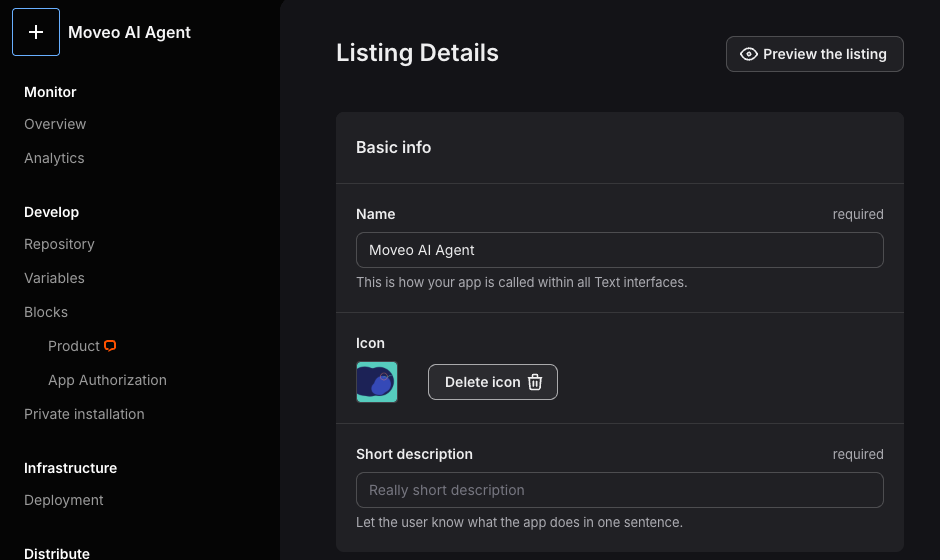
LiveChat keeps the Install app button disabled until the app has an icon.
- In the app menu, under Distribute, select Listing details.
- Under Icon, upload an image, or select Generate random.
- Select Save changes.
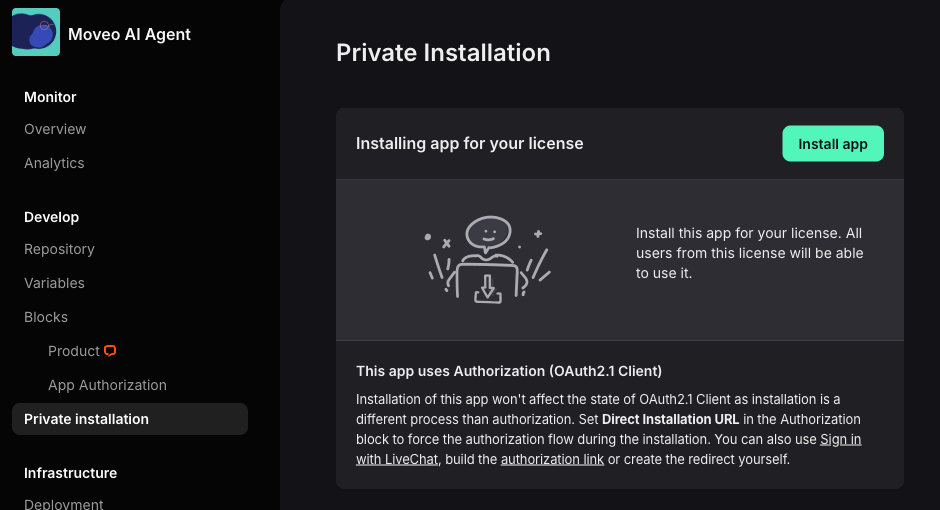
- In the app menu, select Private installation.
- Select Install app. The app is now installed on your license.
Step 6: Connect the integration
- Go back to the Moveo setup page.
- Paste the Client Id in Client ID and the Client Secret in Client Secret, and select Connect.
- LiveChat opens its authorization screen. Sign in with the owner or admin account if LiveChat asks, and allow access.
- LiveChat sends you back to Moveo. The Bot setup card shows for a few seconds while Moveo creates the bot and the webhooks.
When the setup is complete, the page shows the integration settings. The status shows an error at this point, because the bot has no group yet.
LiveChat allows 3 authorization redirects in 30 seconds for each user. Select Connect once, and wait for the result before you try again.
Step 7: Choose the groups of the bot
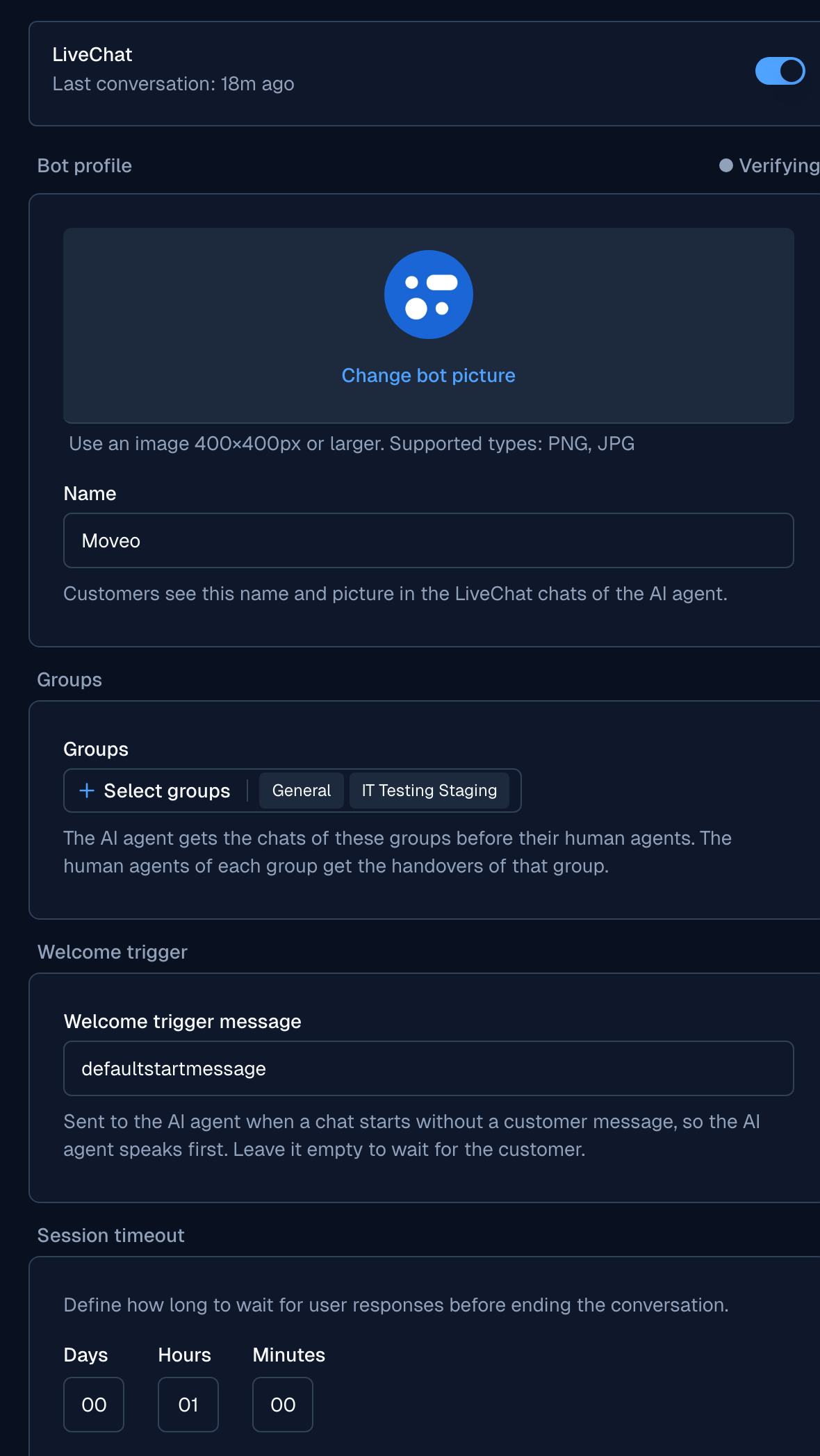
- In the Groups card, select the LiveChat groups whose chats the AI Agent answers.
- Select Save.
Moveo gives the bot the first priority in each selected group, and the status changes to verified. Until you choose a group, the AI Agent gets no chats.
Step 8: Customize the bot profile
Customers see the name and the picture of the bot in each chat. The bot starts as AI Agent with no picture.
- In the Bot profile card, select Change bot picture and upload a PNG or JPG image of 400×400 pixels or larger.
- In Name, type the name that customers see. The name can have 1 to 64 characters.
- Select Save.
Moveo stores the name and the picture in LiveChat, so they also show in Team → Chatbots in LiveChat.
Step 9: Check the routing in LiveChat
- Make sure that your website widget sends its chats to the groups that you chose in Step 7.
- Make sure that each group has human agents who can take the handovers.
Set up the app with the Developer CLI
The Text Developer CLI, txdev, can
replace Steps 2 to 4. It keeps the configuration of the app in a manifest file,
livechat.config.json, which you can edit and push back to the Developer Console. The CLI cannot
add an icon or install the app, so you still do Step 5 in the Developer Console. It also does not
show the Client Secret, which you copy from the App Authorization page for Step 6.
-
Install the CLI, and sign in with your LiveChat owner or admin account. The sign-in opens LiveChat in your browser.
npm install -g @livechat/developer-cli
txdev auth login --provider=accounts -
Create the app. The CLI saves the manifest in a new folder with the name of the app.
txdev app create empty --name="Moveo AI Agent" --product=livechat
cd "Moveo AI Agent" -
Add the App Authorization block with the redirect URI of your region. When the CLI asks for the scopes, select the six scopes of Step 4.
txdev app authorization add --type=server_side_app \
--redirectUri=https://console.moveo.ai/www/api/integrations/livechat/callback -
Download the updated manifest.
txdev app pull -
Open the app in the Developer Console, and continue with Step 5.
txdev app open
After the pull, the authorization block of livechat.config.json has the client type, the
redirect URI and the six scopes. The id and the clientId belong to your app.
{
  "id": "<app ID>",
  "name": "Moveo AI Agent",
  "product": "livechat",
  "blocks": {
    "authorization": {
      "clientId": "<Client Id>",
      "type": "server_side_app",
      "redirectUri": "https://console.moveo.ai/www/api/integrations/livechat/callback",
      "scopes": [
        { "scope": "chats--access:rw", "required": true },
        { "scope": "agents-bot--my:rw", "required": true },
        { "scope": "webhooks.configuration:rw", "required": true },
        { "scope": "webhooks.state:rw", "required": true },
        { "scope": "groups--all:ro", "required": true },
        { "scope": "tags--groups:rw", "required": true }
      ]
    }
  }
}
To change a scope or the redirect URI later, edit this block and run txdev app push. The
redirectUri value takes more than one URI, separated by commas. Run txdev app verify to check
whether your manifest and the Developer Console are the same.
Configuration options
Active
The switch at the top of the integration page turns the bot on and off in LiveChat. When you turn the integration off, the bot stops accepting chats, and LiveChat routes new chats to the human agents of the group.
Bot profile
The name and the picture that customers see in the chat. LiveChat stores them, so a change made in LiveChat also shows in Moveo.
Groups
The LiveChat groups where the AI Agent answers first. The bot can answer in more than one group. LiveChat also stores the groups of the bot, so a change made in Team → Chatbots in LiveChat also shows in Moveo.
Welcome trigger
A message that Moveo sends to the AI Agent when a chat starts with no customer message, so that the AI Agent speaks first. Leave it empty to wait for the first customer message.
Session timeout
The time without a customer message after which Moveo ends the conversation. The default is 1 day. LiveChat also ends inactive chats according to the chat settings of your license, and Moveo closes the conversation when LiveChat does.
Messages
AI Agent responses
Moveo converts each AI Agent response to a LiveChat message:
| AI Agent response | What the customer sees in the LiveChat widget |
|---|---|
| Text | A message. Bold, italic, strikethrough, links, lists and code show as formatted text. Headings become bold lines, table rows become Header: value lines, and an image becomes its alternative text and URL. |
| Options | Quick reply buttons. LiveChat shows the first 13 options. |
| URL | A message with the link. |
| Webview and survey | A card with a button that opens the page inside the chat. A webview set to open in a new window opens a browser tab. |
| Carousel | Cards with an image, a title, a subtitle and buttons. LiveChat shows up to 10 cards. |
| Image and file | A file in the chat. An image shows in the chat, and other files show as a download. The file can be 10 MB at most. |
| Handover | Moveo transfers the chat to the human agents of the group of the chat. |
| Resolve | Moveo ends the chat. |
| Tag | Moveo adds the tags to the LiveChat chat. |
| Audio and video | Not supported. |
Customer messages
The AI Agent receives the text messages of the customer, and the files that the customer uploads. When the customer selects a quick reply or a carousel button, the AI Agent receives the value of that option or button.
Customer data and tags
Customer details
Moveo fills the user variables from the LiveChat customer. The name and the email from the pre-chat
form become $user.display_name and $user.email. Moveo ignores an email address that is not
valid.
Session fields
Your website can pass values to the LiveChat widget with __lc.params, such as the language or a
customer reference. LiveChat stores them as the session fields of the customer, and Moveo adds them to
the context of the conversation, together with the identifiers of the
chat:
| Variable | Value |
|---|---|
$channels.livechat.chat_id | The LiveChat chat ID |
$channels.livechat.thread_id | The LiveChat thread ID |
$channels.livechat.group_id | The LiveChat group of the chat |
$channels.livechat.session_fields.<name> | The session field <name> |
Moveo updates the session fields when the widget sends new values. Moveo keeps the values exactly as your website set them, so a URL-encoded value stays URL-encoded.
Tags
The tags of a LiveChat chat are the tags of the conversation in Moveo, and the AI Agent reads them
in $tags. Moveo adds a tag when it is added in LiveChat, for example by a LiveChat workflow, and
removes it when it is removed in LiveChat. Moveo keeps the letters, digits and underscores of a tag
name and replaces each other character with a hyphen, so VIP customer becomes VIP-customer.
When the AI Agent sets a tag, Moveo adds it to the LiveChat chat. LiveChat accepts a tag only when the tag belongs to the group of the chat. When the tag does not exist yet, Moveo creates it in that group.
Human agents
Your human agents answer the handovers in the LiveChat Agent App. A LiveChat conversation in the Moveo inbox shows Reply in LiveChat with a link to LiveChat, because a reply from Moveo cannot reach the LiveChat widget.
After a handover, the bot leaves the chat, and the AI Agent does not receive the later messages of that chat.
Testing your integration
- Open your website and start a chat in a group that you chose in Moveo.
- Send a message. The AI Agent answers with the name and the picture of the bot.
- Ask for a human agent, or trigger a dialog with a Handover action. The chat moves to the human agents of the group in the LiveChat Agent App.
- Start a new chat, and trigger a dialog with a Resolve action. The chat ends in LiveChat.
- In LiveChat, go to Team → Chatbots and check that the bot has the name, the picture and the groups that you set in Moveo.
Troubleshooting
Connection errors
When the connection fails, the setup page shows Could not connect LiveChat with one of these messages:
| Message | Cause and fix |
|---|---|
| The app is not installed on your LiveChat license. | Open the app in the Developer Console. If the app has no icon, add one in Listing details. Then select Private installation → Install app, and connect again. |
| LiveChat did not accept the Client ID, the Client Secret or the redirect URI. | Make sure that Redirect URI whitelist has the redirect URI of the Moveo setup page. Copy the Client Id again. If you do not have the Client Secret, select Generate a new secret on the App Authorization page. Then connect again. |
| LiveChat did not allow the setup. | The app does not have all the scopes, or your LiveChat account is not an owner or an admin. Add the missing scopes, install the app again, and connect again with an owner or admin account. |
| You did not allow access in LiveChat. | Select Connect again, and allow access on the LiveChat authorization screen. |
| This LiveChat license is already connected to another Moveo integration. | Delete the other integration, or connect a different license. |
| Something went wrong while connecting LiveChat. | Check the app in the Developer Console, then connect again. |
The AI Agent does not answer
- Make sure that the Groups card has at least one group, and that the integration is active.
- Make sure that the website widget sends its chats to one of those groups.
- Make sure that the environment has a rule that assigns the AI Agent to the conversations.
- Reload the integration page. Moveo checks the bot and the webhooks again, and registers a missing webhook.
The integration stays in Bot setup
Moveo could not create the bot or the webhooks. Reload the page to try again. If the status keeps an error, contact Moveo support.
A tag of the AI Agent does not show in LiveChat
LiveChat accepts a tag only when the tag belongs to the group of the chat. If a tag with the same
name exists only in another group, Moveo does not change it. Add the tag to the group of the chat in
LiveChat, in Settings → Tags. An integration connected before its app had the
tags--groups:rw scope cannot create tags. Add the scope to the app and connect again.
Limitations
- One LiveChat license connects to one Moveo integration only.
- Each license connects through its own private LiveChat app.
- Human agents answer handovers in LiveChat, not in the Moveo inbox.
- After a handover, the AI Agent does not receive the messages of that chat.
- Only the Resolve action of the AI Agent ends the chat in LiveChat. A conversation that a rule, a human agent in Moveo or the API closes stays open in LiveChat.
- Quick replies show the first 13 options, and carousels show up to 10 cards.
- Files sent by the AI Agent can be 10 MB at most. Audio and video responses are not supported.
Resources
LiveChat documentation
Support
- LiveChat help center
- Moveo support: support@moveo.ai