Telnyx Voice
Overview
The Telnyx Voice integration enables your AI Agent to handle voice conversations over phone calls. By connecting your Telnyx account to Moveo, you can provide automated voice support that combines the power of AI with natural speech interaction.
This integration supports automated phone support through your Telnyx phone numbers, outbound calling through campaigns, natural voice interactions with text-to-speech and speech-to-text capabilities, and flexible configuration to optimize voice quality and recognition accuracy.
Prerequisites
Before setting up the Telnyx Voice integration, you'll need to configure both your Telnyx account and your Moveo setup.
Telnyx account
You'll need an active Telnyx account with voice capabilities enabled and sufficient balance to cover voice call costs. All Telnyx-side values are collected from the Mission Control Portal.
API key
Moveo uses a Telnyx API v2 key to place calls, control them, and provision the voice resources described in What Moveo configures in your Telnyx account. Create the key in the Telnyx portal under API Keys.
Copy the API key when it's created. Telnyx shows the value only once. The key also cannot be changed after you save the integration: to use a different key, delete the integration and create a new one.
Public key
Telnyx signs every webhook it sends to Moveo, and Moveo verifies that signature before acting on the call. Copy the public key from the Public Key page, in the same API Keys section of the Telnyx portal. Telnyx exposes a single public key for your organization.
Moveo checks your API key when you enter it, but it cannot check the public key. If the public key is wrong, the integration still saves, and Moveo then rejects every webhook Telnyx sends, so calls are never answered. Copy it exactly.
Account level
Telnyx applies limits per account level, and the lower levels are not usable for production voice. An account belongs to either the Pretrial to Verified ladder or the Level 1 and Level 2 framework, never both:
- Pretrial accounts have no access to Call Control Applications, which this integration requires. Upgrade before configuring the integration.
- Trial accounts are limited to a single outbound voice profile, restrict calls to a verified phone number, cap call duration at 10 minutes, and allow 2 concurrent outbound calls. See trial limitations.
- Paid accounts allow 5 concurrent outbound calls. Reaching 10 requires completing verification, and higher limits are available from Telnyx on request. See concurrent call limits.
- Level 1 accounts cap outbound calling at 100 calls per day and 10 calls per hour, which is not enough for a campaign. See L1 restrictions.
Below the Verified level, Telnyx prepends an automated-call announcement to machine-generated speech, so your callers hear a Telnyx fraud notice before the AI Agent. This applies to paid accounts too, not only trials. Completing verification also lifts the concurrency and destination limits.
Phone number
Connect a Telnyx number, or a number you've ported to Telnyx, to receive incoming calls and to place campaign calls. A Telnyx number can only be assigned to one connection at a time, so numbers already in use elsewhere in your Telnyx account cannot be selected in Moveo.
Without a phone number the integration cannot answer incoming calls or place campaign calls. Leave Phone set to None only if you plan to add the number later.
Moveo account
The configuration steps for connecting your AI Agent to Telnyx are handled through Moveo's platform. For a complete walkthrough of the Moveo-side setup including AI Agent selection, environment configuration, and rule creation, see the quick deployment guide.
How it works
The Telnyx Voice integration creates a bridge between callers and your Moveo AI Agent. When someone dials your Telnyx phone number, Telnyx notifies Moveo, Moveo answers the call, and Telnyx starts streaming the call audio. The speech-to-text engine converts spoken words into text, which your AI Agent processes to generate an appropriate response. That response is then converted back to natural voice through text-to-speech and streamed to the caller in real-time.
For outbound calls the flow is similar. A campaign asks Telnyx to dial the customer, and when the customer answers, the same speech processing and response cycle occurs. The conversation continues until the caller hangs up, or the AI Agent decides that the conversation has been resolved.
What Moveo configures in your Telnyx account
Once you save the integration with valid credentials, Moveo creates the Telnyx resources the AI Agent needs and keeps them in sync:
- An outbound voice profile that authorizes outbound calling.
- A voice API application whose webhook points at Moveo, so Telnyx notifies Moveo about incoming calls and call events.
- The connection resources used for call control.
- The phone number assignment that binds the number you selected to that application.
Moveo re-checks these resources periodically and removes them when you delete the integration.
Don't rename, delete, or repoint the Telnyx resources that Moveo creates. The integration stops working until the expected configuration is restored, so if one of them was changed, delete and save the integration again to have Moveo recreate it.
The outbound voice profile that Moveo creates covers the common destination countries. If your campaign targets a country that isn't enabled, contact Moveo support. Telnyx also gates many destinations behind account verification, so verify your Telnyx account before dialing outside the United States and Canada.
Reaching your AI Agent
Once the integration is configured, users can reach your AI Agent in two ways:
Inbound calls: Customers can call your Telnyx phone number directly to start a conversation with your AI Agent. This is particularly useful for customer support hotlines or IVR systems where users initiate contact.
Outbound calls: Your AI Agent can also call customers as part of a campaign. This enables proactive outreach for appointment reminders, notifications, surveys, or follow-ups, with the AI Agent handling the conversation when the customer answers.
Call termination and handover
Apart from the caller hanging up, a call ends in one of two ways, both controlled from the AI Agent's workflow. When the AI Agent resolves the conversation, the platform hangs up the call within a couple of seconds.
- Resolve: the
Resolveaction marks the conversation as completed. The call leg closes within a couple of seconds, whatever the environment's Keep alive value. - Handover: the
Handoveraction transfers the active call to a phone number or SIP URI, via a Standard transfer (Moveo stays on the call) or SIP REFER (Moveo hands off to your SIP system and drops off). Optional custom SIP headers can be attached for SIP destinations. See Voice call transfer.
To make voice calls behave predictably at the end of a conversation, apply the following checklist to every voice-enabled environment:
- Leave Keep alive as it is. It does not affect voice call termination. See Keep alive for voice integrations.
- Add a
Pauseaction of 1–2 seconds immediately before anyResolveorHandoveraction so the AI Agent's final sentence is not clipped.
Setup guide
Step 1: Prepare your Telnyx credentials
- Log in to the Mission Control Portal and open API Keys.
- On the API Keys page, click Create API Key and copy the key immediately.
- Open Public Key in the same section and copy the public key.
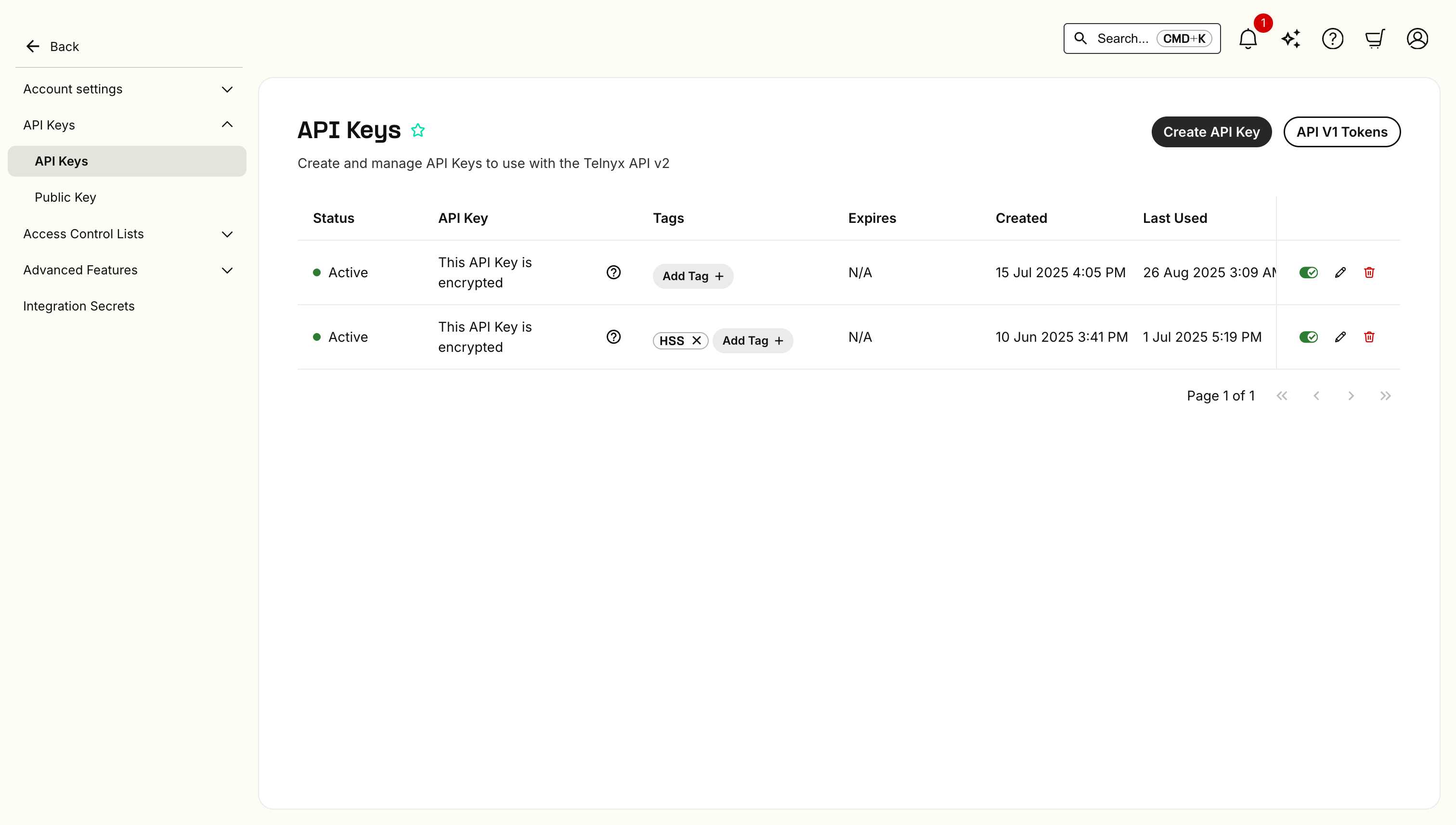
Keep both values handy for the next step.
Step 2: Configure the integration in Moveo
Navigate to Connections in your Moveo account, select your environment, find the Telnyx Voice integration card, and click Connect.
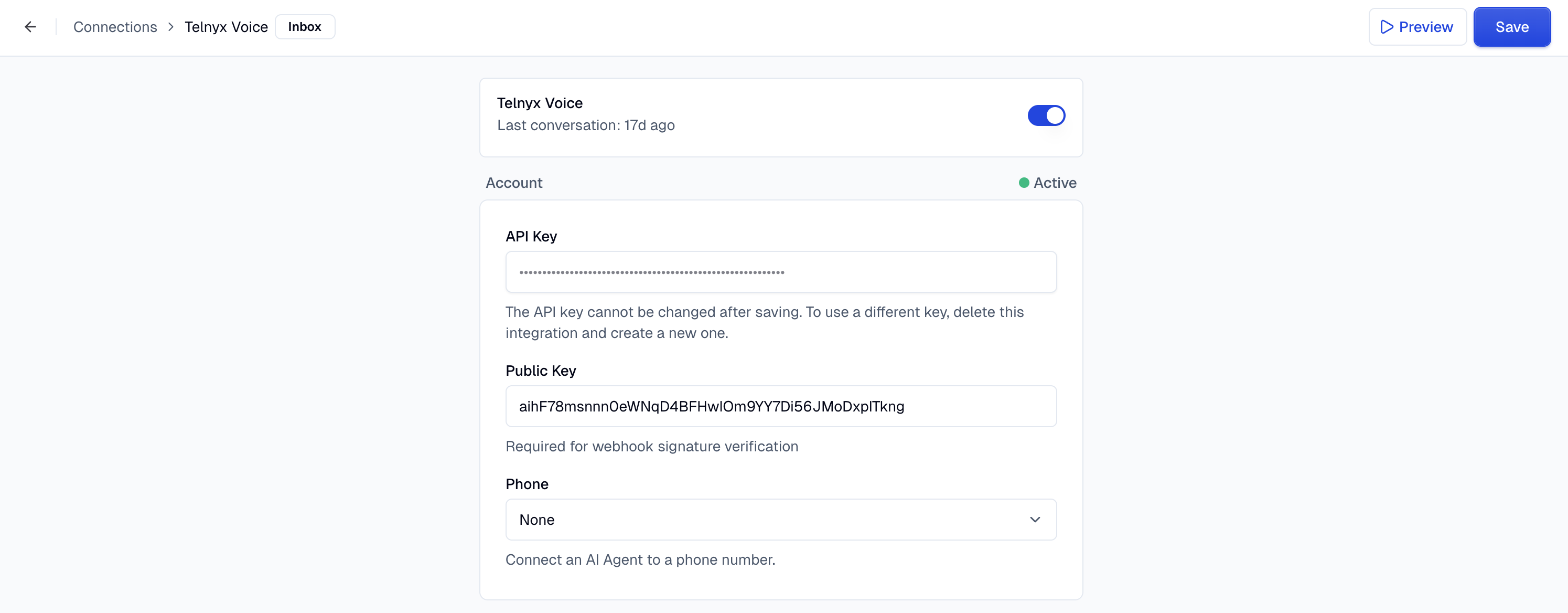
Step 3: Enter your Telnyx account details
Enter your credentials in the Account section of the configuration panel:
API Key: the Telnyx API v2 key from the previous step. Moveo checks the key as you type and reports whether Telnyx accepts it.
Public Key: the public key of the same Telnyx account, used to verify webhook signatures. Moveo cannot validate this one, so copy it exactly.
Once the API key is verified, a Phone field appears so you can connect a number to the AI Agent. Numbers are grouped to show what you can pick:
| Group | Meaning |
|---|---|
| Available | Telnyx numbers in your account that aren't attached to another connection |
| Verified caller ID | Numbers you own elsewhere and have verified in Telnyx, usable for outbound calls only |
| In use | Already taken, so they can't be selected: a Telnyx number attached to another connection, or a verified caller ID used by another Moveo integration |
Only numbers that are active in Telnyx are listed, up to the first 250. Select a number to let the integration answer incoming calls to it and place campaign calls from it. A verified caller ID is the exception, since it works for outbound calls only, so read Choose the caller ID for outbound calls before picking one.
Step 4: Choose the caller ID for outbound calls
Which number your customers see on outbound campaign calls depends on the kind of number you selected:
A Telnyx number is the recommended option, because it handles incoming and outgoing calls. For calls to the United States and Canada, Telnyx also signs numbers you own at the highest STIR/SHAKEN attestation level, A, which lowers the chance that carriers block or label the call.
A verified caller ID is a number you own with another provider and have registered under Numbers → Verified numbers in the Telnyx portal. Keep two constraints in mind:
- It works for outbound campaigns only. Incoming calls to that number keep routing through your original provider.
- Some destination carriers screen calls that present a local number arriving from another carrier's network, and in-country calls to mobile numbers are the common failure case. Telnyx also signs these calls at attestation B rather than A. Prefer a Telnyx number for the market you dial most.
Your own SIP gateway is an optional advanced setup. Selecting a verified caller ID reveals a SIP gateway field in the Account section: enter a host there and Moveo sends outbound calls to that gateway, so your own carrier places the call to the recipient. Enter the host without a sip: prefix, for example sbc.example.com:5060. If the gateway authenticates, enter its credentials in SIP auth username and SIP auth password.
This setup requires your own SIP infrastructure and a carrier contract that allows presenting those numbers. Contact Moveo support to plan it.
Step 5: Optimize voice settings
The integration includes default settings for text-to-speech (TTS) and speech-to-text (STT) that work well for most use cases. However, you can adjust these settings to better fit your specific needs. They sit below the Account section in the configuration panel; see Voice settings for what each group controls.
Step 6: Activate the integration
Review your configuration, turn on the toggle in the Telnyx Voice card at the top of the panel, and click Save to apply your changes. The Account section reports Active once the integration is live.
Step 7: Route calls to an AI Agent
The integration is now connected to Telnyx, but calls still need an AI Agent to answer them. Create a rule for this integration as described in the quick deployment guide, then place a test call.
Configuration options
Voice settings
The configuration panel groups the voice behavior into three sections:
Preferences controls whether voice conversations are stored as call recordings on your account, and whether the AI Agent starts the conversation with the initial welcome message instead of waiting for the caller to speak first. It also holds Noise suppression and Answering machine detection.
Configuration holds the language of the conversation and a preset that applies recommended settings for that language. Changing any individual setting switches the preset to Custom.
Click Show advanced to expose the pipeline itself, including Speech to text (transcription model and turn detection), and Text to speech (voice, model, and delivery parameters such as speed). The defaults are a good starting point, so change the advanced settings only when testing shows a reason to.
Noise suppression
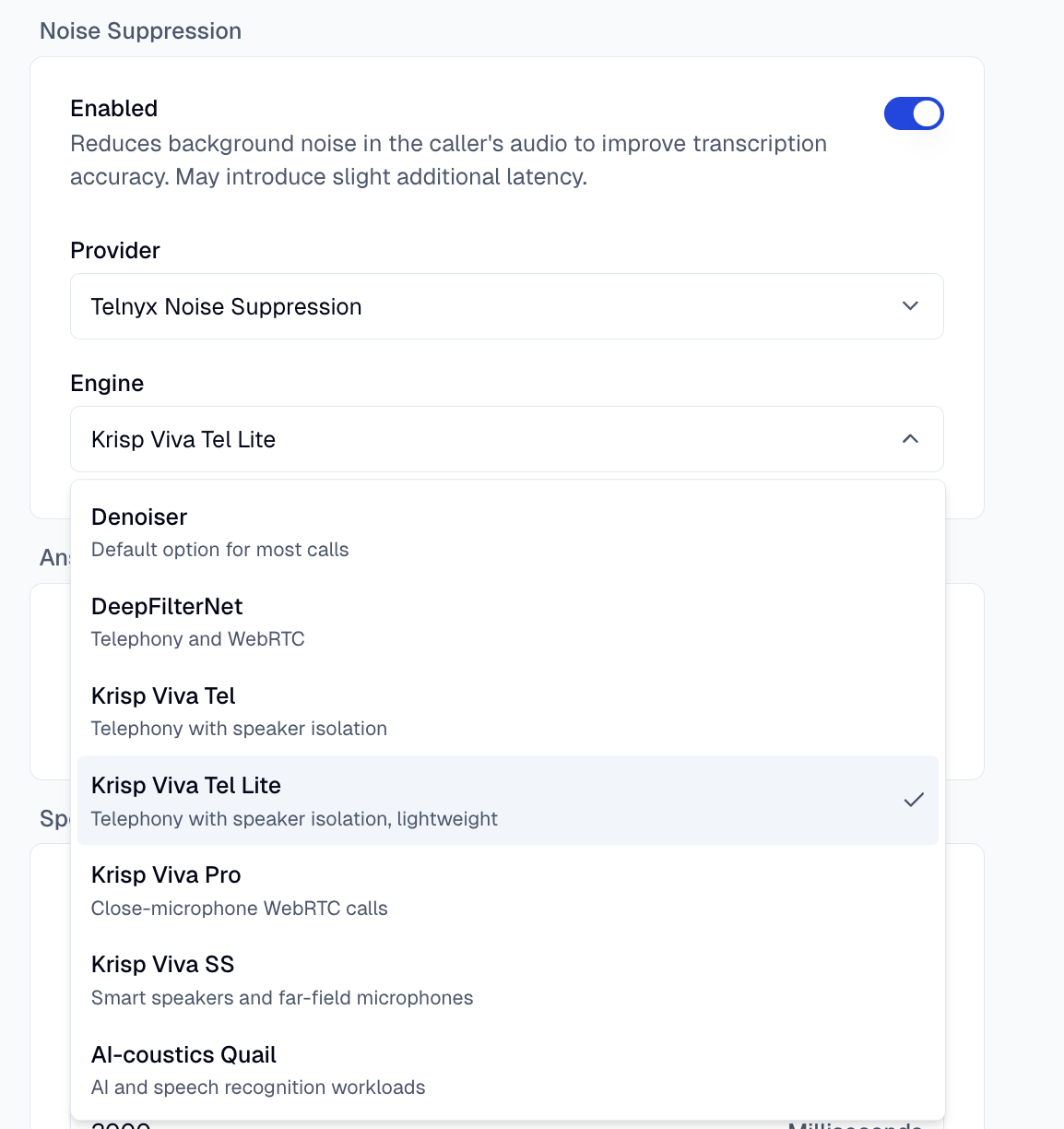
Noise suppression reduces background noise in the caller's audio, which improves transcription accuracy at the cost of a little extra latency. It's off by default. Turn on Enabled, then choose where it runs:
- Moveo.AI applies noise suppression inside the Moveo voice pipeline, and is available on every voice integration. This is the default when you enable the feature.
- Telnyx Noise Suppression applies it on the Telnyx leg, before the audio reaches Moveo, and is available on Telnyx Voice only. Telnyx bills this separately, per direction of audio.
Selecting a provider also lets you pick an Engine. For Moveo.AI, the engines are GTCRN (the default) and Quail Voice Focus. For Telnyx Noise Suppression, Denoiser suits most calls; the others target speaker isolation, WebRTC audio, far-field microphones, or speech-recognition accuracy, and each option in the list shows what it's best for. The engine names combine Telnyx's engines with their sub-models, so they don't map one to one onto the names in Telnyx's noise suppression guide.
Calls from your own dialer
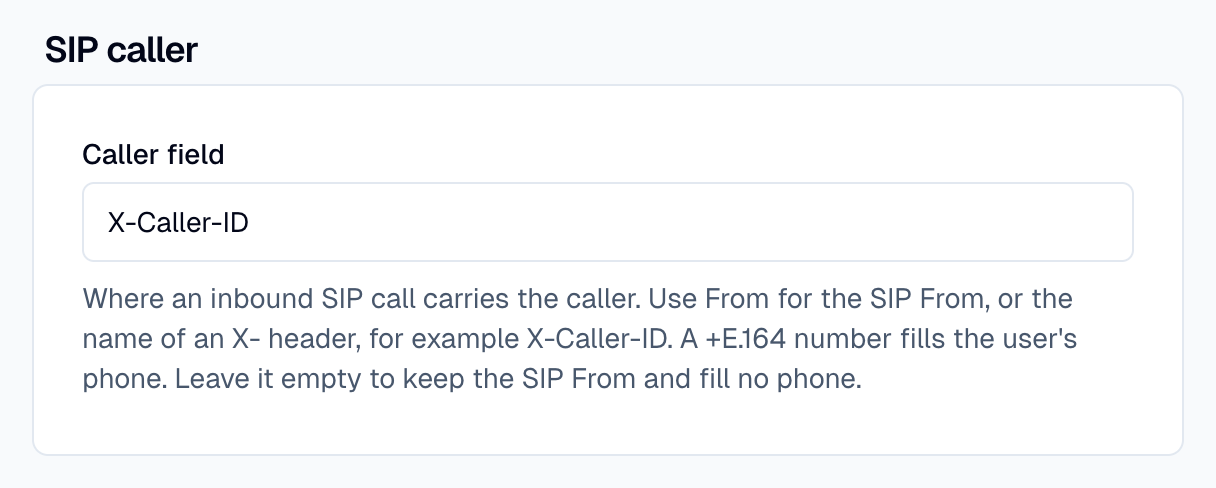
Some teams place calls from their own dialer or PBX and bridge the answered call to Moveo over SIP. The dialer can put its own number in the SIP From field and send the customer's number in a custom header instead. Use SIP caller to tell Moveo where the dialer puts the customer.
To set it, open the integration, click Show advanced, and fill in Caller field in the SIP caller card:
| Value | Who the caller is | When the user's phone is saved |
|---|---|---|
| Empty (default) | The SIP from value that Telnyx sends | As for a call from a phone number. When Telnyx sends from as a plain number, Moveo saves it, even if it is the dialer's number. |
From | The SIP from value that Telnyx sends | As with an empty value. A SIP URI from with a +E.164 user part also gives a phone. |
An X- header name, for example X-Caller-ID | The value of that header | When the header value is a +E.164 number, for example +5511912345678 |
When Moveo saves the phone number, it also sets the user's country and time zone from it. The AI Agent can then look up the customer by phone. Moveo does not save a header value or a SIP URI user part without the leading + as a phone. A national number can read as a number in another country.
When the dialer sends its own number in From, choose an X- header. Some calls have no such header, or a header longer than 256 characters. For these calls, Moveo identifies the caller by From and saves no phone number. This rule stops the dialer's own number from becoming the customer's phone. The header name match ignores case.
Telnyx passes the custom headers of an incoming SIP call to Moveo, and Moveo reads only X- headers from them.
A call from a phone number has no such header either, so with an X- header name it also gets no phone number. If the same number also receives phone calls, use a separate integration for the dialer. Campaign calls do not use this setting. To stop using it, clear Caller field and save.
Voice quality optimization
To ensure the best voice experience, structure your AI Agent's responses using clear, concise language without complex formatting. Avoid special characters and symbols that don't translate well to speech, and use natural spoken language patterns. Consider adding pauses with punctuation for better pacing.
AI Agent guidelines for voice
Voice conversations have unique characteristics compared to text-based chat. To improve your AI Agent's performance in voice interactions, you can add specific guidelines that optimize for the auditory experience. These include using shorter, more conversational responses, avoiding lists or complex structures that are hard to follow audibly, confirming understanding of user input before proceeding, using verbal cues for transitions between topics, and providing clear call-to-action statements.
Testing your integration
Test phone calls
Dial your Telnyx phone number and wait for the AI Agent greeting. Test various conversation scenarios, verify proper call handling and termination, and check call quality and response timing.
Test outbound calls
If you plan to run campaigns, and especially if you configured a verified caller ID, run a campaign with a single contact to a phone you control. Confirm that the call connects and that the caller ID the recipient sees is the number you expect.
Key test scenarios
Make sure to validate call initiation and greeting, clear speech recognition, natural-sounding responses, handling of unclear input or silence, proper call termination, and transcription mismatches.
Troubleshooting
Connection issues
The integration doesn't verify: Confirm the API key is still active in the Telnyx portal, that the public key belongs to the same account, and that the account is funded and has voice enabled. Pretrial accounts cannot create the Call Control Application the integration needs, so the integration cannot be configured on one. See Account level.
You need to change the API key: This isn't supported after the integration is saved. Delete the integration and create a new one with the new key.
Your number isn't in the list: The number must be in the Telnyx account that owns the API key and must be active in Telnyx, and only the first 250 active numbers are listed. Numbers shown under In use are already taken: detach a Telnyx number from its other connection in the Telnyx portal, or remove a verified caller ID from the other Moveo integration that holds it.
The Verified caller ID group is missing: Moveo lists Telnyx-owned numbers only when it cannot read your verified numbers from Telnyx. Confirm the numbers are verified in the Telnyx portal, then reopen the configuration panel.
Call handling issues
Calls aren't being answered: Verify the integration is active, review the call in the Telnyx portal to confirm it reached Telnyx, and check that the public key in Moveo matches the one in your Telnyx account, since a mismatch makes Moveo reject every webhook. If the voice API application Moveo created was renamed or repointed, delete and save the integration again so Moveo recreates it.
Outbound campaign calls fail to connect: This is the common symptom of dialing in-country mobile numbers from a verified caller ID, where the destination carrier screens the call. Use a Telnyx number in that market, or route the calls through your own SIP gateway. See Choose the caller ID for outbound calls.
Outbound calls are rejected because of the caller ID: The number must be in E.164 format (the international format, for example +12025551234), and a number you own elsewhere must be registered as a verified number in Telnyx before it can be presented.
AI Agent not responding correctly: Test the AI Agent in text mode first to verify logic, review voice-specific guidelines and adjust accordingly, check for speech recognition errors in logs, verify intent recognition is working properly, and consider adding confirmation steps for critical information.
Audio quality issues
Speech recognition is inaccurate: Adjust STT language settings to match the caller's language, enable noise suppression for better accuracy, and review the recognition sensitivity settings.
Voice responses sound unnatural: Review your AI Agent's response formatting, remove special characters and formatting that don't translate to speech, adjust the TTS voice model or speaking rate, simplify complex responses for better verbal delivery, and add punctuation for natural pauses and pacing.
Audio delays or lag: Review Telnyx's service status for any issues, and check whether the callers reporting the delay are in a region far from your Moveo deployment.
Limitations
Platform limitations
Call duration and concurrency limits are determined by your Telnyx account level and plan, and which destination countries you can dial depends on that level too. Audio format constraints are defined by the codecs supported by Telnyx. Accounts below the Verified level are capped and prepend an automated-call announcement, so they can't be used for production traffic.
Integration constraints
Each integration configuration supports one phone number, and that number is assigned to the connection Moveo creates while the integration exists. Verified caller IDs work for outbound calls only. Voice quality depends on the caller's connection and device, STT accuracy varies with accents and background noise, and complex multi-turn conversations may require optimization.
Best practices
Monitor call duration and implement time limits if needed for cost control. Provide clear voice prompts for better recognition. Have fallback options for unclear or failed recognition. Regularly review and optimize based on call analytics.
Resources
Telnyx documentation
- Voice API overview
- Mission Control Portal
- API reference
- Voice API pricing
- Account levels and upgrades
- Telnyx status
Moveo resources
Support
- Telnyx support
- Moveo support: support@moveo.ai
Next steps
Once your Telnyx Voice integration is active, optimize your AI Agent with voice-specific guidelines, test thoroughly with various scenarios and voice configuration, monitor call analytics to identify improvement areas, adjust TTS/STT settings based on user feedback, configure fallback options for complex queries, and train your team on monitoring and handling escalations.