Web Voice
Web Voice lets a visitor of your website call the AI Agent from the Moveo web widget. The visitor clicks the voice button of the widget and talks to the AI Agent in the browser. You do not need a phone number or a telephony account.
The integration handles only the call: the websites that can start a call, the network, and the call settings. The AI Agent holds the voice. Set the speech-to-text and text-to-speech in the voice settings of the AI Agent, and the language model in the Voice channel of the model strategy.
Prerequisites
- A web widget on your website, in the same environment as the Web Voice integration.
- An AI Agent with speech settings for its primary language, or a Moveo default for your region. See Default settings.
- A rule that routes the Web Voice integration to the AI Agent.
Set up Web Voice
- Go to Connections and select the environment of your web widget.
- Find the Web Voice card and click Connect.
- Under Allowed origins, click Add origin and enter each website that shows the widget, for
example
https://www.example.com. See Allowed origins. - Set the call settings.
- Turn on the toggle of the integration and click Save.
Connect it to the web widget
- Open the web widget integration in the same environment.
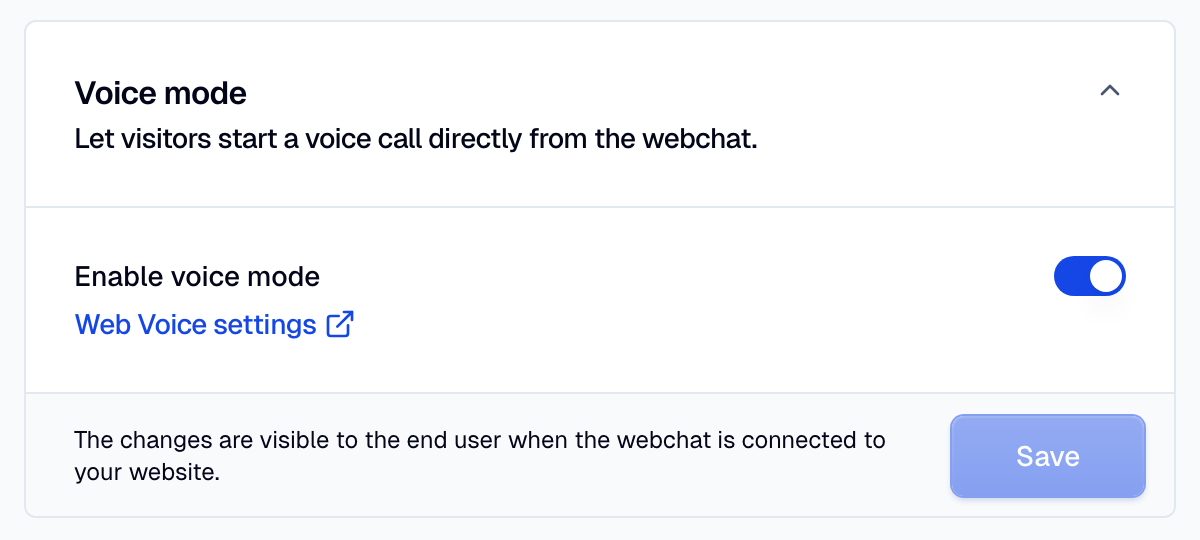
- Expand Voice mode.
- Turn on Enable voice mode. To open the Web Voice integration, click Web Voice settings.
- Click Save.
The widget then shows a voice button. If the environment has no Web Voice integration, Voice mode shows Set up, which opens the setup of a new one.
If you turn off the Web Voice integration, visitors do not see the voice button. If you delete it, select another integration in Voice mode, or turn off voice mode.
Call settings
| Setting | What it does |
|---|---|
| Allowed origins | The websites that can start a call. Up to 20 origins. |
| ICE transport policy | How the call audio crosses the network. Auto (default) or Force relay (TURN). |
| AI Agent starts first | The AI Agent greets the visitor with the welcome message. With it off, the AI Agent waits for the visitor to speak. |
| Noise suppression | Removes background noise from the visitor audio before speech-to-text. Off by default. See Turn-taking. |
Allowed origins
An origin is the scheme and the domain of a website, for example https://app.example.com, with no
path. The match is exact. Add each subdomain on its own line, because wildcards do not work.
- A call from a website that is not in the list does not start.
- With an empty list, any website can start a call with the integration. Add at least one origin before you embed the widget on a public website.
ICE transport policy
- Auto sends the audio on the shortest network path. Use it for most websites.
- Force relay (TURN) sends all the audio through a relay server. If a strict company firewall blocks direct connections for your visitors, use this policy.
Browser and microphone
A Web Voice call uses WebRTC in the browser of the visitor. At the start of the call, the browser asks for microphone access, and the visitor must allow it. If the call cannot use the microphone, the widget shows one of these errors:
| Error | Cause |
|---|---|
| Microphone permission denied | The visitor blocked the microphone for the website. |
| No microphone found | The device has no microphone. |
| Microphone is in use by another application | Another application holds the microphone. |
During the call, the visitor can mute the microphone and open a keypad to send digits. The widget also shows what the visitor said and the replies of the AI Agent as text. To write replies that work in audio and on screen, see Voice guidelines.
If the network connection drops, the call tries to reconnect for up to 45 seconds. Then it ends.
Limits
- Web Voice calls are inbound only. To call customers, use Twilio Voice or Telnyx Voice with campaigns.
- Web Voice calls do not support handover or call transfer. Make sure that your workflow does not
run the
Handoveraction on a Web Voice call. - Web Voice has no answering machine detection, no call recording and no SIP caller setting.
Test the integration
- Add the origin of your test page to Allowed origins.
- Open the page with the web widget and click the voice button.
- Allow the microphone, and talk to the AI Agent.
- Open the conversation in Logs to read the transcript.
A Web Voice call tests the full speech pipeline, but not the phone network or handover. For a complete test plan, see Test a voice AI Agent.