Knowledge base through external sources
Connect to an existing knowledge base to allow Moveo to ingest your articles. Moveo supports these external sources: Intercom, Zendesk, Workvivo, and Google Drive. The OAuth sign-in for an external source runs only in the console.
If you already have the credentials, you can also add an external source through the REST API. Send POST /v1/collections/{collection_id}/datasources with a manage API key. For Google Drive, set type to gdrive, and send refresh_token and folder_id in config. See Connect new datasource to knowledge base. The Moveo MCP server cannot add external sources.
Intercom
To connect Intercom, follow these steps:
- Open the knowledge base and go to the External sources tab.
- Select Add.
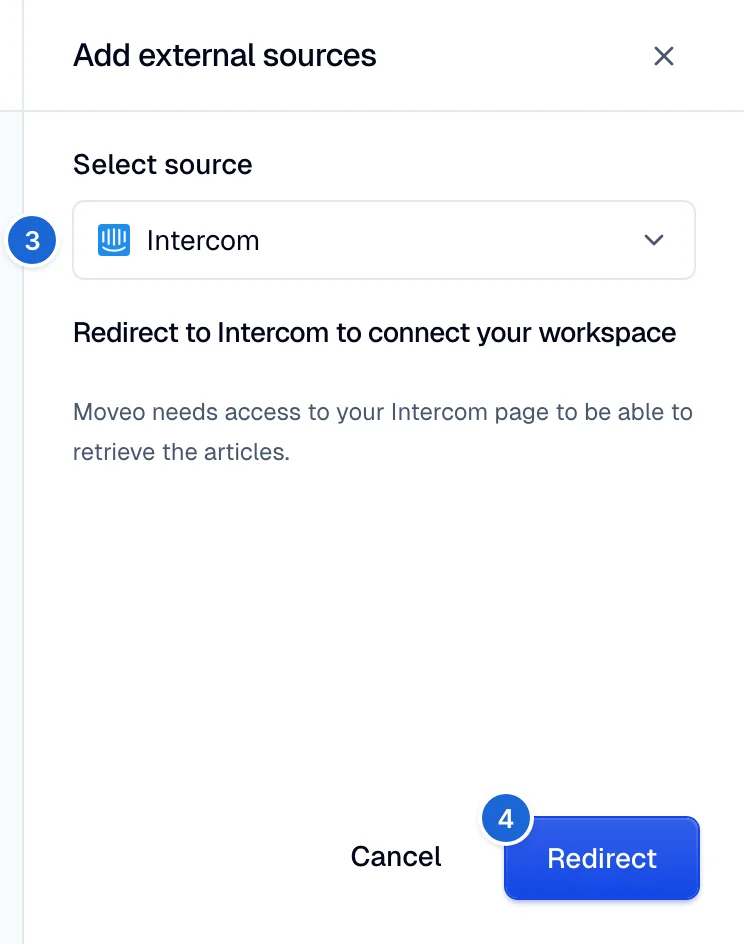
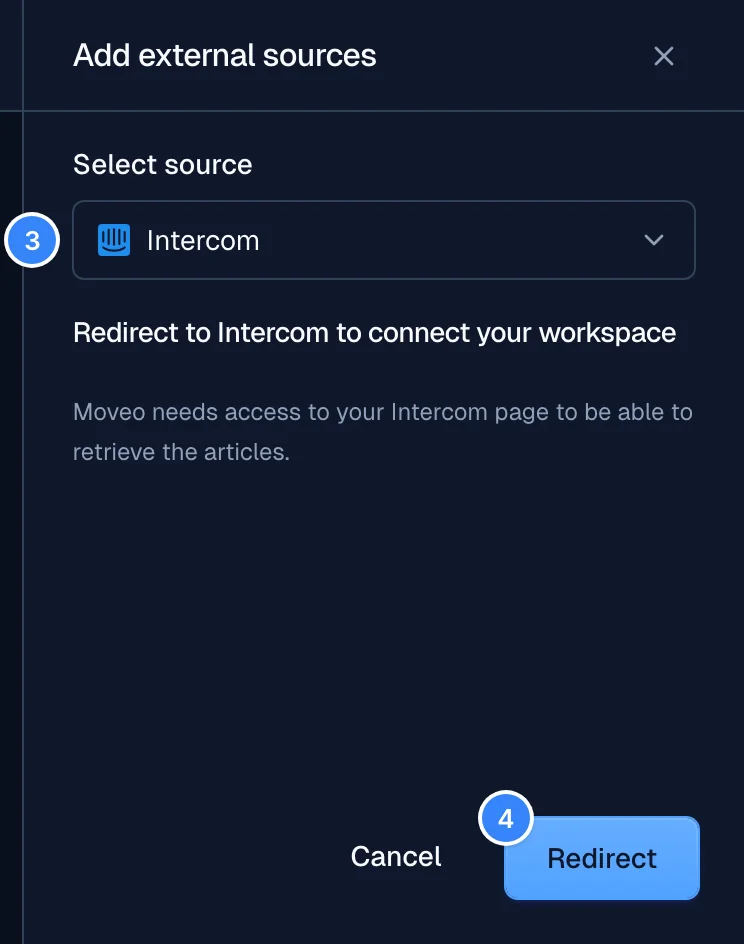
- In Select source, select Intercom.
- Select Redirect to connect your Intercom workspace. Moveo needs access to retrieve the articles.
- In Intercom, choose the Intercom knowledge base as your data source, then select Connect.
- Select Authorize access to let Moveo retrieve your articles.
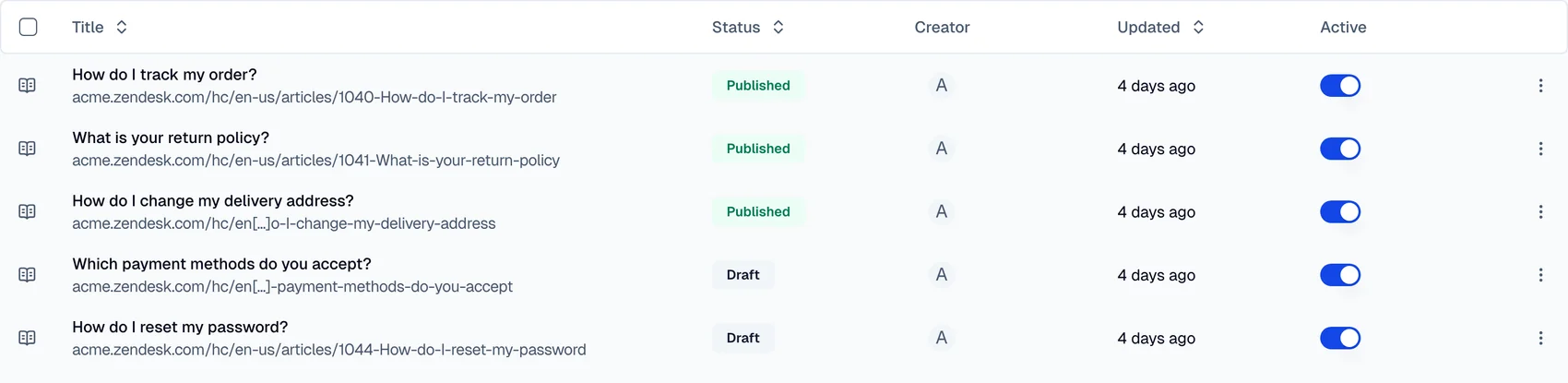
- In the folder of the source, turn off Active for each article that the AI agent must not use.
- Select source
- Authorize
- Articles



For non-professional accounts, you need to publish your Intercom articles to have them appear in Moveo.
Zendesk
To connect Zendesk, follow these steps:
- Open the knowledge base and go to the External sources tab.
- Select Add.
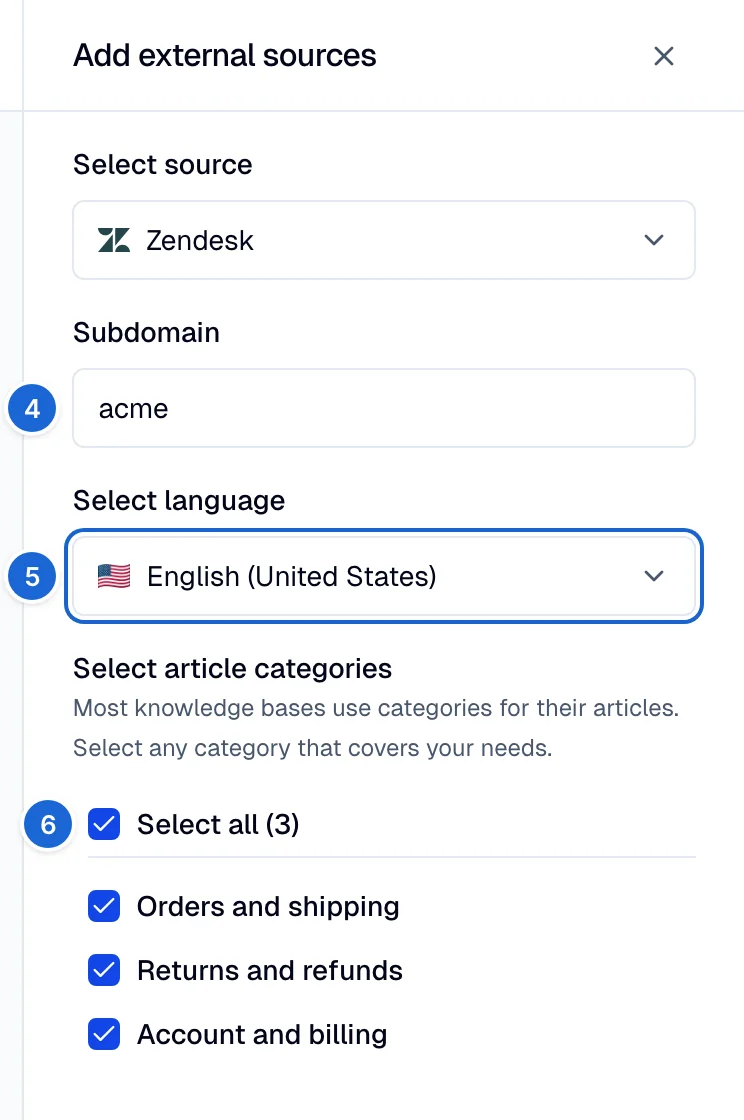
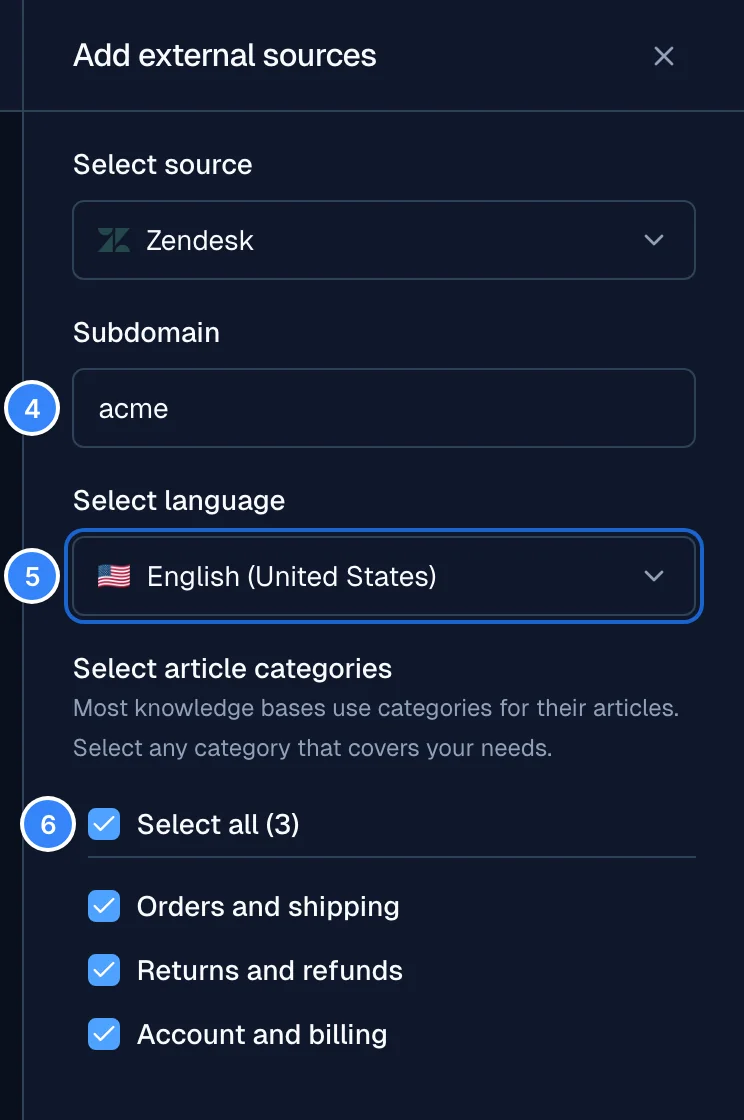
- In Select source, select Zendesk.
- Enter your Zendesk Subdomain and press Enter. Moveo loads the languages of the help center.
- In Select language, select a language. Moveo loads the article categories.
- Select the article categories that the AI agent can answer from. Moveo selects all categories by default.
- Select Add. Moveo adds the articles of the selected categories to the knowledge base.
- Configure
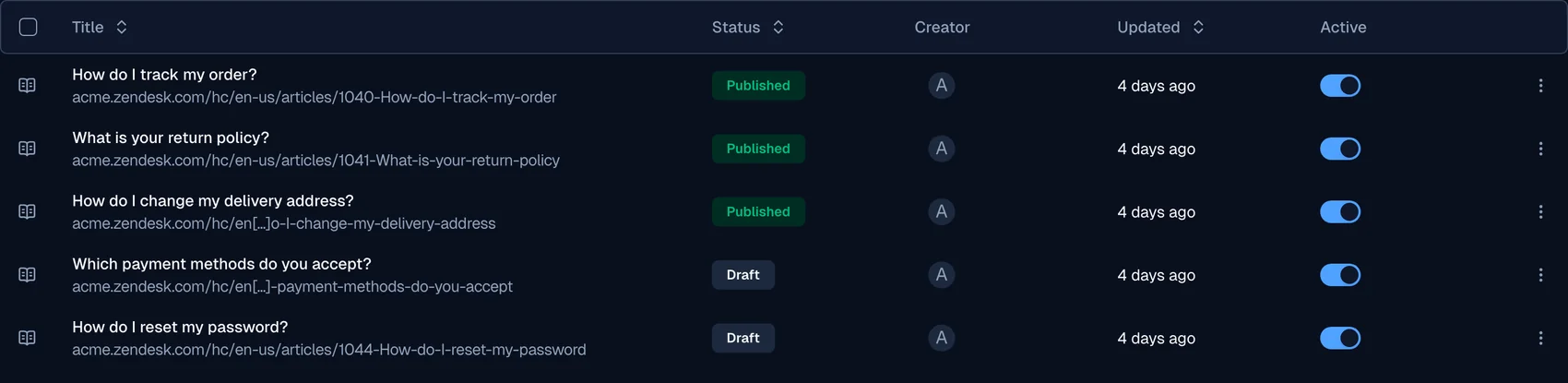
- Articles
Google Drive
Google Drive adds the files of one Drive folder to a knowledge base. Moveo only reads the files. The Google Drive option appears under External sources only when Moveo turns on Google Drive for your account. If you do not see it, contact Moveo support.
- Open the knowledge base and go to the External sources tab.
- Select Add, then select Google Drive.
- Enter a Name for the source.
- Select Connect Google Drive, sign in with Google, and pick the folder.
- Optionally, select Keep published status. It stops the content from going back to draft after an edit.
- Select Add.
Moveo adds the files as drafts. Publish them before the AI agent uses them. See Publish. If Google access expires or someone revokes it, the folder shows Google Drive is disconnected. Select Reconnect Google Drive to sync the folder again.
Missing articles
An external source can lose articles after you connect it. For example, someone can delete or deactivate a category in Zendesk. On the next sync, Moveo removes the articles of that category. The folder of the external source tells you about the loss in two ways:
- Missing articles: This banner appears above the article list of a Zendesk folder. Moveo shows it if one or more of the categories that you selected no longer exist in the Zendesk help center. The folder still shows the articles that remain.
- No available articles: This message replaces the article list of a Zendesk or Intercom folder that has no articles.
To fix the problem in a Zendesk folder, click Edit articles. The Edit external source panel opens with your subdomain, language and categories. Only the categories that still exist are selected. When you save, Moveo removes the deleted categories from the source. You can also click Visit Zendesk to fix the categories in your Zendesk account. For an Intercom folder, use the link in the message to open your Intercom account and fix the articles there.
Sometimes Moveo cannot get the categories from the Zendesk help center. In that case, Moveo does not show the Missing articles banner.
Next steps
- Publish content - Make your imported articles available to live agents
- Test your knowledge base - Verify your agent answers correctly
- Best practices - Optimize your knowledge base content