Member management
Collaborate with colleagues across multiple accounts in Moveo. This page shows how to invite members to your account, and how to find and accept invitations to other accounts.
Invite members
- Select your profile icon in the upper-right corner of the screen and select Your profile.
- In the left sidebar, go to Account → Manage access.
- Select Invite.
- Select By role, then select Continue.
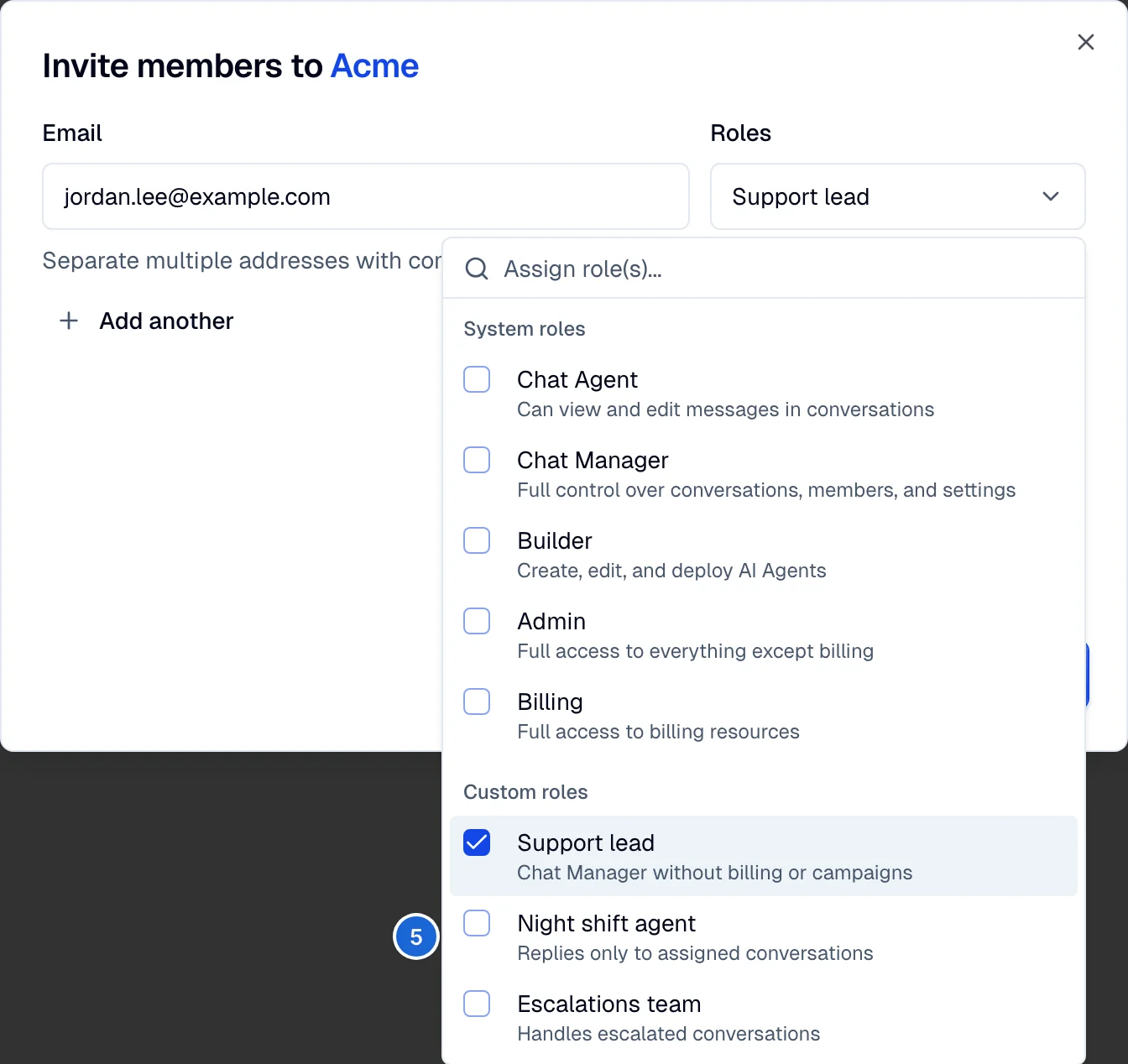
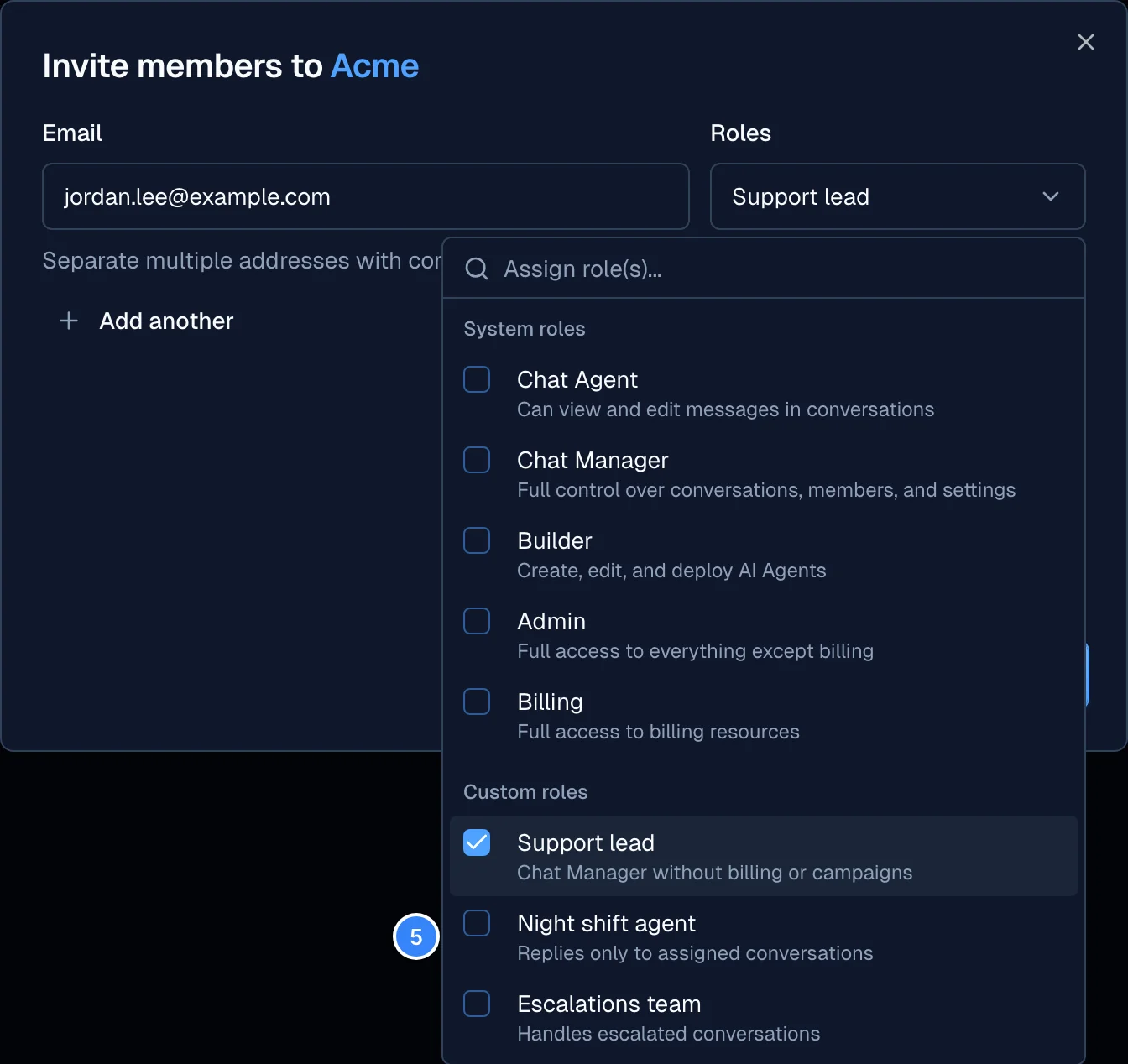
- Enter the email address of the person you want to invite and select their roles. The picker groups the choices under System roles and Custom roles. You can select more than one role, and the member receives the combined access of all of them. To choose a role, see Roles and permissions for a description of what each role can do, and Custom roles for how to build your own.
- Select Send invite to send the invitation.
To invite someone into an existing team instead, select By team in step 4. The member then inherits every role assigned to that team. See Teams for how team access combines with individual roles.
View and accept invitations
- Select your profile icon in the upper-right corner of the screen and select Your profile.
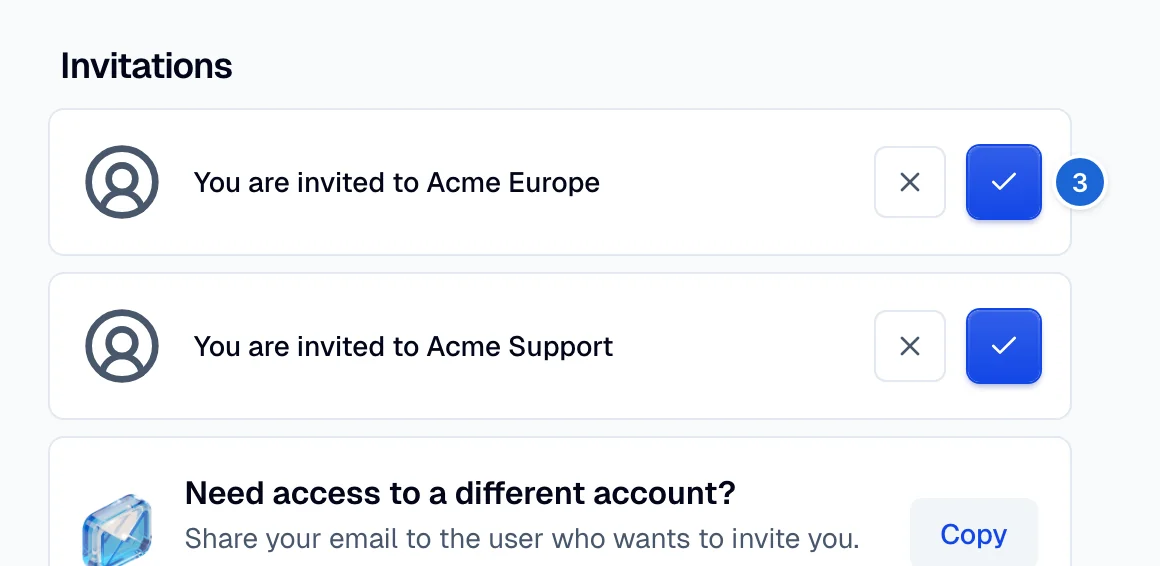
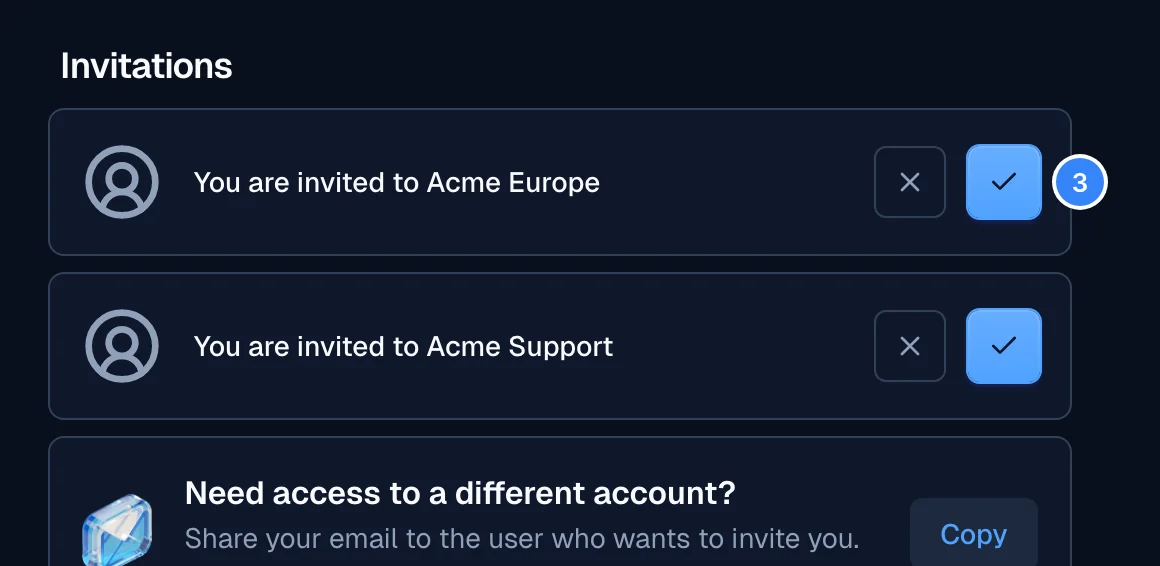
- Go to the Invitations section to view every account that invited you. When an invitation gives you a role directly, its card shows the role as Access level. An invitation that only adds you to a team shows no access level. See Roles and permissions.
- Accept or reject each invitation from its card. The check button accepts it. The cross button rejects it and opens a warning first, because you need a new invitation to join that account again.
- To open an account that you joined, go to the account menu in the main navigation and select Switch account. Select the account from the list.
The account menu is not the profile icon you used in step 1. It sits in the main navigation and carries the name of the account you are in.
Troubleshooting
An invited teammate sees an empty account, or a page to create an account
Cause: The teammate signed up on their own before they accepted the invitation. A sign-up from the invitation link joins the account that invited them. A sign-up without the link creates a new, empty account for the teammate. The invitation stays pending, so the teammate is not yet a member of your account.
Fix:
- Ask the teammate to log in with the email address that received the invitation.
- The teammate selects their profile icon, selects Your profile, and opens Invitations.
- The teammate accepts the invitation from your account. The invitation link in the email also works.
- If your account is not in the list, the teammate logged in with another email address. Send a new invitation to the email address of their login. Moveo matches an invitation to a login by email address only.
Verify: The teammate opens the account menu in the main navigation, selects Switch account, and sees your account in the list.