Language models
Introduction
Language models connect pre-trained large language models (LLMs) from external providers to your Moveo AI agents. With this feature, you connect popular LLM providers for more customization and flexibility.
Available providers
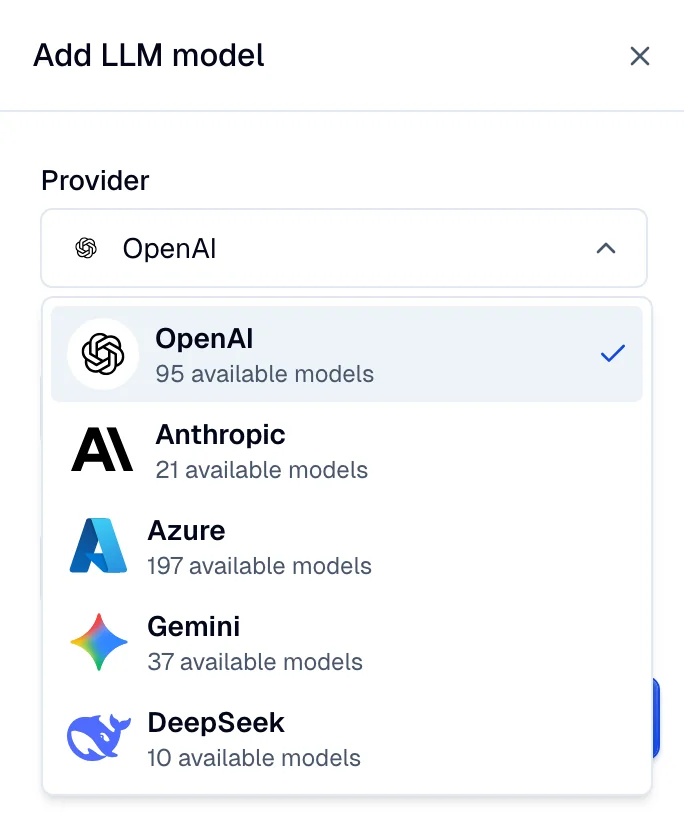
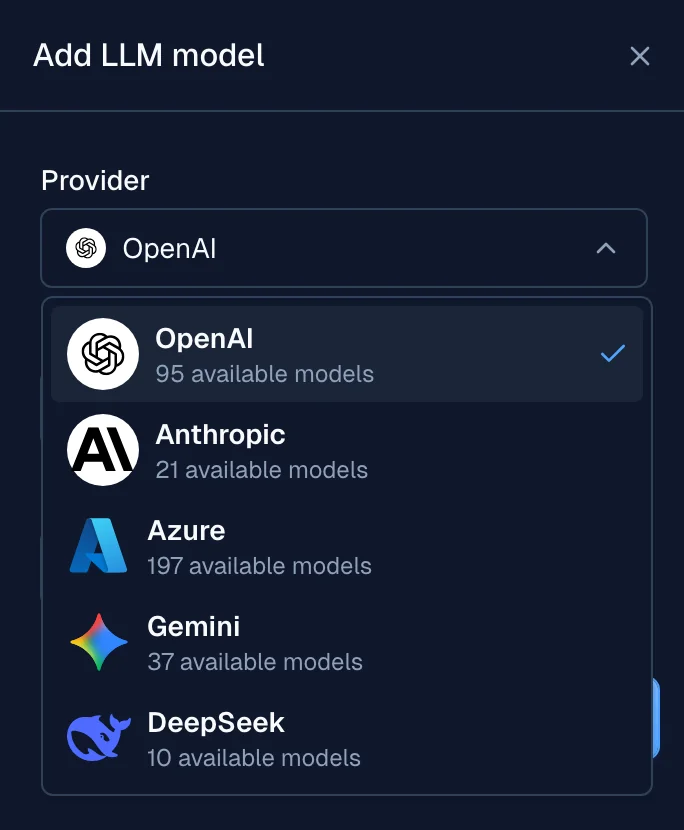
Moveo supports these LLM providers:
- OpenAI
- Anthropic
- Azure (Azure OpenAI)
- Gemini
- DeepSeek
Each provider has its own configuration requirements. To set up a language model for a provider, follow the steps in Connect a language model.
Connect a language model
To connect a language model:
- Go to Settings → Developers → LLMs.
- Select Add to open the configuration panel.
- Select the Provider, then enter the required details:
- OpenAI, Anthropic, Gemini, and DeepSeek require an API key and model selection.
- Azure requires an API key, model, deployment ID, and instance name.
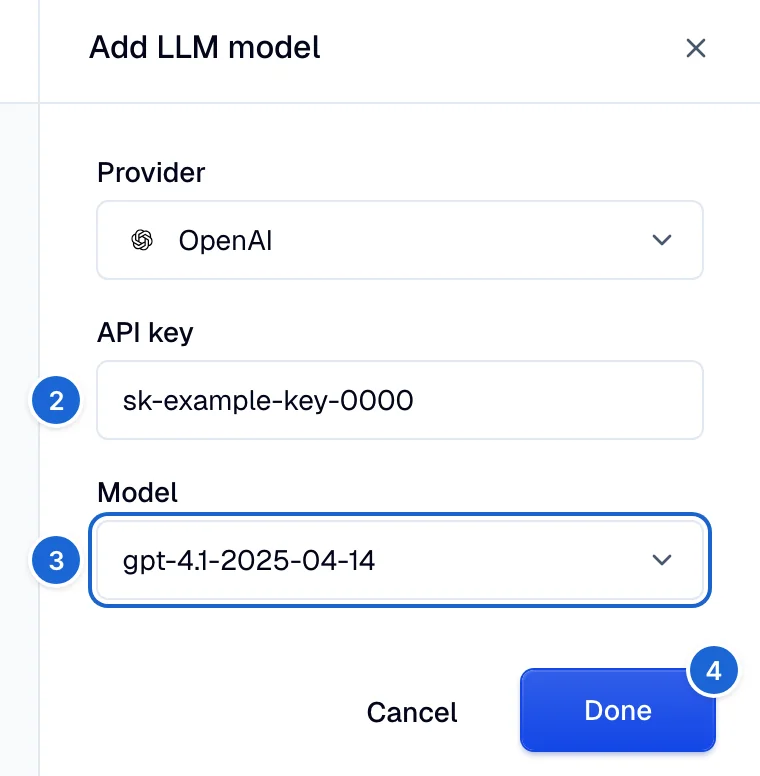
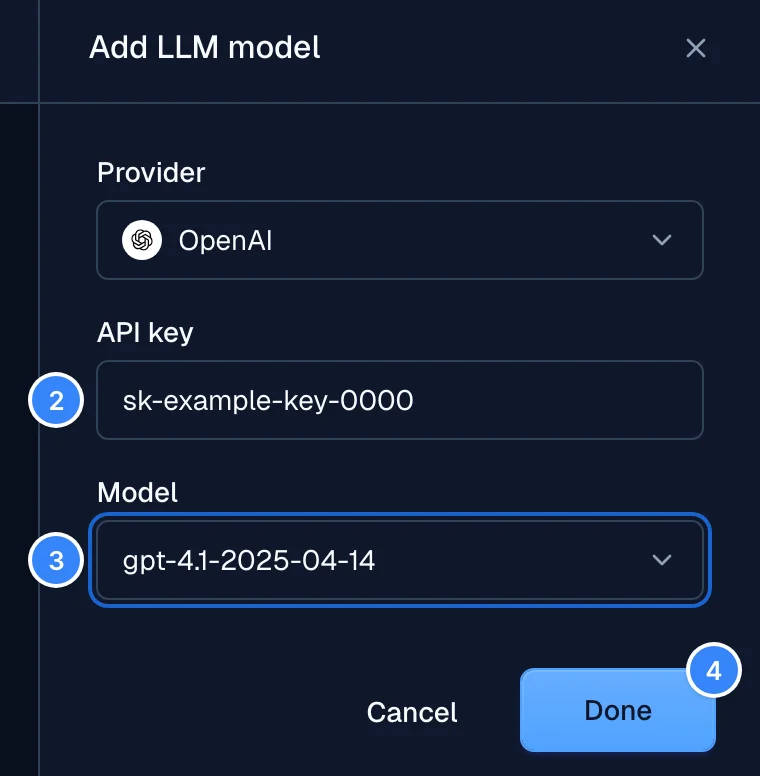
Example: connect OpenAI
- Select Add, then select OpenAI as the Provider.
- In the panel, enter your OpenAI API key.
- Select the model from the Model dropdown.
- Select Done to connect the model.
Manage connected models
The table on the LLMs page shows the connected models. For each model, you can view details such as:
- Provider (for example, OpenAI)
- Model (for example, gpt-5.2)
- Creator (user who configured the model)
- Last updated (date the model was last changed)
- Last used (date the model last answered)


To manage or disconnect a model, use the options menu (⋮) on the model row.
Connect a model to an AI agent
After you connect a model, you can use it in the model strategy of your AI agent. See the Model strategy guide to configure which models power your AI agent on each channel.
Security and best practices
- API keys are sensitive information. Store them securely and limit access to authorized personnel only.
- Connect each model with an API key whose permissions match its intended use.
Troubleshooting
The AI agent gives only the fallback reply, with no error
Cause: The provider rejects the calls with your key. Common causes are a key without credits or quota, a revoked or wrong key, and a rate limit. Moveo tests the key only when you add or update the model. At runtime, Moveo does not show the provider error in the conversation or in the test chat:
- If the model strategy has another step after your model, the AI agent moves to that step and answers with it.
- If your model is the only step, the AI agent has no model to write the reply. The fallback dialog answers instead. Every message gets the fallback reply, and every simulation fails.
Fix:
- Check the key, the credits, and the quota in the dashboard of your provider.
- Go to Settings → Developers → LLMs, open the model, and save it again with a valid key. Moveo
sends a test request to the provider and shows the provider error if the call fails, for
example
Invalid authentication,Rate limit exceeded, or, for DeepSeek,Insufficient balance - Not enough credits to complete the request. - In the model strategy of the AI agent, add a Moveo-built or Moveo-hosted model after your model. If your provider fails again, the AI agent falls back to that model.
Verify: In the Test AI Agent panel, open the Model tab and select your model in Test model. Send a message that your knowledge base can answer. The reply comes from the model, not from the fallback dialog.