Create an event notification
This tutorial creates an event notification that triggers when a chatbot conversation expires. The example is the customer support of a streaming platform. When a user session ends because of inactivity, the event notification sends the conversation details to an external webhook.
Scenario
In this example, users of a streaming service chat with a support bot to resolve issues. If a
conversation stays inactive for too long, it expires. Then the conversation details, including the
user ID, session history, and metadata, go to a CRM system for follow-up with the user. The
receiver processes only conversations whose context.tags field has the value success. It
ignores incomplete or unresolved interactions.
Step 1: Handle the event notification
Your external system must process incoming webhook requests when a conversation expires. This Node.js Express server listens for event notifications. It filters out unresolved conversations and processes only the ones marked as successful.
const express = require("express");
const bodyParser = require("body-parser");
const crypto = require("crypto");

const app = express();
const port = process.env.PORT || 3000;
const SECRET = "mySuperSecretKey123!";

// Middleware to handle duplicate requests
app.use((req, res, next) => {
  const reqId = req.headers["x-request-id"];
  if (!shouldProcessRequest(reqId)) {
    console.log("Ignoring duplicate request");
    return res.status(200).send("Ignored");
  }
  next();
});

app.use(bodyParser.json());

app.post("/webhook/chat_expired", (req, res) => {
  const headers = req.headers;
  const body = req.body;

  console.log("Received chat expiration webhook:", body);

  // Validate HMAC signature
  const signature = headers["x-moveo-signature"];
  const expectedSignature = calculateSignature(JSON.stringify(body), SECRET);

  if (signature !== expectedSignature) {
    console.error("Invalid signature!");
    return res.status(401).send("Unauthorized");
  }

  // Check if the conversation was successfully completed
  const conversationTags = body.events[0]?.session?.context?.tags || [];
  if (!conversationTags.includes("success")) {
    console.log("Ignoring incomplete or unresolved conversation.");
    return res.status(200).send("Ignored");
  }

  console.log("Signature valid. Processing expired chat...");
  console.log(`Account ID: ${body.account_id}`);
  console.log(`Event Type: ${body.event_type}`);

  res.status(200).send("Webhook received successfully");
});

function calculateSignature(body, secret) {
  const hmac = crypto.createHmac("sha256", secret);
  hmac.update(body);
  return hmac.digest("hex");
}

app.listen(port, () => {
  console.log(`Server listening at http://localhost:${port}`);
});
Step 2: Go to event notifications
- Go to Settings → Developers → Event notifications.
- Select Create.
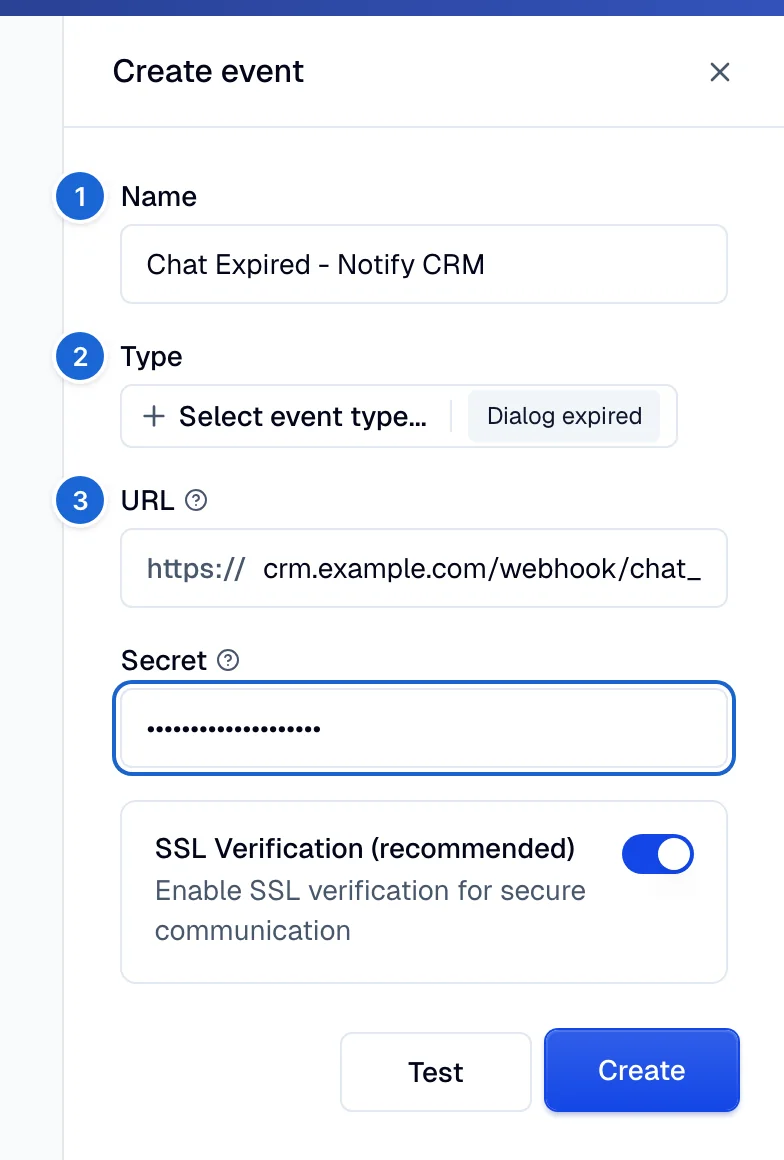
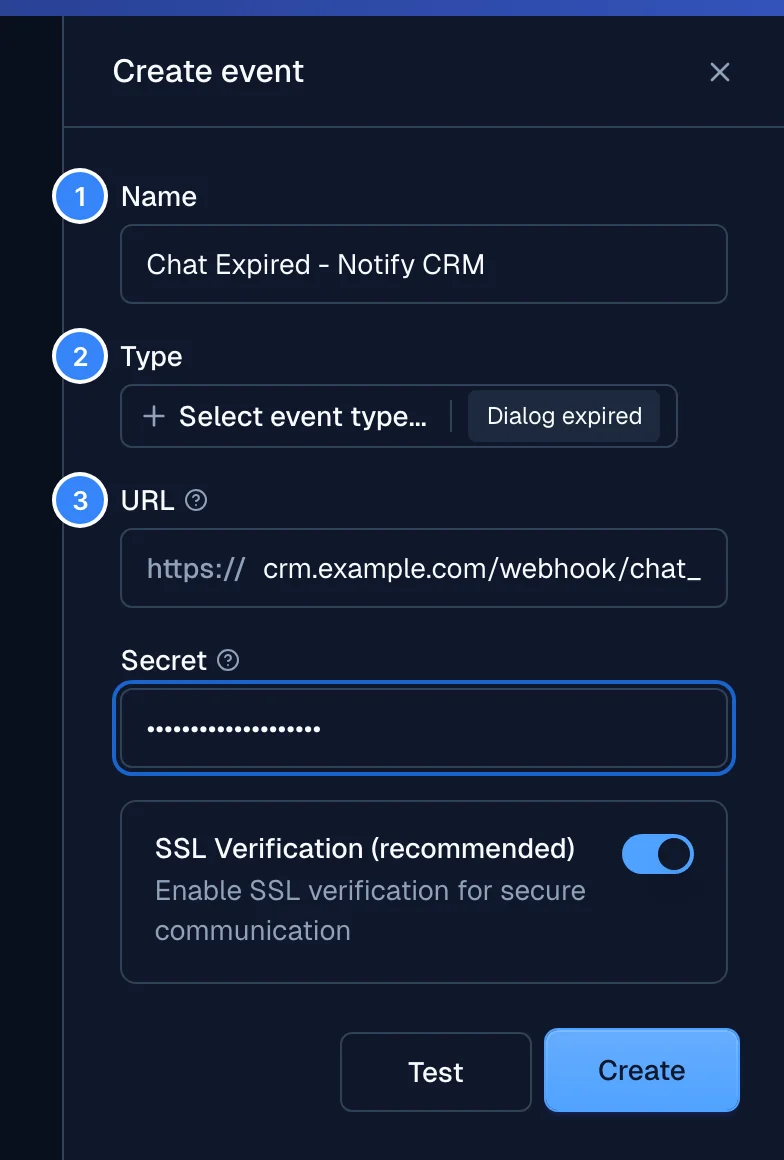
Step 3: Enter the event notification details
1. Name
Give the event a recognizable name:
Chat Expired - Notify CRM
2. Type
Select the event that triggers the notification. For this example, use the dialog:expired
event. This event fires when a conversation stays inactive for a set
threshold.
3. URL
Enter the webhook URL that receives the conversation data:
https://crm.example.com/webhook/chat_expired
4. Secret
Set a secret key to sign the request body and validate incoming notifications:
mySuperSecretKey123!
5. SSL verification
Turn on SSL verification for secure communication.
✅ Enable SSL Verification
Select Create to create the event notification.
Step 4: Update or delete an event notification
- To update an event notification, go to Settings → Developers → Event notifications, select the event, and modify the fields.
- To delete an event notification, open the ⋮ menu on its row and select Delete….
To turn the endpoint on or off, select the toggle on the event notification. When the endpoint is off, Moveo stops sending events to the webhook URL, and the event notification stays in place.


Example payload for dialog:expired
This example payload arrives when a conversation expires. The context.tags array contains
success, so the conversation completed successfully.
{
  "account_id": "b8a3e9eb-b0ba-4185-850c-fd449cbc2008",
  "event_type": "dialog:expired",
  "events": [
    {
      "session": {
        "context": {
          "user": {
            "display_name": "John Doe",
            "user_id": "123456789",
            "email": "john.doe@example.com"
          },
          "tags": ["success"]
        },
        "history": [
          {
            "author_id": "123456789",
            "author_type": "user",
            "responses": [
              { "text": "I need help with billing", "type": "text" }
            ],
            "timestamp": 1742304104215
          },
          {
            "author_id": "bot123",
            "author_type": "brain",
            "responses": [
              { "text": "Sure! What seems to be the issue?", "type": "text" }
            ],
            "timestamp": 1742304106737
          }
        ],
        "session_id": "916bac5e-8325-4860-8a41-cfa818b260e3",
        "source": {
          "channel": "web"
        }
      },
      "timestamp": 1742304407521
    }
  ],
  "request_id": "6ca38741-f0ce-43d2-9ba6-99894ed18208",
  "timestamp": 1742304407801
}
Conclusion
You created an event notification that triggers when a chatbot conversation expires. With this setup, the external system logs only the conversations that completed successfully. Your support team can act on them and ignore incomplete interactions.