Knowledge base
A knowledge base is a powerful tool that allows you to curate and manage documents from multiple sources, such as web pages, file uploads, and external knowledge bases. Use knowledge bases to enhance your AI agent, ensuring it delivers accurate and reliable responses to user queries.
A single knowledge base can be used by multiple AI agents.
How do knowledge bases work?
When a user sends a message, the AI agent searches the connected knowledge base. It finds the fragments that are most relevant to the message, and it writes the reply from these fragments and from its guidelines. The search option of the AI agent sets when the search runs:
- Search on every message is the default. Moveo searches the knowledge base before each reply.
- Search only when needed: the AI agent calls the
search_knowledge_basetool only when a question needs your documents. Voice calls always use this option.
The AI agent uses only published content. Draft content is available in the test chat. See Publish.
Knowledge base and guidelines
When a document and the guidelines of the AI agent say different things, the AI agent follows the guidelines. The reply prompt gives priority to the guidelines and to the session information, and it uses the documents as sources. Keep facts in the knowledge base, and keep behavior and tone in the guidelines. If a fact in a document is wrong, fix the document. Do not add a guideline that contradicts it.
Creating a knowledge base
- Console
- API
- MCP
- Navigate to Knowledge in the top navigation bar.
- Select Create.
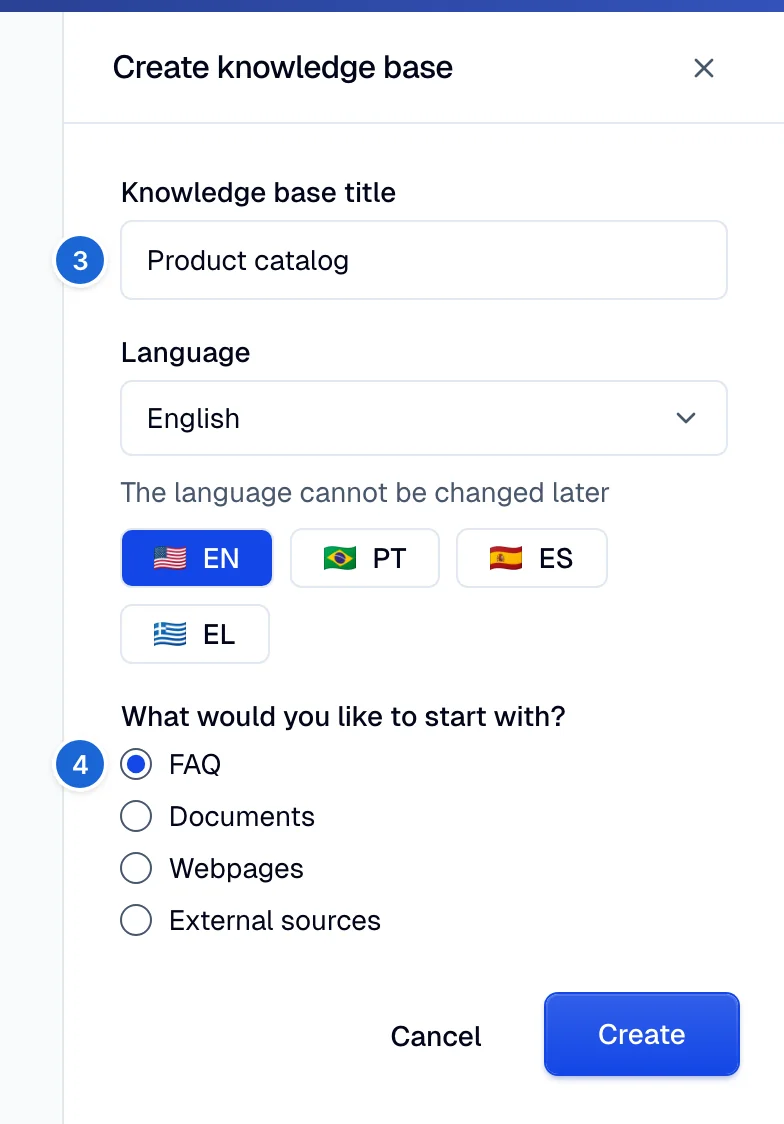
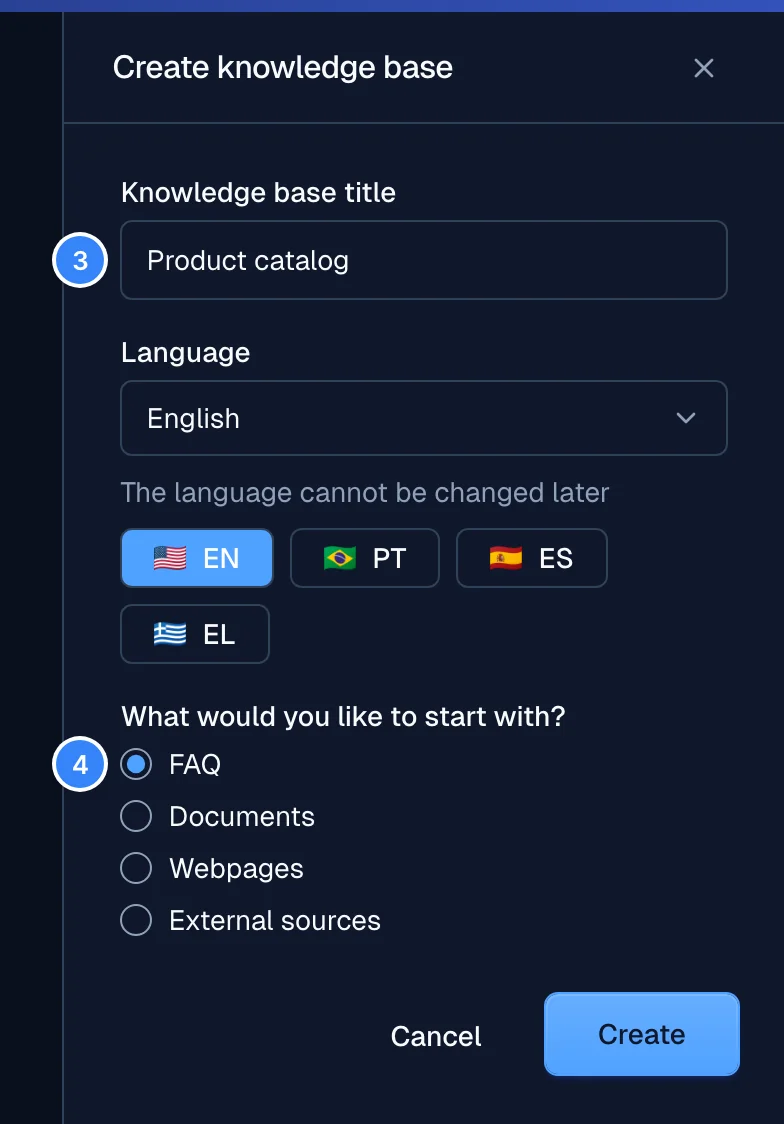
- Enter the Knowledge base title and select its Language. You cannot change the language later.
- In What would you like to start with?, select FAQ, Documents, Webpages, or External sources, and add the first content.
Your new knowledge base now appears in the Knowledge base list.
Use a manage API key. In the API, a knowledge base is a collection.
- Create the knowledge base with
POST /v1/collectionsand anameand alanguage. See Create collection. - Add a datasource with
POST /v1/collections/{collection_id}/datasources. Settypetowebsite,files, orfaq. Awebsitedatasource needsconfigwith at least one ofseed_urls,single_urls, orsitemap_urls. See Add datasource. - For a
filesdatasource, get an upload URL withPOST /v1/collections/{collection_id}/datasources/{datasource_id}/documents/upload, then send the file withPUTto that URL. The allowed file types arepdf,docx,doc,md,html, andtxt. - New documents are drafts. Publish them with
PUT /v1/collections/{collection_id}/publish. See Publish.
moveo_create_knowledge_basewithnameandlanguage.moveo_create_datasourcewithtypeset towebsite,faq, orfiles. Readmoveo://schemas/datasource-configfirst for the config shape.- For
files,moveo_upload_documentfor each file, thenmoveo_get_documentuntil its status isavailable. moveo_publish_knowledge_basewithinclude_all: true, or withinclude_document_ids.
The MCP server cannot add Google Drive, Zendesk, Intercom, or Workvivo sources. Add them in the console.
Search a knowledge base
To test what the AI agent finds for a query, search the knowledge base directly.
- Console
- API
- MCP
Open the knowledge base and use Test. See Test.
Send POST /v1/collections/{collection_id}/search with a manage API key. See
Search collection.
| Field | Type | Default | Description |
|---|---|---|---|
query | string | (required) | The search text, 1 to 2,048 characters. The keyword mode needs at least 4 characters. |
mode | string | semantic | semantic or keyword. |
limit | integer | 5 | The number of documents to return, 1 to 20. |
include_draft | boolean | false | Set to true to search draft content too. |
datasource_ids | array | none | Search only these datasources, 1 to 50 IDs. Do not combine with datasource_types. |
datasource_types | array | none | Search only these datasource types. Do not combine with datasource_ids. |
The response has a documents array. Each item has document_id, datasource_id, score,
text, and fragment_count.
moveo_search_knowledge_base with knowledge_base_id, query, and the optional limit, mode,
and include_draft.
Connecting a knowledge base
Connect a knowledge base to your AI agent using one of the following methods:
From knowledge base details
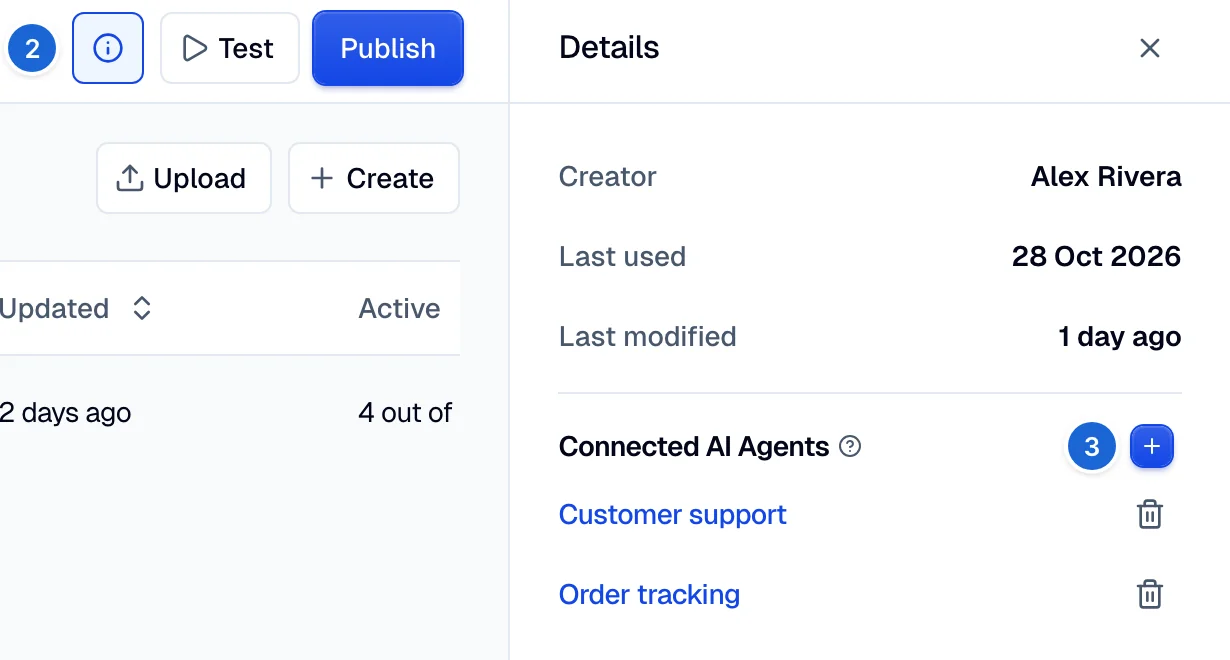
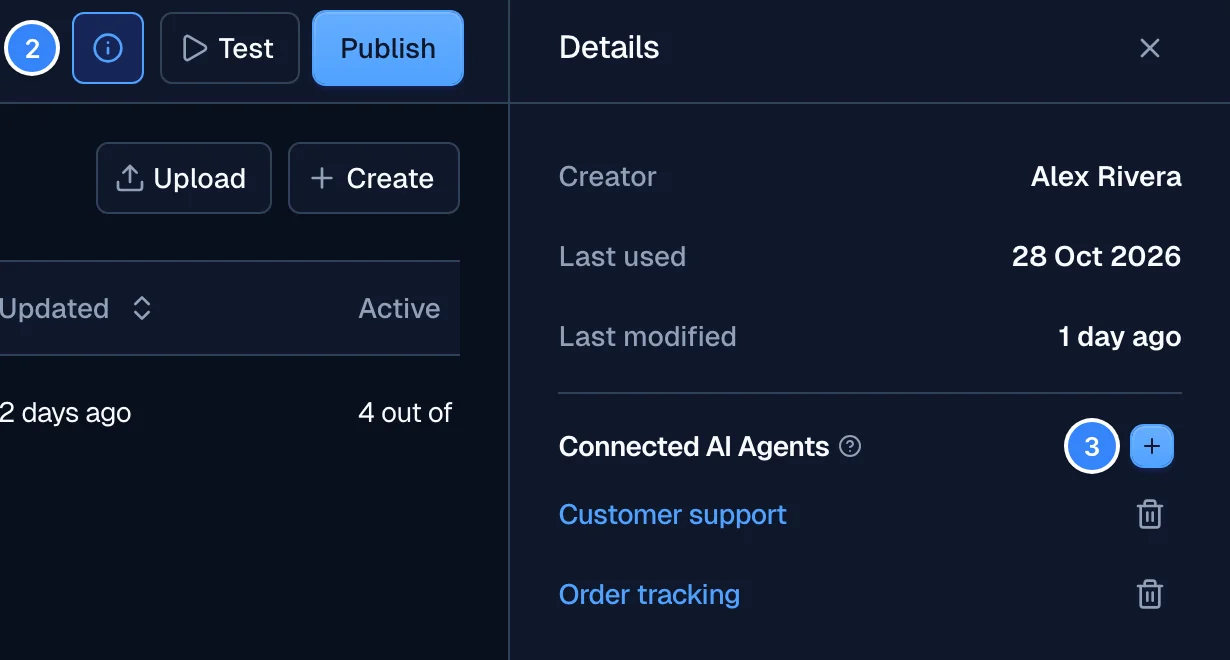
The Details panel of a knowledge base lists the AI agents that use it.
- Open the knowledge base.
- If you do not see the Details panel, select the info icon next to Test.
- Next to Connected AI Agents, select +, then select the AI agents.
AI agent knowledge
It is also possible to connect a knowledge base to an AI agent from the AI agent's Guidelines tab. To do this, see Knowledge base.
Fragments
Fragments are small chunks of text, typically around 400 words, extracted from the provided content. These segments enable the AI to efficiently analyze and interact with the information.
Each fragment consists of approximately 400 words. For reference, 2,500 fragments correspond to roughly 250–300 pages of content.
Adding live instructions
Enhance AI agent responses by dynamically providing real-time user data through the
live_instructions context variable. This allows the AI to incorporate
live details, such as transaction history, user preferences, or other relevant information.
One way to achieve this is by creating a webhook that fetches the necessary user data from your system and formats it into live instructions. You can then connect this webhook to your AI agent. See this guide for more information.
Guidelines and best practices
For optimal performance, follow our best practices guide.