Rules
Rules let you automate actions in conversations, such as assigning the conversation to a specific AI Agent, tagging a conversation, and much more.
Rules help you automate your workflows for optimum efficiency and ensure your customers get the best experience possible.
An environment can have one or more rules. The following steps demonstrate rule creation:
- Navigation
- Creation
- Rules screen
Customize your rule
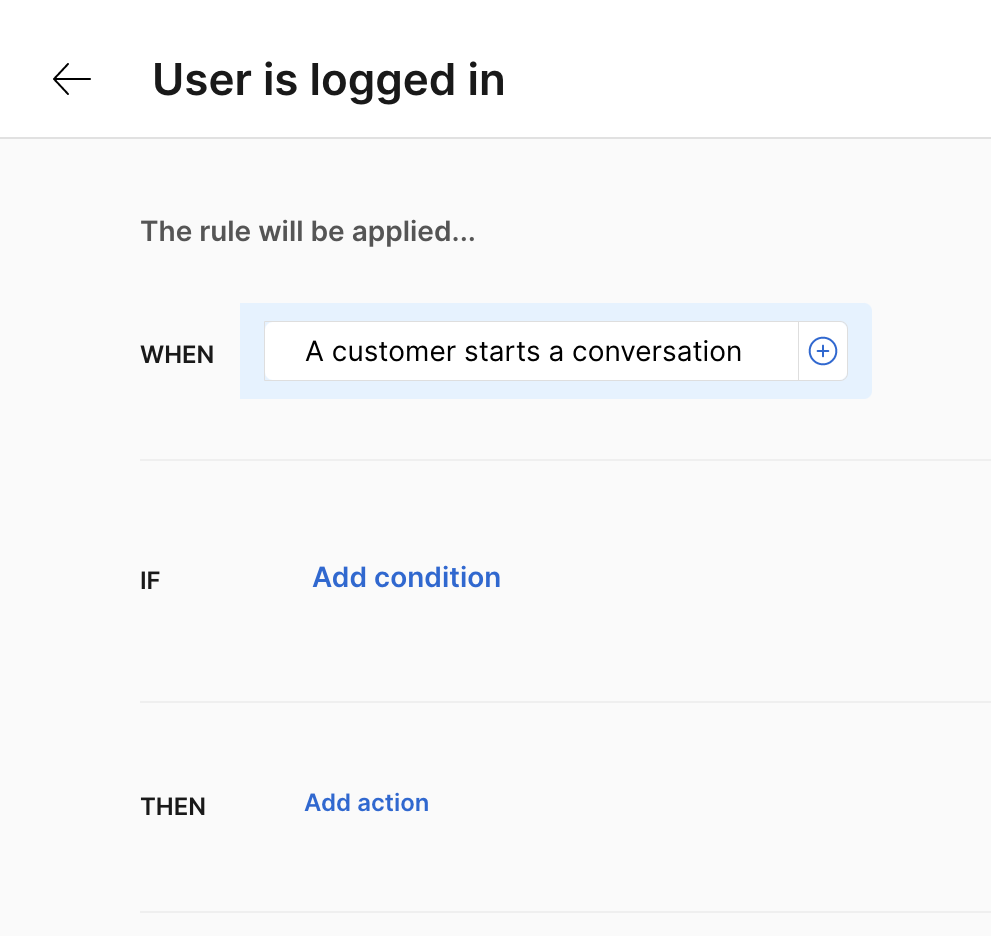
Create the trigger
In the When field, set a trigger that determines when the rule executes. The available
triggers are:
| Trigger | When the rule runs |
|---|---|
| A customer starts a conversation | On the first message of a new conversation, before the AI Agent replies |
| A customer responds to a message | On every customer message, before the AI Agent replies |
| After the AI agent replies | After the AI Agent has sent its reply |
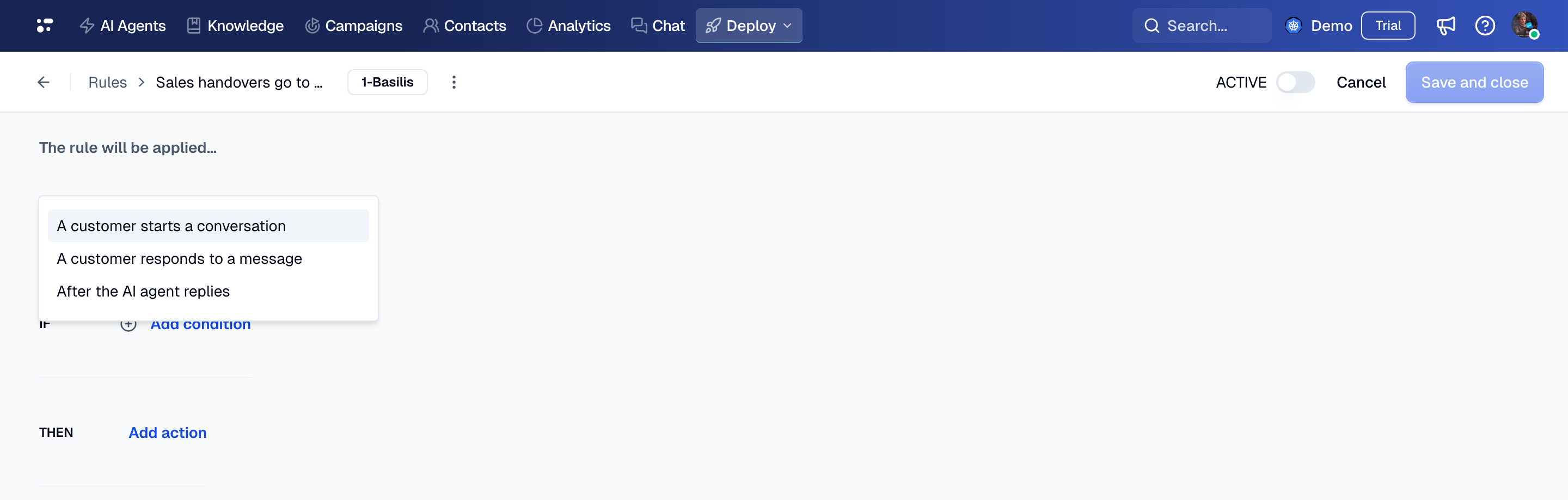
The first two triggers evaluate the rule before the message reaches the AI Agent, so the conditions see the conversation as the message arrives. After the AI agent replies evaluates the rule after the AI Agent has answered, against the conversation state the AI Agent returned in that turn. Use this trigger when a rule needs to react to something the AI Agent did while replying, such as adding a tag as it hands over the conversation. A rule that runs before the reply cannot see that tag, so it never matches. See Route a handover to a department for a complete example.
Rules that run after the AI Agent replies
Keep the following in mind before you create a rule with the After the AI agent replies trigger, or move an existing rule to it:
- The trigger is the opt-in. A rule runs after the reply only if it carries this trigger. An existing rule with A customer responds to a message does not start running after the reply.
- Replace the trigger instead of adding it. A rule that has both A customer responds to a message and After the AI agent replies is evaluated twice in every turn, once before the reply and once after it. If the rule only routes a handover, replace its trigger. If the rule also does other things, leave it unchanged and create a separate rule with the new trigger.
- Conditions see the conversation after the handover. When the AI Agent hands over, it has already left the conversation by the time the rule runs. A condition such as AI agent assigned is known matches before the reply but not after it. Review any Agent assigned and AI agent assigned conditions before you move a rule to this trigger.
- Actions apply to the next message, not to the reply just sent. The customer already has the reply when the rule runs. Assign AI Agent, Assign knowledge base and Apply bundle change how the next customer message is handled. Assign department and Close conversation take effect immediately.
- The rule cannot undo a handover. Assign AI Agent is ignored once the conversation has been handed over, so a rule with this trigger cannot return a conversation to the AI Agent after a human agent took it over.
- It runs only after an AI Agent reply. The trigger does not fire when an agent transfers a conversation manually, when a handover is made through the API, for campaign messages, or in the AI Agent test chat and simulations. It does fire when the AI Agent sends an inactivity reminder, because the reminder is a reply. A rule that closes the conversation on this trigger also closes it after a reminder.
Apply the condition
A condition is optional. If no condition is set, it evaluates as true and triggers the action. Available conditions include:
-
Availability
- Business hours
-
User
- Name
- Phone
- Language
- Timezone
- Country
- City
- Browser
- Platform
-
Conversation
- Channel
- Message content
- Tags
- Customer/referral URL
- Agent assigned
- AI agent assigned
- Integration
Combine the above conditions with and/or statements.
Then
Finally, select the actions to be applied if the above conditions are met, such as assigning an AI Agent to answer the message, tagging the conversation, etc.
List of actions:
- Add tag
- Assign AI Agent
- Assign knowledge base
- Close conversation
- Apply bundle
- Assign department
Don't forget to make your rule active so it starts working.
See our guides for examples of assigning different AI Agents based on tags and language.
Route a handover to a department
When the AI Agent hands over a conversation, it can add a tag that says which team should take it. Because the AI Agent adds the tag while it replies, the rule that reads the tag must use the After the AI agent replies trigger. A rule with A customer responds to a message runs before the reply, does not see the tag, and leaves the conversation unassigned.
- In the dialog that hands over the conversation, add a tag
action next to the handover action. For example:
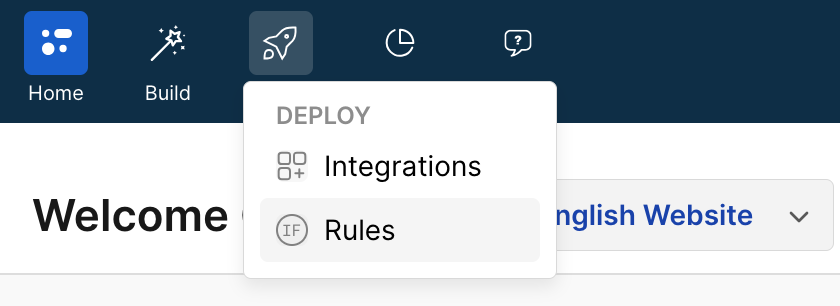
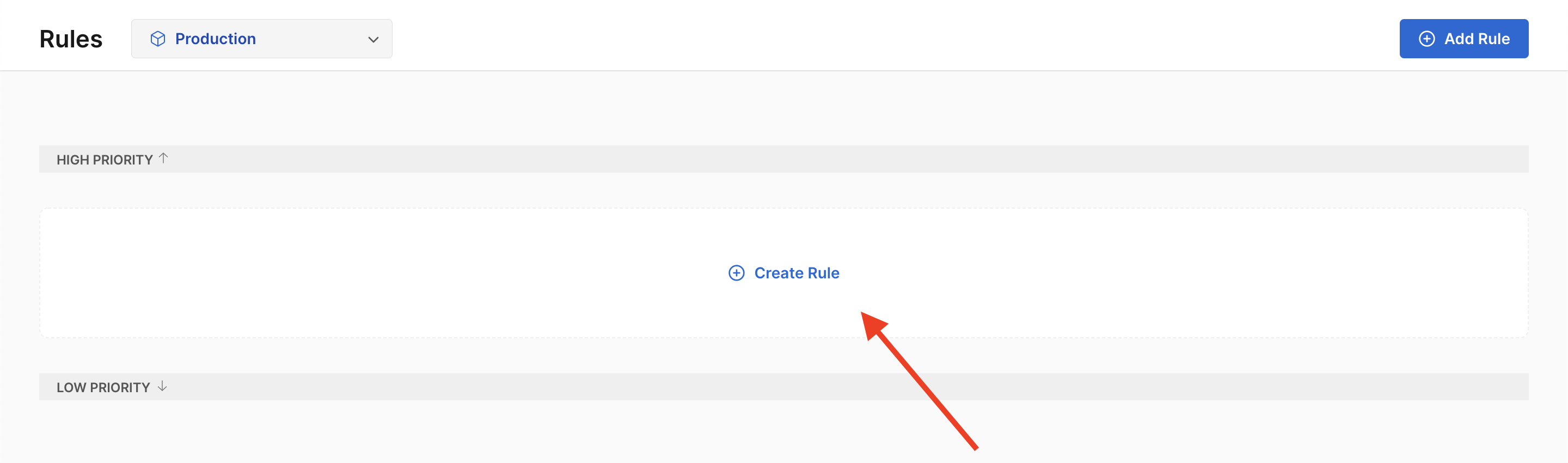
handover-sales. - Navigate to Deploy → Rules and click + Create.
- Set the When field to After the AI agent replies.
- Set the If field to Tag is handover-sales.
- Set the Then field to Assign department and select the department. For example: Sales.
- Activate the rule and click Save and close.
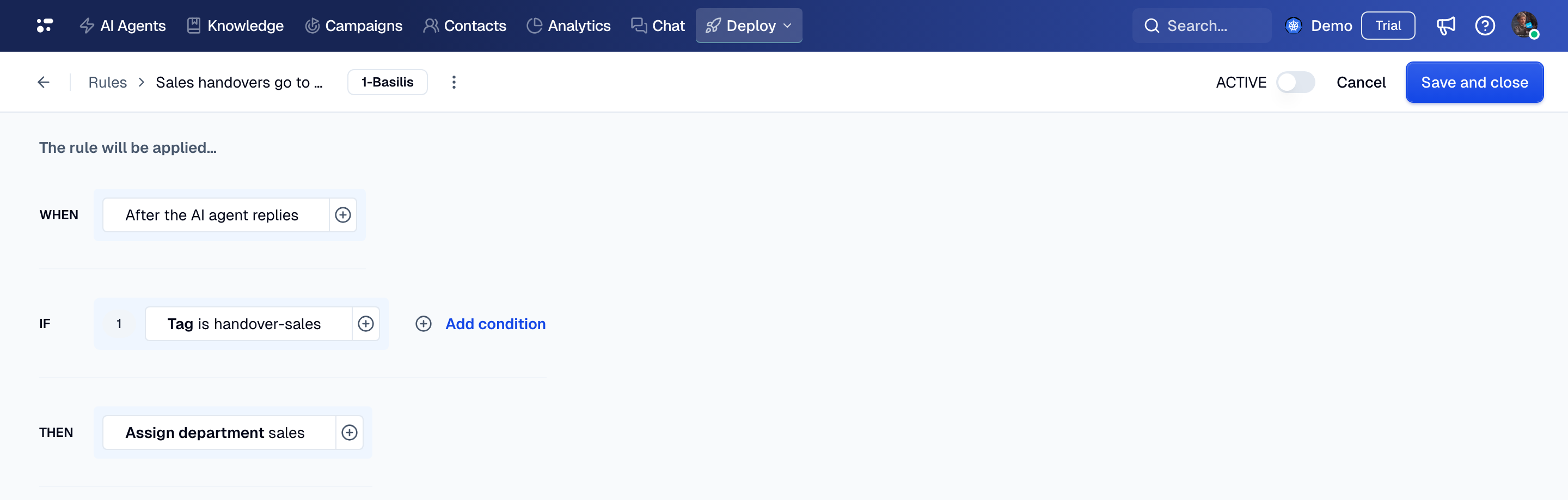
The rule assigns the department as soon as the AI Agent hands over, and the department distributes the conversation to its agents according to its assignment method.
Rules do not run in the AI Agent test chat or in simulations. Test this routing in a real conversation.
Reorder your rules
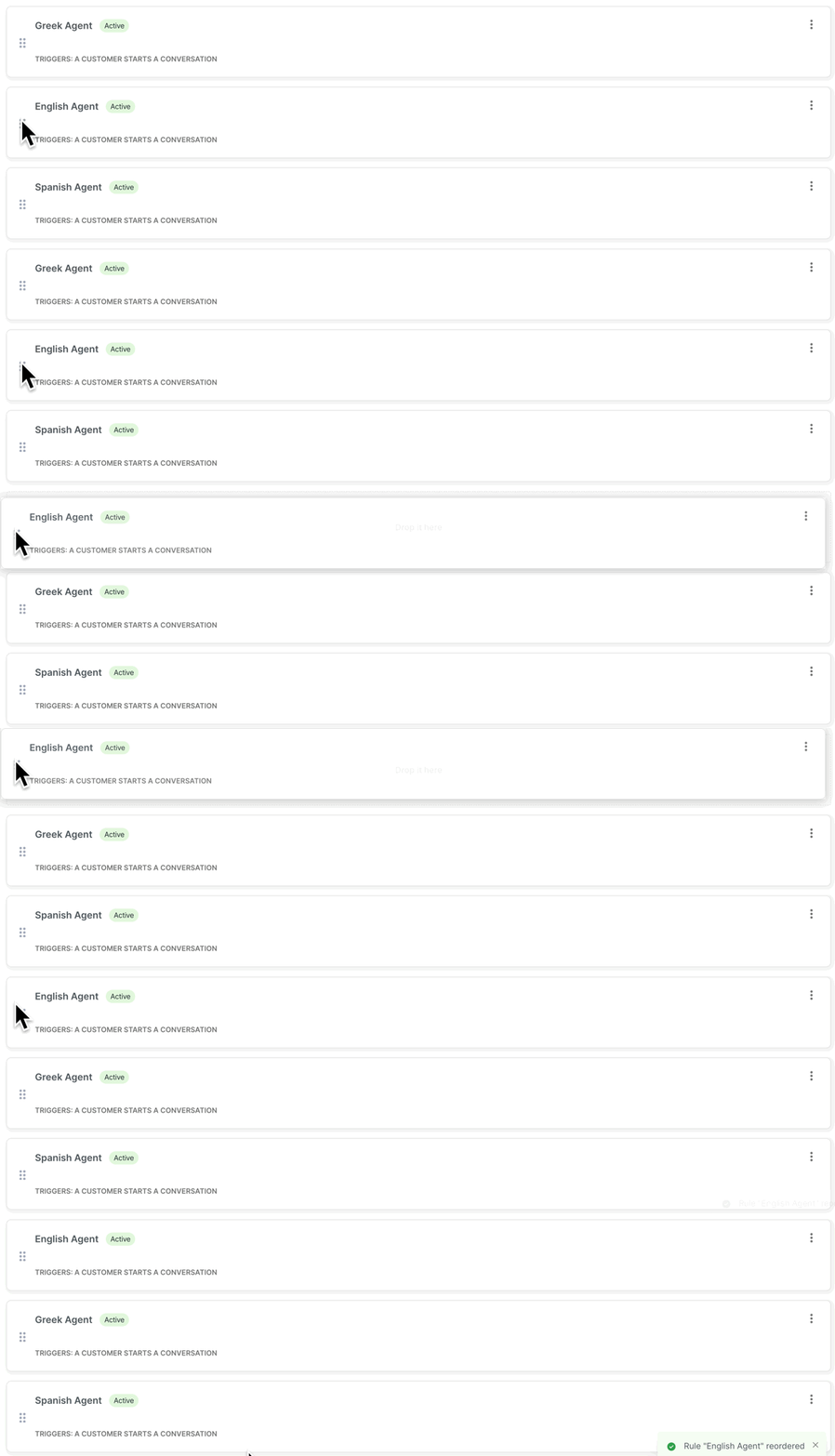
Reorder rules based on priority. Drag a rule from the icon on the very left of the tile and drop it in your desired spot.
Ensure that the highest-priority rule is at the top, and the lowest priority is at the bottom. In the following image, the English Rule has the highest priority, so the assistant checks it first. Then, the Greek Rule is reordered to have a higher priority than the Spanish Rule.