Twilio Voice
Overview
The Twilio Voice integration enables your AI Agent to handle voice conversations through phone calls and web-based calling. By connecting your Twilio account to Moveo, you can provide automated voice support that combines the power of AI with natural speech interaction.
This integration supports automated phone support through your Twilio phone numbers, web-based calling for browser-to-AI conversations, natural voice interactions with text-to-speech and speech-to-text capabilities, and flexible configuration to optimize voice quality and recognition accuracy.
Prerequisites
Before setting up the Twilio Voice integration, you'll need to configure both your Twilio account and your Moveo setup.
Twilio account
You'll need an active Twilio account with voice capabilities enabled and sufficient balance to cover voice call costs.
Subaccount (optional)
If you want to keep your Moveo voice usage separate from other Twilio services, you can create a subaccount. This is useful to isolate Moveo voice costs, phone numbers, and call logs from your other Twilio services.
Each subaccount gets its own Account SID and Auth Token. For instructions on creating a subaccount, see Twilio's subaccount guide.
If you have a dedicated Twilio account with no other services using it, you can use the main account directly; a subaccount is not required.
Account SID and Auth Token (region-specific)
Your Twilio credentials must come from the Twilio region that matches your Moveo deployment:
| Moveo deployment | Twilio region |
|---|---|
| Europe (EU) | Ireland (IE1) |
| United States (US) | US1 |
Make sure you select the correct Twilio region. Using credentials from the wrong region will result in connectivity issues with Moveo.
Trial account limitations
Twilio trial accounts are restricted to the US1 region (see Twilio's free trial limitations). This affects customers whose Moveo deployment is in Europe (EU), which uses the Ireland (IE1) Twilio region:
- A trial account cannot connect to a Moveo deployment in the EU, because the IE1 region only becomes available after upgrading to a paid Twilio account.
- Trial accounts are also limited to a single Twilio phone number.
- The region of an existing trial account cannot be changed by re-routing or re-purchasing a number.
If your Moveo deployment is in the EU, upgrade your Twilio account to a paid plan before configuring the integration. There is no workaround on a trial account.
Phone number (optional)
You can use a Twilio-provided number or a number you've ported to Twilio. If you don't configure a phone number, the integration will be limited to web-based calls.
A phone number is not required if you only plan to handle web calls. It becomes required when supporting incoming phone calls or when using the integration to call customers through campaigns.
Moveo account
The configuration steps for connecting your AI Agent to Twilio are handled through Moveo's platform. For a complete walkthrough of the Moveo-side setup including AI Agent selection, environment configuration, and rule creation, see the quick deployment guide.
How it works
The Twilio Voice integration creates a bridge between callers and your Moveo AI Agent. When a user initiates a call through your web application, Twilio establishes the connection and begins streaming audio. The speech-to-text engine converts spoken words into text, which your AI Agent processes to generate an appropriate response. That response is then converted back to natural voice through text-to-speech and streamed to the caller in real-time.
For phone calls, the flow is similar. When someone dials your Twilio phone number, Twilio routes the call to Moveo where the same speech processing and response cycle occurs. The conversation continues until the caller hangs up, or the AI Agent decides that the conversation has been resolved.
When the AI Agent resolves the conversation, the platform hangs up the call within a couple of seconds.
Reaching your AI Agent
Once the integration is configured, users can reach your AI Agent in two ways:
Inbound calls: Customers can call your Twilio phone number directly to start a conversation with your AI Agent. This is particularly useful for customer support hotlines or IVR systems where users initiate contact.
Outbound calls: Your AI Agent can also call customers as part of a campaign. This enables proactive outreach for appointment reminders, notifications, surveys, or follow-ups, with the AI Agent handling the conversation when the customer answers.
Call termination and handover
A call ends in one of two ways, both controlled from the AI Agent's workflow:
- Resolve: the
Resolveaction marks the conversation as completed. The call leg closes within a couple of seconds, whatever the environment's Keep alive value. - Handover: the
Handoveraction transfers the active call to a phone number or SIP URI, via a Standard transfer (Moveo stays on the call) or SIP REFER (Moveo hands off to your SIP system and drops off). Optional custom SIP headers can be attached for SIP destinations. See Voice call transfer.
To make voice calls behave predictably at the end of a conversation, apply the following checklist to every voice-enabled environment:
- Leave Keep alive as it is. It does not affect voice call termination. See Keep alive for voice integrations.
- Add a
Pauseaction of 1–2 seconds immediately before anyResolveorHandoveraction so the AI Agent's final sentence is not clipped. - Gate the
Handoveraction on call type if your AI Agent can also be reached through browser-based (Web) voice calls — handover is not supported for browser calls.
Setup guide
Step 1: Prepare your Twilio credentials
- Log in to your Twilio Console. If you are using a subaccount, make sure you have switched to it.
- Navigate to Account > Keys & Credentials > API keys & tokens.
- From the region dropdown, select the Twilio region that matches your Moveo deployment (see the region table above).
- Copy the Account SID and Auth Token displayed for that region.
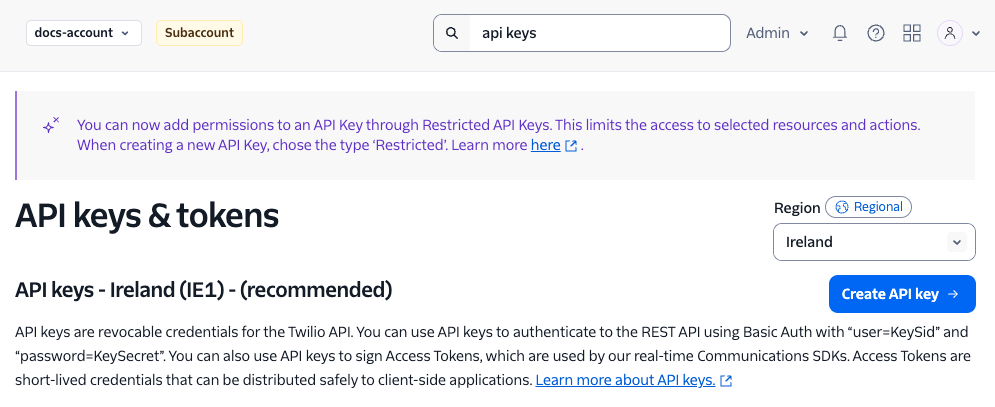
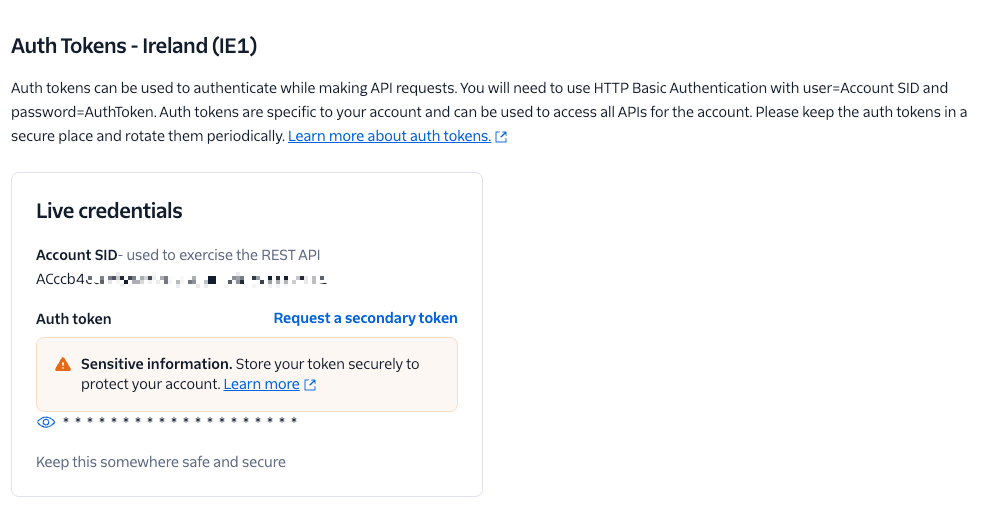
Keep these credentials handy for the next step.
Step 2: Configure the integration in Moveo
Navigate to Connections in your Moveo account, select your environment, find the Twilio Voice integration card, and click Connect.
Step 3: Enter your Twilio account details
In the configuration panel, you'll see an Account section where you'll enter your credentials and optionally select a phone number:
Account SID: Your Twilio Account SID from the previous step (make sure these are the region-specific credentials)
Auth Token: Your Twilio Auth Token
Phone: Select a phone number from the dropdown to enable phone calls, or leave it set to "None" for web calls only
When no phone number is selected, the integration works exclusively for web calls. When you select a phone number, the integration handles both web calls and incoming phone calls to that number.
Step 4: Optimize voice settings
The integration includes default settings for text-to-speech (TTS) and speech-to-text (STT) that work well for most use cases. However, you can adjust these settings to better fit your specific needs. The TTS settings let you select the provider, voice, model, and delivery parameters such as speed and pitch. The STT settings allow you to configure the transcription model, context terms, and turn detection.
These settings can be found below the Account section in the configuration panel and adjusted based on your testing results. See Voice settings for what each group of settings controls.
Step 5: Activate the integration
Review your configuration, turn on the toggle in the Twilio Voice card at the top of the panel, and click Save to apply your changes. The Account section reports Active once the integration is live.
Configuration options
Voice settings
The configuration panel groups the voice behavior into three sections:
Preferences controls whether voice conversations are stored as call recordings on your account, and whether the AI Agent starts the conversation with the initial welcome message instead of waiting for the caller to speak first. It also holds Noise suppression, which is off by default and reduces background noise in the caller's audio to improve transcription accuracy at the cost of a little extra latency, and Answering machine detection.
Configuration holds the language of the conversation and a preset that applies recommended settings for that language. Changing any individual setting switches the preset to Custom.
Click Show advanced to expose the pipeline itself, including Speech to text for the transcription model and turn detection, and Text to speech for the voice, the model, and delivery parameters such as speed. The defaults are a good starting point, so change the advanced settings only when testing shows a reason to.
Calls from your own dialer
Some teams place calls from their own dialer or PBX and bridge the answered call to Moveo over SIP. The dialer can put its own number in the SIP From field and send the customer's number in a custom header instead. Use SIP caller to tell Moveo where the dialer puts the customer.
To set it, open the integration, click Show advanced, and fill in Caller field in the SIP caller card:
| Value | Who the caller is | When the user's phone is saved |
|---|---|---|
| Empty (default) | The SIP From field | Never, for a SIP call |
From | The SIP From field | When the From user part is a +E.164 number, for example sip:+5511912345678@pbx.example.com |
An X- header name, for example X-Caller-ID | The value of that header | When the header value is a +E.164 number, for example +5511912345678 |
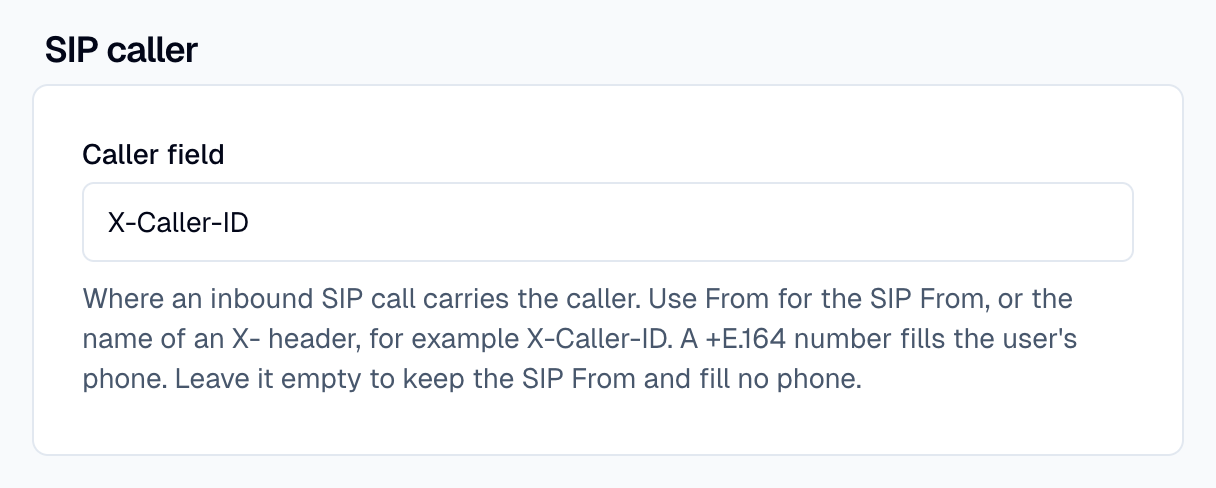
When Moveo saves the phone number, it also sets the user's country and time zone from it. The AI Agent can then look up the customer by phone. Moveo does not save a header value or a SIP user part without the leading + as a phone. A national number can read as a number in another country.
When the dialer sends its own number in From, choose an X- header. Some calls have no such header, or a header longer than 256 characters. For these calls, Moveo identifies the caller by From and saves no phone number. This rule stops the dialer's own number from becoming the customer's phone. The header name match ignores case.
Twilio passes only X- headers from a SIP call to Moveo, so any other header name has no effect.
A call from a phone number has no such header either, so with an X- header name it also gets no phone number. If the same number also receives phone calls, use a separate integration for the dialer. Campaign calls do not use this setting. To stop using it, clear Caller field and save.
Voice quality optimization
To ensure the best voice experience, structure your AI Agent's responses using clear, concise language without complex formatting. Avoid special characters and symbols that don't translate well to speech, and use natural spoken language patterns. Consider adding pauses with punctuation for better pacing.
AI Agent guidelines for voice
Voice conversations have unique characteristics compared to text-based chat. To improve your AI Agent's performance in voice interactions, you can add specific guidelines that optimize for the auditory experience. These include using shorter, more conversational responses, avoiding lists or complex structures that are hard to follow audibly, confirming understanding of user input before proceeding, using verbal cues for transitions between topics, and providing clear call-to-action statements.
Check this documentation page to learn more about this: https://elevenlabs.io/docs/best-practices/prompting/normalization#putting-it-all-together
Testing your integration
Test phone calls
If you configured a phone number, dial your Twilio phone number and wait for the AI Agent greeting. Test various conversation scenarios, verify proper call handling and termination, and check call quality and response timing.
Key test scenarios
Make sure to validate call initiation and greeting, clear speech recognition, natural-sounding responses, handling of unclear input or silence, proper call termination, and transcription mismatches.
Troubleshooting
Connection issues
Integration fails to connect to Twilio: Verify your Account SID and Auth Token are correct, check that your Twilio account is active and funded, ensure you have voice capabilities enabled, and review Twilio account status for any restrictions.
Phone number not working: Confirm the phone number is active in your Twilio account, check that the number has voice capabilities enabled, verify the number is properly configured in Moveo, and test the number directly in Twilio Console.
Phone number cannot be re-routed to the EU region: If the "Re-route" button is grayed out in the Twilio console, or the integration rejects a number that otherwise looks correctly configured, your Twilio account is likely a trial account. Trial accounts are locked to the US1 region and cannot be used with an EU Moveo deployment — upgrade to a paid Twilio account and retry. See Trial account limitations.
Audio quality issues
Speech recognition is inaccurate: Adjust STT language settings to match the caller's language, enable noise suppression for better accuracy, check microphone quality and audio input levels, consider environment noise factors, and review recognition sensitivity settings.
Voice responses sound unnatural: Review your AI Agent's response formatting, remove special characters and formatting that don't translate to speech, adjust the TTS voice model or speaking rate, simplify complex responses for better verbal delivery, and add punctuation for natural pauses and pacing.
Audio delays or lag: Check your internet connection stability, review Twilio's service status for any issues, verify your server response times are optimal, consider geographic latency factors, and check for webhook processing delays.
Call handling issues
Calls not being answered: Verify the integration is set to Active, check Twilio webhook configuration, review call logs in Twilio Console, confirm your environment is properly configured, and check for any error messages in Moveo logs.
AI Agent not responding correctly: Test the AI Agent in text mode first to verify logic, review voice-specific guidelines and adjust accordingly, check for speech recognition errors in logs, verify intent recognition is working properly, and consider adding confirmation steps for critical information.
Phone issues
If the issue seems that the call is not connecting to Moveo at all, ensure that the phone number is set up correctly in Twilio console.
Limitations
Platform limitations
Call duration limits are based on your Twilio plan and pricing. Concurrent call limits are determined by your Twilio account tier. Voice availability varies by region due to geographic restrictions. Audio format constraints are defined by the specific codecs supported by Twilio. Trial Twilio accounts cannot be used with EU Moveo deployments; see Trial account limitations.
Integration constraints
Each integration configuration supports one phone number. Voice quality depends on the caller's connection and device. STT accuracy varies with accents and background noise. Complex multi-turn conversations may require optimization.
Best practices
Monitor call duration and implement time limits if needed for cost control. Set up call queuing for high-volume scenarios. Provide clear voice prompts for better recognition. Have fallback options for unclear or failed recognition. Regularly review and optimize based on call analytics.
Resources
Twilio documentation
Moveo resources
Support
- Twilio Support
- Moveo support: support@moveo.ai
Next steps
Once your Twilio Voice integration is active, optimize your AI Agent with voice-specific guidelines, test thoroughly with various scenarios and voice configuration, monitor call analytics to identify improvement areas, adjust TTS/STT settings based on user feedback, configure fallback options for complex queries, and train your team on monitoring and handling escalations.