Knowledge base through Q&A
A Q&A (Question & Answer) section allows you to address common inquiries and provide helpful information to your users.
Create a Q&A
- Navigate to Knowledge in the top navigation bar.
- Click on the knowledge base you want to add a Q&A to, or create a new knowledge base as described in the Knowledge bases overview.
- Open the FAQ tab.
- Click + Create to open the Create FAQ sidebar.
- Type the full question and answer.
- Click Create to save your Q&A.
Edit a Q&A
- Locate the Q&A you wish to edit and click the three dots icon.
- Select Edit from the dropdown menu to open the editing interface.
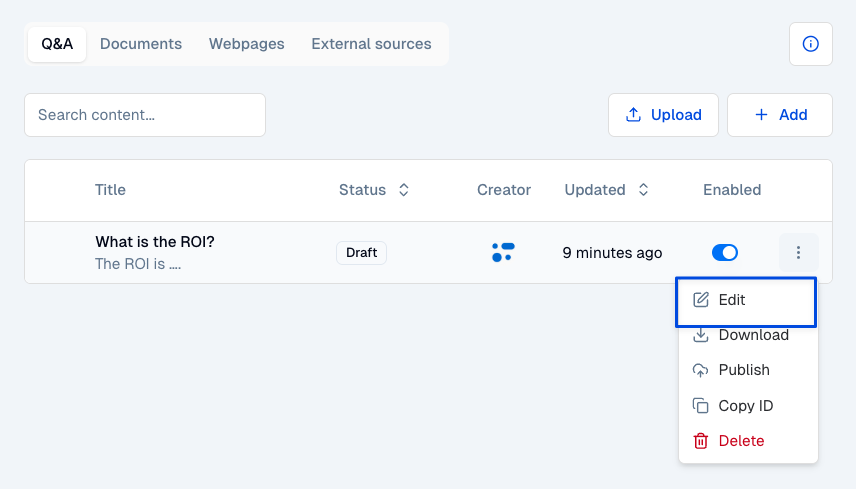
- Update the question and/or answer fields with your desired changes.
- Click the Update button to save your modifications.
Upload a Q&A
- Open the FAQ tab.
- Click on the Upload button to toggle the Upload FAQ sidebar.
- Upload your
.csvfile using the accepted format. If you need a template, click Download template file to get a file with the correct format.
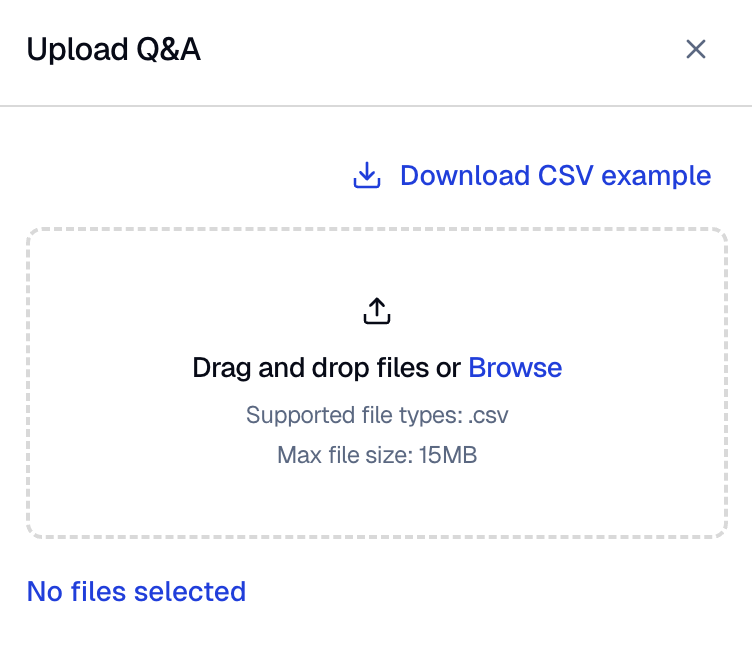
Once the file is uploaded, your Q&As will be processed and added to your knowledge base.
Tips for effective Q&As
Follow these guidelines to create Q&As that produce accurate AI responses:
- Use natural question phrasing - Write questions the way customers actually ask them
- Include question variations - Add common alternative phrasings as separate Q&As
- Keep answers focused - Address one topic per Q&A entry
- Add context when needed - Include relevant background information in the answer
- Avoid jargon - Use clear, customer-friendly language
Delete a Q&A
- Locate the Q&A you want to delete and click the three dots icon.
- Select Delete from the dropdown menu.
- Confirm the deletion when prompted.
Next steps
- Publish content - Make your Q&As available to live agents
- Test your knowledge base - Verify your agent answers correctly
- Best practices - Optimize your knowledge base content