Web channel troubleshooting
Platform-specific integrations
WordPress
WordPress and other CMS platforms may add attributes that interfere with script loading.
Issue: Script defer attribute
WordPress may add defer attribute to scripts, causing initialization to fail.
Solution:
Wait for DOM to be ready before initializing:
<script src="https://web.moveo.ai/web-client.min.js"></script>
<script>
  window.addEventListener("DOMContentLoaded", function () {
    MoveoAI.init({
      integrationId: "YOUR_INTEGRATION_ID",
      version: "v2",
    })
      .then((instance) => console.log("connected"))
      .catch((error) => console.error(error));
  });
</script>
WordPress plugin approach
For better integration, add to your theme's functions.php:
function add_moveo_chat() {
  ?>
  <script src="https://web.moveo.ai/web-client.min.js"></script>
  <script>
    window.addEventListener("DOMContentLoaded", function () {
      MoveoAI.init({
        integrationId: "<?php echo get_option('moveo_integration_id'); ?>",
        version: "v2"
      })
        .then((instance) => console.log("Moveo connected"))
        .catch((error) => console.error(error));
    });
  </script>
  <?php
}
add_action('wp_footer', 'add_moveo_chat');
Google Tag Manager
GTM requires specific configuration for external scripts.
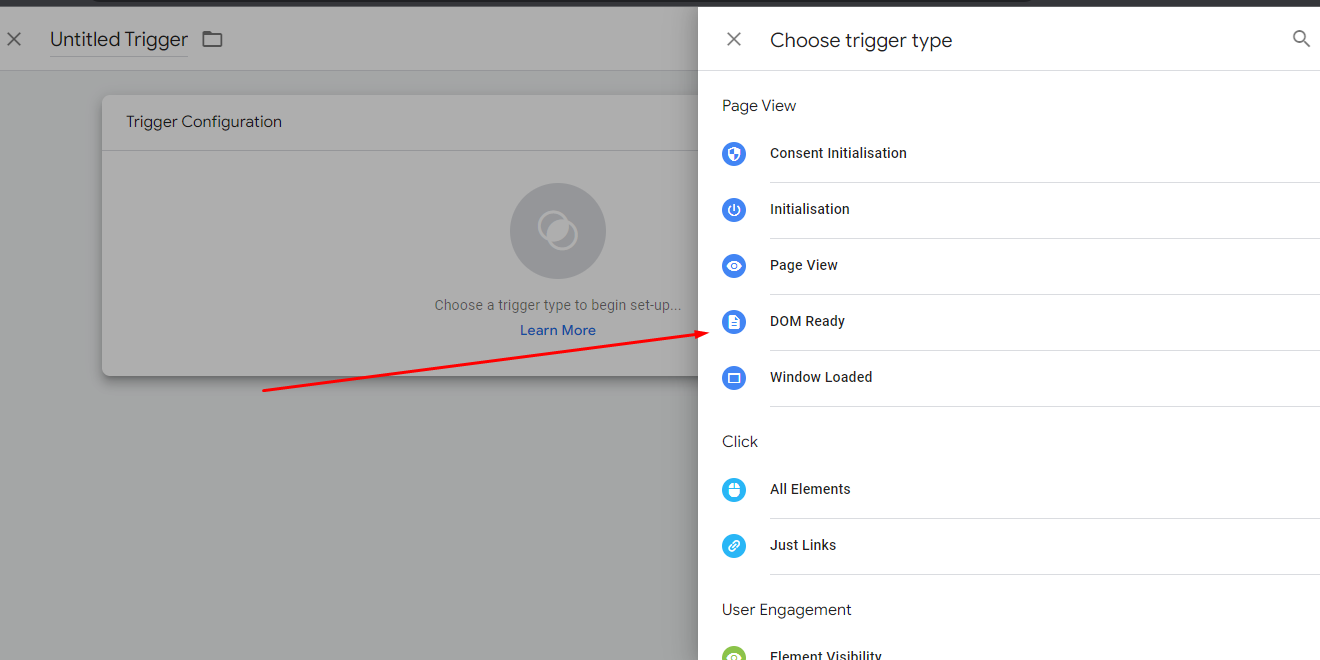
Step 1: Create trigger
- Go to Triggers → New
- Choose trigger type: DOM Ready
- Name it: "Moveo Chat Trigger"
Step 2: Create custom HTML tag
- Go to Tags → New
- Choose tag type: Custom HTML
- Add the following code:
<script src="https://web.moveo.ai/web-client.min.js"></script>
<script>
  // GTM doesn't support ES6 arrow functions
  MoveoAI.init({
    integrationId: "YOUR_INTEGRATION_ID",
    version: "v2",
  })
    .then(function (instance) {
      console.log("connected");
      // Push event to dataLayer
      window.dataLayer.push({
        event: "moveo_chat_loaded",
      });
    })
    .catch(function (error) {
      console.error(error);
      window.dataLayer.push({
        event: "moveo_chat_error",
        error_message: error.message,
      });
    });
</script>
- Select the "Moveo Chat Trigger" you created
- Save and publish
Google Tag Manager doesn't support ES6 features. Use function syntax instead of arrow functions.
Magento
Magento uses RequireJS which can conflict with standard script loading.
Solution with RequireJS:
<script src="https://requirejs.org/docs/release/2.3.7/minified/require.js"></script>
<script>
  require(["https://web.moveo.ai/web-client.min.js"], function (MoveoAI) {
    MoveoAI.init({
      integrationId: "YOUR-INTEGRATION-ID",
      version: "v2",
    })
      .then(function () {
        console.log("Moveo Connected");
      })
      .catch(function (error) {
        console.error(error);
      });
  });
</script>
Alternative: Add to Magento layout XML:
<page xmlns:xsi="http://www.w3.org/2001/XMLSchema-instance">
  <body>
    <referenceContainer name="before.body.end">
      <block class="Magento\Framework\View\Element\Template"
             name="moveo.chat"
             template="Vendor_Module::moveo-chat.phtml"/>
    </referenceContainer>
  </body>
</page>
Shopify
Add the web channel to your Shopify store.
Option 1: Theme editor
- Go to Online Store → Themes
- Click "Actions" → "Edit code"
- Open
layout/theme.liquid - Add before
</body>:
{% if customer %}
<script src="https://web.moveo.ai/web-client.min.js"></script>
<script>
  MoveoAI.init({
    integrationId: "YOUR-INTEGRATION-ID",
    version: "v2",
  }).then(function (instance) {
    instance.updateContext({
      user: {
        email: "{{ customer.email }}",
        display_name: "{{ customer.first_name }} {{ customer.last_name }}",
      },
      customer_id: "{{ customer.id }}",
    });
  });
</script>
{% else %}
<script src="https://web.moveo.ai/web-client.min.js"></script>
<script>
  MoveoAI.init({
    integrationId: "YOUR-INTEGRATION-ID",
    version: "v2",
  });
</script>
{% endif %}
Option 2: Script tag API
Use Shopify's Script Tag API for dynamic installation:
POST /admin/api/2024-01/script_tags.json
{
  "script_tag": {
    "event": "onload",
    "src": "https://your-server.com/moveo-shopify-integration.js"
  }
}
React applications
Integrate with React using hooks.
React hook implementation:
import { useEffect, useState } from "react";

function useMoveoChat(config) {
  const [instance, setInstance] = useState(null);
  const [error, setError] = useState(null);

  useEffect(() => {
    // Load script dynamically
    const script = document.createElement("script");
    script.src = "https://web.moveo.ai/web-client.min.js";

    script.onload = () => {
      window.MoveoAI.init(config).then(setInstance).catch(setError);
    };

    script.onerror = () => setError(new Error("Failed to load Moveo script"));
    document.body.appendChild(script);

    // Cleanup
    return () => {
      if (instance) {
        instance.destroy();
      }
      document.body.removeChild(script);
    };
  }, []);

  return { instance, error };
}

// Usage
function App() {
  const { instance, error } = useMoveoChat({
    integrationId: "YOUR-INTEGRATION-ID",
  });

  useEffect(() => {
    if (instance) {
      // Use instance methods
      instance.updateContext({ page: "home" });
    }
  }, [instance]);

  return <div>Your app content</div>;
}
Vue.js applications
Vue.js plugin for web channel integration.
// moveo-chat-plugin.js
export default {
  install(app, options) {
    const script = document.createElement('script');
    script.src = 'https://web.moveo.ai/web-client.min.js';

    script.onload = () => {
      window.MoveoAI.init(options)
        .then((instance) => {
          app.config.globalProperties.$moveoChat = instance;
        })
        .catch(console.error);
    };

    document.body.appendChild(script);
  }
};

// main.js
import MoveoChat from './moveo-chat-plugin';

app.use(MoveoChat, {
  integrationId: 'YOUR-INTEGRATION-ID',
});

// Component usage
export default {
  mounted() {
    if (this.$moveoChat) {
      this.$moveoChat.openWindow();
    }
  }
};
Common issues and solutions
Issue: Chat not appearing
Symptoms: Script loads but web channel doesn't appear
Solutions:
-
Check trusted domains:
- Verify your domain is in the trusted domains list
- Include both www and non-www versions
- Check for typos in domain configuration
-
Verify integration ID:
// Check console for errors
console.log("Integration ID:", "YOUR-INTEGRATION-ID"); -
Check browser console:
- Look for CORS errors
- Check for JavaScript errors
- Verify network requests succeed
Issue: CORS errors
Error: Access to script has been blocked by CORS policy
Solutions:
- Use the CDN URL exactly as provided
- Don't modify script headers
- Ensure HTTPS is used
- Check firewall/proxy settings
Issue: Multiple instances
Symptoms: Chat initializes multiple times
Solution:
// Prevent multiple initializations
if (!window.moveoChatInitialized) {
  MoveoAI.init({
    integrationId: "YOUR-INTEGRATION-ID",
    version: "v2",
  }).then((instance) => {
    window.moveoChatInstance = instance;
    window.moveoChatInitialized = true;
  });
}
Issue: Local development
Error: Chat doesn't load on localhost
Solution:
Use 127.0.0.1 instead of localhost:
// Development configuration
const isDev = window.location.hostname === "127.0.0.1";
const integrationId = isDev ? "DEV-ID" : "PROD-ID";

MoveoAI.init({
  integrationId,
  version: "v2",
});
Issue: Authentication failures
Symptoms: JWT rejected, session creation errors
Solutions:
-
Check token expiration:
// Token must expire within 24 hours
const payload = {
  sub: userId,
  iss: domain,
  exp: Math.floor(Date.now() / 1000) + 300, // 5 minutes
}; -
Verify RSA keys match:
- Public key in Moveo must match private key on server
- Re-generate keys if unsure
-
Test token generation:
// Debug token
const token = generateToken();
console.log("Token:", token);

// Decode to check claims
const decoded = jwt.decode(token);
console.log("Claims:", decoded);
Issue: Messages not sending
Symptoms: User types but messages don't send
Possible causes:
- Session expired: Reinitialize chat
- Network issues: Check connectivity
- Rate limiting: Implement throttling
- Integration paused: Check Moveo dashboard
Issue: Style conflicts
Symptoms: Chat looks broken or unstyled
Solutions:
-
CSS specificity:
/* Increase specificity if needed */
body .web-client-container {
  z-index: 999999 !important;
} -
Reset conflicting styles:
.web-client-container * {
  box-sizing: border-box;
} -
Use shadow DOM isolation (if supported)
Mobile-specific issues
iOS Safari
Issue: Viewport sizing problems
<meta
  name="viewport"
  content="width=device-width, initial-scale=1, maximum-scale=1, user-scalable=no"
/>
Android WebView
Issue: File upload not working
Enable file access in WebView:
webView.getSettings().setAllowFileAccess(true);
webView.getSettings().setAllowFileAccessFromFileURLs(true);
Performance optimization
Lazy loading
Load chat only when needed:
// Intersection Observer approach
const observer = new IntersectionObserver((entries) => {
  if (entries[0].isIntersecting) {
    loadMoveoChat();
    observer.disconnect();
  }
});

// Observe a trigger element
observer.observe(document.getElementById("chat-trigger-section"));
Bundle size optimization
For production builds:
// Load web client
const script = document.createElement("script");
script.src = "https://web.moveo.ai/web-client.min.js";
Debugging tools
Enable debug mode
MoveoAI.init({
  integrationId: "YOUR-INTEGRATION-ID",
  version: "v2",
  debug: true, // If supported
}).then((instance) => {
  // Expose for debugging
  window.DEBUG_CHAT = instance;
});
Network monitoring
Monitor WebSocket connections:
// Override WebSocket for debugging
const OriginalWebSocket = window.WebSocket;
window.WebSocket = function (...args) {
  console.log("WebSocket connection:", args[0]);
  const ws = new OriginalWebSocket(...args);

  ws.addEventListener("message", (e) => {
    console.log("WebSocket message:", e.data);
  });

  return ws;
};
Getting help
If you continue experiencing issues:
- Check browser console for errors
- Verify integration settings in Moveo dashboard
- Test in incognito/private mode
- Try a different browser
- Contact Moveo support with:
- Integration ID
- Error messages
- Browser/platform details
- Steps to reproduce
Next steps
- Web channel configuration - Customize appearance and behavior
- Developer guide - Advanced integration techniques
- Analytics - Monitor chat performance
- AI Agents - Configure your agent's responses