AI Agent routing
A very useful feature of rules is the ability to perform actions after the conversation has started. This guide shows how to reassign the conversation to a different AI Agent using rules and tags in a dialog.
The plan
This example continues with the agent created in Build an AI Agent. In this example, a gym's Upsell Agent handles membership payments. But what happens if the user wants to change their membership plan? You create a rule that assigns the conversation to a different Agent, the Change plan Agent, when the user asks to change their membership plan. This Agent is of the Customer Support type.
To accomplish this, create a new dialog in Agent 1 that triggers when the user asks to change their membership plan. This dialog uses a tag that the rule evaluates. The rule then assigns the conversation to the Change plan Agent.
To see how to create an AI Agent from scratch, take a look at this guide.
Create the dialog
A dialog is a set of messages that the AI Agent sends to the user. In this case, create a dialog in the Upsell Agent that triggers from an intent matching when the user asks to change their membership plan.
Intent
- Go to AI Agents.
- Click on the Upsell Agent.
- Go to Workflows > Intents.
- Click on Create intent.
- Name the intent Change plan.
- Add some examples of what the user might say when they want to change their membership plan. For
example:
- I want to change my membership plan.
- Can I change my membership plan?
- How can I change my membership plan?
- Click on Save.
Dialog
The key point of this dialog is the replay action. This action triggers a message on the user's behalf that the rule evaluates. This message is not visible to the user, but the rule evaluates it and shows it in the logs.
- Go to Workflows > Dialogs.
- Click on Create dialog.
- Name the dialog Change plan.
- Drag the Intent action from the right sidebar to the canvas.
- Select the Change plan intent in the dropdown list.
- Add a text response message to the dialog. For example:
- Sure! I can help you with that. Let me assign you to our Customer Support Agent.
- Add a tag to the dialog. The rule evaluates this tag. For example:
change_plan. - Finally, add a replay action to the dialog.
Create the rules
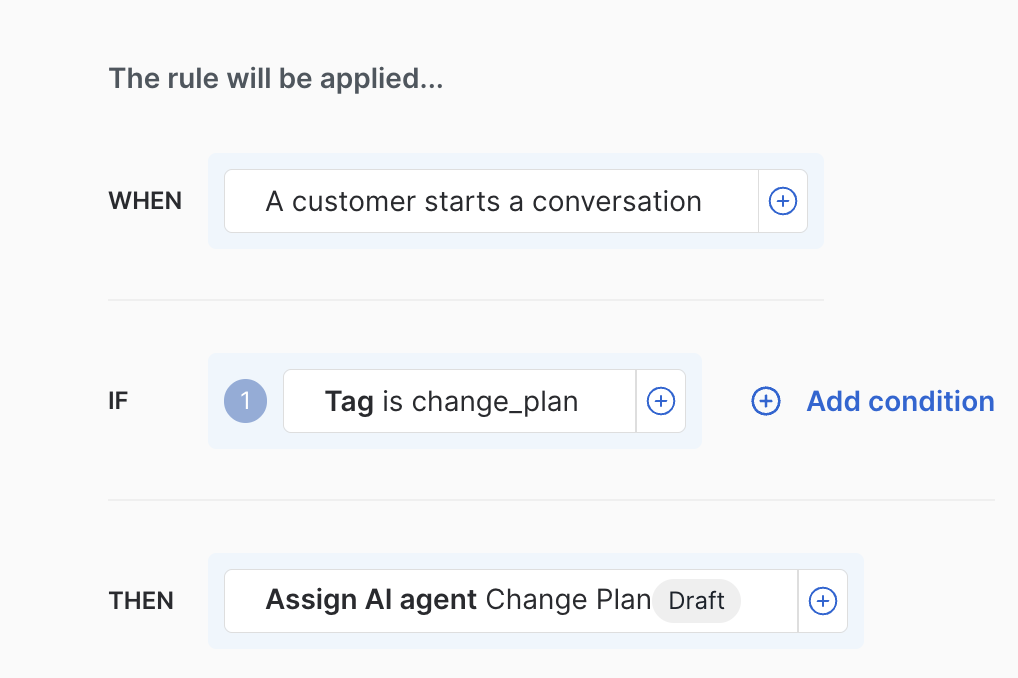
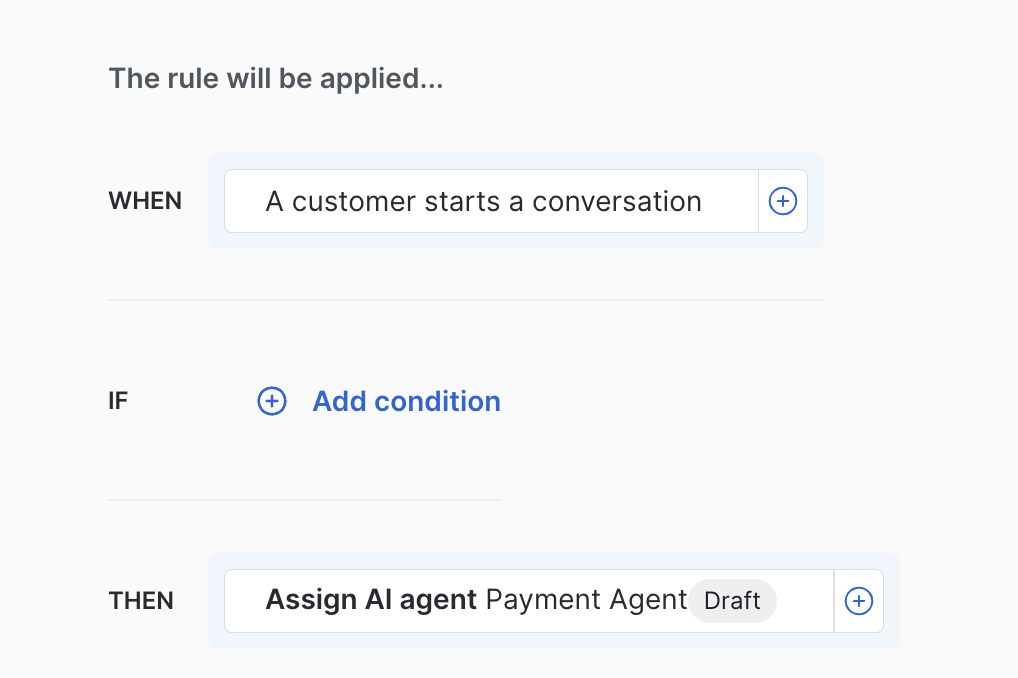
Now that the dialog is ready, you need a way to connect the Agent to the user. First, create a rule that assigns the conversation to the Upsell Agent. This rule triggers
when the user starts a conversation. Then, create a second rule that assigns the
conversation to the Change plan Agent when the tag change_plan is evaluated.
This routing cannot be tested using the Agent test feature. You must test it in a real conversation because that only works for testing the Agent functionality, not rules.
Assign to Upsell Agent
- Go to Deploy > Rules.
- Click on + Create.
- Fill out the form and click on Create.
- Set the When field to A customer starts a conversation.
- Set the Then field to Assign AI agent and select the Upsell Agent.
- Activate the rule and click on Save and close.
Assign to Change plan Agent
Follow the same steps as the previous rule, but set the If field to Tag is change_plan and the Then field to Assign AI agent and select the Change plan Agent.