Slack
Overview
Slack integration enables your AI Agent to communicate with team members and customers directly within Slack workspaces. As one of the most widely used workplace communication platforms, Slack provides a familiar environment where your AI Agent can handle inquiries, automate workflows, and provide instant support through direct messages and channel mentions.
This integration enables:
- Direct message support through the Messages tab in your bot's App Home
- Channel mentions to trigger AI Agent responses with @mentions
- Rich message formatting with Slack's native message capabilities
- File sharing for sending and receiving documents
- Interactive components including buttons
Prerequisites
Before setting up the Slack integration, ensure you have:
✅ Slack requirements
- Slack workspace with administrative access
- Permission to install apps to your workspace
- Slack API account access
✅ Moveo account setup
- An active AI Agent configured
- An environment selected for the integration
How it works
The Slack integration operates through Slack's Events API and Bot User functionality:
- User messages bot via direct message or @mention in a channel
- Slack sends event to Moveo via webhook
- AI Agent processes the message and generates a response
- Response is delivered back through Slack's messaging API
- Interactive elements can trigger additional AI Agent flows
- Handover possible to human agents when needed
All messages are processed securely with Slack's signing secret verification ensuring message authenticity.
Setup guide
The integration requires configuration in both the Slack API platform and Moveo.
Step 1: Create a Slack app
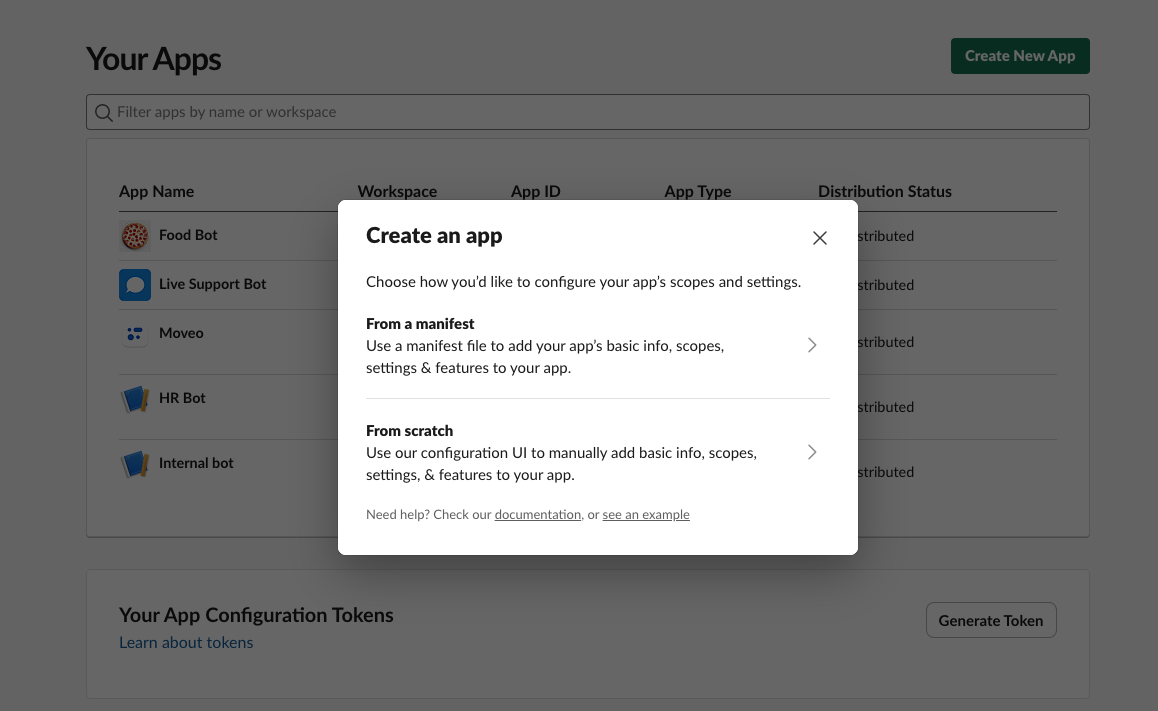
- Navigate to api.slack.com/apps
- Click Create New App
- Select From scratch
- Enter your app name and select the workspace to develop in
- Click Create App
Step 2: Customize your app
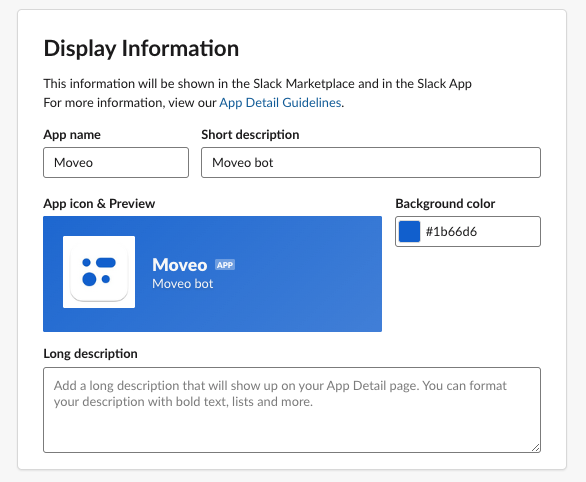
- In the Basic Information section, customize your app's display settings
- Add an app icon and description
- Configure the app's color scheme to match your brand
Step 3: Configure OAuth permissions
- Navigate to OAuth & Permissions in the sidebar
- Scroll to Scopes section
- Under Bot Token Scopes, add the following permissions:
| Permission | Description |
|---|---|
app_mentions:read | View messages that directly mention your bot |
channels:history | View messages in public channels |
chat:write | Send messages as the bot |
chat:write.customize | Send messages with a custom username and avatar |
files:read | View files shared in channels and conversations |
files:write | Upload, edit, and delete files |
groups:history | View messages in private channels |
im:history | View messages in direct messages |
im:write | Start direct messages with users |
mpim:history | View messages in group direct messages |
users:read | View users in the workspace |
users:read.email | View email addresses of users |
users:write | Set user presence |
Step 4: Install app to workspace
- Scroll to the top of the OAuth & Permissions page
- Click Install to Workspace
- Review the permissions and click Allow
- Copy the Bot User OAuth Token that appears after installation
Step 5: Copy credentials
- Navigate to Basic Information in the sidebar
- Under App Credentials, locate the Signing Secret
- Click Show and copy the signing secret
- Keep both the signing secret and bot OAuth token ready for the next step
Step 6: Configure App Home
- Navigate to App Home in the sidebar
- Enable Always Show My Bot as Online
- Under Show Tabs, enable Messages Tab
- Check Allow users to send Slash commands and messages from the messages tab
Connect with Moveo
Step 1: Create the integration
- In Moveo, navigate to Connections
- Locate and select Slack
- Click Connect
Step 2: Configure credentials
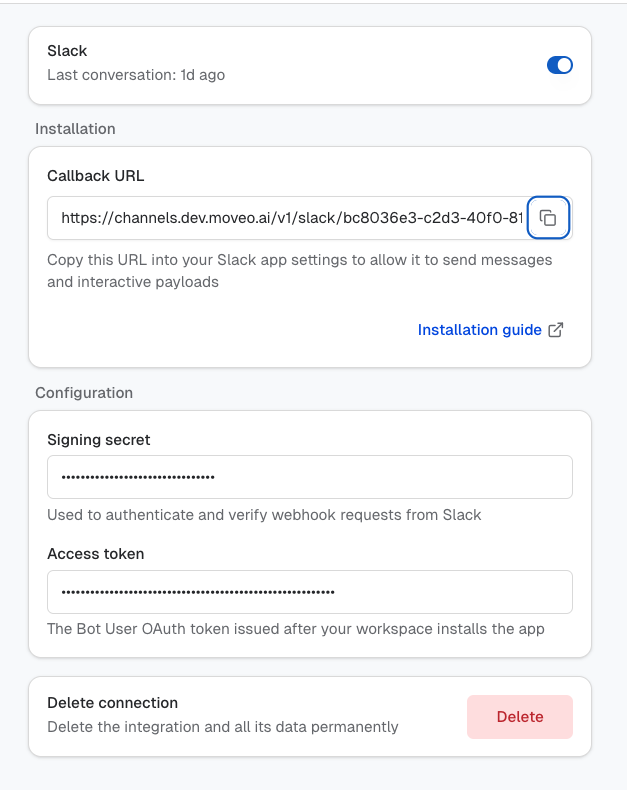
- Paste the Signing Secret from your Slack app
- Paste the Bot User OAuth Token into Access token
- Click Save
- Copy the Callback URL provided by Moveo
Step 3: Activate the integration
Toggle the integration status to Active.
Enable event subscriptions
Return to your Slack app configuration to complete the webhook setup.
Step 1: Configure Event Subscriptions
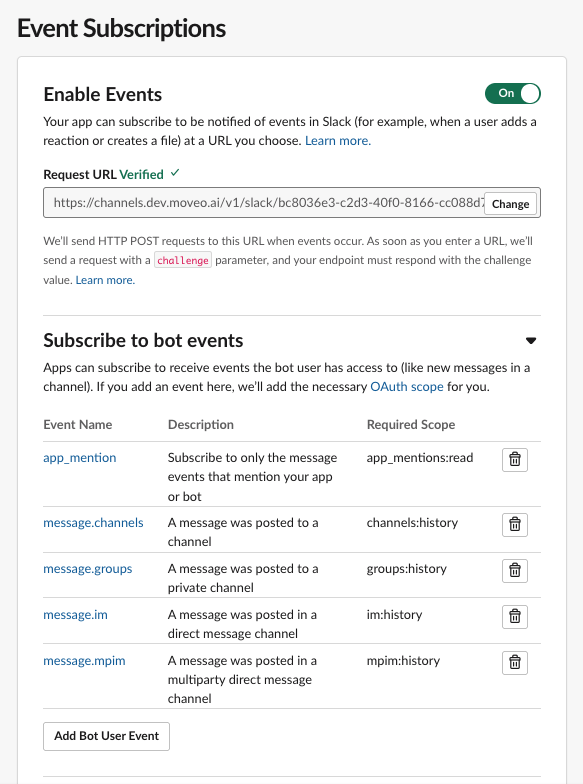
- Navigate to Event Subscriptions in the sidebar
- Toggle Enable Events to On
- Paste the Moveo callback URL into the Request URL field
- Wait for Slack to verify the URL (shows "Verified" checkmark)
Step 2: Subscribe to bot events
Under Subscribe to bot events, add the following events:
| Event Name | Description | Required Scope |
|---|---|---|
app_mention | Subscribe to only the message events that mention your app or bot | app_mentions:read |
message.channels | A message was posted to a channel | channels:history |
message.groups | A message was posted to a private channel | groups:history |
message.im | A message was posted in a direct message channel | im:history |
message.mpim | A message was posted in a multiparty direct message channel | mpim:history |
Click Save Changes after adding all events.
Step 3: Enable Interactivity
- Navigate to Interactivity & Shortcuts in the sidebar
- Toggle Interactivity to On
- Paste the same Moveo callback URL into the Request URL field
- Click Save Changes
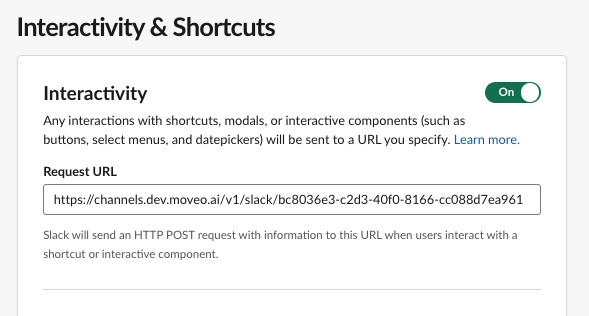
Your AI Agent is now ready to respond to messages in Slack.
Configuration options
Bot profile settings
- Bot name: Display name shown to users in Slack
- Avatar: Profile image for your bot
- Status: Always online visibility setting
Message configuration
- Response formatting: Slack markdown and block kit support
- File handling: Configure file upload and sharing behavior
Channel settings
- Direct messages: Enable DM conversations with users
- Channel mentions: Respond when @mentioned in channels
- Private channels: Access to private channel messages (requires invitation)
Testing your integration
Initial testing
- Open Slack and navigate to your workspace
- Find your bot in the Apps section
- Send a direct message to test basic functionality
- @mention your bot in a channel to test mentions
- Verify responses are accurate and timely
Test scenarios
- Direct message conversations
- Channel @mentions and responses
- Multi-turn conversations
- Interactive button responses
- Error handling and fallbacks
Common use cases
Internal helpdesk
- Answer employee questions about policies and procedures
- Provide instant IT support for common issues
- Guide employees through HR processes
- Automate onboarding information delivery
Customer support in shared channels
- Engage with customers in Slack Connect channels
- Provide instant answers to product questions
- Escalate complex issues to human agents
- Maintain support presence outside business hours
Workflow automation
- Trigger automated processes through conversation
- Collect information for form submissions
- Provide status updates on requests
- Integrate with other business systems
Best practices
Bot configuration
- Use a clear, recognizable bot name and avatar
- Set the bot to always appear online for availability
- Configure helpful initial messages
- Maintain consistent brand voice
Message optimization
- Keep responses concise for the Slack format
- Use Slack formatting (bold, lists, code blocks) effectively
- Provide clear action buttons when appropriate
- Include helpful links and resources
Channel management
- Add the bot to relevant channels proactively
- Set clear expectations about bot capabilities
- Provide easy access to human support
- Monitor bot performance across channels
Troubleshooting
Bot not responding to messages
- Verify the signing secret and OAuth token are correct
- Check that the integration is set to Active in Moveo
- Confirm event subscriptions are enabled and verified
- Ensure the bot has been added to the channel (for channel messages)
- Check that required scopes are properly configured
URL verification failing
- Ensure you're using the exact callback URL from Moveo
- Check that the Moveo integration is saved before verification
- Verify there are no extra spaces in the URL
- Try refreshing the Slack app settings page
Bot not appearing online
- Verify "Always Show My Bot as Online" is enabled in App Home
- Check that the bot OAuth token is valid
- Reinstall the app to the workspace if needed
Missing messages from channels
- Ensure the bot has been invited to the channel
- Verify
channels:historyorgroups:historyscopes are added - Check that
message.channelsormessage.groupsevents are subscribed - For private channels, confirm bot membership
Cannot send direct messages
- Verify
im:writescope is configured - Check that the Messages Tab is enabled in App Home
- Ensure "Allow users to send Slash commands and messages" is checked
Limitations
Platform constraints
- Workspace access required - Users must be members of the Slack workspace to interact with your bot
- Rate limits - Slack enforces API rate limits; high-volume deployments may require optimization
- Message history - Bot cannot access messages sent before it was added to a channel
- Threading - Responses in threads require specific handling for consistent experience
Integration constraints
- One workspace per integration - Each Moveo integration connects to a single Slack workspace
- Bot permissions - Capabilities are limited to granted OAuth scopes
- Private channels - Bot must be explicitly invited to access private channels
- Enterprise Grid - May require additional configuration for multi-workspace deployments
Resources
Documentation
Support
- Slack Help Center
- Moveo support: support@moveo.ai
Next steps
Once your Slack integration is active:
- Invite the bot to relevant channels in your workspace
- Test conversations across DMs and channel mentions
- Configure welcome messages for optimal first impressions
- Train your team on how to interact with the AI Agent
- Monitor usage and optimize responses based on feedback