Knowledge base through documents
Upload your own documents to enable your AI Agent to answer questions based on them.
Upload document
To upload documents to your Moveo AI Agent:
- Navigate to Knowledge in the top navigation bar.
- Select the knowledge base you want to add documents to, or create a new knowledge base as described in the Knowledge base overview.
- Navigate to the Documents tab.
- Click the Upload button, located on the right side of the Documents tab.
- A sidebar will appear, featuring a drag-and-drop component. You can either:
- Drag and drop your desired files directly into the designated area.
- Click Browse to select files from your computer.
- Supported file types include:
.docx,.pdf,.txt,.md, and.html.
- Once you have selected your files, click the Upload button within the sidebar to begin the upload process.
Each uploaded document progresses through four stages:
-
Pending: The document is not yet available for use.
-
Indexing: The document is being analyzed, processed, and optimized for efficient retrieval by your AI Agent.
-
Draft: The document is not live for production use but can be utilized for testing your AI Agent.
-
Published: The document has been successfully processed and is now ready for use by your AI Agent.
Replace a document
Replace an existing document by clicking on the three dots, selecting Replace, and uploading your replacement document.
Webpage source
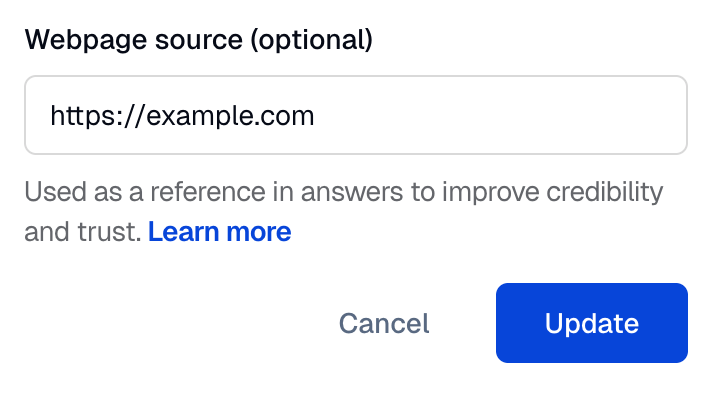
The Webpage Source field appears in the sidebar when you click on a document row in the table and allows you to optionally add a URL (e.g., https://example.com) that will be shown as a clickable source link in the webchat widget. This helps improve credibility by letting end users trace answers back to an external source, especially when the uploaded document doesn’t have one automatically. If left empty, no source link will be displayed, even if the document content is used in an answer.
Delete a document
- Locate the document you want to delete in the table.
- Click the three dots icon on the document row.
- Select Delete from the dropdown menu.
- Confirm the deletion when prompted.
Deleting a document removes it permanently from your knowledge base. Your AI Agent will no longer be able to reference this content.
Next steps
- Publish content - Make your documents available to live agents
- Test your knowledge base - Verify your agent answers correctly
- Best practices - Optimize your document content