Knowledge base through webpages
The webpages data source allows you to gather and store content from various webpages. Your AI Agent uses this collected information to answer customer questions effectively.
Configuration
Below are the parameters you can use to configure the ingestion process:
Full website
This knowledge base starts with a seed URL. Seed URLs are the starting points for your crawl. They act as the base addresses from which the crawler begins exploring links. The crawler visits only those URLs that match the seed URLs or belong to their subdirectories.
For example, if the seed URL is https://example.com/, the crawler explores that page and all its
linked subpages such as https://example.com/blog/, https://example.com/about-us/, etc.
Excluded URLs
Excluded URLs are those you want the crawler to ignore. You can specify them using the same format as seed URLs. The crawler does not visit any URLs that match the excluded URLs or belong to their subdirectories.
For example, if you exclude https://example.com/blog/, neither that page nor any pages under the
blog directory will be visited.
Single URLs
Single URLs are pages you want the crawler to visit without following any links from them.
Sitemap URLs
Sitemap URLs enable
the crawler to fetch a list of pages to visit. For example, https://example.com/sitemap.xml can be
used to locate multiple URLs for ingestion.
Excluded assets
The crawler ignores certain assets such as images, CSS, JavaScript files, and PDFs. The crawler ingests only HTML pages, so it ignores every other file type, for example:
- PNG
- JPG
- JPEG
- GIF
- CSS
- JS
Moveo crawls webpages every 24 hours. So you might not see the changes you make immediately.
Add a webpage
- Navigate to Knowledge in the top navigation bar.
- Select the knowledge base you want to add a webpage to, or create a new knowledge base as described in the Knowledge bases overview.
- Navigate to the Webpages tab.
- Click the Add button to toggle the Add webpages sidebar.
- Select which method of ingestion you want to use.
- Type the full URL of the webpage you want to add.
- Click Add.
Ingestion report
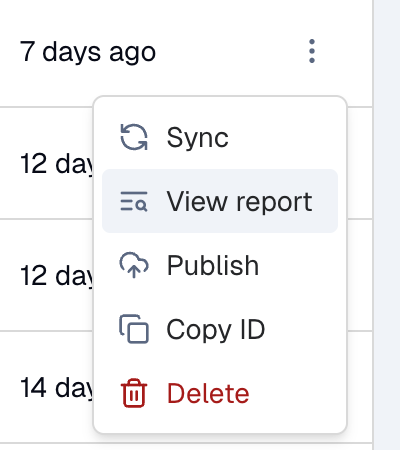
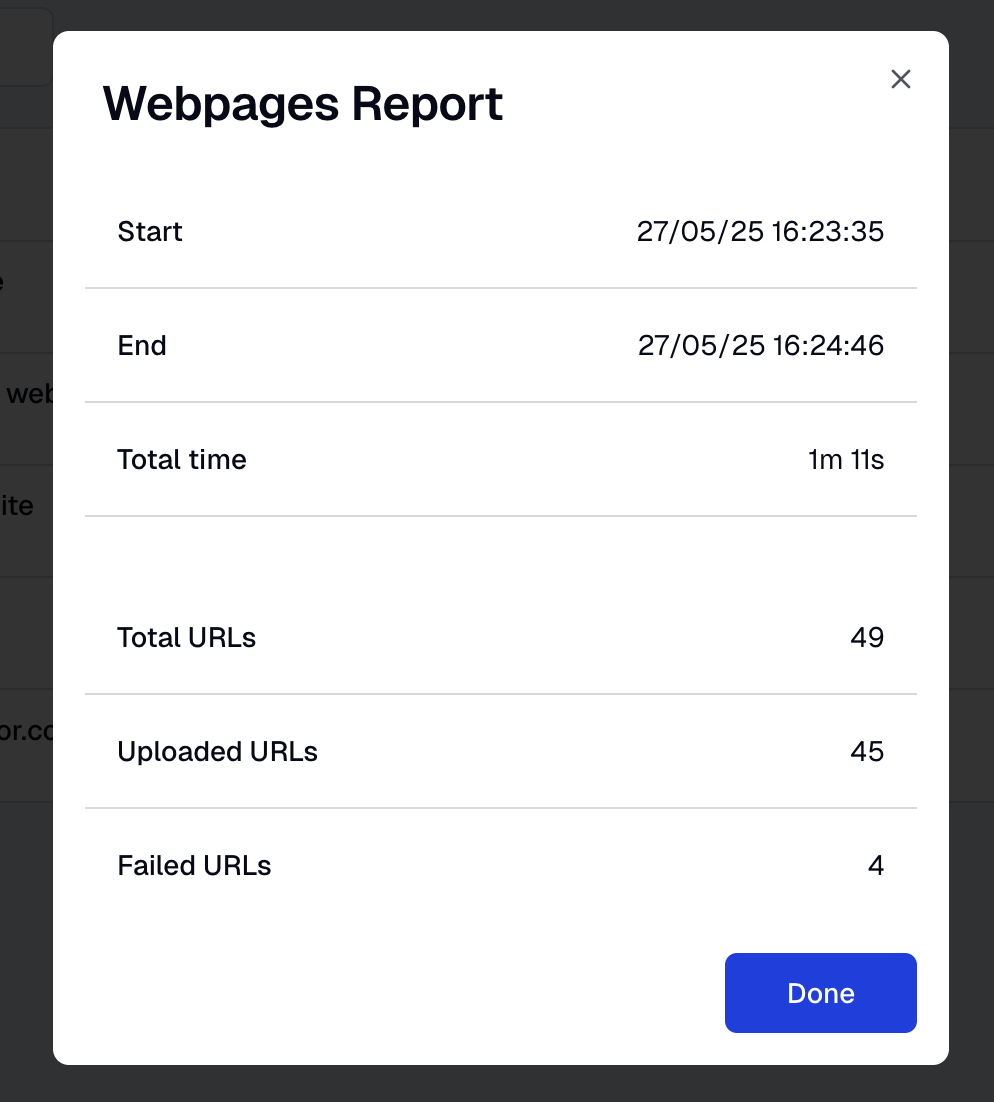
The Ingestion Report provides details on the results of your webpage's data ingestion. By clicking on it, you can see how your site was ingested, the time it took, and any issues encountered (for example, problematic URL fields).
- Option
- Report
Troubleshooting
CDN or WAF blocking the crawler
If your website is protected by a CDN or WAF (Web Application Firewall) such as Cloudflare, Akamai, or AWS CloudFront, the Moveo crawler may be blocked from accessing your pages. To resolve this, allowlist the Moveo crawler's IP addresses in your security settings.
Moveo crawler IP addresses depend on the region your account is hosted in. See Outbound IP addresses for the full list, then allowlist the addresses for your account's region (or all of them if you are unsure).
- Cloudflare
- Akamai
- AWS CloudFront / WAF
- Other
- Log in to your Cloudflare dashboard.
- Select your domain.
- Go to Security → WAF → Tools.
- Under IP Access Rules, add the Moveo crawler IP addresses for your region with the action set to Allow.
- Log in to the Akamai Control Center.
- Navigate to Security → IP/Geo Firewall (or your WAF configuration).
- Add the Moveo crawler IP addresses for your region to your allowlist.
- If using Bot Manager, create an exception rule for these IPs under Transactional Endpoints or Custom Bot Categories.
- Open the AWS WAF console.
- Create or edit an IP set with the Moveo crawler IP addresses for your region.
- Add a Rule to your Web ACL that matches the IP set and sets the action to Allow.
- Ensure this rule has a higher priority than any blocking rules.
If you use a different WAF or CDN provider (Imperva, Fastly, etc.), add the Moveo crawler IP addresses for your region to your allowlist or create an equivalent bypass rule.
Frequently asked questions
-
What file types are excluded during ingestion?
The crawler ingests only HTML pages. It ignores other files, such as PNG, JPG, JPEG, GIF, PDF, CSS, and JS files. -
Can I force the crawler to follow links from Single URLs?
No. Single URLs are crawled in isolation; the crawler does not follow any further links from them. -
Is there a way to view the status of my crawl?
Yes. Open the Ingestion Report, which outlines the process duration, URL issues, and any potential errors. -
How can I block the crawler from certain sections of my site?
You can list the paths or pages to be excluded under Excluded URLs. The crawler will ignore any URLs or subdirectories specified there. -
Can I use a sitemap for just one part of my webpage?
Absolutely. Point the crawler to any sitemap URL relevant to the sections you want to crawl. -
How do I resolve issues with my CDN or WAF blocking the crawler? Allowlist the Moveo crawler IP addresses in your CDN or WAF settings. See the Troubleshooting section above for step-by-step instructions.
-
What happens if a URL is both in Seed URLs and Excluded URLs?
Excluded URLs take precedence. Any URL listed in Excluded URLs (or its subdirectories) will not be crawled. -
How can I integrate this with a site protected by login credentials?
At the moment, Moveo's crawler does not support authentication. You must provide publicly accessible URLs to be crawled. -
Does Moveo process JavaScript on my webpage?
Yes. The crawler renders a page in a browser when the page needs JavaScript to show its content.