MCP servers
MCP servers extend your AI agent with external tools through the Model Context Protocol (MCP). Once connected, the agent can use the server's tools during conversations to query databases, call APIs, or interact with third-party services — without you having to write any custom integration code.
MCP servers connect external tool providers. For tools built into Moveo (workflow triggers, rich responses, code execution, voicemail detection, on-demand knowledge), see Local tools. To build your own MCP server — including tool design and prompting practices — see Build an MCP server.
Overview
An MCP server exposes a set of tools over the Model Context Protocol. After you connect a server, Moveo discovers the tools it offers, you choose which ones to enable, and the agent can call them while talking to a user.
Authentication modes
Moveo automatically detects the authentication mode of the server you connect.
| Mode | When it applies | What you provide |
|---|---|---|
| None | Server is publicly accessible | Just the URL |
| Header | Server expects credentials in HTTP headers (for example, an API key) | Header key and value pairs |
| OAuth | Server uses OAuth 2.0 with PKCE | Connect via popup; client credentials registered automatically when the server supports RFC 7591, otherwise entered manually |
If you are building the server yourself, see Authentication for how to implement each mode.
Transport
Moveo connects over Streamable HTTP. The legacy SSE transport is deprecated and rejected at the URL-validation step. For the route setup on the server side, see Create the route.
Prerequisites
Before adding an MCP server, ensure you have:
- An MCP server endpoint URL that supports Streamable HTTP
- Credentials for the server's authentication mode (if any)
Add an MCP server
Navigate to your AI agent, open the ⋮ menu and select Tools, then select Add.
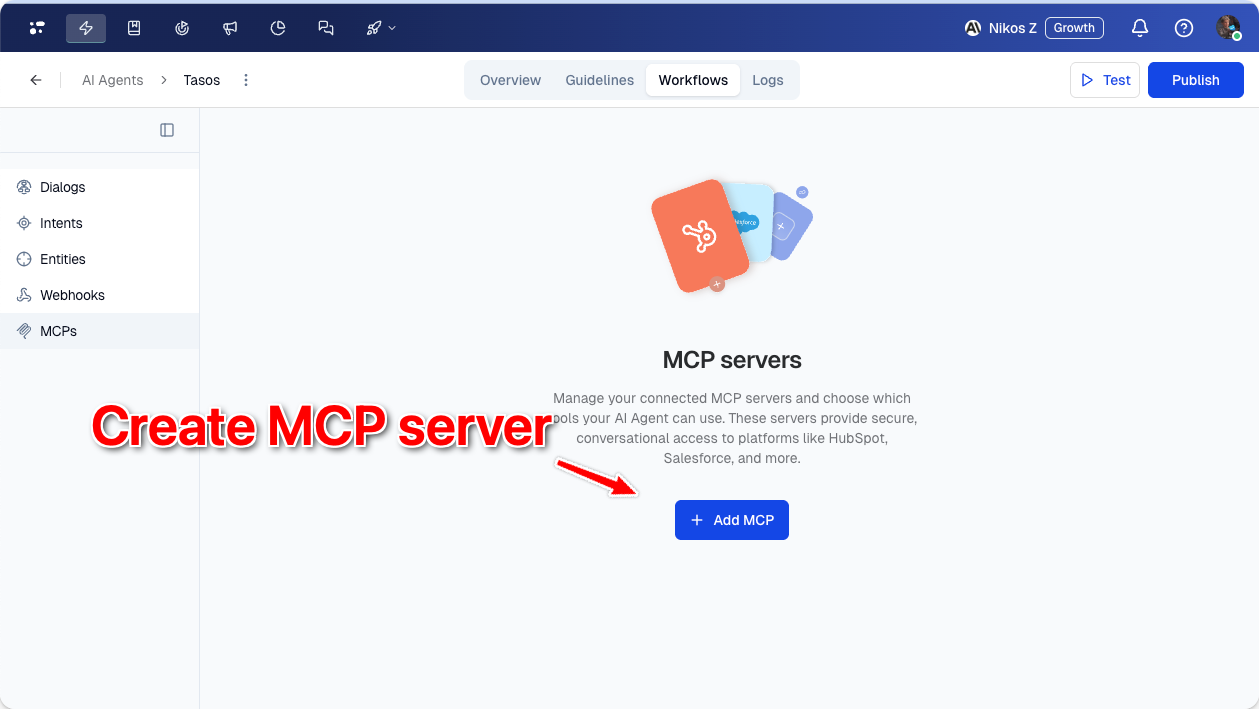
To connect a server:
- Enter the server URL.
- Authenticate using the mode Moveo detects.
- Select which tools the agent can use.
Enter the server URL
Enter your MCP server URL. When you tab out of the field, Moveo contacts the server, detects the authentication mode, and shows a status indicator next to the URL.
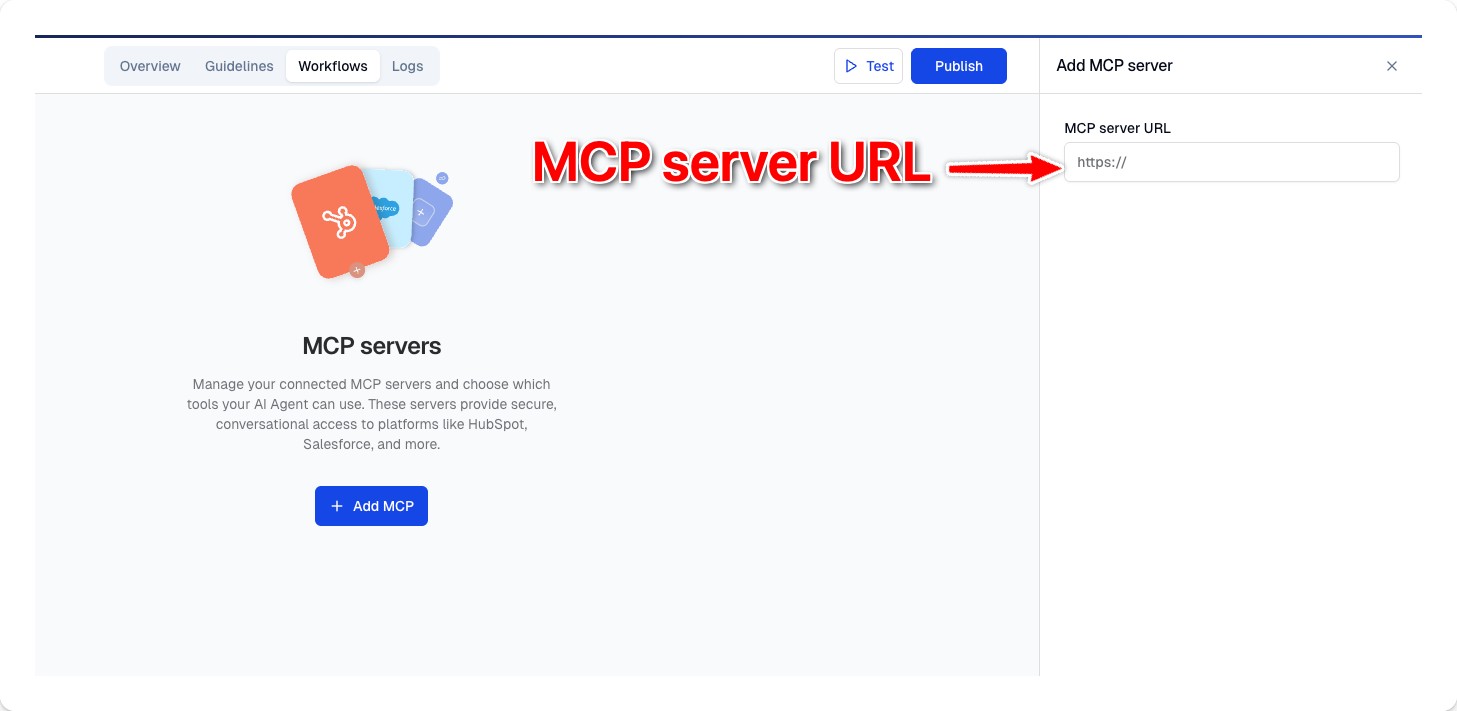
SSE transport is deprecated. If your URL ends with /sse, remove that suffix and use the base endpoint instead.
Authenticate
The next step depends on the authentication mode Moveo discovered.
No authentication
If the server is public, Moveo confirms the connection automatically and moves on to tool selection. No further input is needed.
Header authentication
For servers that expect credentials in HTTP headers (for example, an API key passed as Authorization: Bearer <token> or X-Api-Key: <key>):
- Enter a name for the server.
- In the Custom headers section, add one or more header key/value pairs.
- Use the eye toggle to mask or reveal a value.
- Select Connect. Moveo calls the server with your headers to verify access and retrieve the tool list.
Header values are stored as secrets. Anyone with edit permission can update them, but they are masked by default in the UI.
For how to validate the header on the server side, see Header authentication in the implementation guide.
OAuth authentication
For OAuth-protected servers:
- Enter a name for the server.
- If the server supports dynamic client registration (RFC 7591), Moveo registers a client automatically and shows a confirmation. Otherwise, enter the client ID and client secret issued by the authorization server. The authorization URL and token URL are filled in from server discovery, but you can override them.
- Select Connect to start the OAuth flow.
- A popup opens to the authorization server. Sign in and authorize Moveo.
- The popup closes automatically on success and Moveo retrieves the tool list.
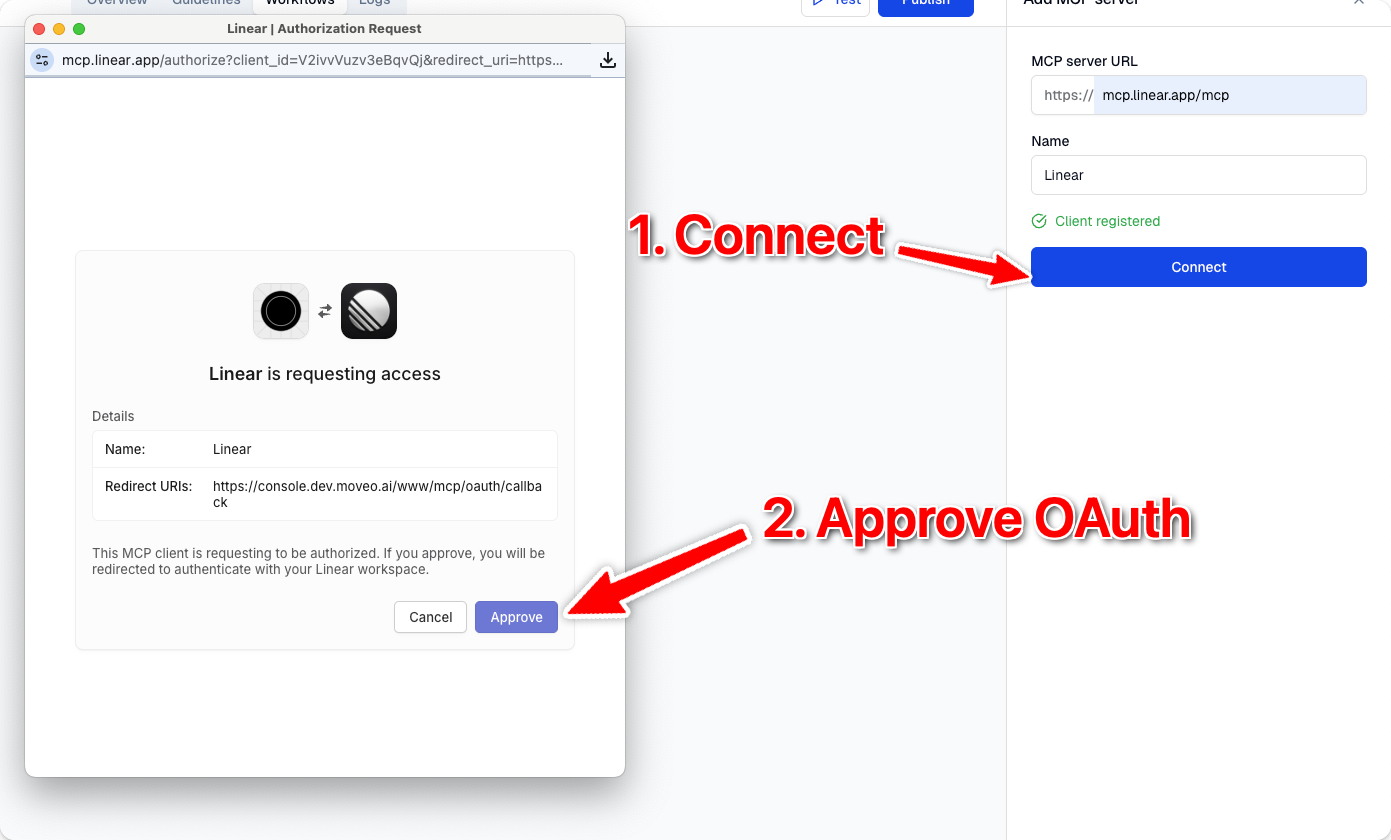
Moveo uses PKCE (RFC 7636) for every OAuth flow. The callback URL shown in the panel is the redirect URI to whitelist on your authorization server when dynamic registration is not available.
For the server side — JWKS verification, the OAuth Resource Metadata endpoint, and refresh tokens — see OAuth in the implementation guide.
Select tools
After authentication succeeds, Moveo lists every tool the server exposes. All tools are selected by default.
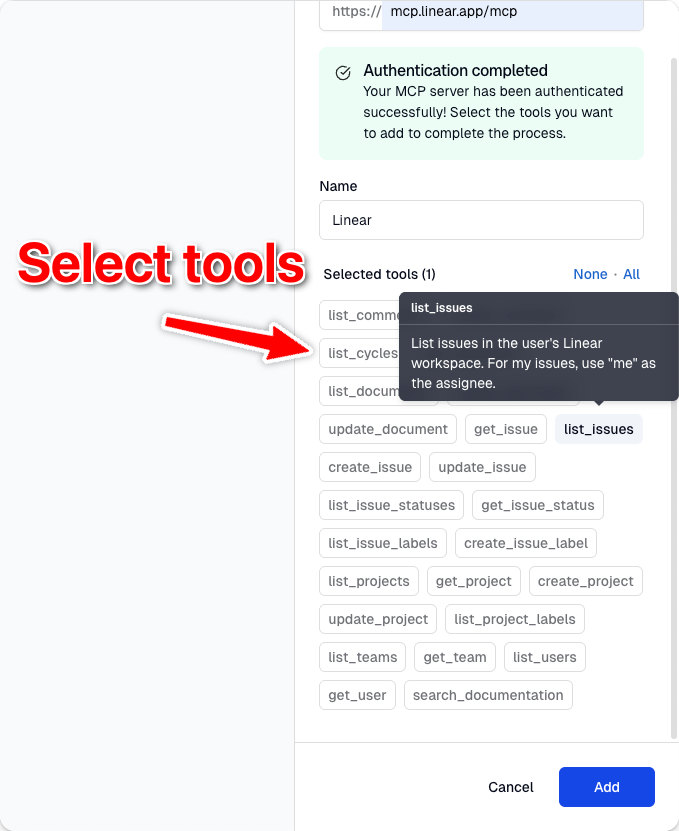
- Use All to enable all tools, or None to clear selections.
- Hover over a tool to see its description.
- Select Add to save the server with the chosen tools enabled.
The tool names and descriptions you see here are set by the server. For guidance on writing them so the agent uses the tools correctly, see Tool design.
Manage MCP servers
The MCP servers table lists every configured server with its current status.
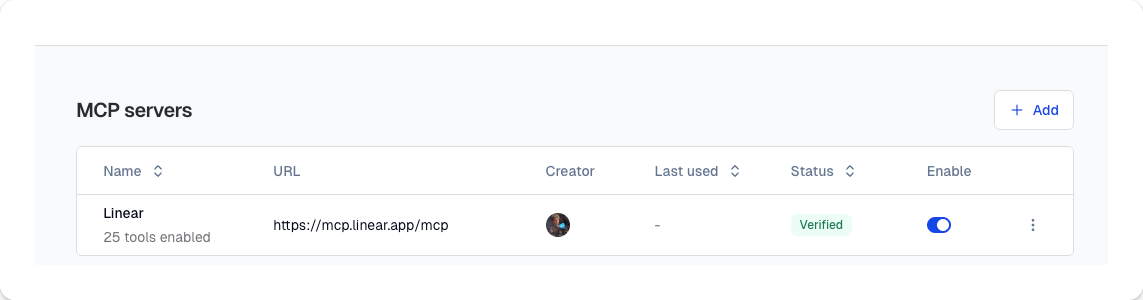
Table columns
| Column | Description |
|---|---|
| Name | Server name and number of enabled tools |
| URL | Server endpoint |
| Created by | User who created the server |
| Last used | When the server was last called |
| Status | Connection and sync status |
| Enable | Toggle to activate or deactivate the server |
| Actions | Edit, resync, or delete |
Status indicators
| Status | Meaning |
|---|---|
| Verified | Connected; tools and authentication are in sync |
| Outdated | Tool definitions changed on the server and need to be resynced |
| Error | Moveo cannot reach the server with the current credentials |
Edit a server
Choose Edit from the actions menu to modify a server.
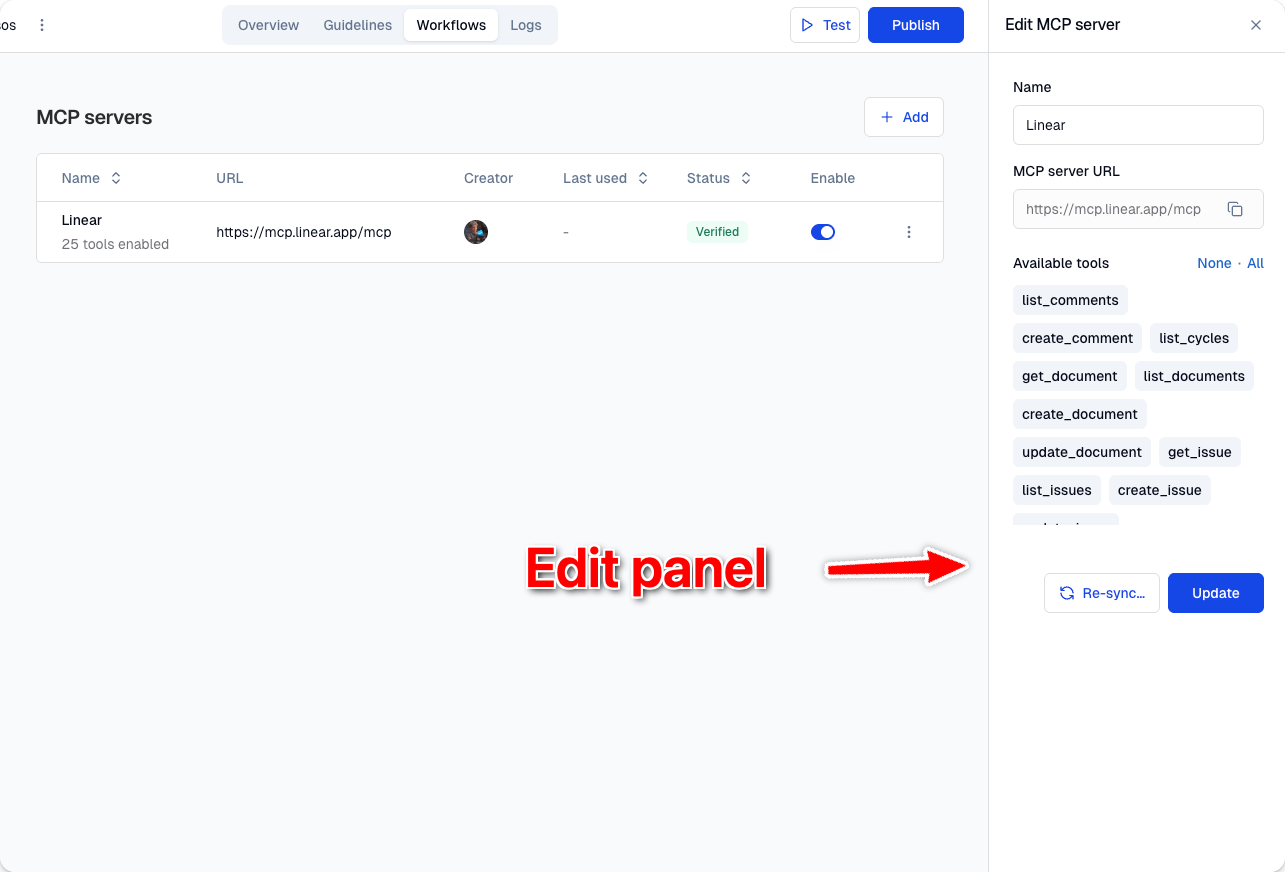
The edit panel lets you:
- Rename the server.
- View the URL (read-only, with a copy button). The URL cannot be changed after creation; delete the server and create a new one to point at a different endpoint.
- Update custom headers — only when the server uses header authentication.
- Toggle individual tools on or off. Hover over a tool to see its description and last-used time. Tool descriptions are set on the server side — see Tool descriptions.
When you open the edit panel, Moveo refetches the latest tools from the server. Tools added on the server side appear here so you can enable them.
If the server status is Outdated, you must resync before saving. The Update button stays disabled until the resync completes.
Select Update to save changes.
Resync tools
When an MCP server changes its tool definitions, the server status switches to Outdated. Resync brings your local tool definitions back in line with the server.
- Select Re-sync from the actions menu or from the edit panel.
- The dialog shows a diff:
- Update available — the tool's description or input schema changed.
- Deleted — the tool no longer exists on the server.
- Select Re-sync to apply the changes.
Resync only updates or removes existing tools. New tools added on the server do not appear in the resync dialog. To enable a newly added tool, open the edit panel — the tool list there is always refetched live.
For guidance on evolving tools without breaking guidelines that reference them, see Version tool definitions deliberately.
Enable or disable a server
Use the toggle in the Enable column to activate or deactivate an MCP server. A disabled server stays configured, but the agent cannot call any of its tools.
Delete a server
From the actions menu, select Delete to remove a server. This action cannot be undone, and any guideline that referenced the server's tools loses those references. For how guidelines reference tools, see Referencing tools from guidelines.
Runtime behavior
Once a server is verified and enabled, Moveo invokes its tools during conversations the same way it invokes local tools. A few details are worth knowing as a server author or operator.
Connection and discovery
- Connection establishment, tool discovery, and the connection test that runs when you add or edit a server are bound by a 30-second timeout. A server that does not complete the MCP handshake in that window is reported as unreachable. To stay inside this window, see Respect the connection budget.
- Moveo negotiates Streamable HTTP first and falls back to SSE only when the server returns 404 or 405 on the Streamable HTTP endpoint. New servers should set
disableSse: true— see Create the route.
Tool invocation
Tools are invoked at conversation time. Moveo bounds each invocation by a timeout and surfaces the result back to the agent for it to incorporate into its reply.
- Connect timeout — 3 seconds to establish the HTTP connection.
- Read timeout — 65 seconds for the server to return the tool result. To stay inside this budget, see Implement timeouts on the server side.
- Retries — Connection-level failures and the HTTP statuses 5xx and 429 are retried once by default with exponential backoff (up to 10 seconds). Tool errors returned with
isError: trueare not retried — they are passed back to the agent as a deliberate signal it can act on. To make retries safe, see Make tool calls idempotent. - Tool definition cache — Discovered tool schemas are cached for 2 minutes. After a resync in the UI, expect a brief window before every running conversation sees the updated schemas. Plan schema changes accordingly — see Version tool definitions deliberately.
- Argument validation — Moveo validates each tool call against the tool's input schema before sending it to the server. Invalid arguments are returned to the agent as a structured error for self-correction; your server is not contacted in that case. Schemas with clear field descriptions and enums get fewer invalid calls — see Input schemas.
Error codes
When a connection or tool call fails, Moveo records one of the following error codes:
| Code | Meaning |
|---|---|
connection_timeout | Server did not respond within the timeout window |
unauthorized | Server returned HTTP 401 — credentials are missing, invalid, or expired |
not_found | Server returned HTTP 404 |
connection_refused | TCP connection was refused (server not listening) |
http_<code> | Other HTTP status returned by the server |
connection_failed | Catch-all for other transport failures |
Troubleshooting
SSE endpoint error
The SSE transport is deprecated. If your server URL ends with /sse, remove that suffix and use the base endpoint:
- Wrong:
https://example.com/mcp/sse - Correct:
https://example.com/mcp
Discovery times out
Moveo waits up to 30 seconds for the server to complete the MCP handshake. If discovery times out:
- Confirm the server is reachable from the public internet.
- Make sure the server completes its initial handshake quickly — defer any cold-start work until the first tool call. See Respect the connection budget.
- Check that the URL points at the Streamable HTTP endpoint, not a marketing or documentation page.
OAuth connection fails
If OAuth authorization fails:
- Verify the server supports OAuth and is properly configured. See OAuth for the server-side setup.
- If dynamic client registration fails, enter client credentials manually.
- Make sure your authorization server allows the Moveo redirect URI shown in the panel.
- Confirm the scopes the server requires are available on the access token.
Header authentication fails
If a header-authenticated server returns Error after Connect:
- Check the header names exactly. Common patterns:
Authorization: Bearer <token>,X-Api-Key: <key>. See Header authentication for server-side validation. - Confirm the credential is valid and has not been rotated.
- Reopen the edit panel and re-enter the value — masked values are not visible after save.
Tools not appearing after resync
Resync only updates or removes existing tools. New tools added on the server do not appear in the resync dialog. Open the edit panel and select the new tools from the live tool list.
Server shows "Error" status
The server cannot be contacted. Verify:
- The server is running and accepting connections.
- Any required authentication credentials are still valid.
- The endpoint did not move to a new URL.
If the issue persists, delete the server and add it again.
Next steps
- Build an MCP server — implementation, tool design, and operating practices
- Local tools — built-in tools your agent can use without an external server
- Dialog Webhooks — trigger custom logic during conversations
- Webhooks — overview of all webhook types and how to configure them