Authentication overview
Authentication verifies the user's identity through a short, conversational question-based flow. It is a subagent action: you drag it from the Toolkit into a dialog node, the same way you add a text response or a webhook. When the conversation reaches that node, the auth flow takes over — and only after the user passes (or fails) does the conversation continue to your regular workflow.
Because it's an action, you decide where authentication happens. Place it at the start of the session (the most common setup — see running it at session start), or deeper in a workflow so users only authenticate when they reach a sensitive operation.
Once the flow starts, the Authentication Agent — an LLM-powered subagent that runs inside the AI Agent's message path — handles the back-and-forth with the user, validates answers against the ground truth you control (variables, exact match, fuzzy match, or a webhook you own), and routes to a dialog node of your choice on success or on failure.
When to use Authentication
Use Authentication when a workflow is gated on knowing who the user is — and getting it wrong is costly.
- Account access — looking up a balance, opening a ticket on the user's behalf, changing account settings.
- Debt collection / financial services — required identity verification before discussing amounts.
- Healthcare / insurance — HIPAA-style scenarios where the user must be identified before any case-specific information is shared.
- Any flow that contains sensitive customer data as context variables you don't want to leak to an unauthenticated user.
If you only need light identity context (e.g. just look up the user's name from the channel), a dialog webhook (Dialog webhooks) is usually simpler. Reach for Authentication when you need the AI to converse through the verification — handling clarifications, multiple acceptable forms of identity, failure paths to human handover, etc.
The mental model
A typical auth flow has two steps. The distinction is easiest to see in terms of where the conversation originates:
- Identification — who do you claim to be? Used when the conversation is inbound and you don't yet know who you're talking to — or whether they're a real customer at all. The user supplies an identifier (an SSN, an account number, a tax ID) that the agent can use to look the rest of them up.
- Verification — prove that you are who we think you are. Used when you already know who the user should be. Either the conversation is outbound (the agent proactively reached out to a known customer), or identification just resolved them against a record. The user supplies a second piece of information (date of birth, last 4 of card, an OTP) that you compare against the record on file.
Either step is optional, but at least one must be enabled. The shape of your flow follows from where the conversation comes from:
- Inbound (most common) — both steps. Identification first, then verification.
- Outbound — verification only. You already know who you called; you just need to confirm it's actually them.
Both steps pass → the conversation jumps to the Trigger node on success you chose. Either step fails → the conversation jumps to the Trigger node on exit (typically a handover or a graceful decline).
What you'll configure
You add Authentication from the subagents group of the Toolkit in the dialog builder — drag the Authentication action into a node. The action card renders the whole flow inline; clicking any part of it opens the matching configuration panel.
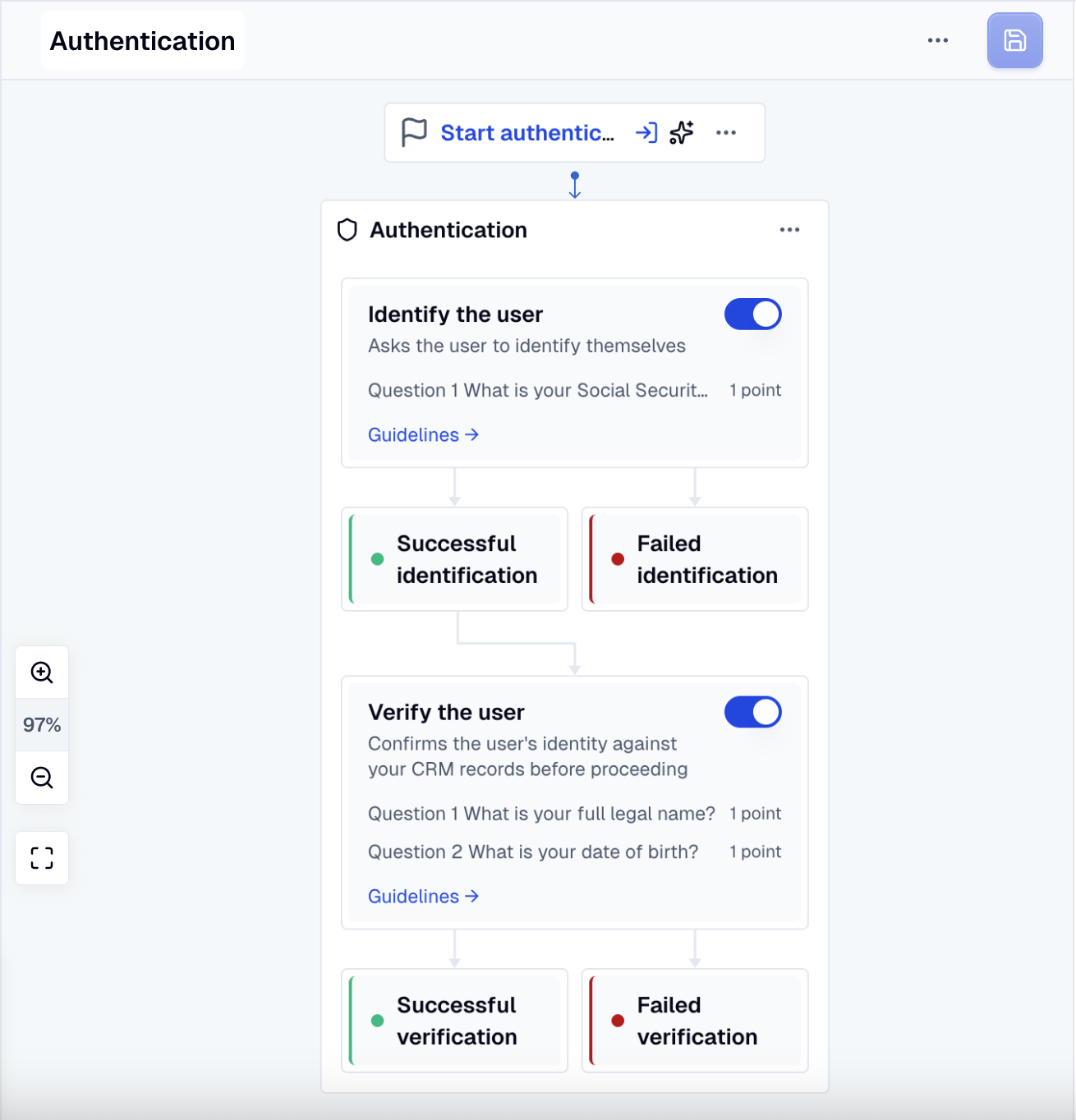
| In the builder | What it controls |
|---|---|
| Where you place the action | When the auth flow starts — it runs when the conversation reaches the node containing the action. For session-start auth, pair it with the Conversation start setting. |
| Identify the user step | The first step. Asks the user to claim an identity. Optional. |
| Verify the user step | The second step. Confirms the identity against your records. Optional. |
| Trigger node on success | The dialog node the conversation jumps to once auth passes. |
| Trigger node on exit | The dialog node the conversation jumps to once auth fails. |
Each step has its own panels:
| In the builder | What it controls |
|---|---|
| Step toggle on the step card | Enables the step. |
| Add question / Choose from a template | Up to 10 questions per step. Each one has its own answer type, weight, and validation method. |
| Successful identification/verification panel → Score threshold | Total points needed for the step to pass. See Scoring. |
| Guidelines drawer | Free-text instructions to the agent — your tone, your scripted greeting, your offered alternatives. See Guidelines. |
| Identification/verification exit panel | Three independent toggles: Incorrect responses, Guideline-based, Authentication timeout. |
| Verify the user step → Pre-enter webhook | Optional. Runs a webhook just before verification starts, to fetch ground truth. See Webhooks. |
For a click-by-click setup walkthrough see Set up Authentication.
Running Authentication at the start of the session
Most authentication use cases need the flow to run before anything else — the user must not reach any other part of the workflow unauthenticated. Since Authentication is an action inside a node, you get this with the Conversation start setting:
- Create a dialog node and drop the Authentication action into it.
- In the AI Agent's Settings, set Starting dialog to that node.
Every conversation now opens with the auth flow — the Authentication Agent generates the first message itself, shaped by your step guideline.
How Authentication changes the message path
While the auth flow is in progress, the Authentication Agent owns the conversation: each user message goes to it — not to intent classification — until the flow ends in success or failure. Then the conversation continues from the configured success or failure node, where the rest of your workflow takes over.
The outcome is remembered for the rest of the session. If the conversation reaches an Authentication action again after the user has already passed, the flow does not re-run — the conversation routes straight to the success node (or to the failure node, if the user had failed).
See How messages flow for the wider picture.
What the Authentication Agent can see
The Authentication Agent has limited context by design — the central safety property of Authentication.
| Visible to the Authentication Agent | Hidden from the Authentication Agent |
|---|---|
| Question text | Expected answers / ground-truth values |
| Question type (date, number, etc.) | Validation method on each question (exact match, fuzzy match, webhook, …) |
| Your step guideline + failure guideline | Point values, score threshold, and number of failed attempts |
| The conversation so far | Webhook URLs, tokens, headers |
| User's display name (if available from the channel) | Other workflows / dialogs in the AI Agent |
Validation happens server-side. The Authentication Agent submits a candidate answer for validation and learns only whether it was accepted — never why, never the expected value, never how close it was. Even if the Authentication Agent is prompt-injected, it has no secrets to leak.
Where to next
- Set up Authentication — step-by-step UI walkthrough.
- Conversation start — trigger the auth node at the start of every conversation.
- Scoring and alternative scenarios — design "any two of three", "strong-or-two-weaker", etc.
- Guidelines — scripted greetings, escalation, channel awareness.
- Webhooks — pre-enter and per-question validation webhooks, with a worked CRM-backed two-step recipe.