WhatsApp Flows
WhatsApp Flows collect information from users through native forms that open directly inside WhatsApp. Instead of asking questions one by one and waiting for responses, flows present a complete form where users fill in everything at once (dates, selections, text fields) and submit it in a single action.
Consider reporting a broken package through a chatbot. Without flows, the bot asks "What's your order number?", waits for a reply, then "What's your name?", waits again, then "Can you describe the damage?". This is a tedious exchange. With flows, users tap a button, fill out a clean form with fields for order number, name, and damage details, and submit it all together.
When to use flows
Flows work best for collecting multiple pieces of structured information:
- Appointment booking
- Lead capture
- Customer feedback
- Support tickets
A dental clinic uses flows to let patients book appointments. The form includes a date picker, available time slots pulled from their calendar system, and fields for name and phone number. Patients complete the entire booking in under a minute without leaving WhatsApp.
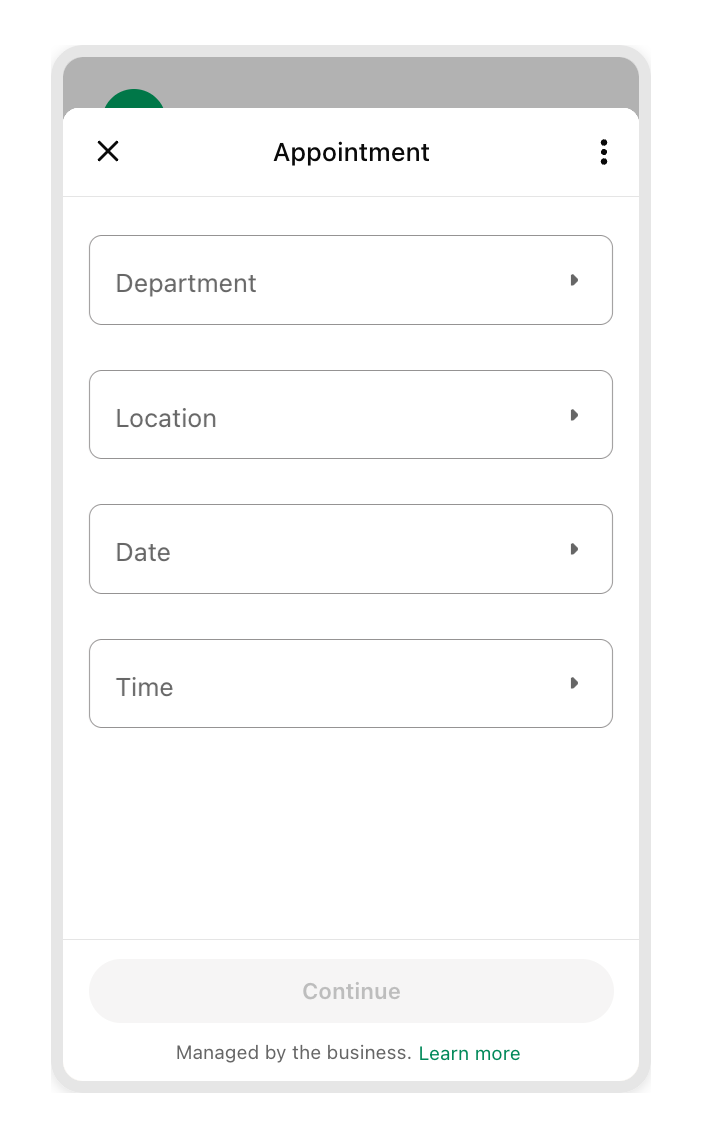
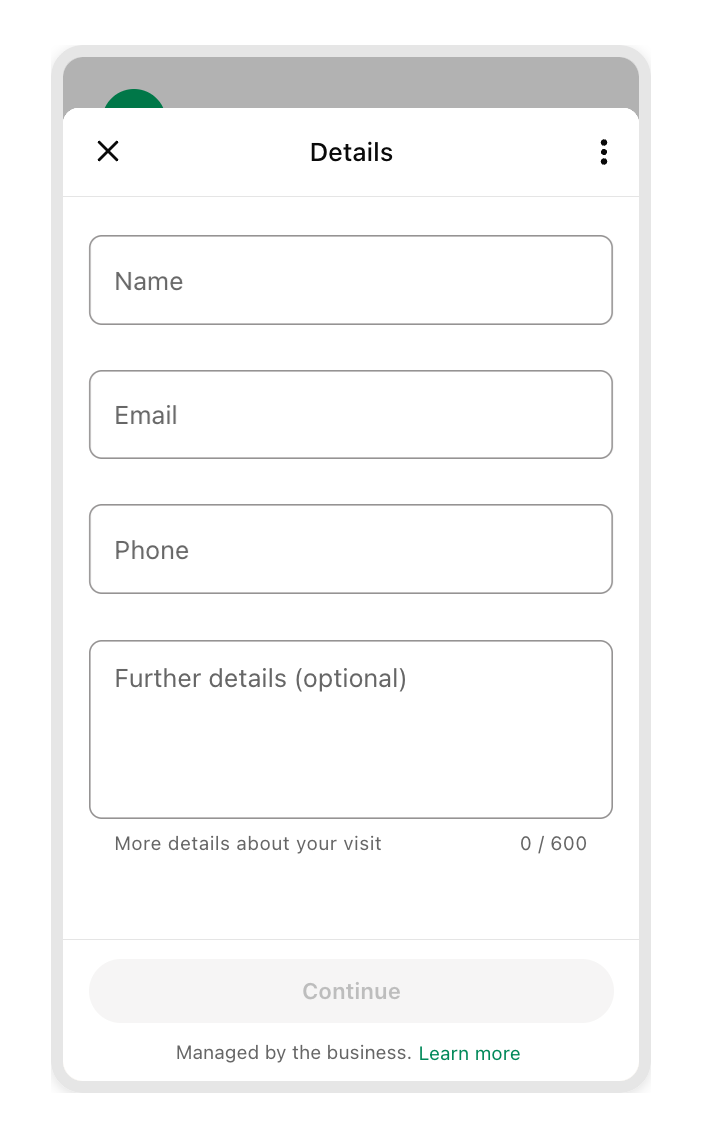
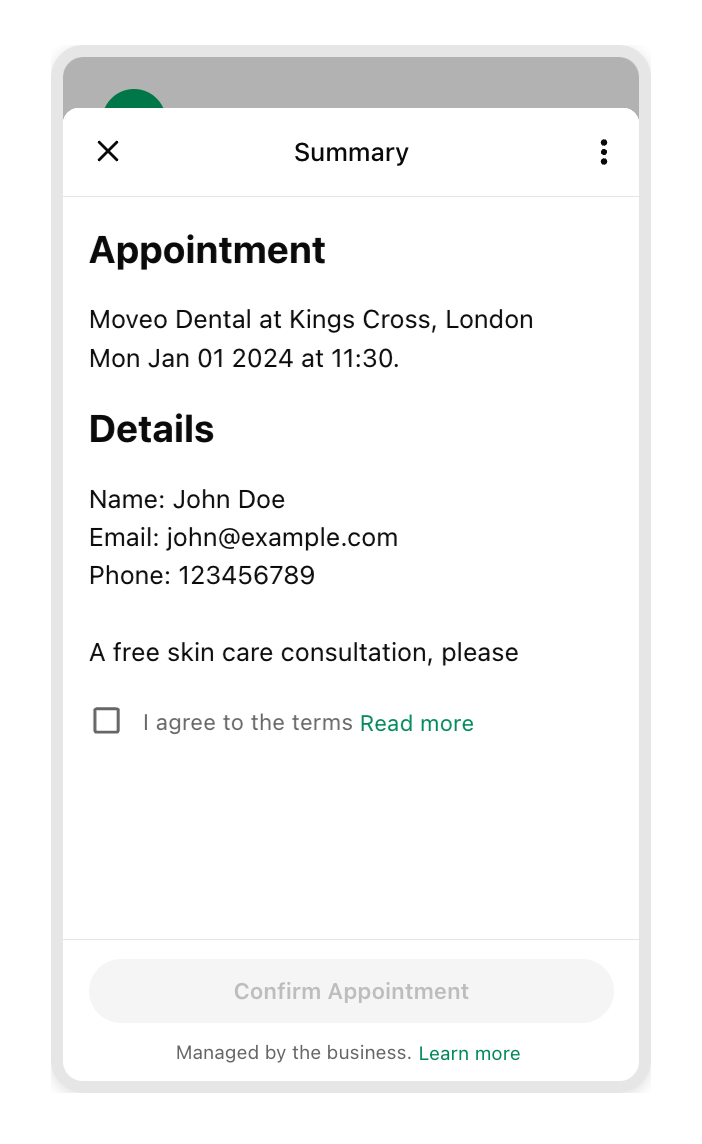
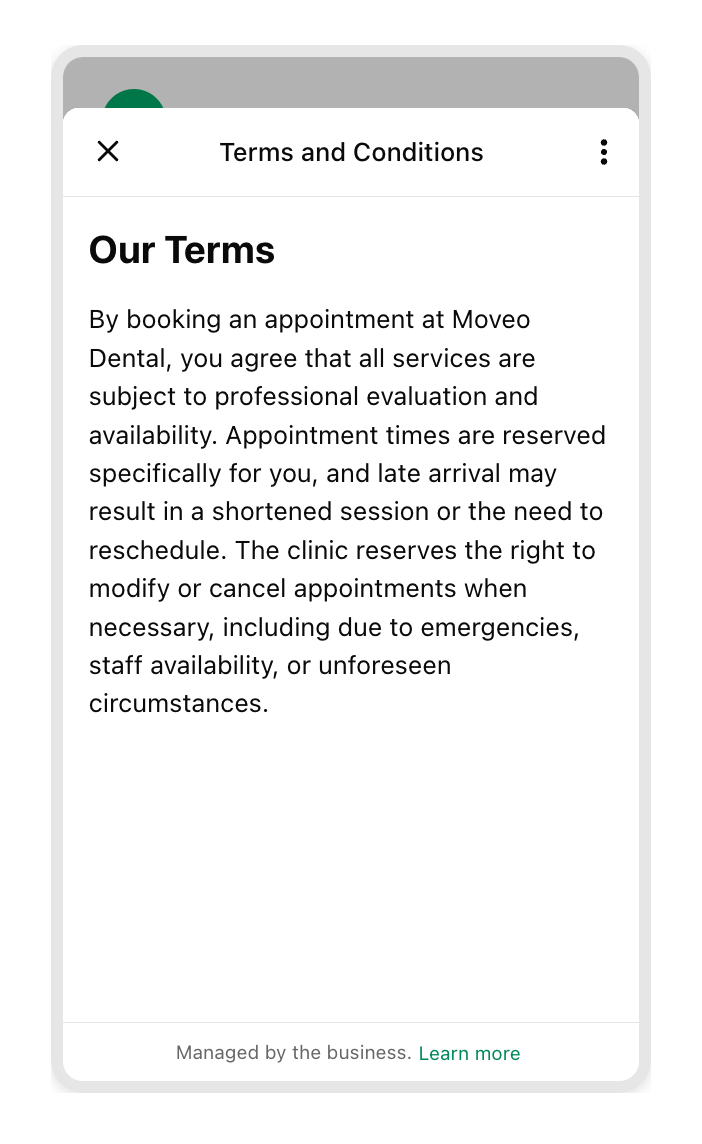
A B2B software company qualifies leads through flows. When someone asks about pricing, the bot sends a quick form asking for company size, industry, and specific needs. Sales gets structured data instead of parsing through chat messages.
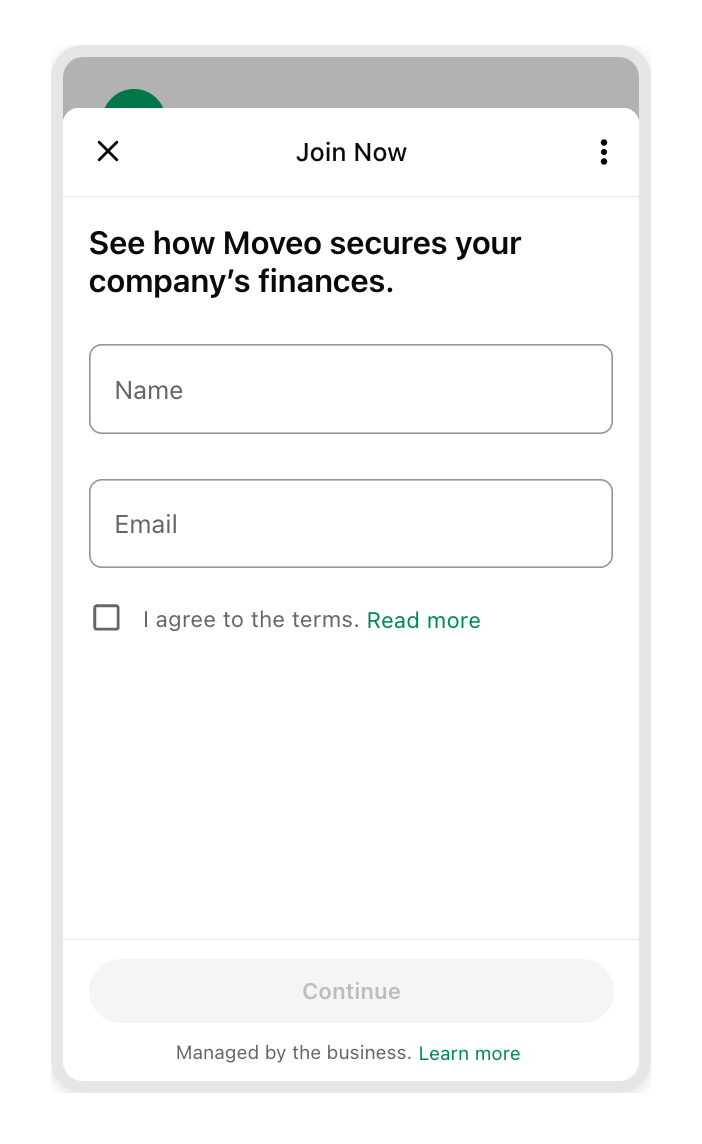
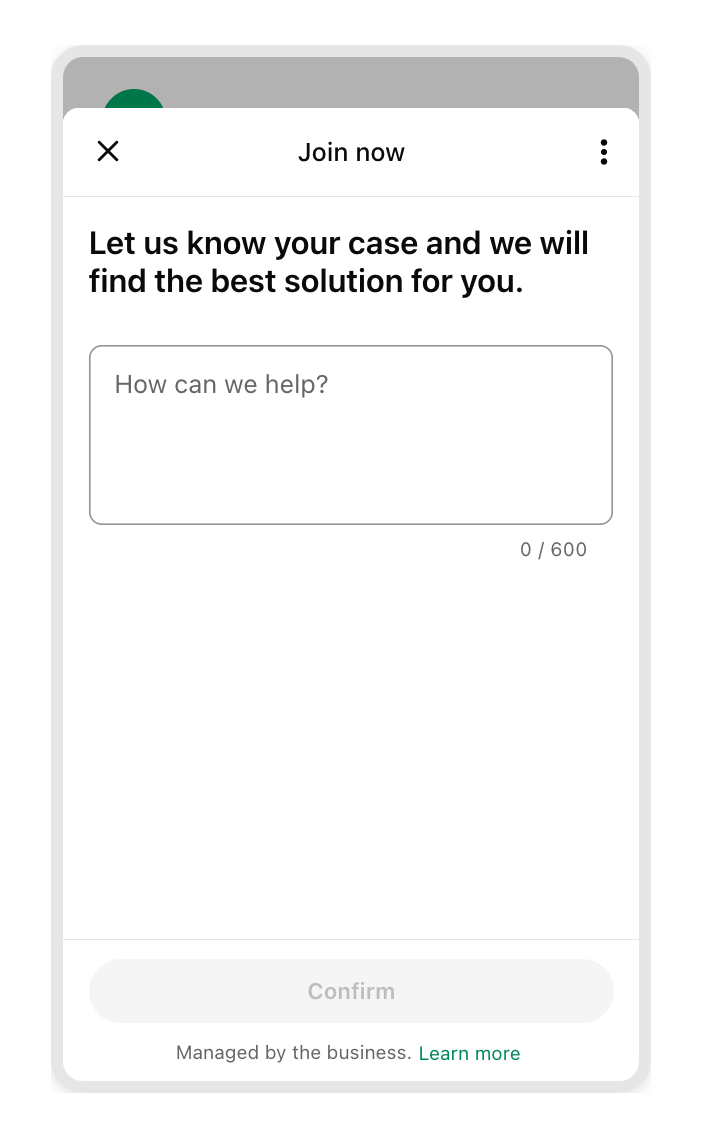
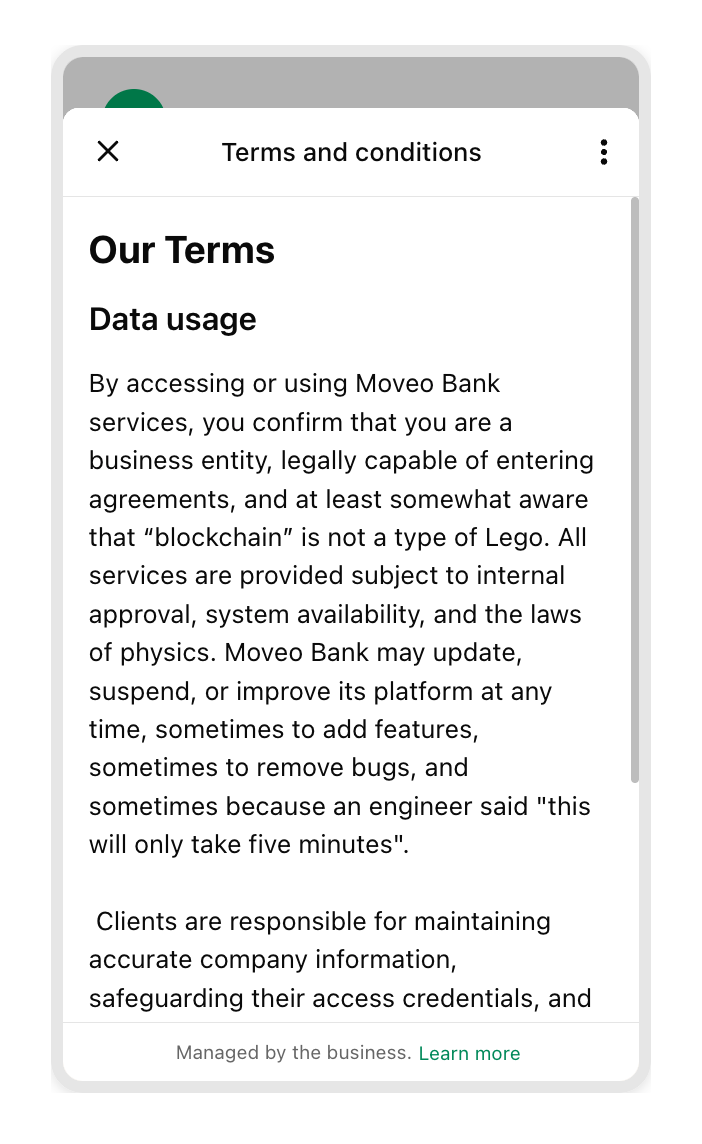
An ecommerce company collects feedback after purchase through flows. Customers rate their experience on a scale, select what they liked from a list, and optionally leave comments. Response rates are higher than email surveys because it's so frictionless.
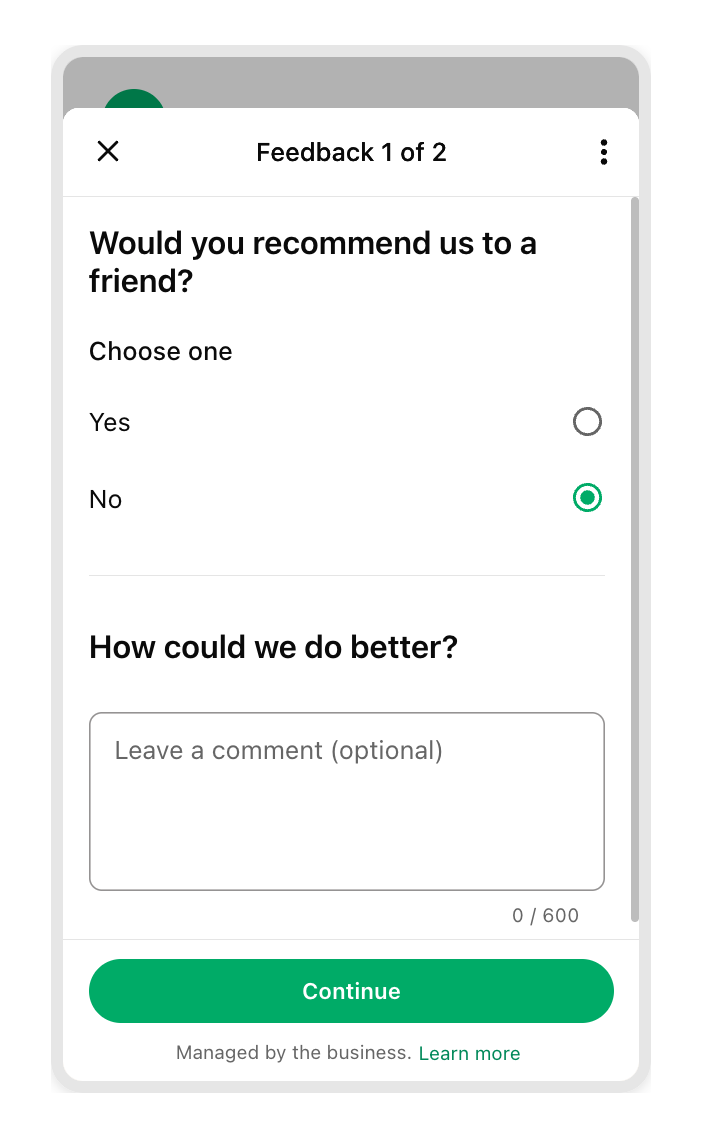
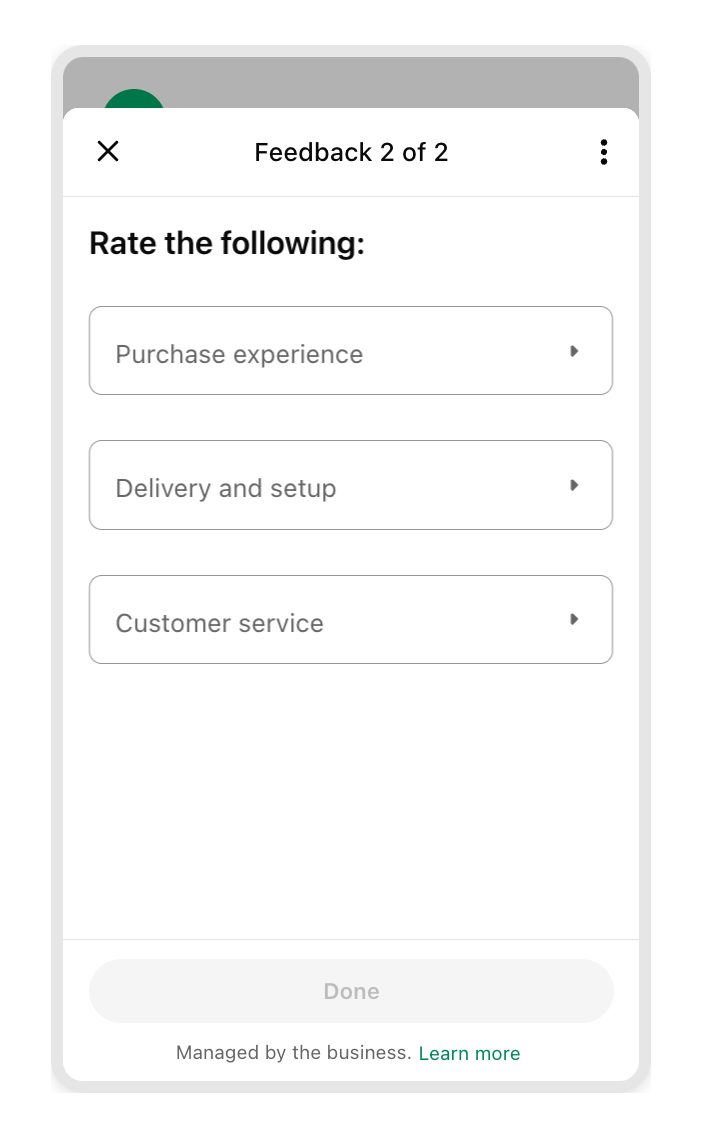
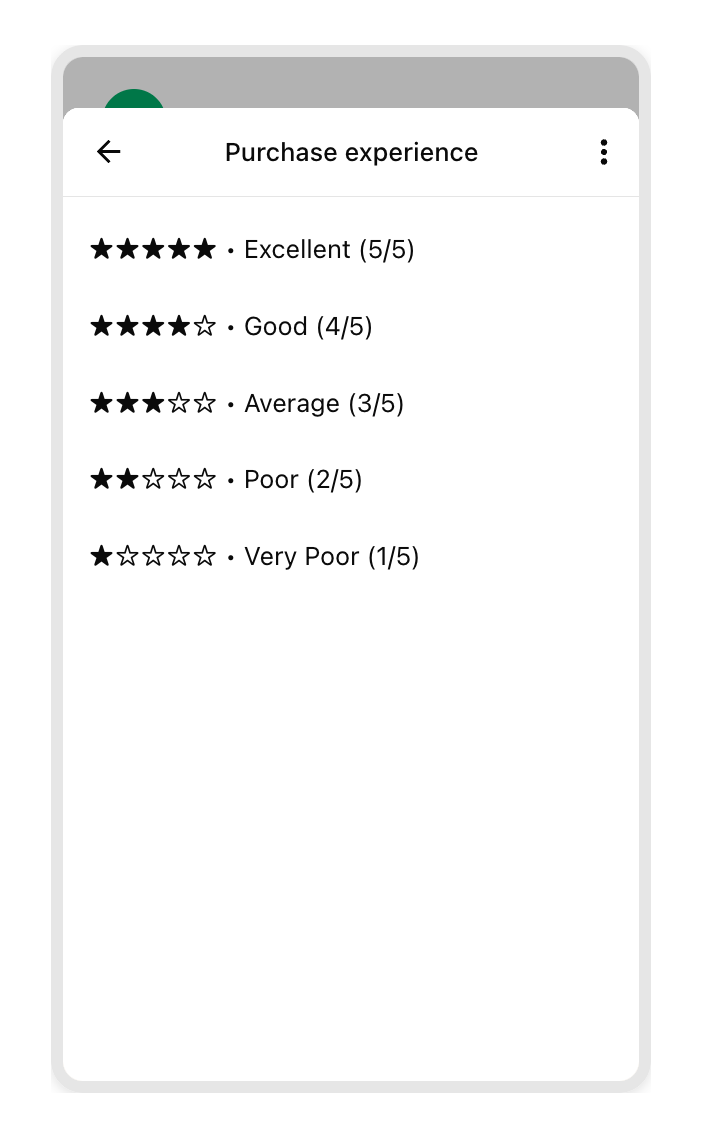
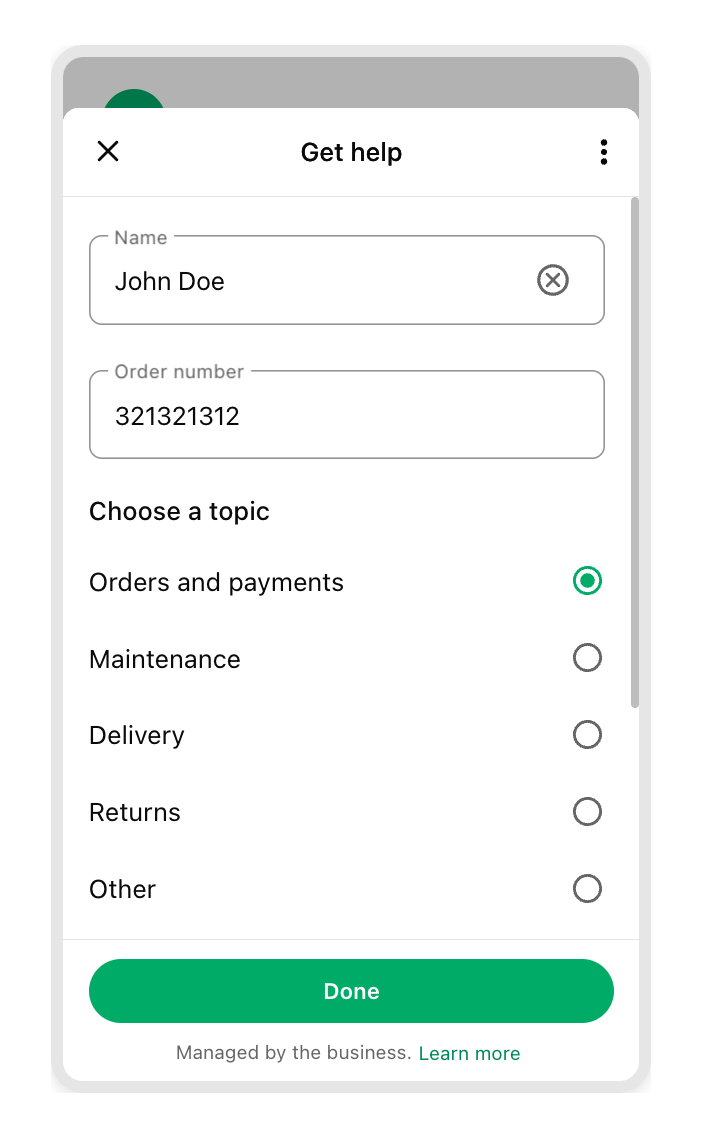
A tech company creates support tickets through flows. Users categorize their issue from a dropdown, describe the problem, and optionally mark it as urgent. The support team receives properly categorized tickets instead of unstructured messages.
Before starting
A few things need to be in place:
-
WhatsApp Business integration already active in the Moveo environment. If not set up yet, follow the WhatsApp integration guide first.
-
A flow created in Meta Business Manager. Flows are designed in Meta's Flow Builder, where the screens, fields, and validation are all defined. Moveo sends and receives flows, but doesn't create them.
-
The Flow ID from Meta Business Manager. This ID is entered when configuring the flow in Moveo.
For dynamic flows that pull live data (like available appointment slots), a custom endpoint is also required. More on that in the Data Exchange section.
How flows work
Here's what happens when an AI Agent sends a flow to a user:
The AI Agent sends a message with a CTA button. The user taps it, and WhatsApp opens the flow as a fullscreen form. Once submitted, the flow closes, and all the data entered becomes available in context.flow_response. The agent can then use that data to continue the conversation, whether confirming the booking, thanking the user for feedback, or proceeding with the next step.
Creating a flow in Meta
Flows are built in Meta Business Manager, not in Moveo. Here's the quick version:
- Go to the WhatsApp Business Account in Meta Business Manager
- Navigate to Account tools → Flows
- Create a new flow using the Flow Builder
- Design the screens and fields
- Copy the Flow ID (needed for Moveo)
For detailed instructions on building flows, refer to Meta's WhatsApp Flows documentation.
Flows must be published in Meta before they work in production. During development, enable draft mode in Moveo to test unpublished flows.
Adding a flow to an AI Agent
Once a flow exists in Meta, it can be triggered from any node in the AI Agent using the WhatsApp Flow action.
Configuration fields
| Field | Required | What it does | Example |
|---|---|---|---|
| Flow ID | Yes | ID from Meta Business Manager that identifies which flow to send | 1234567890123456 |
| Message | Yes | Message users see before the button (e.g., “Let’s book your appointment”) | Let’s book your appointment |
| Button label | Yes | What the CTA button says (e.g., “Book Now”). Max 20 characters | Book Now |
| Flow action | Yes | Either navigate (simple) or data_exchange (dynamic) | navigate |
| Header | No | Optional header text above the body | Appointment Booking |
| Footer | No | Optional footer text below the body | Takes about 1 minute |
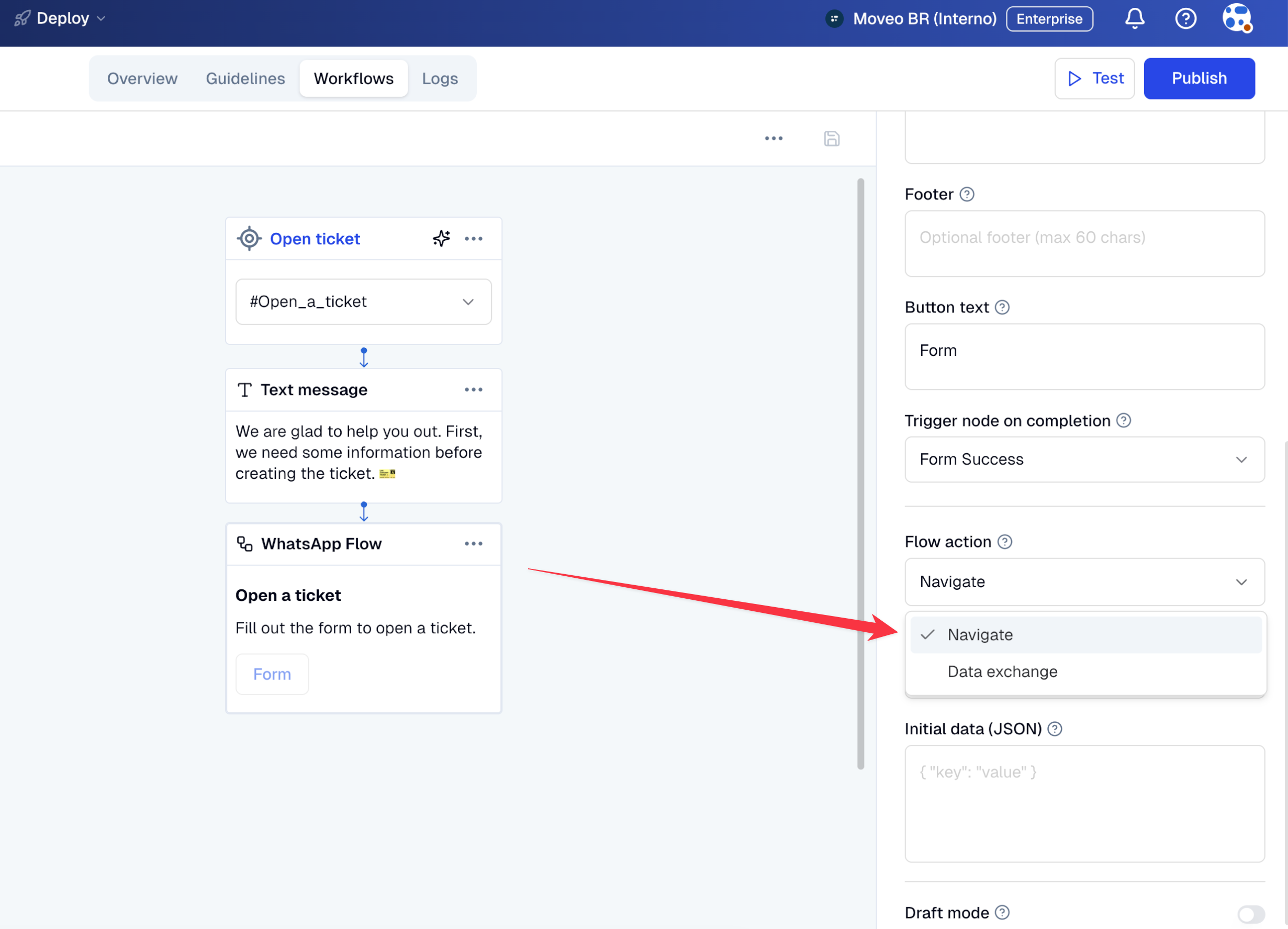
| Initial screen | Navigate | Which screen to start on (for navigate flows) | APPOINTMENT_FORM |
| Initial data | No | JSON data to pass to the first screen | {"key_1": "data", "key_2": "more data"} |
| Draft mode | No | Enable to test unpublished flows | true |
Navigate vs Data Exchange
There are two types of flows, and choosing the right one depends on whether the form content is static or dynamic.
Navigate (simple flows)
With navigate flows, although everything is defined upfront in Meta's Flow Builder, a payload with context variables can be passed to the first screen in the initial_data field. The screens, options, and validation rules are all static. When a user opens the flow, they navigate through predefined screens.
Navigate flows work well for:
- Contact forms with fixed fields
- Surveys with predetermined questions
- Lead capture forms
- Any form where the options don't change based on user input or external data
Data Exchange (dynamic flows)
Data Exchange flows call a custom endpoint on each screen transition. This allows populating dropdowns dynamically, validating input against live data, or changing what the user sees based on their previous selections.
Data Exchange flows are useful for:
- Cascading dropdowns (selecting a country populates the state dropdown)
- Live availability (only showing appointment slots that are actually open)
- Dynamic pricing based on selections
- Validation against the database (checking if an email is already registered)
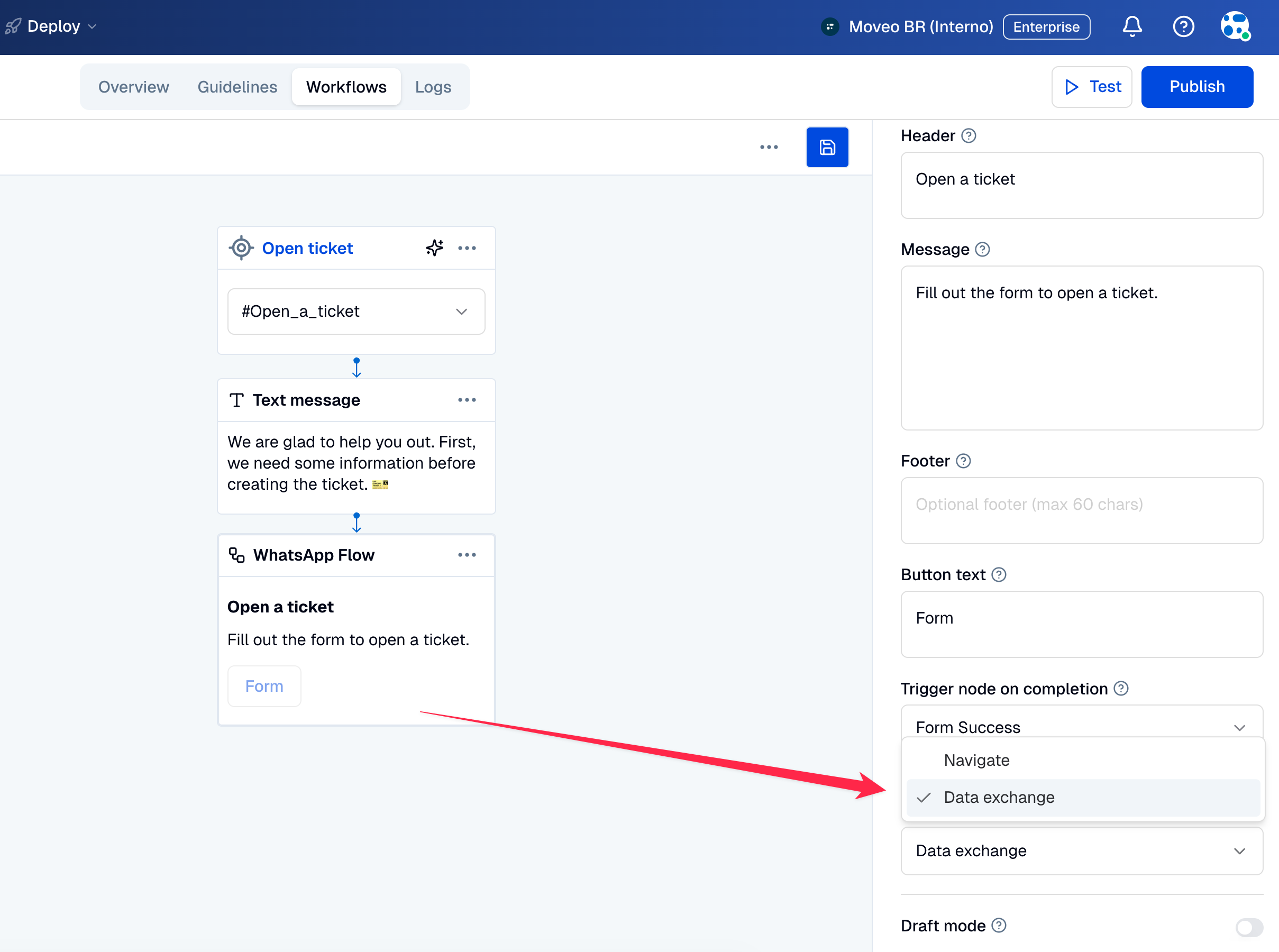
Data Exchange flows require building and hosting an endpoint that handles Meta's encryption protocol (RSA-OAEP + AES-128-GCM). See Building a Data Exchange endpoint for details.
Using flow response data
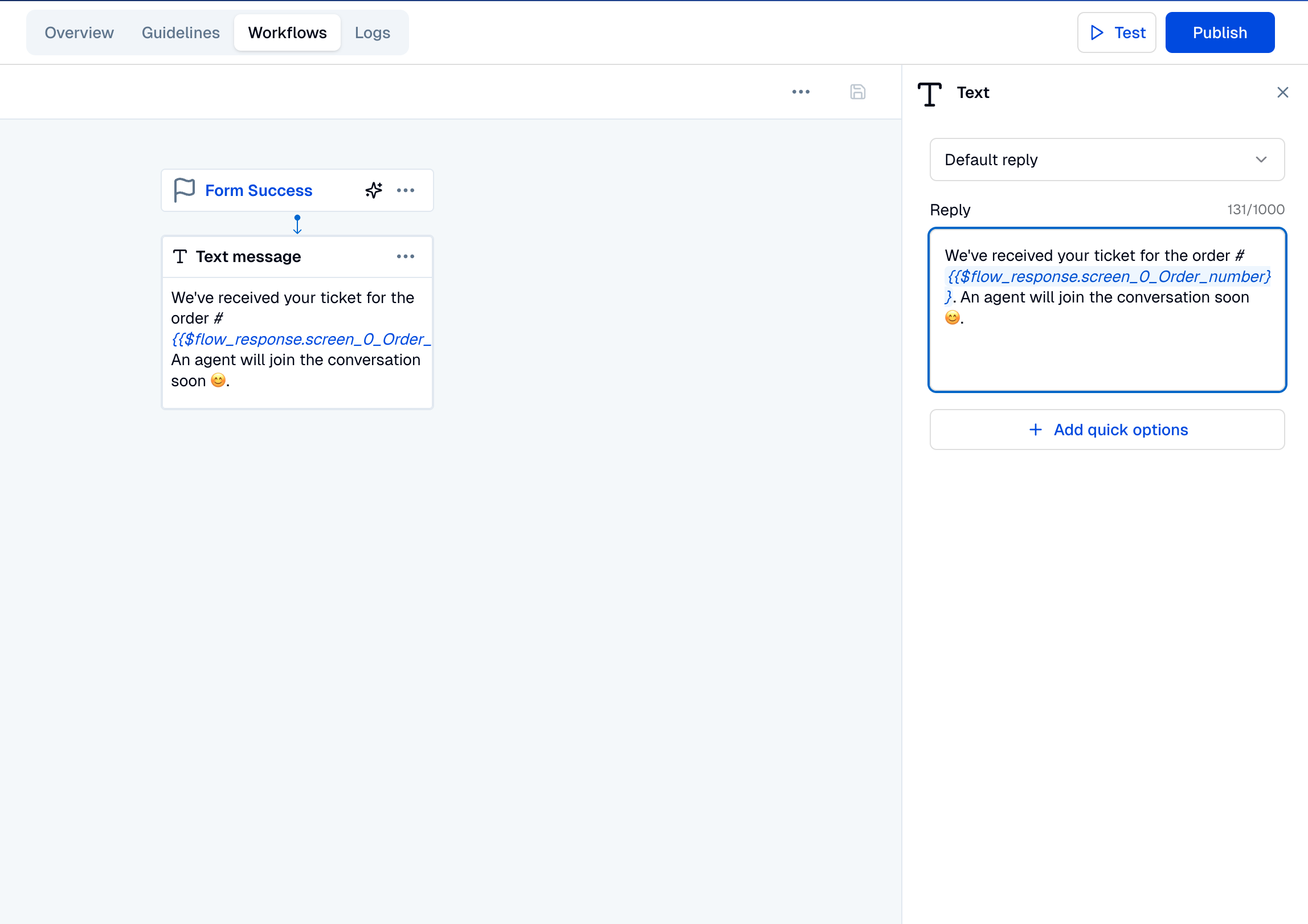
When a user submits a flow, all responses land in context.flow_response. Individual fields can be accessed in subsequent nodes to personalize the conversation or pass data to external systems.
For example, if an appointment booking flow collected date, time, name, and phone, the data can be accessed like this:
const booking = context.flow_response;

// Use the data to confirm the appointment
const message = `Thanks ${booking.name}! Your appointment is confirmed for ${booking.date} at ${booking.time}. A reminder will be sent to ${booking.phone}.`;
A trigger_node_id can also be configured to route the conversation to a specific dialog node after the flow completes. This is useful when different follow up paths are needed based on what the user submitted.
This context variable can be used like any other context variable in the dialog flows to populate text responses.
Building a Data Exchange endpoint
Data Exchange flows require an endpoint that Meta's servers can call. The endpoint receives encrypted requests and must return encrypted responses.
The encryption uses two layers:
- RSA-OAEP (2048-bit) for the key exchange
- AES-128-GCM for the actual payload
The endpoint must:
- Accept POST requests from Meta
- Decrypt the incoming payload
- Process the flow action (determine what to show next)
- Encrypt and return the response
- Respond within 10 seconds
Here's what a response looks like before encryption:
{
  "screen": "SELECT_TIME",
  "data": {
    "available_slots": ["9:00 AM", "10:30 AM", "2:00 PM", "4:30 PM"],
    "selected_date": "January 15, 2024",
    "message": "Here are the available times for your selected date:"
  }
}
For complete implementation details including encryption examples, see Meta's endpoint guide.
Testing flows
Before going live, test the flow thoroughly using draft mode.
- Enable Draft mode in the WhatsApp Flow response configuration
- Send a test message from a phone number registered in the Meta App
- Tap the button and go through the flow
- Check that
context.flow_responsecontains the expected data - Verify subsequent nodes handle the response correctly
Draft mode only works with test phone numbers registered in the Meta App. Regular users can't see unpublished flows.
What to check
- The flow opens when users tap the button
- All form fields render correctly
- Validation errors show for invalid input
- The form submits successfully
- Response data appears in
context.flow_response - The agent handles the response appropriately
Common issues
| What's happening | Likely cause | What to try |
|---|---|---|
| Flow won't open | Wrong Flow ID or flow isn't published | Double-check the ID; enable draft mode for testing |
| Response data is empty | Field names in the code don't match the flow | Check the exact field names in Meta's Flow Builder |
| Timeout errors | Data Exchange endpoint is too slow | The endpoint must respond within 10 seconds |
| Encryption failures | Keys or encryption implementation don't match spec | Review Meta's encryption documentation carefully |
Limitations
Platform constraints:
- Flows only work on WhatsApp. Other channels don't support them
- Meta must approve flows before production use
- The 24-hour messaging window still applies
- Flows are mobile-only (no desktop WhatsApp support)
Flow design limits:
- Maximum 10 screens per flow
- Users can input text and make selections, but can't upload files
- All text fields have character limits
- Some flow types don't support back navigation
Technical limits:
- Data Exchange endpoints must respond within 10 seconds
- All Data Exchange communication requires encryption
- Flow content is determined at screen transitions. There are no live updates within a screen
Learn more
Meta documentation:
Related Moveo guides: