Set variables
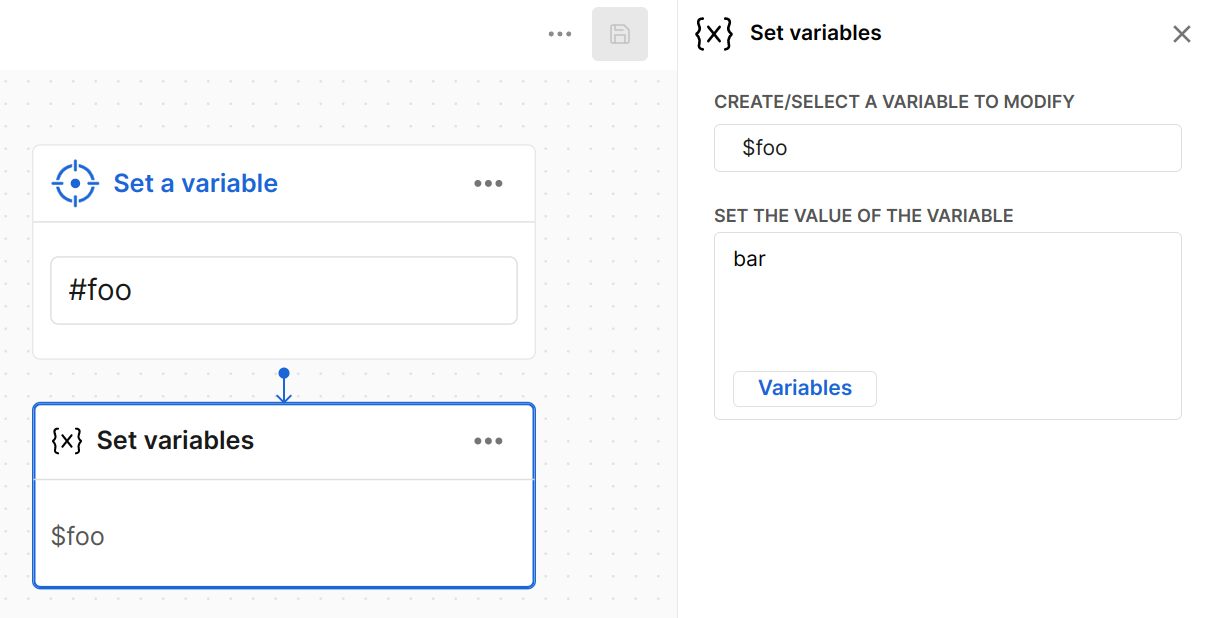
The Set variables action creates or modifies variables during a conversation. Use variables to store information, track state, and personalize responses.
How to set a variable
- Open your dialog in the editor
- Add a Set variables action to your flow
- Enter the variable name (key)
- Set the value (text, number, or reference to another variable)
- Save your changes
Variable types
| Type | Example | Use case |
|---|---|---|
| Text | "premium" | User preferences, status flags |
| Number | 42 | Counters, quantities, scores |
| Boolean | true | Feature flags, confirmation states |
| Reference | {{$user.email}} | Copy value from another variable |
Common use cases
Track conversation state
variable: $step_completed
value: "payment"
Store user preferences
variable: $preferred_language
value: "Spanish"
Copy from user context
variable: $customer_email
value: {{$user.email}}
Best practices
- Use descriptive names - Choose clear names like
order_totalinstead ofval1 - Keep scope in mind - Variables persist for the entire conversation
- Initialize values - Set default values to avoid undefined references
- Document your variables - Maintain a list of variables used in your dialogs
Accessing variables
After setting a variable, access it in:
- Text responses:
Hello, {{$customer_name}}! - Conditions: Check if
$customer_tierequals"premium" - Webhooks: Include variables in request payloads
- URL responses:
https://example.com?user={{$user.user_id}}
Next steps
- Context variables - Learn about the context system
- Questions - Collect and store user input
- Conditions - Use variables in conditional logic